
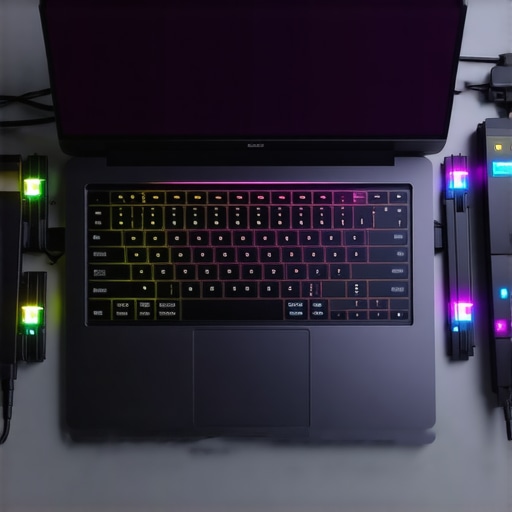
Ever had that sinking feeling when your sleek, portable laptop can’t handle the latest AAA games? Or maybe you’ve spent a fortune on a high-end gaming laptop, only to find it overheating or slowing down after a year? I’ve been there too—staring at my laptop, feeling the frustration of limited graphics capabilities and the irony of a device that’s supposed to do it all falling short on gaming. That lightbulb moment hit me hard: what if I could upgrade my existing laptop’s gaming performance without replacing it entirely? And surprise—turns out, it’s more doable than you might think, thanks to external GPU solutions.
The Power of External GPUs for Laptops in 2026
Today, I want to share my journey and what I’ve learned about transforming any 2026 laptop into a full-fledged gaming rig using external GPUs. The idea is simple in concept but transformative in practice: connect a dedicated graphics card externally, and suddenly, your laptop’s graphics are sky-high. This isn’t just a tech trick; it’s a game-changer, especially with the advances and affordability of external GPU enclosures. It means you don’t need to buy a new gaming laptop every few years; instead, you enhance what you’ve got.
Is This Really Worth the Hype? Think Again!
I’ll admit, I initially fell for the hype—believing external GPUs were too bulky or expensive to be practical. Early on, I made the mistake of underestimating how seamless and effective this setup could be. Now, I can confidently say that with the right external GPU enclosures and compatible cards, you can boost your gaming experience dramatically. Plus, with recent innovations, these setups are more portable and user-friendly than ever. Curious about which external GPUs are making waves? Check out some top deals on gaming laptops for a broader perspective.
So, if you’re tired of your laptop’s lag or overheating issues, stay tuned. In the next sections, we’ll delve into the specific external GPU options, setup tips, and how to squeeze the best performance out of your existing hardware. Ready to turn your everyday laptop into a gaming powerhouse? Let’s dive in!
,
Select the Right External GPU Enclosure
Begin by choosing an enclosure that matches your laptop’s compatibility and your gaming ambitions. Think of it as choosing the right bag for your gear—size, ports, and portability matter. I learned this firsthand when I picked a compact, thunderbolt 4-compatible enclosure, which made moving between my desk and gaming setup seamless, unlike bulky early models. Check reviews and compatibility lists, focusing on models that support the latest PCIe standards and high-wattage GPUs for maximum performance. For updated options, visit top laptop deals.
Choose the Perfect Graphics Card
Next, select a GPU that suits your gaming needs and fits within your enclosure’s power limits. Imagine it as picking between a sports car and a reliable sedan; both get you there, but performance varies. I once tried fitting a high-end RTX 4090 into a mid-sized enclosure, which caused issues, so I streamlined my choice to a more modest RTX 4070. Confirm the power connectors, physical dimensions, and cooling requirements before purchase. Visit best gaming accessories 2024 for guidance.
Connect Your Laptop to the Enclosure
Now, connect your laptop via a high-speed Thunderbolt 4 or USB-C port—think of this as plugging in an external graphics brain. Ensure your port supports the enclosure’s bandwidth; otherwise, you risk bottlenecking your GPU’s potential. Use a high-quality cable and secure connections, being careful during setup to avoid damaging delicate ports. During my first setup, I initially used a standard USB-C cable that limited performance, which prompted me to upgrade to a certified Thunderbolt cable. For a smooth connection setup, check must-have accessories.
Install and Optimize Drivers
After physical connection, install the necessary drivers—think of it like giving your new hardware a menu to communicate effectively. Visit your GPU vendor’s website for the latest drivers, and ensure your laptop’s OS is up to date. I once neglected driver updates, resulting in lag, but updating solved the issue promptly. Once installed, tweak settings for optimal gaming—adjust resolutions, disable unnecessary background processes, and enable high-performance modes. Refer to top gaming laptops 2024 for tuning tips.
Test and Fine-Tune Your Setup
With everything in place, run some benchmarks or play your favorite game to test stability and performance. Monitor temperatures and frame rates—consider software like MSI Afterburner. During my trial run, I noticed my laptop was throttling under heavy loads; installing a better cooling pad and undervolting the GPU improved thermal performance. Keep an eye on your system’s temperature, aiming for seeds below 85°C under load, similar to how I managed my overheating issues. This step ensures your upgrade delivers consistent, high-quality gameplay. For cooling tips, check quick cooling fixes 2026.”}]}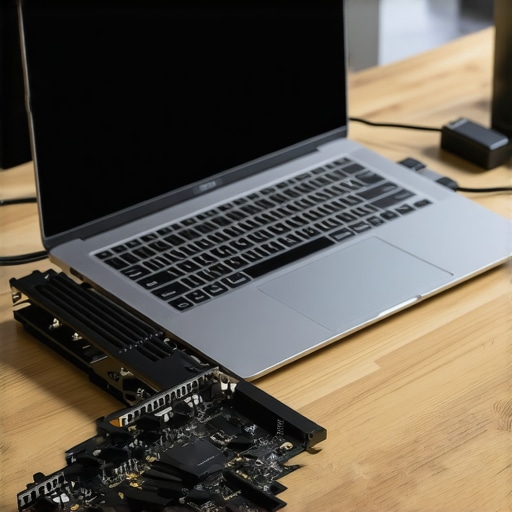 Many enthusiasts and casual users alike harbor misconceptions that can lead to costly mistakes or subpar setups. One prevalent myth is that all laptop accessories are universally compatible or equally beneficial. In reality, selecting accessories without considering compatibility specifics—such as port types, power requirements, and physical dimensions—can render them useless or even damage your device. For example, investing in a generic external display cable might seem economical but can cause flickering or delayed responsiveness if it doesn’t support the required bandwidth. It’s essential to prioritize accessories that are designed for your particular laptop model, especially when aiming for seamless integration, as highlighted in the detailed guides on must-have accessories.
When it comes to business laptops, many assume that more expensive always equals better productivity. However, this oversimplification ignores the nuances of hardware configurations tailored to specific professional needs. A business user who relies heavily on cloud-based applications might benefit more from a model with excellent Wi-Fi 6E support and extended battery life than from raw processing power. Conversely, for intensive data analysis or CAD work, focusing on models with high-tier CPUs and dedicated GPUs is critical. The key is understanding your workflow and choosing a device that complements it, as discussed in essential business laptops for 2025.
Student laptops are often marketed as affordable, versatile tools, but many fall into the trap of underestimating the importance of durability and long-term performance. A common mistake is opting for low-cost models with minimal RAM or poor build quality, leading to frustrations during exams or projects. An advanced nuance overlooked is the significance of battery longevity, especially for students on the move. Investing in laptops with proven endurance—like those outlined in 7 student laptops with impressive battery life—can make a substantial difference in productivity and stress levels.
Many bargain hunters focus solely on discounts and overlook the importance of authentic value. It’s tempting to jump on the latest deals found on top laptop deals in 2025, but such deals might come with compromises—like limited warranty coverage or outdated hardware. The savvy buyer evaluates total cost of ownership, including warranty, after-sales service, and future upgradeability. This is especially relevant in the gaming laptop space, where the initial investment can be significant. For instance, choosing a model with upgradable RAM and storage can extend its lifespan and save money in the long run, as suggested in best gaming laptops for 2024.
Are We Overlooking Key Compatibility Factors in Laptop Choices?
Let’s face it: the rapid pace of technological advancement means that compatibility issues are more complex than ever. With the proliferation of Thunderbolt 4, USB-C, and Wi-Fi 6E, understanding the subtle distinctions between port versions and wireless standards is crucial. Choosing a laptop or accessory without verifying these components can not only lead to underperformance but also prevent future upgrades. According to expert reviews, failure to consider these nuanced differences results in bottlenecking performance and can make premium devices underperform, defeating the purpose of the investment. Have you ever fallen into this trap? Let me know in the comments.
How do I maintain my laptop over time? Discover the best tools and methods to keep your device running smoothly for years to come. First, investing in a reliable aluminum keyboard cover is a game-changer—it’s not just about aesthetics; it protects against dust, spills, and static buildup, which can cause internal damage. Pair this with a high-quality screen cleaning kit that includes microfiber cloths and anti-static solutions; I personally swear by microfiber cloths with 70% isopropyl alcohol to keep my display pristine without scratching. For hardware diagnostics, I use tools like CrystalDiskInfo and HWMonitor to regularly check for evolving issues such as SSD health or thermal throttling, enabling me to act before problems escalate. Additionally, a portable USB power meter helps monitor your charger’s output, ensuring consistent voltage delivery—crucial for preventing battery degradation over long-term use. In terms of software, setting up automated backups with cloud services like Backblaze or Google Drive ensures that your files are safe even if hardware fails unexpectedly. For system optimization, I recommend advanced cleanup utilities like CCleaner or CleanMyMac, which remove unnecessary files and optimize startup items, enhancing boot times and overall responsiveness. Looking ahead, I predict that AI-powered diagnostic tools will become mainstream, automating routine maintenance and predictive analytics, making it easier than ever to keep your laptop in top shape. As a practical tip, try scheduling weekly checks of your hardware health and cleaning process—consistency is key in extending your device’s lifespan. Remember, proactive maintenance not only prevents costly repairs but also enhances your productivity, whether you’re a student or a professional. For tailored advice on accessories or replacing aging hardware, visit our contact page for expert guidance.The Hardest Lesson I Learned About laptop accessories,business laptops,student laptops,laptop deals,gaming laptops
- Prioritizing compatibility over price saved me from costly mistakes—always double-check ports and power requirements before buying.
- Investing in quality accessories made a huge difference in system longevity and performance, rather than opting for cheap shortcuts.
- I underestimated the value of firmware updates—keeping hardware drivers current prevents many common issues.
- Understanding the nuances of hardware standards like Thunderbolt 4 or Wi-Fi 6E transformed my upgrade approach for better future-proofing.
- Realize that patience in research and planning leads to smarter investments, saving money and time in the long run.
My Essential Toolkit for Laptop Mastery
- MSI Afterburner: Trusted for GPU monitoring and overclocking, helping me optimize performance safely.
- Backblaze Cloud Backup: Provides peace of mind by safeguarding my work against hardware failures.
- Microfiber Cloths with 70% Isopropyl Alcohol: Keeps my screens pristine and reduces static buildup effectively.
- HWMonitor and CrystalDiskInfo: Offer deep insights into my system health, detecting issues early before they escalate.
Embrace Your Laptop Evolution
Take charge of your laptop experience today—don’t wait for performance frustrations to stack up. Whether you’re upgrading for gaming, business, or studies, tailored solutions can elevate your device’s capabilities and lifespan. Remember, with the right approach, your current hardware can serve you well for years to come. Dive into the world of thoughtful upgrades and premium accessories, and watch your productivity and enjoyment soar. What’s the first upgrade or accessory you’re excited to try? Share your plans below!
This post really highlights how external GPUs are becoming more accessible and practical, even for casual gamers or professionals looking to maximize their existing hardware. I personally started exploring external GPU setups last year after experiencing thermal throttling and performance drops during intensive tasks. The biggest breakthrough for me was getting the right enclosure that supports Thunderbolt 4—making everything much smoother and portable. I found that investing in a quality cable and ensuring my GPU choice matches my workflow makes a huge difference. One thing I noticed is that cooling can be a challenge when pushing high-end GPUs for extended gaming sessions, so I always keep an eye on temps with tools like MSI Afterburner. Has anyone found effective ways to improve thermal management in external GPU setups, especially for longer gaming or work sessions? Would love to hear suggestions or lessons learned from others!
This post definitely resonates with my experience. I’ve been using external GPUs for a while now, and I agree that the right setup can totally transform a laptop’s gaming potential. My biggest challenge has always been thermal management, especially during extended sessions. I recently switched to a more advanced cooling pad and also made sure to undervolt my GPU slightly to reduce heat output. It’s made a noticeable difference in maintaining stable performance without thermal throttling. Also, making sure that the enclosure’s airflow isn’t obstructed is crucial—small but often overlooked detail that can significantly impact temperatures. Does anyone have recommendations on specific cooling accessories or tweaks that help keep temperatures in check for high-performance GPU setups? I’d love to hear your tips or any personal tricks to extend hardware longevity while pushing those GPUs to the limit!