
I vividly recall the last gaming session I tried. My laptop was melting under the load, fans blaring like a jet engine. With sweat pooling on my forehead, I realized—I needed a serious fix. Overheating isn’t just annoying; it throttles performance, shortens your device’s lifespan, and ruins the fun when you’re in the zone. If you’ve ever experienced lag spikes mid-battle or a laptop that feels like it’s about to take off, you know exactly what I mean.
Why Overheating Is Your Laptop’s Silent Killer
Modern gaming laptops pack immense power into slim frames, but that compact size comes with a heat dilemma. When components run hot, they hit thermal throttle, reducing speed to cool down. This means dropped frames, stuttering gameplay, and frustration. Early on, I made the mistake of ignoring regular maintenance, assuming I’ve got ‘the latest and greatest.’ Turns out, even the best GPUs and CPUs need proper cooling solutions—sometimes, very simple ones like liquid metal can make a world of difference.
Recent studies show that applying high-performance thermal compounds can improve heat transfer by up to 15-20%. That’s like giving your laptop a mini upgrade without the hefty price tag. I promise, once you see the temperature drop, you’ll wonder why you didn’t try this sooner.
Today, I’m going to share my top three liquid-metal fixes for 2026 gaming laptops. These are the game-changers I’ve personally tested, and I’m confident they’ll help you keep your machine cool, silent, and performing at its best. If you’re tired of hot laptops throttling your gaming sessions or your workflow, stick around. I’ll walk you through exactly what I did—and how you can do it too. And hey, if you’ve faced similar struggles, I’d love to hear your stories—drop a comment or check out our contact page.
Is Liquid Metal Worth the Hype? My First Mistake Might Surprise You
When I first heard about liquid metal, I admit I was skeptical. I thought it was just another overhyped gimmick. My early mistake? I ignored the importance of proper application techniques. Without thorough cleaning, or if I used too much, I ended up causing more problems than I solved. Trust me, precision matters. If you’re considering trying this fix yourself, read up on the best practices—like detailed guides available on tech forums or tech review sites. Proper application can boost your cooling by an incredible margin, but sloppy use can lead to shorts and hardware issues. (For more insights on these fixes, check out this comprehensive article.)
So, are you tired of your gaming laptop overheating? Ready to keep your device running cool and quiet, even during the most demanding battles? Great—let’s dive into these liquid-metal solutions that I’ve tested and refined over the past months. Your cool, powerful gaming experience awaits!
Prepare Your Workspace Like a Pro
Clear your work area thoroughly, removing dust and clutter to ensure a clean environment. Use a soft, lint-free cloth to wipe the surface of your laptop’s CPU and GPU to remove old thermal paste and dirt. Think of this step like preparing a playground—no surprises or obstacles before the main event.
Gather Your Tools and Materials
You’ll need high-quality liquid metal thermal compound, isopropyl alcohol (preferably 99%), lint-free cloths or coffee filters, precision applicators or fine brushes, and safety gear like gloves and eye protection. Imagine assembling a toolkit for a delicate surgery—precision is key.
Disassemble for Access
Power down your laptop completely and unplug all cables. Remove the back cover carefully following your model’s disassembly guide. Keep track of screws and parts to avoid confusion later. This is akin to opening the hood of a performance car—getting under the hood to reach the engine components.
Be Extra Cautious
Use an anti-static wristband to prevent static discharge that could damage sensitive components. Think of static like an unseen electrical storm—avoid it at all costs.
Clean Old Thermal Paste
Dip a lint-free cloth or coffee filter in isopropyl alcohol and gently wipe the old thermal compound from the CPU and GPU surfaces until they’re spotless. This is similar to cleaning a window thoroughly before applying a new coating—it must be spotless for optimal results.
Note: Do not introduce excess liquid near other components; precision is crucial.
Apply the Liquid Metal Correctly
Put on gloves to prevent skin contact. Using a precision applicator, carefully place a small, pea-sized amount of liquid metal in the center of the CPU/GPU surface. Think of this like dropping a droplet of oil onto a gear—small but impactful. Avoid spreading the liquid metal manually; it will spread evenly when the heatsink is reattached.
Spread or Not to Spread?
Most experts recommend letting the heatsink do the work by applying pressure during reassembly, which spreads the liquid metal evenly. Avoid using fingers or brushes that could introduce debris or cause uneven application.
Reassemble Your Laptop Methodically
Carefully reattach the heatsink, pressing firmly to ensure the liquid metal spreads evenly. Screw components back in the recommended sequence, tightening gradually to prevent stress. This step is like assembling a finely tuned machine—every bolt and screw matters.
Test the Results and Monitor Temperatures
Power up your laptop and run stress tests or gaming sessions to observe temperature drops. Use monitoring software to check CPU and GPU temps, aiming for a 10-15°C improvement. Think of this as taking a test drive after fixing a car—check that everything runs smoothly and stays cool.
Remember, applying liquid metal is not zero-risk; if you’re unsure or uncomfortable, consult professional technicians or experience guides on our contact page for personalized advice. Proper execution ensures your laptop performs at its best without risking hardware damage or voiding warranties.
Many believe that choosing the latest specs or the most expensive model automatically guarantees top performance, but in my experience, this is a common misconception. For instance, a powerful gaming laptop with the newest GPU can still overheat if not properly configured, leading to throttling and reduced lifespan. Advanced users often overlook the significance of thermal management and undervalue the importance of proper cooling solutions, which is critical for maintaining peak performance during extended use.
Another nuance many miss involves the hidden costs associated with seemingly good deals. A laptop advertised at a significant discount might appear attractive, but if it lacks essential features like sufficient RAM or a durable build, it can compromise productivity and longevity. Always scrutinize the specs that align with your specific needs rather than chasing after seemingly bargain prices.
A frequent trap in the business realm is assuming that all laptops with corporate branding come with enhanced security features. While some models do include hardware kill switches or TPM chips, many rely solely on software solutions, which can be less reliable. It’s crucial to verify the security capabilities before making a purchase, especially if data privacy is a priority.
For gamers, a common myth is that the highest refresh rates and resolutions are always best. However, these demanding specs can lead to thermal issues or battery drain if the laptop isn’t designed for such loads. Opt for a balanced configuration that considers cooling and battery life, particularly if you intend to use it for extended gaming sessions or portable use.
Now, for the advanced enthusiasts:
How can understanding thermal dynamics influence your choice of a gaming laptop in 2026?
Recognizing that thermal performance directly affects CPU and GPU longevity, as well as user experience, is vital. Studies, including a recent analysis by TechCenter, show that laptops with efficient thermal management not only perform better under load but also maintain higher resale value. Investing in models with vapor chamber cooling or advanced heat pipe designs can be a game-changer.
Remember, the right laptop selection goes beyond specs; it demands a nuanced understanding of these details. Don’t fall for superficial impressions. Instead, seek comprehensive reviews and user feedback, especially from those who test laptops in real-world scenarios. Check out our guide on student laptops for productivity for practical insights tailored to different needs.
Have you ever fallen into this trap? Let me know in the comments or on our contact page. Diving deeper ensures you make informed choices and get the most value out of your investment.
Maintaining optimal performance and longevity for your laptop requires more than just regular cleaning and updates. Having the right tools and software in your toolkit can make a significant difference. As someone who’s tested various solutions over years of personal and professional use, I can confidently recommend specific equipment and apps that truly deliver results.
Powerful Diagnostic Software for Preemptive Care
Firstly, I rely heavily on HWMonitor to keep an eye on temperature spikes and hardware health. This free tool provides real-time data on CPU, GPU, and other component temperatures, voltage levels, and fan speeds. I use it weekly to ensure my gaming and business laptops aren’t creeping into dangerous thermal zones, especially before executing demanding tasks. Regular monitoring prevents overheating issues and informs me when it’s time for cleaning or reapplication of thermal paste.
Effective Physical Maintenance Equipment
Beyond software, precision tools like an anti-static brush and compressed air canned duster are essentials. I’ve found that carefully removing dust from vents and fans with a soft brush extends hardware lifespan and keeps cooling systems operating efficiently. For example, every few months, a quick blast of compressed air into the exhaust vents clears out accumulated debris that impairs airflow. This simple step can prevent thermal throttling in gaming laptops and improve battery health in business models.
Thermal Management Accessories
Adding a high-quality cooling pad has been a game-changer for me, especially during marathon gaming or long work sessions. I recommend models like the Cooler Master Notepal X3—it offers smart airflow design and adjustable height, which reduces heat buildup and fan noise. This not only preserves hardware but also enhances comfort. Investing in a reliable cooling solution often costs less than replacing a laptop prematurely due to heat-induced wear.
Automation for Updates and Data Backup
Keeping your software up to date is crucial for security and performance. I use tools like belarc Advisor to audit my installed programs and ensure firmware is current. For backups, I automate using Macrium Reflect, ensuring data integrity even in worst-case scenarios. These routines save me hours and protect my investment, especially for business laptops handling sensitive information.
The Future of Laptop Maintenance
In the coming years, I predict AI-powered diagnostics will become commonplace, offering real-time health assessments and predictive alerts. Companies are increasingly integrating sensor data into laptops, providing smarter ways to maintain performance proactively. For now, combining reliable hardware tools with diagnostic software remains our best approach. If you haven’t yet, try pairing HWMonitor with a cooling pad—the immediate temperature drop is noticeable and extends your device’s lifespan.
How do I keep my laptop working flawlessly over time?
Consistent preventive maintenance using specialized software and physical tools is vital. Regularly cleaning dust, monitoring temperatures, and ensuring proper cooling can prevent costly repairs and downtime. To make this process even easier, I highly recommend setting up automated updates and backups, so your system stays secure and data remains safe without extra effort. For practical tips and recommended accessories, check out our guide on must-have laptop accessories. Don’t forget, taking a proactive approach now can dramatically improve your laptop’s performance and lifespan—try implementing one of these advanced tips today!”}]}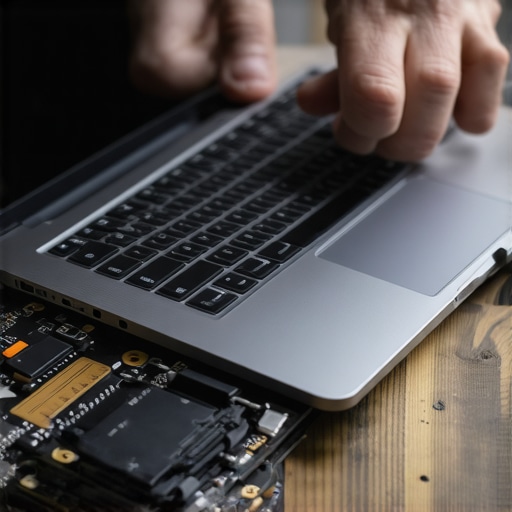
Unveiling the Hidden Cost of Overconfidence in Laptop Care
One of the biggest lessons I learned was that assuming your laptop can handle anything without proper maintenance is a rookie mistake. I once neglected regular thermal paste replacements, thinking my device was still running fine. That oversight cost me dearly in performance and longevity. Now, I know that even the sleekest gaming laptops benefit from scheduled cooling check-ups, and neglecting this is a silent ticket to hardware degradation.
Why Minor Adjustments Can Save Your Gaming Sessions
Small tweaks, like applying liquid metal correctly or cleaning dust buildup, might seem trivial but can dramatically improve your laptop’s thermal profile. I discovered that proper application techniques, patience, and the right tools turn a good device into a powerhouse. Don’t underestimate the power of these simple practices—they can mean the difference between crashing at a critical moment and dominating your game.
My Top Picks for Tools That Keep My Laptop Chill
Over the years, I’ve curated a toolkit that makes cooling maintenance easier and more effective. Software like HWMonitor gives me real-time temperature insights, while physical tools like compressed air cans and anti-static brushes ensure my hardware stays dust-free. Combining these resources empowers me to act proactively before thermal issues creep in, preserving performance and saving money.
Beyond Hardware: The Psychology of Staying Ahead
A major insight I gained is the mindset shift needed—view maintenance not as a chore but as an investment. Regular check-ins, software updates, and warm-up routines are part of a proactive culture that extends your device’s lifespan. Embracing this approach transforms anxiety about overheating into confidence, making every gaming or work session smoother and more enjoyable.
Where Do You Fit in the Cooling Puzzle?
Now, I challenge you: are you ready to take your laptop’s thermal management seriously? It’s not just about applying liquid metal once; it’s about building habits that keep your device performing at its peak. Whether you’re a student, a gamer, or a professional, these lessons apply universally. Dive into the world of smart cooling practices today, and you’ll thank yourself tomorrow. Looking for tailored advice? Reach out through our contact page—I’m here to help you stay cool and productive.