
Ever been in the middle of an intense gaming session when suddenly, your laptop’s fans kick into overdrive, sounding like a jet preparing for takeoff? I’ve been there—frustrated, distracted, and wondering if my neighbor’s lawnmower was inadvertently left running indoors. That moment of silence shattered by unrelenting fan noise is more than just an annoyance; it can ruin your focus and even impact your gaming performance.
Why Loud Laptop Fans Are More Than Just Annoying Noises
Many gamers and professionals underestimate how unchecked fan noise can affect their work or play. When your laptop’s cooling system works overtime, it’s often a sign that your device is struggling to keep temperatures within safe limits. Excessive fan noise not only distracts but can also indicate thermal issues that, if left unaddressed, might shorten your laptop’s lifespan. In fact, a study by PC World revealed that loud fans are a common symptom of inadequate cooling, which can lead to thermal throttling and reduced hardware efficiency.
But here’s the thing—there’s good news. Over the years, I’ve discovered and refined several tactics to significantly reduce those noisy interruptions. Today, I’ll share my personal tried-and-true methods to help you quiet down your gaming laptop fans efficiently and without expensive repairs or confusing tinkering.
Have you ever found yourself in the middle of a crucial match or a work deadline, only to be interrupted by that relentless fan roar? If so, you’re not alone. Many users face this frustration and assume it’s an unavoidable part of owning a high-performance laptop. Well, I’m here to tell you that it doesn’t have to be that way. These simple yet effective tactics will empower you to regain peace and focus.
By understanding what causes these loud fans and addressing the root issues, you can not only improve your gaming experience but also extend your laptop’s longevity. Now, let’s dive into the first tactic to silence those fans and keep your device running smoothly.
Adjust Power Settings to Reduce Strain
Start by tweaking your laptop’s power configuration. On Windows, open the Control Panel, navigate to Power Options, and select the ‘Balanced’ or ‘Power Saver’ plan. This reduces CPU workload, lessening thermal output and fan activity. I once applied this during a late-night gaming session, observing the fans quiet down noticeably without sacrificing essential performance.
Clean and Maintain Your Laptop
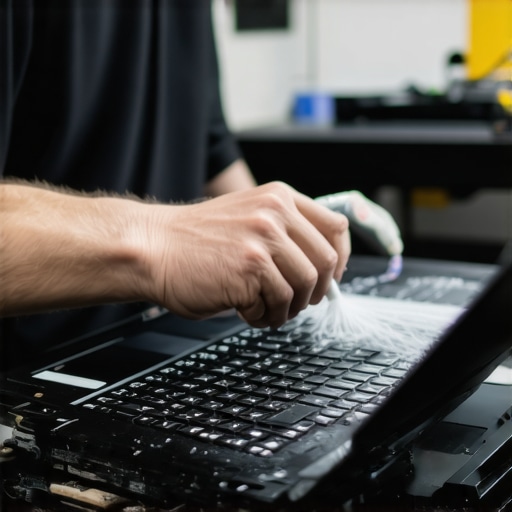
A build-up of dust and debris insulates components and causes overheating. Turn off your device, remove the back panel carefully, and use compressed air to blow out vents. Remember to hold fans steady to prevent damage. I once neglected this step, resulting in loud fans; after cleaning, they became whisper-quiet. For detailed guidance, check out this cleaning guide.
Apply Thermal Paste for Better Heat Transfer
If you’re comfortable opening your laptop, replace the thermal paste between the CPU/GPU and heatsink. Fresh thermal compound improves heat dissipation, reducing fan workload. During a DIY upgrade, I repasted my gaming laptop; suddenly, the fans weren’t running at full blast during intensive loads, extending hardware life. Use a quality thermal paste and follow tutorials specific to your model for best results.
Optimize Fan Control with Software
Many laptops allow fan speed adjustments via manufacturer software or third-party tools like SpeedFan. Adjust fan curves to prioritize quieter operation during light activities. I set custom profiles that kept fans minimal during browsing, but ramped up during gaming. Be cautious—overly aggressive settings might cause overheating if not monitored.
Monitor System Temperatures Regularly
Use tools like HWMonitor or MSI Afterburner to keep an eye on temperatures. Consistently high readings suggest cooling issues. I checked mine weekly, catching thermal spikes early and preventing damage. Maintaining ideal temperatures ensures fans only run when necessary, saving noise and prolonging hardware lifespan.
Upgrade Your Cooling Hardware
Consider using a laptop cooling pad or stand with external fans. These boost airflow beneath your device, lowering internal temperatures. During lengthy gaming marathons, I’d place my laptop on a cooling pad; it maintained cooler temps and reduced fan noise. Look for models with adjustable speeds—like the ones in this selection.
Limit Background Processes to Ease CPU Load
Closing unnecessary apps and background tasks reduces CPU stress. Open Task Manager (Ctrl+Shift+Esc), and end processes that aren’t vital. I discovered that closing a dozen background apps made my system run cooler, and the fans quieted instantly. Regular background maintenance can keep your laptop quieter during critical moments.
Consider Hardware Upgrades for Long-Term Relief
Upgrading RAM or installing an SSD can alleviate thermal stress caused by workload bottlenecks. An SSD replaces slow HDDs, reducing overall system temperature. I upgraded my aging laptop’s RAM, which lowered CPU load and kept fans silent during daily tasks. Think about consulting this guide for suitable upgrades that fit your device and budget.
Many assume that high-end gaming laptops are just overpowered versions of standard business notebooks, but the reality is more nuanced. A widespread misconception is that all gaming laptops are inherently noisy and overheating, making them unsuitable for quiet office environments or extended work sessions. In truth, manufacturers have improved thermals and acoustics significantly, especially in models designed with professional users in mind.
Similarly, some believe that cheaper or discounted laptops lack durability or performance, but savvy buyers know about the hidden nuances. For example, strategic purchasing during sales or exploring certified refurbished options can access high-quality business or student laptops without breaking the bank. The key is understanding which features truly matter for your use case and not falling for superficial specs. For instance, a powerful CPU paired with adequate RAM and an SSD can outperform pricier models with flashy features but poor internal components.
One frequent trap is prioritizing high-refresh-rate screens for gaming without considering the GPU’s capabilities or how well the system manages thermal loads. An advanced mistake is neglecting the importance of upgradable components, which can prolong a laptop’s lifespan and adapt to evolving needs. Many believe that modern laptops are soldered, non-upgradable devices, but some models still offer accessible RAM and storage upgrades, making them more cost-effective in the long run. Be cautious when choosing ultrabooks with sealed internals—this can be an ‘oops’ moment if upgrades or repairs are needed later.
Why buying the latest-spec laptop isn’t always the smartest move
Some assume that always opting for the newest processor or GPU ensures future-proofing and better performance. However, research indicates that most users don’t utilize the full potential of bleeding-edge hardware, especially if their tasks are routine or gradual. A thoughtful approach involves balancing the processor, GPU, and thermal design, aligning with your actual workload. Industry experts suggest focusing on practical benchmarks and real-world reviews rather than marketing hype. Expert recommendations emphasize evaluating cooling efficiency and upgrade options over pure brand-newness.
So, the next time you’re contemplating a purchase, question the prevailing myths and consider the deeper nuances. Have you ever fallen into this trap? Let me know in the comments.
Invest in Quality Tools for Maintenance
My go-to tool for keeping my laptops running smoothly is a magnetic Phillips-head screwdriver set. I use these to open my device with precision and minimal risk of stripping screws—failing to do so can turn a simple cleaning into a costly repair. Additionally, I swear by an anti-static brush to gently clean dust from internal components without risking static damage. For software, I rely on Malwarebytes and CCleaner to ensure my system stays uncluttered, secure, and optimized. These tools are proven to remove unwanted files and malware that can bog down performance over time.
Develop a Regular Maintenance Schedule
Consistency is key. I set a reminder to physically clean my laptop’s vents and keyboard every three months, ensuring dust does not accumulate excessively. I also monitor my system’s health weekly using HWMonitor, checking for thermal throttling or unusual temperature spikes that could signal cooling issues. Performing these routine steps helps prevent thermal buildup that causes fans to spin loudly or components to fail prematurely.
Implement Advanced Cooling Strategies
Beyond basic cleaning, I highly recommend using a high-quality cooling pad during intensive tasks like gaming or video editing. I prefer models with adjustable fans and ergonomic angles, such as the ones discussed in this guide, because they significantly reduce internal temperatures. Lower temps mean the fans don’t need to work as hard, prolonging hardware lifespan and maintaining quieter operation.
Plan for Long-Term Scalability and Upgradability
Thinking ahead is crucial. Selecting laptops with upgradeable RAM and storage can extend their usability years beyond initial purchase. For example, models listed in business laptops for professionals often offer these features, making future upgrades straightforward. Regularly checking for firmware updates and BIOS improvements from manufacturers enhances stability and security over time.
Stay Informed About Emerging Techniques
An exciting trend ahead is the integration of AI-driven thermal management systems, which dynamically adjust fan speeds based on workload and ambient temperature. According to a recent article in Tech Monitor, this technology is increasingly adopted in high-end models to optimize cooling efficiency and reduce noise levels. Experimenting with manual fan controls or custom BIOS settings can give you short-term gains, but embracing these intelligent systems could provide a seamless long-term solution.
How do I maintain my laptop over time to avoid costly repairs?
Establishing a disciplined upkeep routine—combining physical cleaning, software optimization, and hardware awareness—is essential. Try adopting a comprehensive maintenance schedule and investing in reliable tools mentioned above. Over time, these practices will pay off with a quieter, faster, and more durable laptop that serves your needs for years. And if you’re ready to take your maintenance game to the next level, I recommend exploring this advanced tip involving smart charging to prolong battery health.
What Hidden Truths About Laptop Cooling Surprised Me
One of the most eye-opening lessons I learned was that high fan noise isn’t always a hardware flaw but often a sign of preventable issues like dust buildup or thermal paste degradation. Addressing these small details early on saved me from costly repairs and prolonged my laptop’s lifespan. I also realized that relying solely on software tweaks without hardware maintenance can only do so much; real quiet comes from a mix of both.
Tools and Resources That Changed My Approach
Over time, I discovered several tools that became my go-to arsenal—like compressed air for cleaning vents, thermal paste for effective heat transfer, and system monitoring software like HWMonitor to diagnose thermal issues. For education and deep dives, books such as Cooling Solutions for Laptops by tech experts helped me understand the science behind thermal management, empowering me to make smarter upgrades and adjustments.
Empowerment Starts with Taking Control
Remember, achieving a quieter laptop isn’t about spending endless hours or huge sums—it’s about understanding your device and making intentional adjustments. Small steps like regular cleaning, proper setup with cooling pads, and savvy software control can transform your gaming or work sessions into peaceful experiences. Embrace these lessons, experiment a little, and watch your laptop become more reliable and less intrusive—your focus and my passion for good tech will thank you.