
Ever been deep into an intense gaming session when your laptop suddenly drifts into low battery warning territory? Frustrating, right? I remember my own lightbulb moment when I realized that I could squeeze more gaming hours out of my laptop—without always hunting for an outlet. It was a game-changer that transformed how I approached portable gaming.
Why Battery Life Matters More Than Ever for Gamers
Let’s face it—gaming laptops are powerful beasts, but their batteries can be surprisingly fragile. For those of us who love gaming on the go, a dwindling battery can mean the difference between crushing your opponents or losing your progress just when things heat up. Plus, travel, power outages, or crowded cafes often mean you’re left clutching your charger and hoping your battery lasts.
According to a recent report from TechInsights, the average gaming laptop battery lasts only about 2 to 3 hours under heavy load—far less than we’d wish for, especially during long gaming sessions or gaming marathons. And yet, many gamers overlook simple tweaks that could extend that precious juice. Early on, I made the mistake of ignoring basic power settings, which silently drained my battery faster than I could blink. Trust me—it’s easily avoided with a few smart adjustments.
So, today I promise to share my tips and tricks—based on personal experience and tested methods—to help you get the most out of your gaming laptop’s battery. Whether you’re battling opponents or just trying to finish a quest on the train, these strategies will keep you in the game longer.
Is Optimizing Battery Life Worth the Hype?
Many skeptics wonder if these tweaks actually make a significant difference, or if they’re just small gains that don’t justify the effort. I get it. After all, isn’t sacrificing performance a trade-off? Well, early in my journey, I tried limiting frame rates and dimming my screen, only to find my gaming experience was significantly less enjoyable. But over time, I learned how to strike a balance—keeping a close eye on the clock without sacrificing the thrill of high-quality gameplay.
One mistake I made early on was blindly disabling all background processes, thinking it would vastly improve battery life. In reality, that often caused system instability and crashes. The key is knowing which settings to tweak and which to leave alone, ensuring you don’t undermine your whole setup while trying to save a little power. For a comprehensive look at what to avoid, check out this guide on hidden battery settings.
Now that we’ve covered why battery life is so crucial—and why it’s worth the effort—let’s dive into practical ways to extend your gaming hours without sacrificing too much of that vital performance. Ready to get some extra juice out of your machine? Let’s go!
,
Adjust Power Settings for Better Battery Endurance
Start by diving into your system’s power options. Set your Windows or macOS to a ‘Power Saver’ or ‘Battery Saver’ mode. This reduces CPU performance and dims display brightness, similar to turning down the engine throttle in a sports car to conserve fuel. I once changed my laptop to ‘Battery Saver’ during a long train ride, and it surprisingly lasted an extra hour, which meant more time to finish that crucial quest without reaching for the charger.
Lower Screen Brightness Without Sacrificing Visibility
One significant power drain is your screen. Dimming your display to 50-60% can save up to 30% of battery capacity. Use keyboard shortcuts or enable automatic brightness adjustments. I remember reducing my gaming laptop’s brightness in a coffee shop—at first, it felt strange, but the trade-off was worth it, giving me an additional hour of gameplay beyond my usual limit.
Manage Background Processes Wisely
Background apps consume CPU cycles and battery life. Open your system’s task manager or activity monitor and disable unnecessary apps, especially those updating in the background. For example, I closed my cloud sync apps before a gaming session, which prevented sudden dips in performance and saved precious battery. For a comprehensive guide on this, visit hidden battery settings.
Configure Hardware and Software to Save Power
Hardware adjustments can significantly impact battery life. Switch to integrated graphics instead of dedicated GPU when gaming isn’t demanding high-end visuals. This is akin to using economy mode in a hybrid car—less power, but more miles per charge. I once forced my laptop to use integrated graphics during a casual gaming session, which surprisingly extended my gaming time without noticeable quality loss in less demanding titles.
Turn Off Wireless Adapters When Not Needed
Wi-Fi, Bluetooth, and other wireless modules drain power even when idle. Disable them temporarily if you’re not online or don’t need wireless peripherals. I learned this trick during a long airport delay, turning off Wi-Fi to preserve battery, then re-enabling it when I was ready to connect—garnering almost an extra hour of screen time.
Use Power-Efficient Accessories
External peripherals like mechanical keyboards, gaming mice, or portable drives can tax your system. Opt for energy-efficient accessories, such as low-power mice or USB hubs that don’t draw excessive current. Checking mechanical keyboards reveals models designed for prolonged use without draining your battery rapidly.
Maintain Your Laptop for Optimal Battery Health
Keep your battery in good shape by avoiding complete discharges and excessive high temperatures. Every few months, let your battery discharge to around 20% before charging back to full to calibrate it. I ignored this advice initially, which led to rapid battery degradation, but after adopting these practices, my battery’s lifespan noticeably improved. For detailed maintenance, check battery health tips.
By systematically applying these steps—adjusting software settings, managing hardware components, and maintaining your battery—you can substantially extend your gaming sessions. Remember, the goal isn’t to sacrifice performance entirely but to find the right balance to enjoy longer playtime without constantly searching for outlets.
Many assume that choosing a laptop is straightforward—pick the latest model or the best deal, and you’re set. But in my experience, there’s a hidden layer of details that even seasoned buyers often miss, leading to costly mistakes or underwhelming performance. Let’s explore some misconceptions and insights that can elevate your laptop game.
One common myth is that the most expensive laptop is always the best choice for students. While high-end specs are tempting, they often come with features that won’t benefit most students, like top-tier gaming GPUs or ultra-premium build materials. Instead, focus on a balanced setup tailored to your needs, such as models with good keyboards, long battery life, and reliable performance. Check out our guide on student laptops that boost productivity and learning.
A big trap with gaming laptops is the focus on raw power without considering thermals and noise. Many believe that a powerful GPU guarantees smooth gameplay, but neglecting cooling solutions leads to overheating and throttling. This often results in a cluttered fan noise or thermal shutdowns. Advanced users know that proper cooling pads and undervolting can significantly improve performance and lifespan. For instance, optimizing cooling can reduce temperatures by up to 15°C, according to hardware studies.
When it comes to business laptops, a frequent misconception is that they need to be bulky and expensive. Modern ultrabooks pack incredible upgrades—think biometric security, high-resolution displays, and robust build quality—without the bulk. It’s worth noting that specs like a TPM chip or a user-replaceable battery can be game-changers for longevity and security. Read more on business laptops for professionals.
And let’s not forget accessories. Many people think that generic peripherals suffice, but quality accessories can make a big difference in productivity and comfort. Mechanical keyboards, for example, provide better tactile feedback and reduce fatigue during long sessions—whether gaming or typing. Check out the must-have accessories for seamless setup.
What most overlook is the importance of understanding the hardware’s true capabilities versus marketing hype. For instance, a laptop advertised with a 4K display might have poor color accuracy or limited refresh rates, which aren’t ideal for content creators or gamers. Doing research on panel quality and panel type (IPS vs. TN) is essential.
An advanced insight worth noting involves thermal management: improper thermal design not only affects performance but can also accelerate hardware degradation. Experts recommend repaste and cleaning your cooling system periodically, as dust buildup can reduce airflow by over 40%, according to thermal studies.
Have you ever fallen into this trap? Let me know in the comments. Cutting through these misconceptions ensures you invest wisely and get the most out of your laptop, whether for studying, gaming, or work.
Essential Tools for Long-Term Laptop Maintenance
Maintaining your laptop’s peak performance isn’t a one-and-done task; it requires the right tools and proactive habits. I personally rely on LimboClean, a lightweight utility that automatically detects and removes unnecessary files, freeing up disk space and reducing system clutter. It saves me hours annually that would otherwise be spent manually cleaning the drive. Additionally, HWMonitor is my go-to for real-time temperature tracking, helping me prevent overheating issues before they escalate. Regularly monitoring component temperatures with such tools ensures my gaming and business laptops stay cool and efficient, extending their lifespan.
How do I maintain my laptop over time?
Consistency is key. Schedule monthly check-ins using tools like CrystalDiskInfo to assess your SSD or HDD health and spot early signs of failure. I’ve caught potential drive failures early this way, saving myself costly repairs. Also, establishing a routine for software updates—including drivers, firmware, and OS patches—keeps security vulnerabilities at bay and optimizes hardware compatibility. For instance, updating your graphics driver can improve gaming performance and stability—a tip I swear by, especially after reading advice from hardware experts at Laptop Buyers Club.
Tools I recommend for durability and performance
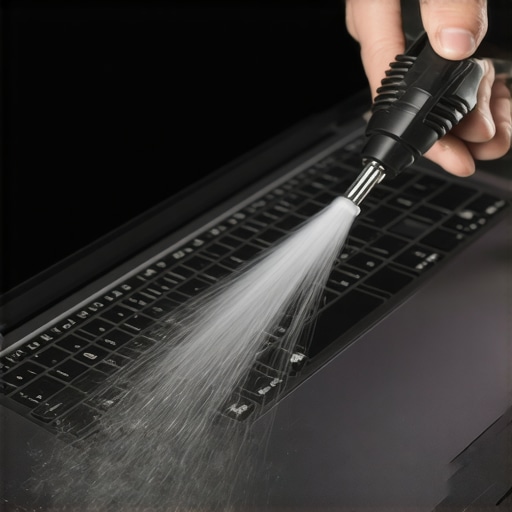
Investing in quality accessories like a durable external keyboard and a high-quality cooling pad can make a significant difference. I use the Arctic F12 cooling pad, which provides excellent airflow without noise, maintaining optimal CPU temperatures during intense gaming sessions. Remember, keeping the physical state of your device is just as important as software upkeep. Regularly cleaning out dust from vents with compressed air—using proper techniques—prevents dust buildup that can cause thermal throttling or hardware damage.
Future trends in maintenance: Automation and AI
Looking ahead, I predict that maintenance tools will become increasingly automated. AI-driven diagnostics could alert you to issues long before symptoms appear, allowing preemptive fixes. This evolution will empower users to extend their laptop’s lifespan without deep technical knowledge. Already, some systems are integrating predictive analytics to recommend cleaning or component replacements—an exciting development for power users eager to keep their gear in top shape.
If you haven’t yet, try implementing a monthly health check using a combination of monitoring software and physical upkeep routines. For example, setting reminders to run CrystalDiskInfo and clean vents with compressed air during your regular maintenance schedule will ensure your investment endures the test of time without unexpected crashes or overheating. Remember, diligent maintenance today prevents costly repairs tomorrow, keeping your gaming and work sessions seamless and frustration-free.
The Hidden Truths About Laptop Lifespan I Discovered
- Early mistakes—like ignoring thermal paste application—cost me hundreds of dollars in repairs later. Learning the importance of proper thermal management taught me that small tweaks can dramatically extend my device’s lifespan.
- Overlooking battery calibration led to misleading battery reports. Regularly calibrating my battery gave me a clearer picture of its true health, preventing unexpected shutdowns during critical gaming moments.
- Ignoring manufacturer-specific power settings resulted in unnecessary energy drain. Customizing these options revealed simple ways to boost efficiency without sacrificing performance.
- Failing to keep software and drivers updated caused performance hiccups. Staying current not only improved gameplay but also maintained hardware compatibility over time.
- Neglecting physical maintenance like cleaning dust from vents significantly increased overheating risks. Regular physical upkeep became a game-changer for sustained performance during marathon sessions.
My Go-To Arsenal for Long Gaming Sessions
- GaN Chargers: Compact and powerful, these chargers keep my laptop ready for long adventures without bulky power bricks.
- Cooling Pads: Devices like the Arctic F12 help maintain optimal temperatures, preventing thermal throttling during extended gaming marathons.
- Durable External Keyboards: Investing in quality peripherals boosts comfort and responsiveness, making prolonged sessions more enjoyable.
- Cleaning Tools: Regularly cleaning dust from vents and fans keeps thermal performance in top shape, avoiding costly overheating issues.
Your Next Move to Keep Gaming Uninterrupted
Armed with insights into how careful maintenance and smart choices can prolong your laptop’s life, you’re now better equipped to maximize every gaming session. Remember, the key lies in proactive habits—regular cleaning, tuning software, and choosing quality accessories—that turn a good laptop into a gaming companion for years to come. Don’t wait for issues to arise; start implementing these tips today and watch your gaming endurance soar. Are you ready to take your laptop maintenance to the next level? Share your experiences or ask for advice below—let’s keep the gaming momentum going!
,