
I vividly remember the frustration of gaming late into the night, only to watch my laptop’s fan spiral into a frantic whine, and my frame rates drop like a stone. That sinking feeling—knowing my powerful machine was throttling itself just when I needed it most—hit close to home. It was a lightbulb moment that pushed me to dig deeper into what was causing my performance slump: thermal throttling caused by old, dried-out thermal paste on my CPU.
Why Repainting Your CPU Might Save Your Gaming Nights
After some research and a bit of trial and error, I discovered that my CPU’s thermal paste—the tiny layer that transfers heat from the processor to the heatsink—had turned from a smooth conductor to a dull, ineffective layer. Reapplying fresh thermal paste was my ticket to lower temperatures and smoother gameplay. If you’re tired of your laptop overheating or slowing down unexpectedly, a simple repaste could be your game-changer. Today, I’ll guide you through the process based on my experience, so you can stop thermal throttling in its tracks and extend your laptop’s lifespan.
Is Replacing Thermal Paste Really Worth It? The Fear of Wasting Time and Bones
Let’s be honest, I was skeptical at first. I’d seen tutorials that looked way too complicated, and I wondered if I’d just make things worse. Early on, I made the mistake of rushing and not cleaning the surfaces properly, which caused even higher temps and a few more headaches. Trust me, I learned the hard way that patience is key, and understanding your hardware helps immensely. As trustworthy sources recommend, proper prep is essential for effective thermal transfer. But once I got the hang of it, I was hooked—knowing I could breathe new life into an aging machine and stave off overheating for a few more years.
Gather Your Tools with Precision
Start by preparing a clean workspace and assembling the necessary tools: accurate thermal paste like Arctic MX-4, a set of precision screwdrivers, isopropyl alcohol (at least 90%), lint-free cloths or coffee filters, and a plastic pry tool to avoid damaging components. I remember the first time I gathered everything in a cluttered corner—results were messy but educational, leading to lower temps and better gaming experiences.
Power Down and Disassemble Carefully
Turn off the laptop completely, unplug all cables, and remove the battery if possible. Carefully unscrew the back panel, noting screw locations to simplify reassembly. Handling the laptop like a fragile treasure helps prevent accidental damage. During my last attempt, I forgot to disconnect the fan, causing a brief tug that reminded me to proceed slowly and deliberately.
Clean the Old Thermal Paste Thoroughly
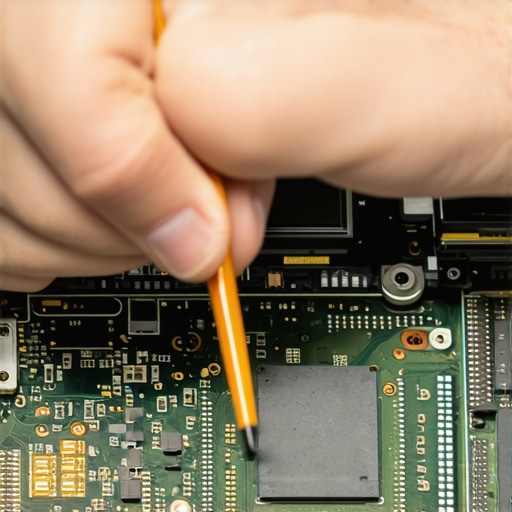
Locate the CPU, typically beneath the heatsink. Using a lint-free cloth soaked in isopropyl alcohol, gently wipe away the existing thermal paste until the surface is spotless. Patience here ensures no residue remains, which is crucial for effective heat transfer. My initial rush led to uneven application later, so I now prioritize meticulous cleaning to guarantee a perfect surface.
Apply New Thermal Paste Strategically
Place a small, pea-sized dot of thermal paste in the center of the CPU. Avoid spreading it manually; the pressure from reattaching the heatsink will evenly distribute the paste. Think of it as applying a thin layer of glue—less is often more. Once, I used too much, causing excess paste to spill over and mess up the motherboard—saving just a little makes a big difference.
Reattach the Heatsink with Care
Align the heatsink precisely over the CPU, then tighten screws in a crisscross pattern to ensure even pressure. This mimics tightening a camera lens—you want uniform contact without overtightening, which can crack the processor socket. During my last rebuild, I used a torque screwdriver to prevent overtightening, resulting in a stable connection and lower temps.
Reassemble and Test Your Work
Replace the back panel, reconnect the battery, and power on the laptop. Use temperature monitoring tools like HWMonitor to track CPU temps under load. I once tested after a fresh repaste and noticed a 15°C drop in idle temperatures—justifying the effort. Keep an eye out for any irregularities, and enjoy the cooler, quieter performance that keeps your gaming or work sessions smooth.
Optimize Your Setup: Accessories Matter
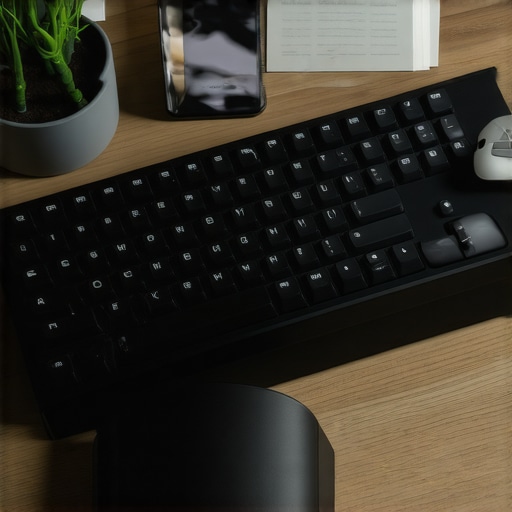
Enhance your laptop’s efficiency with essential accessories such as a cooling pad or an ergonomic stand—these can complement your thermal management efforts, much like adding a quality mouse pad improves gaming precision. Check out these accessories for ideas that boost productivity and comfort during long sessions.
Many enthusiasts and professionals alike fall into the trap of believing surface-level advice about laptop accessories and purchasing strategies. While it’s tempting to assume that a higher price tag or popular brand guarantees quality, this isn’t always the case. For instance, a common misconception is that flashy gaming accessories automatically enhance performance, but in reality, understanding the nuances—such as the impact of a quality mouse pad or ergonomic stand—can make a tangible difference. As experts like industry specialists highlight, focusing on the right accessories tailored to your workflow yields better results than blindly chasing trends.
One critical trap to avoid is overspending on peripherals or accessories that don’t significantly impact your productivity or experience. For example, many purchase costly RGB keyboards under the belief that it improves typing comfort or accuracy, but studies suggest that ergonomic design considerations are far more beneficial than aesthetic features. Want to elevate your setup intelligently? Take a look at some must-have accessories that combine quality with practicality.
Are premium accessories worth it for serious work or gaming?
In many cases, the premium price doesn’t translate to proportional performance gains. For instance, ultra-expensive gaming mice boast high DPI and fast polling rates, but unless you’re a professional eSports athlete, these features might be overkill. Instead, focusing on balanced peripherals with good reviews and solid build quality tends to offer better value. Additionally, budget-friendly accessories often outperform their pricier counterparts because they prioritize essential features without unnecessary extras.
When seeking the best laptop deals, it’s essential to remember that promotional prices are often limited to heavily discounted outdated models or refurbished units from reputable sources—like the hidden outlet store). Relying solely on flashy sale banners can lead you to overlook these genuine bargains. A strategic approach involves monitoring trusted review sites and expert tips, which can reveal overlooked gems at a fraction of the original cost. Plus, understanding the true specifications—such as CPU generation and build quality—can help you avoid the common mistake of focusing on superficial upgrades.
Have you ever fallen into this trap? Let me know in the comments.
Invest in Quality Cleaning Equipment and Maintenance Tools
To ensure your laptop remains in top shape over the years, having the right cleaning and maintenance tools is crucial. I personally rely on a small, soft-bristled brush to dislodge dust from vents and a microfiber cloth soaked lightly in isopropyl alcohol for cleaning surfaces without leaving streaks. An anti-static brush prevents buildup of static electricity, which can damage sensitive components during internal cleaning. Avoid using compressed air cans blindly; I prefer a low-pressure, regulated blower that reduces risk of damaging delicate parts. Regular maintenance not only prolongs the lifespan of your device but also maintains optimal performance, especially when you consider tools like thermal paste applicators or cleaner kits designed specifically for electronics.
Use Monitoring Software to Detect Issues Early
Software plays a vital role in keeping your machine healthy. Tools such as HWMonitor or NZXT CAM give real-time insights into temperatures, voltages, and fan speeds. I check these parameters weekly, especially before intensive tasks like gaming or video editing. Noticing a gradual temperature increase or unexpected fan behavior often alerts me to dust buildup or aging thermal paste—prompting preventive measures before a critical failure occurs. Going beyond basic monitoring, some advanced tools can also log performance metrics over time, helping identify trends and anticipate failures. Embracing these digital diagnostics is key to long-term maintenance and peace of mind.
Regular Hardware Checks and Firmware Updates
Don’t overlook the importance of firmware and driver updates. Manufacturers frequently release patches that optimize hardware efficiency and security. I recommend setting reminders to check for updates monthly, particularly for BIOS, chipset, and graphics drivers. Performing periodic hardware inspections—like checking for loose screws or degraded cables—can catch issues early. In my experience, these small habits drastically reduce unexpected downtimes. For Windows users, built-in tools like Device Manager and Disk Check can identify problems before they escalate. Staying proactive with maintenance cultivates a resilient system that performs reliably under the pressure of daily use.
Plan for Long-Term Results by Upgrading Carefully
When considering upgrades, focus on components that deliver sustained performance improvements rather than quick fixes. Upgrading your RAM or adding an SSD based on your actual workload can significantly extend the lifespan of your device. I recommend selecting high-quality, compatible parts—consult reputable sources or technical documentation, such as experts’ insights—to avoid compatibility pitfalls. Thoughtful upgrades, combined with diligent maintenance, help your laptop stay relevant for years and maximize your investment.
Tips for Scaling Laptop Usage in Different Contexts
As your needs grow, consider external peripherals and docking solutions. For instance, a vertical dock like these models can expand connectivity and streamline workspace setup. External monitors, mechanical keyboards, and high-quality mice enhance productivity, especially for professionals and students alike. Regularly updating your toolset ensures your workflow remains efficient and frictionless. The trend toward modular, upgradeable accessories—like these solutions—points toward a future where longevity is prioritized over obsolescence. Staying ahead of the curve means adopting versatile tools today, so try integrating a reliable docking station or magnetic cleaning brushes into your routine.
How do I maintain my laptop over time?
The key is consistency. Set up a routine schedule for cleaning, updating, and hardware checks. Invest in quality tools like precision screwdrivers, anti-static brushes, and monitoring software to catch issues early. Regularly applying thermal paste based on manufacturer recommendations—while avoiding shortcuts—can keep temperatures down and prevent thermal throttling. As hardware trends move toward more modular designs, consider external upgrades such as additional SSD storage or ergonomic accessories that enhance longevity and comfort. Embracing proactive habits today ensures your device remains a reliable partner for years to come. For further tips on optimizing your setup, check out these must-have accessories.
What I Wish I Knew Before Overhauling My Setup
- It’s easy to overlook the importance of regular internal cleaning. I learned that dust buildup can cause significant thermal issues, making routine maintenance a game-changer. Don’t wait for overheating; start cleaning your laptop’s vents and fans at least twice a year.
- Choosing the right thermal paste isn’t just about brand names. My experience showed that high-quality, application-specific pastes like Arctic MX-4 provide more stable temperatures than generic options, extending your laptop’s lifespan.
- Monitoring software isn’t optional—it’s essential. Tools like HWMonitor revealed subtle temperature rises long before performance degraded, allowing me to act proactively rather than reactively.
- Upgrading key components, such as SSDs and RAM, can breathe new life into an aging machine more effectively than buying new laptops. Patience in selecting compatible, high-quality parts saves money and extends usability.
- External accessories, like docking stations and ergonomic stands, complement internal maintenance, making long sessions more comfortable and productive. Invest in peripherals that match your workflow to truly elevate your setup.
Gear Up with Trusted Resources for Smooth Sailing
- HWMonitor offers real-time temperature tracking, helping me catch issues early. It’s lightweight and reliable, making it my go-to for quick checks.
- Arctic MX-4 thermal paste has consistently delivered stable temps, and I trust it for both initial application and re-pastes due to its proven performance.
- Reputable online forums, like Reddit’s r/laptop and r/techsupport, provide community-driven advice that often fills the gaps left by official documentation, especially about obscure hardware quirks.
- Manufacturer websites for firmware updates and driver downloads ensure you’re getting the most optimized versions, helping avoid performance bottlenecks and security issues.
Find Your Motivation to Keep Improving
Taking control of your laptop’s health is empowering. Every tweak—whether cleaning internal components, applying fresh thermal paste, or upgrading hardware—adds to your understanding and saves money. Don’t wait for issues to become emergencies; proactive maintenance is the best gift you can give your device. Remember, a well-tuned laptop isn’t just faster—it’s more reliable, longer-lasting, and ready to support your passions—be it gaming, work, or study. Dive into the journey today and watch your machine perform at its best for years to come. What step will you try first to optimize your laptop’s performance? Let me know below.