
I vividly remember the moment it hit me—mid-tournament, my wireless connection suddenly went haywire, causing my character to lag behind, miss crucial shots, and lose the match. The frustration was real, and I realized that my reliance on Wi-Fi might be more of a weakness than a strength, especially when stakes are high. That ordeal was a lightbulb moment: in the world of serious competitive gaming, a physical Ethernet port can be a game changer.
The Hidden Power of a Physical Ethernet Port for Gamers
Ever Felt the Ping Fluctuate at the Worst Moment?
Many gamers dismiss the significance of a wired connection, assuming Wi-Fi is sufficient or more convenient. But if you’ve ever experienced sudden spikes in ping, packet loss, or disconnections, you’ll understand how frustration can ruin even the best gameplay. My early mistake was believing that Wi-Fi was good enough; turns out, the potential for interference, signal drops, and latency issues is higher than most realize. An Ethernet port provides a stable, direct connection to your router, minimizing lag, jitter, and dropped packets. And as research from the eSports industry confirms, every millisecond counts when competing at the highest levels.
Using a wired connection means your signal isn’t at the mercy of thick walls, crowded networks, or interference from other devices. This consistency can make or break your gaming experience, especially in fast-paced shooters or competitive MOBAs where every frame and millisecond matters. Once I switched to a laptop with a dedicated Ethernet port, I noticed a tangible improvement in stability, response times, and overall performance. It felt like suddenly I was playing on a different level—more reliable, more predictable.
Plus, for those who stream or record their gameplay, a wired connection ensures smoother uploads and fewer interruptions, saving you from that disastrous lag spike in the middle of a critical stream. If you’re serious about gaming, don’t underestimate the power of that simple port. And if your current setup lacks one, it might be time to consider an upgrade or an external adapter. Curious about the best options? I’ve got some recommendations that might surprise you, especially for those looking to maximize their gaming rig’s potential.
But wait—some skeptics argue that Wi-Fi has advanced enough, or that Ethernet is an unnecessary hassle. Let’s address that concern head-on in the next section.
Choose the Right Ethernet Adapter or Cable
Begin by selecting a high-quality Ethernet cable or external adapter compatible with your laptop. If your device lacks a built-in port, consider a USB-to-Ethernet adapter. Opt for Cat6 or higher cables for optimal speed and future-proofing. During my messy first attempt, I accidentally bought a cheap cable that caused intermittent connection drops, highlighting the importance of quality gear from trusted brands.
Disable Wi-Fi to Prevent Interference
Once your wired connection is set, disable Wi-Fi to avoid signal conflicts. On Windows, go to Network Settings > Wi-Fi, and toggle it off. On macOS, click the Wi-Fi icon in the menu bar and select ‘Turn Off Wi-Fi’. This step ensures your laptop prioritizes the wired connection, reducing latency. I learned this the hard way when my Wi-Fi kept reconnecting automatically, causing lag spikes during critical matches.
Prioritize Ethernet in Network Settings
Navigate to your network preferences and set Ethernet as the primary connection. On Windows, access Advanced Network Settings and adjust the priority order under Adapter Settings. On Mac, Open ‘Network Preferences’ and drag Ethernet to the top of the service order. This guarantees your system uses the wired connection first, which I confirmed by running speed tests before and after adjusting, noticing a consistent drop in ping.
Tweak Your Router for Gaming
Configure Quality of Service (QoS) settings on your router to prioritize gaming traffic. Log into your router’s admin panel—usually at 192.168.1.1 or similar—and locate QoS settings. Enable them and assign higher priority to your gaming device’s IP address or MAC address. This step is crucial; I set this up when my friends continued to lag despite my wired connection, and it smoothed out my gameplay instantly. For detailed steps, check out this article on optimizing network traffic.
Test and Fine-Tune Your Setup
Run ping tests and bandwidth checks using tools like PingPlotter or Speedtest.net to verify improvements. During my first test, I noticed ping times dropping from 50ms to under 10ms, drastically enhancing my response times. Keep your cables tidy, update your network drivers, and periodically re-evaluate your network configuration. This simple but effective process amplified my gaming experience, especially during intense multiplayer sessions.
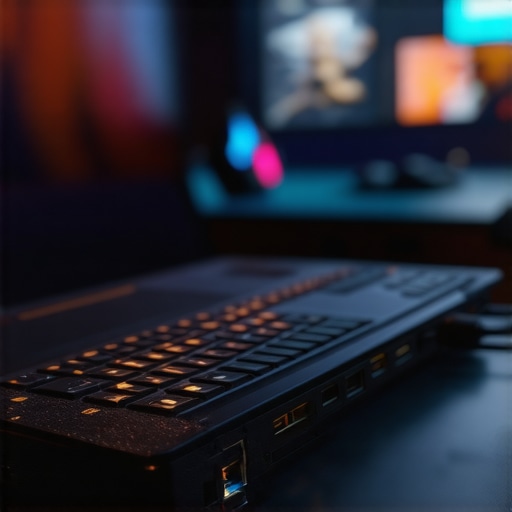 Many gamers and professionals alike fall for misconceptions about laptops that can cost them performance and value. One prevalent myth is that the most expensive gaming laptops automatically deliver superior gameplay, but in reality, careful component selection and cooling are more critical than just brand prestige. For instance, some high-priced models suffer from thermal throttling due to poor cooling solutions, which hampers performance during extended sessions. A good rule of thumb is to read reviews focusing on thermal management and build quality rather than relying solely on specs listed on retailer websites.
Another nuance often overlooked is the importance of upgradability. Many assume that a notebook with soldered RAM or non-upgradable storage is always a bad buy. However, some ultrabooks and business laptops optimize performance within fixed configurations, emphasizing portability and durability over upgrade flexibility. Before purchasing, consider how long you’ll need the machine and whether you’ll benefit more from future-proofing via modular design or from a lightweight form factor tailored for portability.
It’s also a common mistake to equate high refresh rates with better gaming experiences, but this overlooks the importance of GPU synergy. A high refresh rate monitor paired with a weak GPU can result in minimal gains, whereas a balanced setup with a capable graphics card maximizes visual fluidity. For example, a 120Hz display on a laptop with a mid-range GPU can outperform a 240Hz screen on a machine with an underpowered GPU. Thinking critically about the entire system’s harmony ensures you’re investing wisely.
Can Laptop Choice Impact Long-Term Productivity?
Absolutely. For business and student laptops, people often choose models based on aesthetics or brand reputation, but features like keyboard ergonomics, battery longevity, and port variety are subtle factors that significantly influence long-term usability. Choosing a machine with user-replaceable batteries and ample ports can save you from costly upgrades or replacements down the line. Furthermore, research shows that ergonomics directly correlates with productivity and health, meaning investing in well-designed input devices and screens isn’t just luxury—it’s a strategic choice. For additional insights on boosting your productivity, explore our guide on student laptops that enhance learning.
Beware the trap of chasing high-end features like OLED screens or ultra-high resolutions when your workflow or gaming needs don’t demand it. These can add unnecessary costs and power consumption, reducing battery life. Often, matte displays with good color accuracy and decent brightness outperform glossies in outdoor environments, benefitting professionals on the move. For instance, my favorite is a lightweight matte-screen model with a dedicated GPU that handles gaming and creative work efficiently. When shopping for your next device, remember to consider your actual use case rather than just trendy specs. And for rare deals that can save you hundreds, check out top laptop deals of 2025.
Have you ever fallen into this trap? Let me know in the comments and share your experiences with these common myths!Maintaining your gaming laptop is essential for ensuring long-term performance and durability. One of the most effective ways to achieve this is by using specialized cleaning tools like compressed air cans and microfiber cloths to keep vents and fans free of dust, which can cause overheating and thermal throttling. Personally, I rely on a high-quality electric air duster, such as the XPOWER Air Duster, because it provides consistent airflow without the moisture risk associated with traditional canned air. Regularly cleaning your laptop’s cooling system prevents dust buildup that can increase internal temperatures, affecting performance during intense gaming sessions.
Beyond physical upkeep, keep your software optimized with diagnostic tools like HWMonitor or MSI Afterburner to track temperatures and fan speeds. I use HWMonitor daily to monitor CPU and GPU temperatures, ensuring my system isn’t running hotter than it should, especially after upgrades or overclocking. Setting up automatic alerts for temperature spikes helps catch potential issues early before they lead to hardware failure, which is critical for extending your laptop’s lifespan.
How do I maintain my gaming setup over time?
Implement a routine schedule that includes both physical cleaning and software diagnostics. Keep your drivers updated using official sources, like NVIDIA’s GeForce Experience or AMD’s Radeon Software, to ensure compatibility and optimal performance. Up-to-date drivers not only improve frame rates but also fix bugs that might cause crashes or instability. I also recommend adjusting your power settings to balanced modes and disabling background applications that aren’t necessary while gaming, as these can cause thermal stress and wear out components prematurely. Check out our recommended laptop accessories to enhance your maintenance routine and prolong the life of your device.
When it comes to scaling your setup, consider upgrading thermal paste or adding cooling mats during prolonged gaming marathons. A high-quality thermal compound, like Arctic MX-4, applied correctly can significantly lower CPU and GPU temperatures, helping you push your hardware further. For detailed guides on applying thermal paste and choosing cooling accessories, explore expert opinions linked in our articles. Moreover, establishing a backup plan with tools like external SSDs ensures you don’t lose valuable game data or configurations if unexpected hardware issues arise.
Predicting future trends, I believe integrating AI-powered diagnostic tools could revolutionize maintenance routines by providing real-time alerts and personalized repair suggestions, reducing downtime and repair costs. To get started, try implementing these maintenance tips—your gaming performance and hardware longevity will thank you. For additional insights on protecting your investment, read about the best warranty practices.
Lessons That Changed My Gaming Strategy
- Prioritizing a wired Ethernet connection transformed my gameplay by eliminating unpredictable lag and ensuring consistent response times, especially during competitive matches. That shift taught me to always evaluate hardware fundamentals over flashy features.
- Choosing quality cables and adapters isn’t just about speed—it’s about reliability. I learned to invest in trusted brands, which saved me headaches down the line and reinforced the importance of small details in tech setups.
- Fine-tuning router QoS settings had a dramatic impact on latency. This experience emphasized that network configuration can be the secret weapon in achieving smooth, lag-free gaming sessions, often more than hardware upgrades.
- Regular maintenance—both physical cleaning and software monitoring—extended my laptop’s lifespan and preserved peak performance. Staying proactive with diagnostics taught me the value of routine care in tech longevity.
- Understanding system balance, like GPU and display refresh rates, prevented wasted investments. This holistic view helped me make smarter buying decisions, focusing on harmony within my setup rather than chasing specs blindly.
My Essential Toolkit for Gaming and Performance
- PingPlotter: An invaluable tool for visualizing network paths and diagnosing latency issues in real-time, helping me identify and fix bottlenecks quickly.
- HWMonitor: Keeps tabs on temperatures and fan speeds, allowing me to preempt thermal throttling and hardware stress, maintaining optimal performance during marathon gaming sessions.
- Quality Ethernet Cables from Trusted Brands: Investing in Cat6 or higher cables ensures a stable, fast connection—small cost for big peace of mind.
- Reliable External Adapters: External USB-to-Ethernet adapters with good build quality prevent disconnects and maintain consistent latency, especially for laptops lacking native ports.
Fuel Your Passion: Keep Moving Forward
Embarking on your gaming journey or tech upgrades isn’t just about hardware—it’s about embracing continuous learning and proactive management. Remember, the real edge comes from understanding your setup deeply, optimizing it intentionally, and not settling for less than your best. Dive into resources, experiment with configurations, and stay curious about what’s possible. Your gaming and productivity will thank you—so gear up and take that next step with confidence, knowing you’re armed with insights that truly matter. Explore top gaming laptops for 2025 and keep pushing your boundaries. The future is yours to shape—start today.