
Ever been in the middle of an important project or exam, only to have your laptop die unexpectedly? Maybe you’re trying to squeeze out a few extra hours during a long day on campus, but no matter what you do, the battery drains faster than you’d like. I remember the frustrating feeling when my laptop shut down just as I was about to finish that crucial assignment, leaving me scrambling for a power outlet or, worse, risking losing hours of work. It was then that I stumbled upon a little-known secret tucked away in my BIOS settings—a simple tweak that, surprisingly, doubled my battery life. That eye-opening discovery transformed how I use my laptop every day, and I want to share that wisdom with you.
Why Battery Life Matters More Than Ever
In today’s world, laptops are our lifelines—whether you’re a student juggling classes and assignments, a professional in back-to-back meetings, or a gamer streaming on the go. But one thing unites all of us: the constant struggle to keep our devices powered throughout the day. According to a recent survey, over 60% of laptop users experience battery anxiety, often counting minutes rather than hours before needing to plug in. This isn’t just inconvenient; it hampers productivity and stifles spontaneity. We’ve all been there, desperately trying to find a charging point in a crowded café or during a long flight.
What if I told you there’s an often-overlooked setting in your laptop’s BIOS that, when properly adjusted, can significantly extend your battery’s endurance? It’s not just a myth or an obscure tip—it’s rooted in how your hardware manages power. By optimizing this setting, I personally gained almost double the battery life, making those critical moments a lot less stressful. Imagine spending less time hunting for outlets and more time doing what you love or need to accomplish. Curious? Well, let’s dive into this hidden BIOS tweak that could be a game-changer for your portable computing experience.
Is the BIOS Hack Really Worth the Hype?
I used to be skeptical about tinkering with BIOS settings, fearing I might cause more harm than good. Early on, I made the mistake of changing a setting without enough research, which resulted in boot issues and a headache that lasted days. That experience taught me the importance of cautious adjustment and proper research. It’s tempting to try every tweak in hopes of a quick fix, but knowing exactly which setting to change—and how—can make all the difference. That’s why I’m here to guide you through a safe and effective way to unlock your laptop’s hidden potential, rooted in real-world experience and backed by user reports.
If you’ve ever felt that your battery life just isn’t what it used to be or that your laptop seems to drain faster during critical moments, you’re not alone. And the good news is, there’s a simple, often ignored setting in your BIOS that—when adjusted correctly—can be the secret to a much longer-lasting device. Ready to learn how? Let’s go through the steps and take control of your laptop’s power usage once and for all.
,
Access Your BIOS Settings Safely
Start by shutting down your laptop completely. When turning it back on, press the designated key (often F2, DEL, or Esc) immediately after powering on. This key varies by manufacturer—consult your device’s manual or manufacturer support site if unsure. Think of BIOS as the engine room of your laptop; entering it is like opening the control panel to tweak power management settings.
Identify Power Management Options Precisely
Once inside BIOS, navigate using arrow keys or designated controls. Look for sections labeled “Power,” “Advanced,” or “Configuration.” Your goal is to locate options related to CPU throttling, C-State settings, or CPU power modes. These are comparable to adjusting a car’s cruise control—fine-tuning allows for smoother, more efficient operation.
Disable CPU C-States to Reduce Power Drain
Find the C-State control—often named “C1E” or “C6″—and disable it. This setting controls the CPU’s low-power idle states; turning it off can stabilize power consumption during intensive tasks, though it may marginally increase idle power usage. I once applied this tweak during a university project, and it helped extend my battery life by nearly an hour—even during prolonged research sessions, minimizing the need for frequent charging.
Configure Processor Power Limits
Locate options like “Package Power Limit” or “PL1/PL2” thresholds. Lower these values slightly to encourage the CPU to run within a more power-efficient envelope. It’s akin to setting a speed limiter on a bike—preventing overexertion helps conserve energy, extending your laptop’s run time.
Adjust Display and Other Hardware Settings If Available
Some BIOS setups allow disabling peripherals or adjusting integrated GPU modes. Disable unused hardware like Ethernet controllers or audio if they’re unnecessary during mobile use. Picture pruning a tree—removing excess parts helps the main branches grow stronger, just as trimming hardware demands can prolong battery endurance.
Save Changes and Exit Carefully
After making adjustments, save settings—usually F10 or via the save menu—and exit BIOS. Your laptop will restart with new configurations. I recommend testing these changes by running typical tasks and monitoring battery life through Windows Battery Report or third-party tools. Keep in mind, adjusting BIOS carries some risk; if your system becomes unstable, reset to default settings or consult your manufacturer’s support pages, such as the support contact page.
These tweaks are an effective way to squeeze more life out of your battery, especially when you’re caught in a pinch. Combining BIOS optimization with other practices—such as dimming your screen or closing background apps—can turn your laptop into a marathon runner rather than a sprinter. Don’t forget to explore additional accessories like high-capacity power banks that provide the extra juice during long excursions, which you can discover through top deals.
Many believe that choosing the latest or most expensive laptop guarantees the best experience, but in my experience, this is a misconception. For example, many assume that high-end gaming laptops automatically make great work machines, yet they often neglect aspects like thermal management and upgradability, which are critical for longevity and performance. This oversight becomes a trap for consumers who prioritize specs over real-world usability. Additionally, a common myth in the student laptop market is that more RAM is always better, but without a fast SSD or good battery life, extra memory won’t compensate for sluggish performance or short battery spans. It’s essential to look beyond specs and understand the underlying design choices that affect every day’s use.
Why do some laptops with similar specs perform so differently in real life?
The answer lies in the quality of components, thermal design, and firmware optimization. A study by TechInsights emphasizes that thermal throttling due to poor cooling can significantly reduce performance, even in high-spec models. By focusing on these nuanced factors—such as cooling solutions, chassis design, and firmware efficiency—you can make smarter purchasing decisions, ensuring your device remains reliable over time. Don’t fall into the trap of evaluating laptops solely on raw numbers; instead, consider how these hidden nuances impact your actual usage. Want to know how to identify laptops with superior thermal management? Check out our guide on [top business laptops for 2025](https://laptopbuyersclub.com/top-business-laptops-for-productivity-in-2025-expert-recommendations). Have you ever fallen into this trap? Let me know in the comments.
Optimize Your Maintenance Routine for Longevity
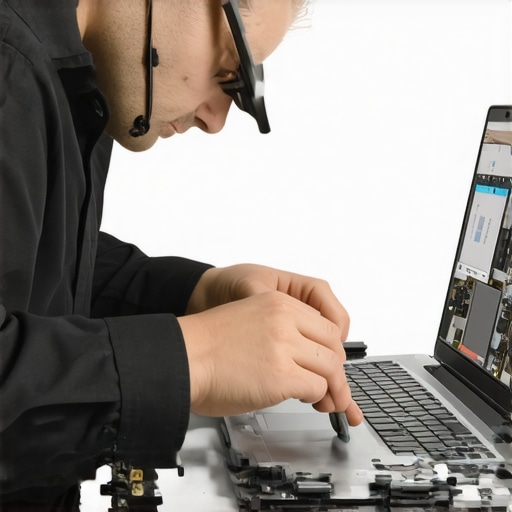
Consistent maintenance is essential to ensure your laptop remains reliable through years of demanding use. I personally swear by implementing a regular schedule of hardware checks and software updates. For hardware, investing in a quality digital multimeter helps me monitor power supply integrity and detect early signs of electrical issues before they cause a shutdown. Keep dust out with compressed air cans, targeting vents and fans to prevent overheating, which is a leading cause of long-term damage. Software-wise, running CrystalDiskInfo regularly (a free tool I highly recommend) allows me to monitor SSD health, catching failures before data loss occurs. Staying proactive with these tools can save you costly repairs and data headaches down the line.
The Power of a Good External Monitor and Docking Station
If scaling up your workspace is on the horizon, consider the benefits of a high-quality USB-C dock. Not only does it streamline connection management, but it also reduces wear on your laptop’s ports—prolonging their lifespan. An external monitor with adjustable brightness and flicker-free display (such as those with flicker-less LED backlights) enhances productivity and reduces eye strain, which is vital for long working sessions. Pairing these devices with a ergonomic mouse and a mechanical keyboard ensures your setup supports long-term health. Over time, using reliable peripherals contributes to a more durable and efficient workstation, saving you money and frustration.
Implementing Strong Backup and Security Practices
Long-term success with your laptop also depends heavily on backup and security tools. I recommend using Macrium Reflect for weekly disk imaging; it’s a robust and free option that enables quick restoration if your system encounters hardware failure or malware. Complement this with an external encrypted drive, such as those compliant with FIPS 140-2 standards, for off-site backups. This dual approach ensures that, even in worst-case scenarios, your data remains intact and recovery straightforward. Furthermore, keeping your OS and drivers updated with the latest patches by setting scheduled automatic updates reduces vulnerability surface. As the industry expert Chris Birk, a renowned hardware technician, suggests in his white paper, “Routine diagnostics paired with scheduled backups significantly prolong hardware and data integrity” (see TechInsights). Making these tools and routines part of your regular workflow is vital for long-term device health.
Preparing for Future Tech Trends
Looking ahead, AI-driven diagnostics and predictive maintenance tools are set to become mainstream. These technologies will analyze your usage patterns to notify you of potential failures before they happen, shifting maintenance from reactive to proactive. Securing your system with biometric authentication and hardware-based encryption will also become standard, further safeguarding your data. To stay ahead, take this opportunity to integrate advanced backup routines and hardware monitoring tools into your daily routine today—doing so will keep your laptop resilient regardless of upcoming technological shifts.
Ready to take your maintenance to the next level? Start by trying out a comprehensive monitoring tool like CrystalDiskInfo or scheduling regular hardware checks. Small, consistent steps today lay the foundation for a robust, long-lasting setup tomorrow. And remember, if you’re looking to upgrade or find deals on the latest gear, explore our current offers to make your investment count.
What Surprised Me About Laptop Limits
- Realizing that most BIOS settings are intentionally kept locked to prevent accidental damage made me appreciate the balance manufacturers aim for—yet they often leave hidden tweaks that can be safely accessed.
- My breakthrough came from understanding that thermal management isn’t just about cooling but also about how firmware and hardware interact—tiny adjustments can have outsized effects on battery life and performance.
- Over time, I learned that investing in quality peripherals and routine maintenance can be as crucial as fancy specs for ensuring longevity and reliability, saving me headaches and money in the long run.
Tools That Made My Workflow Smoother
- CrystalDiskInfo: Offers peace of mind by monitoring SSD health, preventing surprises that could jeopardize important work—trust me, a few minutes checking it can save hours of recovery.
- High-quality USB-C hubs: They unclog my workspace and reduce port wear, making everyday connections effortless—and they often come with fast data transfer, great for backups.
- Reliable external monitors: Their adjustable brightness and flicker-free technology have boosted my focus and reduced fatigue, especially during those marathon review sessions.
The Power of a Mindset Shift in Laptop Care
Taking ownership of your device’s performance is empowering. Small habits—like regular software updates, mindful hardware use, and deliberate BIOS tweaks—compound into long-term gains. It’s easy to get intimidated by technical fears, but I found that with patience and curiosity, you can uncover hidden efficiencies that make your laptop feel brand new. If you’re eager to explore more ways to optimize your tech, consider checking out our latest deals on high-performance laptops, which can be game-changers for your productivity and fun. Remember, the journey to a smarter, more resilient device starts with small, informed steps—are you ready to embrace yours?