
Picture this: It’s late into a study session, and your laptop suddenly grinds to a halt as your creative project crashes unexpectedly. Frustration boils over, and you realize your 16GB of RAM just isn’t cutting it anymore. I had that lightbulb moment myself years ago when my once-reliable laptop started stuttering under the weight of multiple demanding applications. It was a stark reminder that what was sufficient yesterday isn’t enough today.
Why Your Creative Tools Are Outpacing Your RAM
Is Upgrading to 32GB Worth It or Just Hype?
Early on, I made the mistake of believing that 16GB would serve me well for the foreseeable future. But with the rise of resource-intensive software like Adobe Photoshop, After Effects, and 3D modeling tools, even my so-called high-end machine struggled. According to a recent report by TechRadar, modern creative workflows can demand upwards of 32GB of RAM for smooth performance. That’s a huge leap from the age when 8GB was considered generous. From personal experience, sticking with 16GB felt like trying to run a marathon with a backpack full of bricks—slow, strained, and ultimately limiting your potential.
If you’ve been grappling with slow renders, lagging editing timelines, or crashes during your creative sessions, you’re not alone. Many students and budding professionals are discovering that their existing setups no longer meet the demands of current software and multitasking needs. The good news? Upgrading your RAM is more accessible and impactful than ever.
So, how do you determine if your current RAM holds you back? And what options are available for making that leap? Stay with me, because we’re diving deep into how to level up your laptop’s performance to match your ambitions.
Identify If Your RAM Is the Bottleneck
Start by opening your task manager or system monitor to check current RAM usage during heavy workloads. If your memory is hitting 90% or more consistently, it’s time to upgrade. I remember upgrading my old laptop from 16GB to 32GB; the difference was night and day, especially when multitasking with Adobe Photoshop and virtual machines. This is akin to replacing a narrow pipe with a wider one—more flow, less blockage.
Choose the Right RAM Modules for Your Laptop
Check Compatibility and Specifications
Consult your laptop’s user manual or visit contact us to verify supported RAM types, maximum capacity, and slots. Think of this like shopping for car tires—selecting the correct size and tread for your vehicle ensures safety and performance. For instance, if your laptop uses DDR4 SO-DIMMs at 2666MHz, compatibility is crucial to avoid crashes or boot issues.
Determine Your Budget and Performance Goals
Decide whether to go for one 32GB module or dual 16GB sticks, considering dual-channel operation boosts performance. During a cold winter, I ordered two matching 16GB modules from unbeatable deals, which provided optimal performance at a reasonable price. This way, you prepare your machine like a seasoned athlete gearing up for a marathon—maximizing gains without overspending.
Install and Test the New Memory
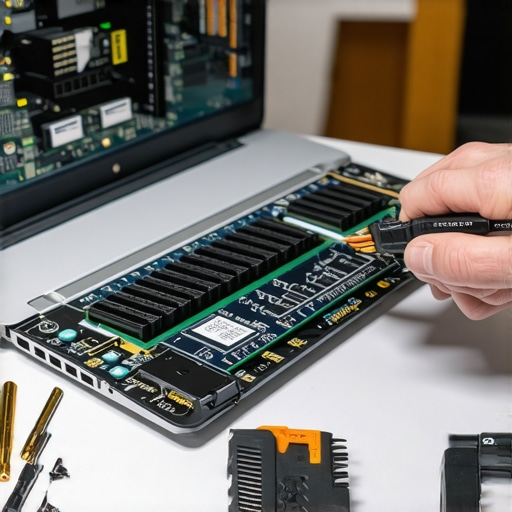
Power off your laptop, disconnect it, and ground yourself to prevent static. Open the back panel following manufacturer instructions or tutorials, such as those found on how to recover data. Carefully remove your existing RAM modules and insert the new ones, ensuring they click into place securely. Imagine fitting puzzle pieces together—precision is key.
Verify Performance Gains and Stability
Boot your system and run memory diagnostic tools like MemTest86 or the built-in Windows Memory Diagnostic. If all tests pass without errors, you’re good to go. I’ve done this myself—initial errors led me to reseat modules, ultimately resulting in a stable upgrade. Think of it as tuning a musical instrument until every string resonates perfectly; patience ensures harmony.
Optimize Your Laptop Setup for Better Efficiency
Upgrade your entire workspace with essentials like a stylish laptop accessory kit. Position your monitor at eye level, improve airflow, and consider cooling pads—compare this to tuning a Formula 1 car for peak performance. Remember, a well-rounded setup enhances the benefits of your hardware upgrade and keeps your workflow smooth.
 When it comes to business laptops and gaming machines, many assume that the latest specs or flashy features guarantee success. But in my experience, there’s a deeper nuance often overlooked—that common misconceptions about these machines can lead to costly mistakes. For example, a prevalent myth is that more cores always mean better performance. While true for some tasks, for many business applications, a high-clock-speed quad-core processor can outperform a multi-core setup. According to a report from PC Gamer, optimizing for real-world workflows rather than raw specs often yields better productivity.
Likewise, many believe that the most expensive laptop is automatically the best choice. However, high price tags can sometimes be due to branding rather than tangible benefits. I regularly see professionals and students investing in premium models with features they rarely use, like high refresh rates on gaming laptops or ultra-thin designs that sacrifice ports and durability. A smarter move is to evaluate your specific needs and balance features against your budget.
Another trap involves the hype around ‘laptop deals.’ Many deals advertise aggressive discounts on shiny new models, but often these are leftovers, refurbished units, or models with less-than-ideal warranty support. Always check the credibility of the seller and compare specifications carefully. For instance, diving into our curated list of top laptop deals in 2025 can help you avoid overpaying or buying outdated hardware.
When it comes to accessories, the misconception is that the latest gadgets are necessary for a smooth workflow. In reality, many accessories marketed as ‘must-have’ are unnecessary or redundant if you already have reliable peripherals. For example, an ergonomic mouse or a quality external monitor can significantly boost productivity, but investing in dozens of novelty gadgets rarely does. Check out our post on must-have accessories for a balanced setup.
Now, for the ultimate question: How do you discern a truly powerful gaming laptop from a marketing gimmick? The key is to look beyond the branding and focus on hardware specifications that impact real performance. For instance, a dedicated GPU with ample VRAM and a high refresh rate display make a significant difference in gameplay experience—features often overlooked in favor of flashy logos. Want a deeper dive? Head over to our guide on gaming laptops for 2025.
Remember, understanding these nuances helps you make smarter choices, whether you’re upgrading your student laptop or hunting for that perfect gaming rig. The real trick is to match hardware capabilities with your actual use cases, avoiding costly overkill or underprepared setups. Have you ever fallen into this trap? Let me know in the comments and share your experiences!Maintaining your laptop’s peak performance over time requires more than just initial setup. Investing in the right tools and establishing a routine can significantly extend your device’s lifespan and ensure reliability for work, study, or gaming. As someone who has navigated the maze of tech maintenance, I recommend specific hardware accessories and software solutions that have proven their worth in my daily use.
First, consider installing a reputable system monitoring application like HWMonitor or MSI Afterburner. These tools provide real-time insights into your CPU and GPU temperatures, voltages, and fan speeds. Regularly keeping an eye on these parameters helps prevent overheating—a common cause of hardware degradation. For example, during intense gaming sessions, I use MSI Afterburner not just to monitor temps but to fine-tune my fan curves, ensuring my laptop stays cool without excessive noise.
Alongside monitoring software, having a reliable external SSD is a game-changer for safeguarding your data and improving load times. I personally use Samsung T7 because of its fast transfer speeds and durability; it’s especially useful when working with large video files or game backups.
Routine maintenance also includes cleaning your laptop’s internals. I recommend compressed air canisters designed specifically for electronics, such as the Dust-Off brand. Quarterly cleaning of vents and fans keeps airflow optimal and prevents dust buildup that can lead to thermal throttling or component failure.
To ensure long-term stability, regularly updating your BIOS and drivers is crucial. Manufacturers often release updates that improve hardware compatibility and security. Personally, I subscribe to manufacturer mailing lists to stay informed about critical updates. Also, running periodic disk health checks with tools like CrystalDiskInfo can alert you to potential SSD or HDD issues before catastrophic failures occur.
Looking ahead, I believe that the trend toward smarter maintenance tools—like AI-powered diagnostics and predictive analytics—will make keeping our laptops healthy even easier. Imagine software that detects early signs of hardware wear before problems manifest, enabling preemptive repairs.
How do I maintain my laptops over time? I set a monthly schedule: check temperatures, clean vents, update software, and back up essential data. Using these targeted tools and routines has saved me from many headaches and costly repairs.
So, I challenge you to try fine-tuning your system with MSI Afterburner’s fan curve customization. It’s a straightforward yet powerful way to protect your hardware during strenuous tasks. Want more tips tailored to your equipment? Reach out through our contact page, and I’ll help you craft a personalized maintenance plan to keep your laptops running like new.
Through my journey of upgrading and selecting laptops tailored for various needs, I’ve uncovered priceless lessons that go beyond mere specs. One pivotal insight was realizing that the most advertised features don’t always translate into real-world performance; for instance, a high core count might impress, but it doesn’t guarantee smoother workflow if the software relies heavily on single-thread performance. This taught me to focus on actual use cases like application optimization and real-world benchmarks instead of chasing the latest hype. Additionally, I learned that compatibility is king—buying the right RAM, for example, means cross-referencing your model’s specifications rather than assuming compatibility. Finally, I discovered that investing in quality accessories like reliable external SSDs and ergonomic accessories can significantly extend your device’s lifespan and productivity—an often overlooked strategic move that pays dividends in the long run. These lessons are invaluable for anyone aiming to get the most out of their business, student, or gaming laptops, ensuring you don’t fall prey to marketing myths or budget pitfalls.