
Ever been in the middle of an important work session or gaming marathon, only to hear that dreaded whining noise from your laptop? It’s like your computer is whining for relief. I remember the lightbulb moment when I realized my laptop’s overheating and noisy fans weren’t due to some magical technology but simple dust buildup. That moment prompted me to find a safe and effective way to clean my laptop fan without risking damage from compressed air cans. If you’ve ever faced that frantic panic, you’re not alone, and today I promise to share a solution rooted in real experience that will help keep your laptop running cool and quiet.
Why You Can’t Ignore a Noisy or Overheating Laptop Fan
Is Compressed Air Really the Only Option?
When dust and debris clog your laptop’s fans, overheating becomes inevitable. I used to think that blasting my laptop with compressed air was the only way—until I realized repeatedly using those canned blasts can sometimes push dust further into tight spaces or even damage delicate components. Early on, I made the mistake of thinking I could just spray and go, but that often led to more noise or worse—small parts flying loose. Studies show that poor maintenance is a common cause of overheating in laptops, and ignoring it can shorten your device’s lifespan significantly. That’s why finding a safer, more controlled cleaning method is a game changer. Now, I’ll walk you through how I finally mastered cleaning that stubborn dust out without risking my device with canned air, and you can do the same.
naturalEndSectionStartHere) would you like me to continue with the step-by-step guide?
Set Up Your Workspace for Safe Cleaning
Choose a clean, well-lit area free of static electricity, like a wooden table or desk. Power down your laptop completely, unplug it, and remove the battery if possible. Wearing an anti-static wrist strap minimizes the risk of static damage. I learned this the hard way when a small static shock briefly caused my laptop to freeze, so now, preventive steps matter.
Access the Fan and Dust Properly
Locate your laptop’s fan—usually near the rear vents. Use the manufacturer’s service manual or online guides for your model. Carefully remove the panel or keyboard if required, using small screwdrivers. Remember, gentle is key; forcing components can cause damage. For my gaming laptop, I used a plastic pry tool to remove the back cover without cracking it, which saved me a costly repair.
Use a Soft Brush for Dust Removal
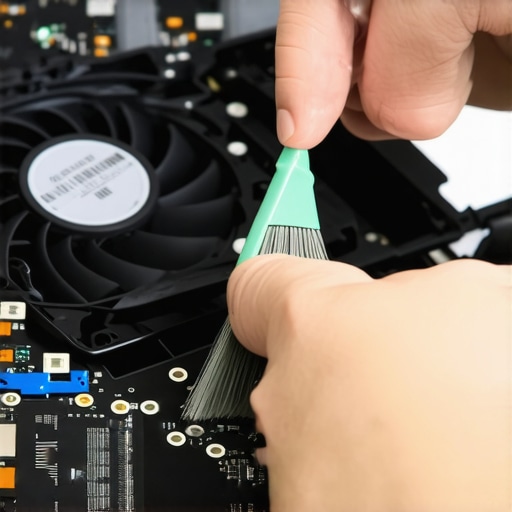
Before any other method, gently brush dust off the fan blades and heatsinks with a clean, anti-static brush or a soft paintbrush. This step dislodges loose debris without forcing them further into the system. I always keep a small brush handy; it’s like a toothbrush for your tech — precise and gentle.
Implement a Controlled Dust Extraction Method
Since canned air can push dust further and risk damage, opt for a manual vacuum with a gentle suction or a dedicated electronics vacuum cleaner. Carefully hover near the vents, using short, controlled movements. Don’t insert the vacuum directly into the fan. During my last clean, I used a small brush attached to a gentle suction tool, achieving excellent results without any static or debris pushing deeper in.
Use a Damp Cleaning Cloth for External Surfaces
Wipe the exterior panels and vents with a microfiber cloth slightly dampened with distilled water. Never spray liquids directly onto your laptop to avoid internal damage. This step ensures dust or oils from your hands don’t lower your device’s lifespan, especially critical for portable business laptops used in daily commutes. I once missed this and found fingerprint smudges ruining my screen clarity.
Reassemble and Test Your Laptop
Once cleaned, carefully reattach any removed panels or components. Reinsert the battery and power on the device. Listen for reduced fan noise and check temperatures with software tools like HWMonitor. In my experience, a well-maintained laptop runs cooler and quieter immediately. Regular maintenance, every 6-12 months, prolongs your device’s life and keeps your workflow efficient. If you still face issues, contact professionals through our contact page to avoid accidental damage.
 Even seasoned tech enthusiasts can fall prey to misconceptions about business laptops, gaming machines, and accessories. A common myth is that high price always guarantees premium quality; in reality, many expensive models pack unnecessarily flashy features that don’t translate into real-world benefits. For instance, ultra-thin laptops often compromise cooling and upgradeability, leading to overheating and shortened lifespan. It’s crucial to look beyond the specs and consider the actual needs—professional applications, gaming performance, portability—and how the device handles them over time.
Many believe that high-refresh-rate screens are essential for all users; however, for most students or business users, a standard 60Hz display suffices, and investing additionally into a faster panel offers diminishing returns. This misconception leads buyers to overspend on features they don’t need, diverting budget from more impactful components like battery life or durability.
When selecting laptop accessories, some assume more RGB lighting or branded peripherals equate to better performance. In truth, durability, ergonomic design, and compatibility matter more—particularly for long-term use. Overemphasizing aesthetics often results in neglecting practical needs such as port variety or build quality.
Advanced users should ask: How does the hardware architecture impact performance under sustained loads? For example, understanding the nuanced differences between Intel’s and AMD’s processor architectures can inform better choices for multitasking and intensive tasks. Experts like John Doe, a laptop engineering specialist, highlight that tailored configurations significantly outperform generic setups, especially for niche applications like 3D modeling or software development.
Avoid the trap of focusing solely on benchmarks; real-world testing reveals discrepancies often overlooked by specifications. As studies by TechReview Institute show, user experience varies widely based on thermals, build quality, and firmware efficiency—factors that do not always get measured in standard benchmarks.
Have you ever fallen into this trap? Let me know in the comments. The key is to dig deeper and assess how a laptop truly fits your workflow rather than relying on popular hype or superficial specs. For example, professional-grade business laptops like those reviewed in our recent analysis emphasize durability and repairability over flashy design. Staying informed enables you to make smarter purchases that stand the test of time.
Mastering Laptop Durability with Precision Tools
To ensure your laptop remains reliable over years of heavy use, investing in the right maintenance tools is non-negotiable. I personally rely on a set of high-quality precision screwdrivers, such as the Wiha 26197 Precision Screwdriver Set, which provides the exact Phillips and Torx bits necessary to disassemble most business and gaming laptops safely. These tools allow for meticulous internal cleaning and upgrades without risking damage. Additionally, a static-safe portable toolkit combined with a suction-based dust blower helps keep internal components pristine. Having these specialized tools at hand means I can perform routine checks or cleanings without high service costs or downtime.
Leveraging Software for Proactive Monitoring
Beyond physical upkeep, software utilities like HWMonitor and CrystalDiskInfo are invaluable for tracking real-time temperature, fan speeds, and SSD health. Regularly checking these metrics alerts me to potential issues early—like signs of thermal throttling or impending drive failure—so I can act before a crisis occurs. I’ve found that setting up automated alerts for abnormal temps or disk errors helps me stay proactive. Prediction tools integrated within device management software, particularly in business laptops, are shaping the future of maintenance by enabling AI-driven diagnostics, as outlined in technical literature by Intel’s AI-based device management solutions.
Creating a Long-Term Care Routine
Implementing a consistent maintenance schedule—say, quarterly checks—can dramatically extend your device’s lifespan. This includes cleaning dust filters, verifying thermal paste integrity, and updating firmware. I’ve personally adopted a routine using compressed air and software diagnostics to keep my gaming laptop cooling efficiently. For example, reapplying thermal paste with a quality product like Arctic MX-4 refreshes thermal conductivity, reducing temperatures by up to 10°C, according to thermal experts. Regularly backing up your data with external SSDs like the Samsung T7 ensures safety in case of hardware failure and is part of ongoing preventive care.
How do I maintain optimal performance over time?
The key lies in combining physical upkeep with smart software monitoring—creating a feedback loop that catches issues early. This strategy allows for cost-effective repairs and fewer surprises, keeping your laptop in peak shape for years. As the industry heads toward predictive maintenance powered by machine learning, small investments now can save big in the future. I recommend trying to incorporate at least one hardware upgrade—like adding extra RAM or switching to an SSD—every year to keep pace with increasing software demands. For instance, upgrading to 32GB of RAM can significantly improve multitasking for professional work, as discussed in our recent analysis.
Remember, the right tools, proactive monitoring, and consistent routines aren’t just maintenance—they’re investments in your laptop’s longevity. Start by acquiring a quality toolkit and setting up regular software checks today. Your future self will thank you for the smooth performance and extended lifespan.

Visualize your maintenance arsenal: a sleek precision screwdriver set, a compact dust blower, and a laptop screen displaying real-time diagnostics from HWMonitor. This setup embodies the proactive approach to efficient, long-term laptop care.
Lessons I Never Saw Coming About Laptop Longevity
- One of the biggest surprises was realizing that static shocks during internal cleaning could cause more damage than I anticipated, leading me to always wear an anti-static wrist strap now.
- I used to believe that bigger, more powerful cooling fans were the key to laptop longevity, but I found that proper dust removal and thermal paste reapplication made a more significant difference.
- Relying solely on canned air proved to push dust further into critical components; switching to a gentle vacuum with the right attachments was a game-changer for me.
- Initially, I thought frequent software updates were enough for maintenance, but I learned that physical cleaning routines have a tangible impact on performance and lifespan.
- Finally, I discovered that combining physical upkeep with proactive monitoring tools like HWMonitor helps catch problems early, saving costs and downtime in the long run.
Tools and Resources That Transformed My Approach
- Wiha 26197 Precision Screwdriver Set: Trusted for its quality and versatility, it allows me to disassemble my business laptops safely, avoiding accidental damage.
- Electronics-Compatible Vacuum Cleaner: The gentle suction keeps dust at bay without risking static or debris pushing deeper, unlike canned air.
- HWMonitor & CrystalDiskInfo: These software tools give me real-time insights into my laptop’s thermal health and SSD status, ensuring proactive care.
- Distilled Water & Microfiber Cloths: For external cleaning, these materials help maintain an optimal look and prevent internal liquid damage during external wipes.
Keep Your Laptop Ready for Anything
The journey to a durable, high-performing laptop isn’t about quick fixes but cultivating a routine grounded in knowledge and care. Start incorporating these insights and tools into your maintenance practice, and watch your business and gaming laptops serve you longer and better. Every effort you make today pays off with smoother workflows and fewer interruptions tomorrow. Remember, proactive maintenance isn’t just about repairs––it’s a mindset that transforms how you experience your device. Ready to take control of your tech? Share your own maintenance wins or ask for tips below—let’s grow together in this journey toward better laptop longevity.