
Imagine this: you’re deep into an intense gaming session, adrenaline pumping, and suddenly your PC shuts down unexpectedly. That sinking feeling? I’ve been there—thinking I saved a few bucks on a third-party charger only to pay the price in crashes and potential hardware damage. It hit me hard when my own rig sputtered after using a cheap, off-brand charger, risking my investment and my gaming streak.
This experience made me realize there’s more at stake than just saving a few dollars; there are serious safety and performance risks involved. Today, I want to share what I’ve learned to help you avoid the hidden dangers lurking behind that seemingly tempting deal.
Why Cutting Corners with Chargers Can Cost You More Than You Think
Is Saving Money on a Charger Really Worth the Risk?
Inspect the Charger Before Purchase
Always examine the charger for authenticity. Check for official branding, labels, and packaging integrity. Avoid chargers with misspelled words, inconsistent fonts, or missing serial numbers, as these are signs of counterfeits. Remember, a genuine charger ensures compatibility and safety. This step saved me from potential short circuits when I was about to buy a cheap charger online, which turned out to be a fake and caused my laptop to overheat.
Verify Compatibility with Your Device
Matching the voltage, amperage, and connector type is crucial. Use the original specifications from your laptop’s manual or manufacturer’s website. Think of it like pairing a key with a lock; incompatible specs can cause damage or failure. When I upgraded my gaming laptop, I made sure to buy a charger with the exact output specs to maintain optimal performance and avoid damaging the battery or motherboard. For detailed compatibility tips, visit this guide.
Use Certified and Reputable Brands
Opt for chargers from well-known manufacturers or certified third-party brands. Certifications like UL, CE, or FCC indicate adherence to safety standards. It may seem tempting to save money, but low-quality chargers can lead to overheating, fires, or damage to internal components. I learned this the hard way when a non-certified charger melted inside my backpack, risking both my device and safety. Choosing trusted brands provides peace of mind and longevity, especially for gaming or business laptops.
Inspect the Cable and Connectors
Check for frayed wires, exposed copper, or loose connectors. Damaged cables can cause sparks or intermittent charging. Gently flex the cable near the connector; if it produces flickering or disconnections, avoid using it. Once, I replaced a damaged cable with a certified one, avoiding a potential fire hazard and ensuring stable power delivery during long work sessions. For extra durability, consider cables with braided insulation, which resist wear and tear.
Follow Proper Charging Policies
Plugging and unplugging frequently can wear out connectors and cables, increasing safety risks. Use a surge protector to safeguard against power surges or outages. Never leave the charger unattended when damaged or overheated. In my experience, using a surge protector not only protects my laptop but also prolongs the life of the charger. Remember, avoiding cheap, off-brand chargers reduces the chance of damage and safety hazards—investing in quality pays off in the long run. Learn more about the dangers of third-party chargers at this resource.
When it comes to selecting the right laptop, many assume they have all the options and details figured out. But in reality, misconceptions about student, gaming, or business laptops often lead buyers astray, causing costly mistakes. Let’s dig deeper into common myths and uncover the subtle truths that can make a significant difference in your purchase and usage experience.
A prevalent myth is that the most expensive or latest models automatically provide the best performance. While cutting-edge specs are appealing, they might not translate to real-world benefits for students or casual gamers. For instance, a high-refresh-rate gaming laptop like the ones reviewed in this guide can be perfect for competitive players but may be overkill for casual gaming or academic work. Often, balanced configurations with quality displays and reliable battery life serve better than bleeding-edge features.
Another misconception involves upgradeability. Many believe modern laptops, especially ultrabooks or sleek business models, completely lock users out of upgrading components like RAM or storage. Yet, as discussed in this article, several high-end business laptops still retain user-accessible parts, making long-term investments more feasible.
Here’s a hidden trap to watch for: the allure of ultra-portability often comes with compromises in durability or thermal management. Thin laptops might look elegant but can overheat or have fragile hinges. For professionals constantly on the move, considering models with reinforced build quality, like some of the options highlighted in this deal roundup, might save you from frequent repairs.
Take note that misconceptions about accessories can also impact your experience. Many think that plugging in every available gadget boosts productivity, but overloading ports with unneeded peripherals can cause power drain or interference. A curated selection of must-have accessories ensures efficiency without unnecessary clutter.
A crucial advanced nuance relates to display technology. While 4K screens seem tempting, experts warn that they can strain GPU resources and reduce battery life, especially on mid-range devices. For productive work or gaming, a well-calibrated 1080p or 1440p display often offers the optimal balance, as covered in guides on display choices.
Finally, many overlook the importance of battery calibration and maintenance. Regularly reconditioning your battery improves longevity and performance, an overlooked detail that advances overall device health. For detailed tips, see this resource.
Understanding these nuanced distinctions helps you make smarter, more informed decisions rather than falling prey to myths or overlooked factors. Remember, investing time into research—beyond just specs—can save you money and frustration in the long run.
Have you ever fallen into this trap? Let me know in the comments.
How do I keep my laptop running smoothly over time?
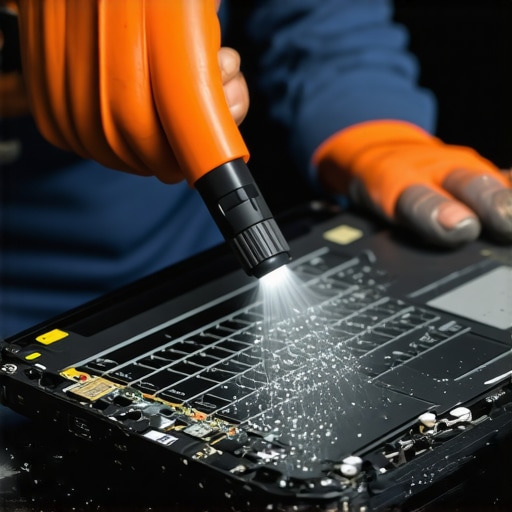
Long-term maintenance of your laptop is key to ensuring consistent performance, especially when juggling coursework, gaming, or business tasks. One of my go-to strategies is utilizing diagnostic tools like hardware monitoring software such as HWMonitor or CrystalDiskInfo. These allow me to keep tabs on CPU temperatures, disk health, and fan speeds, catching potential issues before they escalate. Regularly cleaning dust from vents and fans—using a precision air blower—is another simple yet effective method to prevent overheating and hardware degradation. I do this every three months, ensuring thermal paste remains effective and airflow stays unobstructed.
Complementing physical maintenance, keeping drivers and BIOS firmware up to date significantly enhances stability and compatibility, especially after major OS updates. I schedule biannual checks for updates directly from my laptop manufacturer’s support site, which often includes critical security patches and performance improvements referenced in this detailed guide. Automating routine scans with trusted security suites like Malwarebytes or Windows Defender helps prevent malware or bloatware from slowing down your system over time.
For software health, I use settings like disk cleanup, defragmentation (necessary primarily for HDDs), and removing unnecessary startup programs through Task Manager. These steps collectively keep my laptop responsive, even after years of use. For those using SSDs, I rely on manufacturer tools like Samsung Magician or Intel SSD Toolbox to monitor drive health and optimize performance.
Investing in the right tools makes maintenance easier
A quality external USB-C fan or thermal pad can help regulate temperature during intense gaming or workload sessions, especially if your laptop is already a few years old. Additionally, investing in a comprehensive toolkit—such as the precise screwdriver set—empowers you to replace worn-out components like batteries or SSDs yourself, saving money and extending device lifespan. These tools and practices are investments in your device’s longevity and your peace of mind.
Future of maintenance techniques
Looking ahead, I predict AI-driven diagnostic systems integrated directly into laptops will become standard, alerting users to issues proactively via smart notifications and step-by-step repair guides. Such innovations will make proactive maintenance accessible even for non-technical users, boosting productivity and device lifespan.
Take action now—try cleaning your vents with a high-quality air blower, and schedule a BIOS update today. These small steps can have a significant impact on your laptop’s long-term health.
Need assistance? Feel free to reach out through our contact page for personalized advice on your maintenance routine.
What I Wish I’d Known Before Trusting Cheap Chargers
- Investing in genuine accessories can save you from costly repairs and data loss, as I learned when a fake charger fried my laptop’s motherboard.
- Failing to verify compatibility can lead to hardware damage—making me realize the importance of matching voltage and connector types.
- Choosing reputable brands with safety certifications prevents overheating and fire hazards, a lesson learned after my budget charger melted in my bag.
- Inspecting cables and connectors for damage is vital; replacing frayed wires kept my work uninterrupted during critical project deadlines.
How Personal Experience Changed My View on Laptop Choices
- I once believed the latest tech was always best, but balanced configurations often outperform bleeding-edge specs for students and casual gamers.
- Many assume modern laptops can’t be upgraded, yet some business models still allow for RAM and storage improvements, prolonging their lifespan.
- There’s a misconception that ultra-portable = fragile; I found that reinforced build quality is essential for busy students on the go.
- Overloading your device with peripherals isn’t always better; curated setups improve productivity without risking system stability.
My Secret Weapon for Long-Term Laptop Health
- Regular physical cleaning with compressed air prevents overheating—something I do quarterly to keep my machine running smoothly.
- Keeping drivers and BIOS updated through manufacturer sites boosts performance—my daily check ensures I avoid glitches before vital exams or deadlines.
- Monitoring temperatures and disk health with trusted software has saved me from unexpected crashes, especially during intense gaming sessions.
- Investing in quality thermal pads and external cooling tools has extended my laptop’s lifespan, proving small upgrades make a big difference.
Where to Find Tools That Make a Difference
- Hardware monitoring software like HWMonitor helps me catch issues early, avoiding costly repairs.
- Cleaning tools such as precision air blowers make maintenance simple and effective—keeping dust out of vents and fans.
- Dedicated repair kits equip me to replace batteries or SSDs myself, saving money and time.
- External cooling devices like USB-powered fans can prevent overheating during demanding tasks, especially for gaming laptops.
Take Control and Keep Moving Forward
Your journey with student laptops, gaming notebooks, or business machines is personal and ongoing. Every small step you take toward understanding and maintenance adds up, ensuring your device stays reliable and powerful for years to come. Embrace the knowledge, stay curious, and don’t hesitate to explore tools and tips that can enhance your tech life. Your future self will thank you for the effort invested today.
Which lesson resonated most with your own laptop experience? Share your stories below—I’d love to hear how you’re making your tech last longer!
.