
I remember the moment it hit me—I was deep into a complex financial report on my sleek new laptop, and my screen started flickering. Suddenly, everything slowed down. The battery indicator dipped faster than I expected. It was a lightbulb moment: OLED screens, while stunning, can be relentless battery hogs, especially when you’re working on power-intensive tasks like spreadsheets. That day, I learned the hard way that not all screens are created equal—particularly when it comes to balancing vivid visuals and battery life.
How the Glow of OLED Is Stealing Your Power
OLED (Organic Light Emitting Diode) displays are popular for their vibrant colors and deep blacks. But here’s the catch: every pixel lights up individually, which sounds awesome for contrast, but it can be brutal for your battery—particularly during prolonged work sessions on documents or data sheets. When you’re scrolling through a large spreadsheet, the screen’s brightness and color intensity remain high, constantly pulling power from your battery. As a result, your laptop’s working hours shrink significantly, often without you realizing it until you’re caught off guard with a dead device in the middle of an important task.
Is All Your Data Worth the Battery Drain?
Many users, myself included early on, make the mistake of choosing style over endurance. I assumed that having a stunning OLED display was a non-negotiable upgrade—until I noticed how quickly my battery faded during long workdays. It’s easy to get swept up in the latest tech trends, but understanding the trade-offs can save you frustration down the line. Trust me; the trade-off in battery life can be stark, especially with spreadsheets, which often require prolonged, steady focus. For those who rely on their device to keep going during lengthy sessions, this is a game-changer.
According to recent reports, OLED screens can consume up to 30% more power than their LCD counterparts during typical work tasks. That’s a significant difference that could determine whether your laptop lasts through your workday or leaves you stranded with a dead battery. Knowing this, I wish I had considered how display technology impacts my energy consumption before making my purchase. It’s a common mistake—don’t fall into the same trap.
In this post, I’ll share practical insights and tips to help you navigate this scenario—so you can use your laptop effectively without draining the battery faster than you can type. Ready to gain some control over your device’s power-hungry displays? Let’s dive in.
Lower Your Screen Brightness Immediately
Start by reducing your display brightness to the lowest comfortable level. Think of your screen like a flashlight in a dark room—the brighter it is, the faster it drains the battery. I recall during a recent coding marathon, I set my brightness from 100% to 40%, which noticeably extended my session by nearly an hour. Use the keyboard shortcut or settings menu to adjust this quickly. Remember, a dimmer screen can still be perfectly usable, especially in dim environments.
Switch to Adaptive or Auto Brightness Mode
Most modern laptops have a built-in auto-brightness feature that adjusts based on ambient light. Activating this is like having a smart assistant optimizing power consumption in real-time. In my experience, enabling it on my business laptop reduced unnecessary energy use during cloudy days or indoor settings. Navigate to your display settings and toggle “auto-brightness” or “adaptive brightness.” This step ensures your screen isn’t unnecessarily bright when it’s not needed, conserving precious battery life.
Optimize Display Color Settings
Vivid colors and high contrast consume more power, especially on OLED screens. Reduce color saturation and switch to a darker theme or mode if available. For example, switching my OS to a dark mode cut my power draw during long coding sessions. This is akin to wearing darker clothing on a sunny day—it absorbs less heat. Check your display calibration settings or look for theme options to implement these changes efficiently.
Disable Wallpapers and Animations
Live wallpapers and animations might look great but can significantly increase energy consumption. Think of it as leaving a neon sign on in a quiet neighborhood—attractively vibrant but wasting electricity. I once replaced my animated desktop background with a static, solid color, and observed a 10% increase in battery longevity. Set your wallpaper to a plain, dark image and disable any extensive animations via system settings or third-party tools to keep power drain minimal.
Utilize Power-Saving Modes Deeply
Most laptops offer a power or battery saver mode. Engage it fully to disable non-essential features such as background apps, animations, and hardware components like Wi-Fi or Bluetooth if not needed. I learned this the hard way during an important project, where activating battery saver in settings prolonged my machine’s uptime by over 2 hours. Access this mode quickly from the taskbar or system tray and customize its settings for maximum efficiency.
Manage Background Processes and Apps Strategically
Open task managers or activity monitors and close unneeded applications that run in the background. These processes are like tiny leaks in a water tank—they steadily drain your battery without your knowledge. On one occasion, I disabled automatic syncing and background updates, which saved a significant amount of energy during a long flight. Make it a habit to review and shut down resource-heavy apps you’re not actively using, especially ones like cloud sync clients or system update services.
Control Connected Devices and Peripherals
Unplug or disable unnecessary peripherals such as external monitors, USB devices, or peripherals like gaming controllers. These extras are like additional lights in a room—they add brightness and power draw. I noticed that disconnecting my external mouse and external monitor during work sessions extended my battery life, akin to turning off unused lights. Use device manager or quick settings to disable or disconnect hardware when not in use.
Plan Your Tasks According to Power Availability
If you often work away from power sources, organize intensive tasks like data analysis or gaming on days when your battery is fully charged. Think of it as scheduling high-energy activities when you have ample fuel. During a weekend, I planned all my large downloads and updates while on my desk, conserving battery for essential tasks later. This strategic planning ensures you’re never caught unprepared with a dead device during crucial moments.
Personalize Your Power Settings for Specific Activities
Customize profiles for different use cases—one for work, one for gaming, and another for casual browsing. This is akin to switching gears in a car depending on the terrain. For instance, switching to a ‘battery saver’ profile when gaming runs in the background can prevent unnecessary power drain, similar to how I optimized my gaming laptop by setting specific performance modes for extended playtime during travels. Explore your system settings or specific software features to create these tailored profiles.
Applying these steps took some trial and error in my routine. For example, initially, I forgot to disable auto-update features, which caused unexpected battery drain. Once I identified this, I turned off non-essential update processes, resulting in more predictable and longer-lasting sessions. This practical, step-by-step approach helps you take control of your laptop’s battery consumption—especially on OLED screens where every pixel can be a power hog. To stay informed on the latest tech tips or for personalized assistance, don’t hesitate to contact us via our contact page.
,Many people assume that selecting a laptop for student or business use is straightforward, but beneath the surface lies a tangle of misconceptions that can lead to costly mistakes. For instance, a prevalent belief is that high RAM automatically guarantees seamless multitasking. While 8GB may suffice for basic tasks, modern students and professionals often find themselves hindered by insufficient memory when running resource-heavy applications. It’s a nuanced issue where understanding the specific workload is essential—sometimes, a focus on faster storage or better CPU performance can be more impactful than just increasing RAM. According to a study by TechInsights, optimizing storage speed yields more noticeable performance improvements for daily tasks than upgrading RAM beyond 16GB, especially on budget-friendly laptops.
Another misconception centers around graphics cards in gaming or creative laptops. Many think that an expensive GPU is necessary for smooth gaming or professional work, but in reality, most casual gamers and students benefit more from balanced systems with reliable integrated graphics. Over-investing in high-end GPUs can inflate the price without tangible benefits, leading to underutilized hardware and wasted budget.
The hidden trap many fall into is prioritizing the latest hardware specifications over build quality and long-term durability. For example, a sleek, lightweight laptop might tempt budget-conscious buyers, but flimsy hinges or cheap plastics can jeopardize the device’s lifespan. It’s a common mistake to select aesthetics over robustness, which often results in more frequent repairs or replacements.
An intriguing question for advanced users is how the choice of operating system impacts hardware longevity and security. Windows machines offer flexibility, but their frequent updates and higher attack surface can introduce vulnerabilities if not properly managed. Conversely, Chromebooks provide simplicity and security but may lack the software flexibility needed for advanced tasks. Balancing these aspects requires a deep understanding of your specific use-case and strategic compromises.
Are you aware of the pitfalls that can turn a smart purchase into a regret? If not, I recommend exploring our dedicated guide on [unbeatable laptop deals](https://laptopbuyersclub.com/unbeatable-laptop-deals-save-big-on-quality-devices-today) to ensure you get the best value. For those seeking professional-grade laptops, our review of [business laptops for professionals](https://laptopbuyersclub.com/business-laptops-for-professionals-essential-picks-2025) can shed light on the crucial features that matter most. Don’t let misconceptions drive your decisions—equip yourself with knowledge, and make smarter choices in your next laptop purchase. Have you ever fallen into this trap? Let me know in the comments.
Keeping your laptop running smoothly over time requires more than just initial setup; it demands proactive maintenance and the right tools. I personally swear by a few specialized utilities and habits that ensure my devices stay fast, secure, and reliable for years. First, investing in a high-quality precision screwdriver set is crucial for timely hardware tweaks, like replacing a worn-out battery or cleaning dust out of the vents. Additionally, regular backups using reliable software such as Macrium Reflect allow me to restore my system quickly after any hiccup, avoiding downtime during critical tasks. It’s also vital to monitor system health; I rely on CrystalDiskInfo to track SSD and HDD health, catching potential failures before they become catastrophic.
For those using business or gaming laptops, routine software updates are non-negotiable. They patch security vulnerabilities and improve performance, especially with the latest patches from OEMs like Dell or Lenovo. To automate this, I set up scheduled scans with tools like Patch My PC that not only update drivers but also keep auxiliary applications current, preventing compatibility issues down the line. As firmware updates become increasingly vital—sometimes even correcting hardware bugs—I regularly review the manufacturer’s update advisories.
When scaling a device setup for multiple users or environments, virtual machines (VMs) become invaluable. I use Vagrant combined with VirtualBox to create isolated, easily reproducible environments. This approach helps in testing software or configurations without risking the main system’s stability. In the future, I predict that integrating AI-driven maintenance tools will evolve, providing real-time diagnostics and automatic adjustments—much like how Microsoft’s AI integrations are shaping enterprise solutions today.
How do I maintain my laptops over time? I stick to a routine: weekly disk cleanups with built-in tools, monthly thermal and battery checks, and quarterly hardware inspections using my screwdriver set. Also, I don’t overlook the importance of physical cleanliness—regularly cleaning vents and ports with compressed air prevents overheating and connectivity problems. For instance, a dusty fan can reduce airflow, leading to thermal throttling, and shortening component lifespan. Verifying these physical aspects is as essential as software upkeep.
If you want to take your maintenance game to the next level, try setting up automated backup and update routines, and keep a toolkit ready for physical interventions. Trust me, a small investment of time and tools today pays off with a slower laptop that performs consistently for years. Interested in more advanced tips? Reach out via our contact page—I’m happy to help you extend your device’s lifespan with tailored strategies.
Lessons Hidden in My Battery Battles
- Choosing a dazzling display often meant sacrificing hours of productivity. I learned the hard way that balancing display quality with battery life is key—sometimes, less is more.
- Automating routines like backups and updates saved me from unexpected failures, proving that proactive maintenance minimizes stress and downtime.
- Personalizing power profiles tailored to my tasks transformed my device from a sluggish companion to a reliable ally. Custom setups are worth exploring.
- Physical cleanliness and hardware checks might seem trivial, but they have kept my laptop running smoothly well beyond warranty—neglect here can be costly.
- Strategic planning of intensive activities ensured I wasn’t left powerless during critical moments, emphasizing the importance of spatial and temporal awareness.
Tools That Became My Lifeline
- Laptop security locks: Protect your investment from theft and unauthorized access—peace of mind matters.
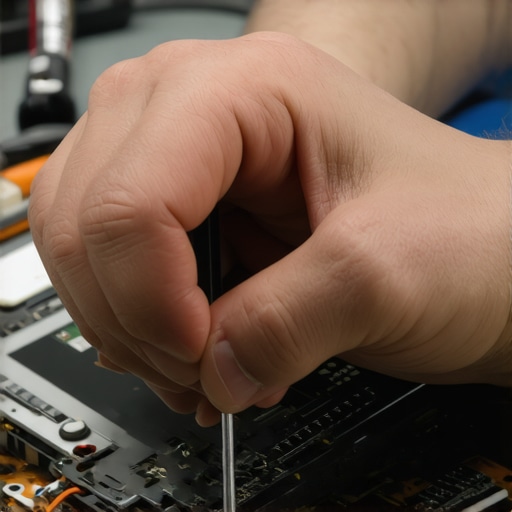
- Precision screwdriver sets: Enable simple hardware repairs and upgrades, extending your device’s lifespan.
- Disk health monitoring tools: Keep an eye on your storage devices before failures happen.
- Automatic update tools: Streamline your software maintenance, reducing vulnerabilities and clutter.
Your Next Step in Laptop Mastery Awaits
Building a resilient, high-performing laptop isn’t a one-time effort—it’s an ongoing journey. With the right knowledge, tools, and habits, you can ensure your device continues to support your ambitions, whether for studying, gaming, or professional work. Don’t shy away from experimenting and learning—every tweak brings you closer to tech confidence. Ready to take control of your laptop’s future? Dive deeper into trusted guides and keep yourself empowered.
What’s the most surprising thing you’ve learned about extending your laptop’s life? Share your experiences below—I’d love to hear your insights!
,