
I still vividly remember the day I bought my first refurbished laptop, thinking I was saving a fortune. It was a sleek, seemingly perfect machine — until it started crashing randomly, overheating, and eventually refused to turn on just a few months later. That frustrating experience was a lightbulb moment: some components are just not worth the risk when bought used.
Why the GPU is the one part you shouldn’t skimp on, even if it’s tempting
From my own misadventures, I learned that the graphics card — especially in gaming or creative work laptops — is a critical component that deserves new. Replacing a GPU isn’t just a matter of swapping out a part; it’s about ensuring reliability, performance, and longevity. Buying a used GPU can be a gamble because these components endure a lot of stress, and their wear-and-tear isn’t always visible.
Did you know that used GPUs often come with a history of mining, overclocking, or persistent overheating? These factors drastically reduce their lifespan, and often, a refurbished or used GPU won’t match the performance of a brand-new one. According to a study by TechSpot, GPUs tend to have a significantly higher failure rate when bought secondhand — with some reports citing failure rates of over 20% within the first year of use.
Is it really worth risking your system’s stability?
Personally, I made the mistake early on of assuming — like many — that all components are interchangeable and ‘mostly fine’ used. But it’s a false economy, especially given how costly repairs can be if a component fails prematurely. The lesson? For critical parts like the GPU, CPU, or motherboard, you’re better off investing in a fresh, guaranteed device or component. It not only saves money in the long run but spares you the headache of dealing with warranty headaches or potential damage to other parts.
If you’re scouting for top-tier laptops, including business laptops for professionals in 2025 or gaming beasts listed among the best gaming laptops for 2025, make sure to prioritize new components where it counts. It’s an investment in peace of mind and performance.
Have you ever bought a used component only to regret it later? If so, you’re not alone. I’ve been there too, and I’m here to help you avoid those pitfalls. Up next, we’ll explore how to identify which parts are safe to buy used and which are better left untouched. Stay tuned!
Inspect Before Investing: The First Step to Smart Purchases
Before buying any laptop component, especially used parts, do a physical inspection. Check for signs of physical damage, corrosion, or missing screws—think of it as a doctor examining a patient for visible ailments. For example, during my last purchase of a used motherboard, I gently lifted it and looked for bulging capacitors or leaking fluid, which are tell-tale signs of failure. If inspecting online, ask for detailed images or videos showing the component from multiple angles. Never skip this step; the condition of the hardware is the foundation of longevity.
Verify Compatibility and Performance
Ensure the component fits your specific laptop model and meets your performance needs. Cross-reference the part number with manufacturer specs or trusted sources like the manufacturer’s website. For instance, I once purchased a used SSD claiming compatibility with my ultrabook—only to find out it was a different interface standard, rendering it useless. Use tools like manufacturer repair manuals or forums to confirm compatibility. Double-check that the hardware’s firmware is up-to-date, as outdated firmware can cause stability issues later.
Test the Hardware in Real Conditions
Whenever possible, test the component before finalizing the purchase. This might mean visiting a local repair shop for a quick test or requesting the seller to run diagnostics remotely. I remember buying a secondhand GPU from a local reseller, and they allowed me to run a stress test at their shop. The GPU performed flawlessly under load, which gave me confidence in the purchase. For online transactions, request a video demonstrating the component powering on and functioning under typical loads. This minimizes the risk of receiving faulty hardware.
Choose Trusted Sellers or Sources
Opt for reputable marketplaces or vendors with solid reviews—think of it as choosing a trusted pharmacist rather than a random street vendor. For used components, platforms like [Laptop Buyers Club](https://laptopbuyersclub.com/contact-us) ensure a certain level of quality and buyer protection. Avoid deals that seem too good to be true; they often are. When dealing with private sellers, ask for proof of purchase or warranty if available. This added layer of confidence can save you from potential scams or faulty parts.
Establish Clear Return and Warranty Policies
Always clarify the return period and warranty options before completing a purchase. Like buying a new appliance with a guarantee, knowing you can return or exchange the part if it fails gives peace of mind. Personally, I prefer sellers offering at least a 30-day guarantee, which provides a safety net for testing the piece thoroughly at home. If the seller is hesitant or vague about policies, consider shopping elsewhere or negotiating better terms. Protecting yourself upfront prevents headaches down the line.
Document and Secure Your Purchase
Keep records of all transactions, correspondence, and receipts. Take detailed photos of the component’s serial number and condition upon arrival. When I ordered a used RAM stick online, I documented its serial number before installing it. This helped me verify authenticity later and was useful if I needed to initiate a warranty claim. Proper documentation streamlines troubleshooting and ensures you are covered in case of disputes.
Many assume that choosing the right laptop is just about specs or the latest model, but in reality, there’s a nuanced understanding that often gets overlooked. **Contrary to popular belief, focusing solely on specifications like CPU speed or RAM size can be misleading; compatibility, build quality, and real-world performance matter far more**. Overemphasizing high-end components without considering how they integrate into daily workflows can lead to costly mistakes, especially for students and professionals alike.
A common myth is that the most expensive gaming laptops automatically suit students or business users due to their power; however, these machines often sacrifice portability and battery life. Conversely, many think that all business laptops are dull and underpowered—this couldn’t be further from the truth. The latest models blend sleek design with impressive durability, catering to both productivity and style. For instance, exploring options from [top business laptops for 2025](https://laptopbuyersclub.com/top-business-laptops-for-productivity-in-2025-expert-recommendations) reveals devices tailored for long-term use rather than fleeting specs.
**Beware the trap of choosing a laptop based solely on exclusive deals or flashy features**. Often, aggressive marketing pushes models with gimmicks—like RGB lighting or extra ports—that don’t contribute to your actual needs. Instead, evaluate hardware reliability, upgradeability, and support services. For example, some models offer user-replaceable batteries and RAM, which extend their lifespan and save money over time—details often lost in promotional materials.
Now, for the advanced user, consider how *thermal management* impacts performance longevity. Many assume that high performance equates to higher heat output, leading to throttling and reduced lifespan. But manufacturers with innovative cooling solutions—like vapor chambers or advanced heat pipes—can maintain optimal performance longer. Research by TechInsights indicates that thermal efficiency directly correlates with device durability and sustained performance.
How can software and firmware updates influence long-term performance of student or business laptops?
Keeping firmware up-to-date ensures hardware components function optimally, patch security vulnerabilities, and sometimes unlock new features. Neglecting updates can cause performance bottlenecks or compatibility issues, undermining the initial investment. Regular check-ins with manufacturer support pages and reputable sources help maintain this edge.
**Have you ever fallen into this trap of misjudging a machine’s actual capabilities?** Let me know in the comments. The key to making an informed choice lies in understanding these nuances—beyond the specs and into the real-world performance and longevity of your laptop.
Maintain Your Laptops Like a Pro
Consistent maintenance is key to ensuring your student or professional laptop remains reliable over years of use. I personally use a combination of hardware monitoring tools and regular cleaning routines to extend the longevity of my devices.
Essential Software for Long-Term Health
One tool I swear by is HWMonitor. It provides real-time data on CPU and GPU temperatures, fan speeds, and voltages. Regularly checking these metrics helps me catch overheating issues before they cause hardware failure. For software optimization, I rely on CCleaner to tidy up junk files and clear registry clutter, which keeps my systems running smoothly. Moreover, keeping your drivers updated with manufacturer tools ensures compatibility and stability—consider visiting the OEM’s support site or using dedicated updater apps.
Hardware Checks and Cleanups
Physical maintenance is just as crucial. I dedicate time every few months to carefully clean dust out of fans and vents using compressed air—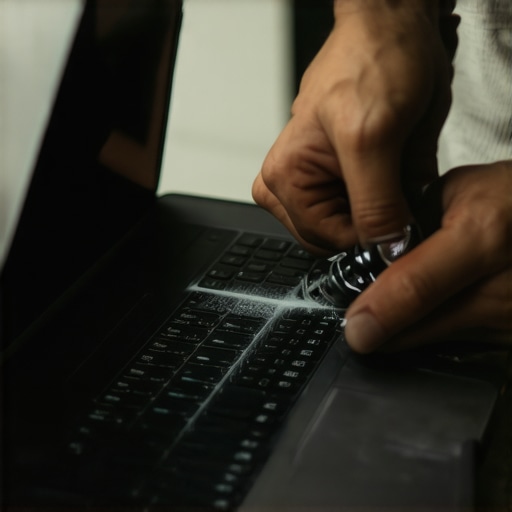 to visualize the process. This prevents thermal throttling and prolongs component life. Additionally, inspecting and replacing thermal paste on CPUs and GPUs, as advised in AMD’s official guide, can significantly boost thermal performance. Remember, keeping your device dust-free and cool can double its lifespan.
Tools I Trust for Ongoing Care
For physical upgrades or deep cleanings, I use a precision screwdriver set from iFixit. Their tools are designed for delicate electronics, reducing the risk of damage. To monitor hardware health over time, I set up SMART alerts on my SSDs using freeware like CrystalDiskInfo. These alerts notify me early of potential drive failures, allowing me to back up data proactively. Additionally, ASUS’s proprietary AI Suite or Lenovo’s Vantage software help me optimize fan curves and power settings for quieter, cooler operation—especially useful during intensive tasks like gaming or running simulations.
Scaling and Future-Proofing Your Setup
As your needs evolve, so should your maintenance routine. Upgrading RAM or switching to an SSD can make older laptops feel rejuvenated, proving that proper upkeep extends device relevance. For large-scale deployments—like a classroom or small office—I recommend creating standardized maintenance scripts that automate disk cleanup and driver updates, saving time and reducing errors. Looking ahead, integrating automatic system health checks and remote diagnostics will become more accessible, making proactive maintenance even easier.
How do I stay ahead of hardware failures?
Start by implementing a regular schedule for software cleanups, hardware inspections, and thermal checks. Using tools like HWMonitor and CrystalDiskInfo helps me catch issues early. I also recommend documenting your maintenance routines and logging hardware performance trends, which helps in diagnosing problems down the line. Why not try setting up automated alerts for your SSD health today to get notified before a failure occurs? Staying vigilant now can save you hours of troubleshooting and data loss later.
The Hidden Lessons That Transformed My Laptop Choices
- One of the most eye-opening realizations was the importance of resisting impulse buys on cheap used components. Often, I learned, saving a few dollars upfront can cost a lot more in repairs or replacements later.
- Another lesson came from trusting reviews and seller ratings. A high rating doesn’t always guarantee quality, so digging a bit deeper and asking detailed questions became my new best friend.
- Finally, I discovered that investing in official warranties or return policies can save heartache. It’s like insurance for your gear—peace of mind that’s worth every penny.
My Go-To Arsenal for Making Smart Laptop Moves
- HWMonitor: This tool helps me keep tabs on temperatures and avoid thermal throttling during intense tasks, ensuring longevity.
- CrystalDiskInfo: Monitoring SSD health proactively has prevented data loss and extended my device’s life.
- iFixit Tools: Their screwdrivers and guides make upgrading and cleaning hassle-free, reducing the need for costly repairs.
- Manufacturer Support Pages: Staying updated with firmware and driver downloads from OEM sources ensures compatibility and security.
Seize Your Laptop Adventure Today
Remember, the key to mastering your student or business laptop is continuous learning and proactive care. Every upgrade, every maintenance routine, is a step toward reliability and optimal performance. Don’t wait for issues to arise—take control now and enjoy a smoother, more productive experience with your laptop. What’s the first upgrade or maintenance step you plan to try? Let me know below and share your journey towards smarter laptop ownership! 💻✨