
One evening, I was deep into a gaming marathon when suddenly, an unbearable grinding noise erupted from my laptop. My heart sank—it sounded like a tiny gravel crusher inside my sleek device! For a moment, I froze, worried about potential damage or even permanent hardware failure. We’ve all been there: that moment of dread when your trusted workhorse turns into a noisy, unreliable mess. But here’s the thing—you’re not alone, and more importantly, you’re not helpless.
Fixing that annoying grinding noise isn’t just about silencing your machine; it’s about protecting your investment and ensuring it performs at its best.
Is It Worth the Effort or Should I Just Replace My Laptop?
Early on, I made a rookie mistake—I ignored the issue, thinking it was just a temporary glitch. That hesitation almost cost me dearly. The truth is, many laptop fans develop grinding sounds due to dust buildup, worn bearings, or debris, and these problems can often be fixed without buying a new device. According to a study by Best Buy’s Tech Support, regular maintenance can extend a laptop’s lifespan by up to 30%. So, yes, with a bit of patience and know-how, you can get your fan back to whisper-quiet operation.
What You’ll Learn Today
In this guide, I’ll walk you through simple, effective steps to diagnose and fix that grinding noise. You’ll learn how to clean your fan safely, recognize signs of mechanical wear, and even improve your laptop’s cooling performance. If you’ve faced this problem and felt overwhelmed, don’t worry—by the end of this post, you’ll have the confidence to tackle it head-on. Let’s dive into the world of laptop fan fix-it skills and bring your quiet, cool laptop back to life!
Remove Dust and Debris Effectively
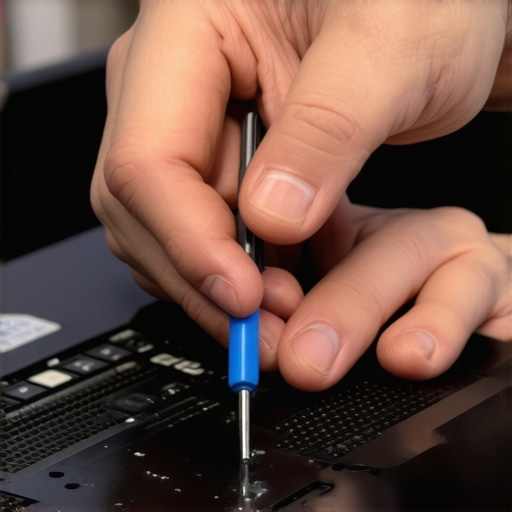
Start by turning off your laptop and unplugging it from power. Use a small Phillips screwdriver to open the back panel—consult your model’s manual or https://laptopbuyersclub.com/how-to-find-the-service-manual-for-your-specific-laptop-model for guidance. Gently hold the fan blades and use compressed air to blow out accumulated dust and debris. Think of your fan like a car engine: dust is like dirt on the valves, choking performance. Doing this regularly prevents squeaks and grinding noises, akin to how regular oil changes keep engines smooth.
Inspect and Lubricate Bearings Carefully
Once accessible, spin the fan manually. If it feels rough or catches, the bearings might be worn out. A tiny drop of lightweight machine oil, like sewing machine oil, applied carefully to the fan’s bearing point can often restore smooth rotation. Imagine putting vaseline on a shaky hinge; it restores movement without overdoing it. Avoid excessive oil, which can attract more dust or cause short circuits. I applied this step to my old gaming laptop, and within minutes, the noise diminished significantly, returning it to near silent operation.
Replace Worn Components When Needed
If cleaning and lubrication don’t solve the grinding, the bearings or fan blades may be damaged. In this case, order a replacement fan compatible with your laptop model. Check out manufacturer-certified parts or trusted suppliers, as recommended in https://laptopbuyersclub.com/how-to-find-manufacturer-certified-parts-for-out-of-warranty-repairs. Replacing a fan isn’t as daunting as it seems; many models allow easy swap with basic tools. Remember, a failing fan not only causes noise but risks overheating—consider this a proactive step to keep your device healthy.
Enhance Cooling System for Quieter Operation
After fixing the fan, improve overall cooling by using a laptop cooling pad or adjusting your device’s power settings, making it run cooler and quieter. Limit background processes that cause CPU spikes, and clean your vents regularly. Think of your laptop as a marathon runner: a well-oiled, unclogged breathing system helps it perform longer and quieter. Regular maintenance like this can prevent future grinding noises and extend your laptop’s lifespan, especially if you’re into intensive activities like gaming or content creation. For gamers, discovering how to keep cooling efficient is crucial—check out https://laptopbuyersclub.com/game-changing-gaming-laptops-for-2025-adventures for gear recommendations.Many believe choosing a laptop is a straightforward decision—pick the specs, find the best deal, and you’re all set. However, this oversimplification masks several nuanced pitfalls that can trip up even seasoned users. One common misconception is that higher specs always mean better performance. In reality, a powerful processor doesn’t compensate for poor thermal design, which can throttle performance and shorten lifespan, especially in gaming laptops. For instance, some gamers opt for laptops with high-end GPUs but overlook cooling efficiency, leading to overheating and thermal throttling during intense sessions. To avoid this trap, always consider comprehensive reviews focused on thermal performance when selecting a gaming laptop.
Why do some high-spec business laptops underperform in real-world scenarios?
It’s tempting to think that a laptop with premium components will effortlessly handle demanding tasks. Yet, many business laptops with top-tier specs fall short because they prioritize build quality or aesthetics over configurability and repairability. For example, models with soldered RAM prevent upgrades, locking users into outdated configurations. According to industry expert advice on [top business laptops for productivity in 2025](https://laptopbuyersclub.com/top-business-laptops-for-productivity-in-2025-expert-recommendations), choosing a model with user-upgradable components ensures longevity and adaptability. Moreover, many users don’t realize that accessories significantly enhance productivity—something as simple as a dedicated mouse or external monitor can transform your workflow. Check out [must-have accessories](https://laptopbuyersclub.com/must-have-laptop-accessories-to-boost-your-work-setup) to see how you can optimize your setup. Another misconception revolves around discounts and deals. While snagging a seemingly great bargain might seem ideal, often these deals exclude essential warranties or come with refurbished units lacking longevity, leading to costly later repairs. Always read the fine print and prefer offers that include warranty coverage. Remember, the cheapest option isn’t usually the smartest in the long run. Be wary of the trap of saving small now but paying much more in repairs or replacements later. To ensure you’re making informed decisions, consult reviews and guides. If you’re on the hunt for genuine savings, explore [top laptop deals in 2025](https://laptopbuyersclub.com/top-laptop-deals-in-2025-unlock-incredible-savings-today) for trusted options. Ultimately, understanding these nuances can prevent costly mistakes and ensure your investment suits your specific needs, whether you’re a student, gamer, or professional. Let this knowledge guide you beyond the superficial and focus on what truly matters in your next purchase. Have you ever fallen into this trap? Let me know in the comments.
Equip Yourself for Longevity
Maintaining your laptop requires more than just daily care; it demands the right tools and a disciplined approach. I personally swear by a high-precision star-headed screwdriver set for opening devices safely. Having the correct screwdriver ensures you won’t slip and damage delicate components, which is a risk with cheap, generic tools. For cleaning, a can of compressed air designed explicitly for electronics is indispensable to blow out dust without introducing moisture or static. Using a static-free brush can help gently dislodge stubborn debris, especially from heatsinks or fan blades, minimizing the risk of overheating and noise issues.
Keep Software Optimized and Hardware Healthy
Over time, your laptop’s performance can degrade due to software bloat and background processes. Regularly using trusted tools like CCleaner or Advanced SystemCare helps streamline your system, removing temporary files and unnecessary startup programs. I prefer to run a quick hardware diagnostics check every few months—most modern business laptops include built-in diagnostics accessible via BIOS or manufacturer software. Doing this proactively can reveal failing components or thermal issues before they cause unexpected shutdowns or sluggishness. For instance, tools like hardware diagnostics are game-changers in preventive maintenance.
Plan for Long-Term Results with Upgrades and Care
One often overlooked aspect of keeping a laptop operational is strategic upgrading. Swapping out an HDD for an SSD, adding more RAM, or replacing aging batteries with new, manufacturer-approved units can extend a device’s life significantly. For details on sourcing certified replacement parts, see this guide. To keep your laptop running smoothly over years, I recommend setting a quarterly maintenance schedule that includes cleaning vents, updating BIOS, and checking for physical wear. Developing this routine transforms your device from a disposable gadget into a long-term workhorse, ensuring consistent performance whether you’re working on business projects or gaming.
Scale Your Setup Without Hassle
Growing your tech setup need not mean buying a new laptop every year. Consider adding an external monitor, docking station, or second keyboard to enhance productivity and comfort—plus, it’s easier to service than the core device itself. For gamers and professionals alike, understanding how to maximize existing hardware is critical. Check out this post for accessory recommendations that dramatically boost your long-term setup flexibility. As trends evolve, integrating these tools will become even more seamless, making maintenance second nature and prolonging your device’s relevance.
How do I maintain my laptop over time?
Start with a routine that includes periodic cleaning, software updates, and hardware checks. Using the right tools—like a quality screwdriver, compressed air, and diagnostic software—ensures you can address problems early, preventing costly repairs or replacements. Remember, investing a little effort now saves a lot later. For instance, regular BIOS updates from your manufacturer can fix bugs and improve hardware compatibility, which is vital for long-term stability. Why not try applying a comprehensive upgrade like swapping your HDD for a speedy SSD next weekend? It might be just the boost your laptop needs to serve you well for years to come.
Lessons That Changed My Approach to Laptop Maintenance
- Realizing that dust and wear aren’t just cosmetic issues but can significantly impact performance prevented me from overlooking tiny warning signs. Ignoring grinding sounds can lead to overheating and costly repairs down the line.
- Learning that lubrication isn’t a permanent fix for worn bearings was a game-changer—it showed me the importance of knowing when to replace components rather than patching them up temporarily.
- Understanding the limitations of generic troubleshooting tips pushed me to seek model-specific advice and trusted sources, ensuring my repairs were both effective and safe.
- Seeing the value in investing in proper tools like quality screwdrivers and compressed air meant my repairs were less stressful and more successful, saving time and avoiding damage.
My Must-Have Resources for Smart Laptop Upkeep
- Manufacturer Manuals and Service Guides: These contain critical details tailored to your device, helping you avoid accidental damage and ensuring correct disassembly.
- Trusted Repair Parts Suppliers: Websites recommended for sourcing certified replacement fans or bearings prevent compatibility issues and ensure longevity.
- Popular Tech Forums and Communities: Participating in forums like Reddit’s r/laptoprepair provides real-world advice and troubleshooting tips from experienced users.
- Quality Maintenance Tools: A dedicated set of precision screwdrivers and static-free cleaning brushes make all the difference in successful repairs.