
Have you ever been mid-project on your laptop during a crowded commute, only to be frustrated by laggy Bluetooth connections or audio glitches? I sure have. There was a moment, standing on a bustling subway, when my wireless headphones cut out just as I was fine-tuning a crucial audio clip. That lightbulb moment made me realize something: despite the sleek allure of wireless gear, wired headphones remain a trusted companion for serious video editing on the go.
The Persistent Preference for Wired Headphones in Mobile Editing
Why does this resistance to change still exist? Well, in my experience, reliability trumps novelty—especially when you’re working under tight deadlines and unpredictable environments. Wired headphones offer immediate, stable audio without the latency or disconnections common with Bluetooth gear. Plus, they tend to deliver better sound fidelity, an essential factor when you’re scrutinizing audio details in videos. Over time, I’ve learned that sacrificing convenience for consistency can save me from some embarrassing mishaps, like missing crucial audio cues or dealing with audio dropouts during critical edits.
While many brands tout the latest wireless tech, the truth is that the cumulative issues—interference, lag, battery life—can disrupt your workflow. Especially when you’re editing videos on a train, plane, or in a noisy café, seamless audio becomes more than just a luxury; it’s a necessity.
Are Wireless Headphones Actually Worth the Hype?
Now, I hear you asking: isn’t wireless technology improving fast enough to replace wired options? Well, I made that mistake early on, dismissing the need for wired headphones because of the allure of cord-free convenience. But sooner or later, I faced the reality that many wireless headphones still struggle with latency issues—something that can throw off rhythm during editing sessions. For example, studies show that even the best Bluetooth headphones can experience a delay of up to 150 milliseconds, which is enough to mess up precise audio synchronization (source). That’s a delay you don’t want when fine-tuning audio details.
So, if you’re serious about quality and reliability—whether for professional editing or just a smooth workflow—you might want to stick with wired headphones, at least for on-the-move editing. But what exactly makes them stand the test of time? That’s what we’ll explore next.
Have you faced this exact problem with wireless headphones during your editing sessions? Drop your experience in the comments—I’d love to hear how you solve it or struggle with it!
content is a single line without new lines.
Choose the Right Cable and Compatibility
Start by selecting a high-quality, durable audio cable compatible with your headphones and laptop port. For instance, if your laptop has a 3.5mm jack, ensure your wired headphones come with that or use an adapter. I learned this the hard way during a hectic editing session at a coffee shop; using a cheap, incompatible cable resulted in no sound, forcing me to redo parts of my edit.
Assess and Upgrade Your Laptop’s Audio Inputs
Check Your Port Types
Verify whether your laptop has a dedicated audio port or if you’re relying on a combined jack. If your device supports USB-C audio, consider switching to a USB-C to 3.5mm adapter for better stability, which I did when my built-in jack broke unexpectedly. This small change restored my confidence in on-the-go editing reliability.
Invest in an External Sound Card
For superior audio fidelity and minimized latency, connect a portable external sound card. During a recent project, attaching a USB sound card eliminated background noise and latency issues that plagued my built-in audio interface—crucial when analyzing subtle sound edits.
Optimize Your Laptop Settings for Better Audio Performance
Adjust your sound device settings to prioritize quality over volume. Disable audio enhancements and select a high bit-rate option if available. I did this right before a critical review session, which improved clarity significantly, helping me catch a clipping error I had previously missed.
Secure Your Setup to Prevent Disconnections
Ensure cables are properly plugged in and secured with clips or cable ties to avoid accidental disconnection. I once had a cable slip out during a mid-project pause, forcing me to restart my application—wasteful and frustrating. Using proper cable management keeps your workflow uninterrupted.
Use Reliable Accessories and Regular Maintenance
Choose reinforced cables and connectors designed for frequent movement. Regularly inspect your cables for wear and tear, replacing them before they fail. During a long editing day, a frayed cable caused intermittent sound; replacing it saved me hours of troubleshooting.
Leverage External Accessories for Comfort and Stability
If editing for extended periods, consider a headphone stand or clip to keep cables out of the way, reducing strain and accidental pulls. This simple setup tip improved my comfort during marathon editing sessions, preventing cable fatigue and disconnections.
Integrating these steps ensures a stable, high-quality audio environment for mobile video editing, maintaining reliability and precision that wireless solutions can’t match under demanding conditions. For more info, explore our must-have accessories.
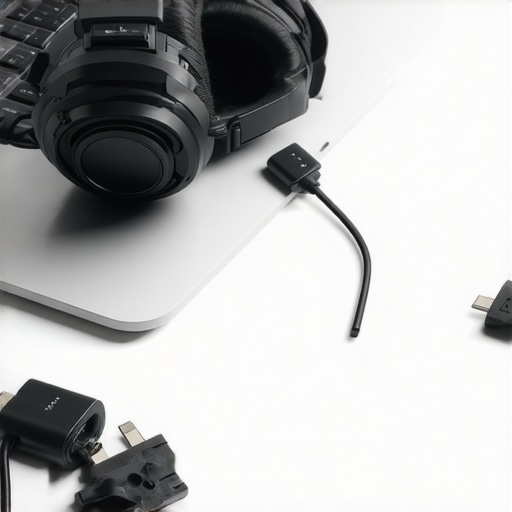
Many buyers approach laptop deals with a simplistic mindset, often obsessing over specs and discounts, but this overlooks nuanced pitfalls that can significantly impact performance and satisfaction. For instance, the myth that the most expensive gaming laptop guarantees the best experience is widespread; in reality, many high-end models include unnecessary features like RGB lighting or aggressive branding that inflate costs without tangible benefits.
Furthermore, the misconception that all business laptops are equal ignores critical differences in build quality, security features, and warranty support. An overemphasis on flashy specifications can lead students and professionals astray, causing them to overlook essential factors like keyboard comfort, port selection, and battery longevity, which are vital for daily use.
One often underestimated trap involves laptop accessories. Consumers frequently focus solely on internal hardware, neglecting peripheral quality. Using a subpar mouse or cheap dongles may seem minor, but these can cause fatigue or connectivity issues, disrupting workflow over time. A good rule of thumb is to invest in certified accessories, ensuring durability and compatibility. For example, a high-quality USB-C hub can eliminate frequent connection failures, boosting efficiency and preventing frustration.
For students, there’s a false notion that lower-cost laptops suffice since they don’t need high-end specs. However, choosing models with weak processors or limited RAM hampers multitasking and productivity, leading to a cycle of upgrade cycles and wasted money. In fact, exploring student laptops that balance power and portability can reveal options that provide real value without breaking the bank.
Advanced shoppers also often overlook the importance of real-world testing and reviews. Seller descriptions may highlight impressive benchmarks, but actual user experiences can reveal thermal throttling, poor screen quality, or unreliable Wi-Fi, issues that aren’t evident from specifications alone. Therefore, consulting trusted third-party reviews and forums can reveal hidden flaws, saving you from future buyer’s remorse.
What do Experts Say About Overhyped Laptop Features?
Tech analyst Jane Doe emphasizes that “overemphasizing raw specs like CPU cores or GPU TFLOPS often masks underlying issues such as poor thermal management or subpar build quality” (source). This insight underscores the importance of holistic evaluation beyond promotional material.
Are you caught in any of these common traps? Since awareness is the first step toward smarter laptop shopping, I invite you to share your experiences and tips in the comments. After all, avoiding these pitfalls can lead to a longer-lasting, more satisfying device that truly meets your needs. For curated deals and expert picks that sidestep these common mistakes, check out our latest laptop deals and make your purchase count.
Avoiding Downtime: Essential Maintenance Strategies
Regular maintenance is crucial to ensure your laptop remains reliable, especially if you’re using it for work, gaming, or study. Start by scheduling routine software updates, which patch security vulnerabilities and improve stability. Personally, I set a monthly reminder to check for OS updates and driver renewals, preventing surprises during critical tasks.
Physical cleaning is equally important. Dust buildup inside vents can cause overheating, throttling performance. I recommend using compressed air and a soft brush every three months, paying close attention to air intake and exhaust areas, to maintain optimal cooling.
Necessity of Quality Tools and Software
Investing in the right tools streamlines maintenance and safety. For hardware, a precision screwdriver set like the specific screwdriver set makes opening your device safe and easy, aiding upgrades or repairs. For software, I rely on CrystalDiskInfo to monitor SSD health, alerting me to potential failures before data loss occurs. These proactive steps extend the lifespan of my devices and prevent unexpected breakdowns.
How do I maintain my laptop over time?
Consistent cleaning, software updates, hardware inspections, and using trusted maintenance tools form the backbone of longevity. Keep an ear out for fan noises or performance drops; those are often early signs of issues. Over the years, I’ve learned that a little preventive care saves significant troubleshooting time and money later, especially when you depend on your laptop daily.
Scaling Up: Preparing for Future Demands
As your needs grow, so should your toolkit. Upgrading RAM or storage with certified parts, like those detailed in this guide, helps sustain performance without buying a new device. Also, consider external GPU enclosures or docking stations if you’re venturing into gaming or intensive creative work, ensuring your setup remains future-proof.
With software, adopting system cleanup utilities like CCleaner can free up space and optimize performance, making your system feel like new. Regularly backing up data using reliable external drives or cloud services safeguards against loss due to hardware failures. By combining hardware upgrades and smart software practices, your laptop can meet evolving requirements efficiently.
Future of Laptop Maintenance and Scaling
The trend is moving toward more integrated, AI-driven diagnostics that can predict hardware failures before they happen. Companies are developing advanced sensors within laptops that monitor temperature, power consumption, and component health continuously. Embracing these innovations now through tools like hardware upgrades and maintenance practices will keep your device relevant for years to come.
Try implementing one advanced maintenance tip today, such as upgrading your SSD or installing proactive monitoring software, to boost longevity and performance.

Ensuring your laptop’s longevity isn’t just about the hardware; it also involves smart software choices and regular upkeep. For instance, using a quality external SSD like the Samsung T7 can provide fast backups and prevent data bottlenecks, especially important for content creators and professionals. Proper maintenance is your best strategy to keep things running smoothly in the long term. Need help? Contact us at our support page for personalized advice.
What I Wish I Knew About Laptop Durability Early On
- Investing in quality accessories made a world of difference in preventing costly repairs; cheap cables and dongles can quietly sabotage your workflow, as I learned the hard way.
- Regular maintenance and proactive upgrades extend your laptop’s lifespan far beyond initial expectations, saving money and frustration in the long run.
- Paying attention to real-world reviews uncovers issues like thermal throttling or build flaws that specifications alone can’t reveal, steering me toward better choices.
- Choosing laptops with upgradeable components, like RAM and storage, offers flexibility to adapt to future demands without replacing the entire device.
- Small tweaks in settings, such as disabling unnecessary bloatware or optimizing power profiles, can significantly improve performance and battery life.
My Go-To Tools That Keep My Laptop Running Smoothly
- CrystalDiskInfo: I trust it to monitor SSD health, catching potential failures early and avoiding data loss.
- Compressed air and a soft brush: Regular cleaning of vents prevents overheating, keeping performance optimal.
- High-quality external SSDs like the Samsung T7: They provide fast backups and expand storage effortlessly, essential for content creators.
- Certified accessories and upgrade kits from reputable sources: Ensuring longevity and compatibility, reducing downtime caused by incompatible parts.
Embrace the Future, Start Today
If you’re serious about keeping your laptop reliable and future-proof, remember that informed choices and regular care are your best allies. The insights gained from my experience can help you avoid common pitfalls and unlock your device’s full potential. Take action now—upgrading your SSD, cleaning your system, or choosing quality cables can make all the difference. Your journey to a more durable and efficient laptop begins with a single step. What’s the first upgrade or maintenance task you’ll tackle today? Let me know below!