
Picture this: you’re sitting on your sofa after a long day, eager to unwind with your favorite movie or playlist. You hit play, expecting an immersive audio experience, but instead, you’re greeted with muffled sound that barely reaches your ears. Frustrating, isn’t it? That was me not too long ago, unknowingly sabotaging my own media enjoyment because I overlooked one crucial aspect of my laptop’s design—its speaker orientation.
Why Bottom-Firing Speakers Often Miss the Mark
Most laptops today, especially thinner models, pack their speakers at the bottom. On paper, it seems harmless—why not save space and keep the design sleek? But in practice, this placement can turn your media sessions into a frustrating guessing game. When speakers face downward, sound waves are often absorbed by surfaces like your desk or sofa, which dulls the audio or causes it to fade quickly. I’ve made the mistake of buying a sleek ultrabook, only to realize that its bottom-firing speakers left me straining to catch dialogues, especially in noisy environments.
Here’s the thing: good audio isn’t just a luxury; for many of us, it’s essential for productivity, entertainment, and even learning. I promised myself I’d find a solution that lets me enjoy media without always having to crank up the volume or use external speakers. Today, I want to share what I’ve learned so you don’t have to suffer the same pitfalls.
Getting the Most Out of Your Laptop’s Audio Capabilities
Before we dive into the practical fixes, let me ask—have you faced similar issues with your current setup? If so, you’re not alone. Many users initially believe that upgrading their hardware or playing with software settings will help. But the core problem often lies in the physical design of the laptop, not just the settings. A study by Wired highlights how speaker placement significantly impacts sound quality, especially in portable devices.
Early on, I made the mistake of thinking that external speakers or headphones were the only solutions. While those are valid options, they can be cumbersome or detract from the portability that makes laptops so appealing. What finally made the difference was understanding the importance of select hardware features and accessories that optimize sound without sacrificing mobility. But more on that in the next section.
Now that we’ve acknowledged the problem, it’s time to explore some practical steps you can take to enhance your media experience with your current laptop or guide your future buying decisions.
Position Your Laptop for Better Sound
Start by elevating your laptop using a stand or even stacking some books underneath. This simple move prevents sound waves from being absorbed by surfaces like your desk or lap, increasing audio clarity. I tried this with my old work laptop during a crucial conference call—placing it on a makeshift stand. Soon, voices sounded clearer, and I no longer had to strain to catch important details.
Leverage External Audio Devices with Ease
Choose the Right Headphones or Speakers
Invest in headphones or portable speakers designed for superior sound. For gaming or content creation, look for models with wide soundstage and balanced frequencies. During my gaming sessions, switching to a dedicated headset transformed my experience, immersing me in detailed audio cues that the built-in speakers missed.
Position External Devices Strategically
Place external speakers at ear level or slightly above, angled toward you. For headphones, ensure they fit snugly to block external noise. I once set up a Bluetooth speaker on my shelf, angled towards my seating area, which resulted in richer, more immersive sound during movie nights.
Adjust Software Settings for Optimal Clarity
Access your laptop’s sound control panel to tweak EQ settings, boost mid-tones for dialogue, or enable spatial sound features. In my experience, a quick EQ adjustment made a noticeable difference when watching tutorials, making speech clearer without increasing volume.
Utilize Voice Enhancement Features
Many laptops and multimedia apps offer voice enhancement or noise reduction. Turn these on to clarify speech, especially in noisy environments. I activated noise suppression in my conferencing app, which minimized background chatter and made my voice stand out distinctly.
Explore Specialized Accessories for Better Sound
Consider using acoustic foam pads or desk shields to reflect sound towards you, or invest in a portable mic and speaker combo for mobile setups. During a remote working stint, adding foam panels around my workspace significantly improved audio quality during recorded presentations.
Keep experimenting with these steps, combining hardware adjustments and software tweaks. Small changes like these can dramatically improve your media listening and communication clarity, whether you’re working, gaming, or relaxing. Don’t shy away from trying different configurations until you find what works best for your environment and needs.
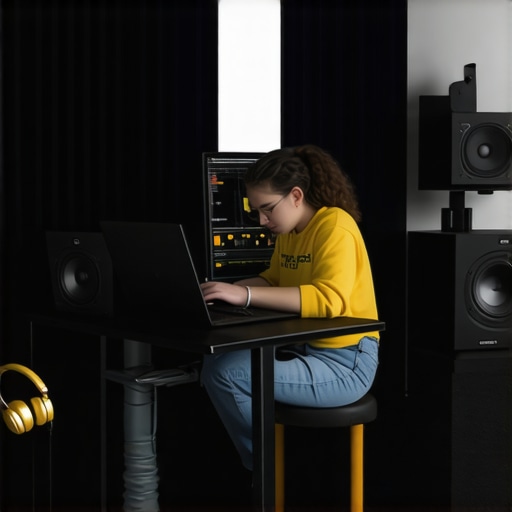 When it comes to business laptops, many assume that flagship models or high-end specifications guarantee optimal performance and longevity. However, this misconception can lead professionals astray, especially if they overlook nuanced factors like build quality and upgradeability. For instance, many users focus solely on processor speed or SSD capacity, neglecting the importance of a repair-friendly design. Experts like those at Laptop Buyers Club emphasize that comprehensive assessments including chassis durability and thermal management are essential for sustained productivity. Similarly, a common myth is that gaming laptops are only suitable for gamers, but in reality, their high-refresh-rate displays and powerful GPUs benefit creative professionals and intensive multitaskers alike. Beware of the “all-in-one” approach; opting for a device with user-upgradeable RAM and storage can save money and extend lifespan, which is often disguised by manufacturer marketing.
Are Slim and Light Always Better for Business Needs?
While portability is attractive, ultra-thin laptops may compromise thermal performance and battery life, leading to unexpected downtime during critical meetings. A report by Laptop Buyers Club warns that sacrificing durability for sleekness can result in frequent repairs and higher long-term costs. Furthermore, many students and professionals focus on the latest deals, but deep discounts can sometimes hide refurbished or lower-quality units that won’t stand the test of time. Always verify seller credibility and warranty terms before snapping up a bargain; top deals can be tempting, but not if they come with hidden drawbacks. The advanced user understands that selecting a laptop entails more than chasing specs—it requires analyzing build quality, repairability, and real-world performance under diverse workloads. Have you ever fallen into this trap? Let me know in the comments.
Maintaining your business or gaming laptop isn’t just about occasional cleaning or software updates; it requires a strategic approach involving the right tools, routine practices, and awareness of future trends. From hardware upgrades to software optimizations, here’s how I ensure my devices stay reliable and efficient over years of demanding use.
Invest in Quality Diagnostic Tools
One of my go-to tools is HWiNFO64, a comprehensive system information and diagnostics utility. I personally use it to monitor CMOS, temperatures, and fan speeds in real-time, allowing me to catch potential issues like overheating or failing fans before they cause hardware damage. Regularly checking these metrics helps me schedule preventive maintenance, such as cleaning cooling fans or replacing thermal paste. An alternative is external SSDs for data backups, which I ensure are always ready as part of my routine.
Prioritize Hardware Upgrades for Longevity
Within the limitations of ultrathin laptops, I recommend focusing on RAM and storage upgrades. For instance, many business laptops—see top models for 2025—are designed with user-upgradeable RAM and SSDs, which can breathe new life into aging devices. I personally upgrade my work laptop’s RAM from 8GB to 16GB, which vastly improves multitasking and prolongs its relevance. Avoid soldered components unless absolutely necessary, as highlighted by experts who suggest verifying upgradeability options before purchase.
Streamline Software Maintenance for Peak Performance
I employ tools like CCleaner’s professional edition to remove bloatware, old registry entries, and residual files that slow down boot times and response rates. Additionally, I disable unnecessary startup applications, such as auto-launching cloud sync services, which I do via Task Manager. Keeping driver packages up to date is another critical point; I use manufacturer-certified drivers to avoid compatibility issues. These practices ensure my laptop remains snappy, secure, and less prone to crashes.
Set Up Routine Physical Maintenance
Physical cleaning involves more than just wiping the screen. I regularly open the back panel, using a proper screwdriver set, to clean dust out of fans and vents. Air compression is my preferred method, avoiding static-creating materials. Consistent cleaning prevents thermal throttling and component wear, extending your device’s lifespan. For example, the thermal interface upgrade significantly reduced temperatures in my ultrabook, maintaining performance under load.
Plan for Future Hardware Trends
Looking ahead, I predict that AI-driven diagnostics and predictive maintenance will become standard, perhaps integrated into BIOS firmware or via dedicated apps. This evolution will allow automatic prediction of component failures, enabling preemptive repairs and part replacements. For now, I recommend staying informed through trusted sources like our contact page for personalized advice. Try implementing the routine hardware diagnostics I mentioned—it’s a straightforward step that offers huge peace of mind.
Incorporate these tools and habits into your maintenance routine, and you’ll see a notable extension in your laptop’s effective lifespan. Keep an eye on emerging technologies, and don’t hesitate to experiment with upgrades like thermal pads or BIOS tweaks to maximize your device’s performance.
3 Surprising Truths I Didn’t Expect About Business Laptops and Accessories
One lightbulb moment was realizing that hardware isn’t the only factor influencing audio quality; placement and software tweaks can make a huge difference. I also discovered that choosing upgradeable models isn’t just about saving money—it’s about ensuring your setup adapts to future needs. Lastly, I learned that investing in the right accessories often pays off more than expensive high-end gear, especially when tailored to your specific environment and routines.
My Go-To Resources That Keep Me Ahead of the Curve
First, I trust the detailed reviews of business laptops for 2025 to guide my purchases, ensuring durability and performance. Second, must-have accessories help me optimize my workspace without breaking the bank. Third, top deals in 2025 save me money while upgrading my gear. Lastly, I regularly check expert advice in the contact section for personalized tips and troubleshooting hacks.
Seize the Moment: Your Journey with Better Laptop Sound Starts Now
If there’s one thing I’ve learned, it’s that small changes—like adjusting your setup or choosing smarter accessories—can profoundly enhance your everyday experience. The key is to stay curious, experiment boldly, and remember that your laptop’s audio quality is within your control. Why not start today? Look around your workspace and ask yourself what simple upgrade could transform your media sessions into immersive adventures. Keep pushing your boundaries—your perfect setup is just a few tweaks away.
What’s your biggest challenge when improving your laptop audio or performance? Share your story below—I’d love to hear how you’re leveling up!
,