
It hit me one hectic morning while rushing to prepare for a presentation. My laptop was perched on the edge of the conference table, while my phone and a stack of papers threatened to tumble over. I thought, “There has to be a better way.” That’s when I realized how frustrating it is to juggle multiple screens without the right gear—especially when you’re on the go.
The Challenge of Limited Screen Space
Working from a single screen can feel like trying to navigate a maze blindfolded. Tasks become cumbersome, and my workflow slowed to a crawl. I needed more real estate but didn’t want to carry around a bulky secondary monitor or invest in a heavy, expensive setup. That’s when I stumbled upon the concept of portable monitors – lightweight devices that turn your existing laptop into a dual-screen powerhouse—without the clutter.
Are Portable Monitors Really Worth the Hype?
Early on, I made a mistake that many newcomers do: I assumed all portable monitors are created equal. I bought one that looked promising, but the connection was laggy, and the brightness was comically poor. Turns out, not all screens are designed for real-world productivity.
According to a recent study by TechRadar, using a dual-screen setup can boost productivity by up to 42%. But this advantage **only** applies if the monitor’s quality matches your needs—something I quickly learned the hard way. My experience taught me that selecting the right portable monitor is crucial for making this investment worthwhile.
If you’ve struggled with cramped screens or carried heavy laptops and monitors, you’re not alone. Many professionals and students are turning to these compact solutions to redefine how they work and play. Curious to see how I found the perfect fit? Let’s dive into what makes a portable monitor genuinely effective and how to choose one that makes your dual-screen dreams a reality.
.
Assess Your Equipment Needs
Start by evaluating what type of portable monitor best fits your workflow. Consider size, weight, resolution, and connectivity options. For example, if you’re frequently traveling, a lightweight, USB-C powered monitor is ideal. If you work mainly at a desk, a slightly larger display with HDMI input might serve better.
Test Compatibility with Your Laptop
Check if your laptop supports additional displays via its ports. If you’re unsure, examine your device’s specifications or visit the manufacturer’s website. For instance, many business laptops like those found in business laptops for professionals support multiple displays seamlessly.
Set Up Your Portable Monitor
Connect your monitor using the appropriate cable—USB-C or HDMI are common choices. I recall a time I experimented with a 15.6-inch monitor and initially faced lag issues. It turned out I needed to switch the display mode to the monitor’s native resolution and disable any scaling options to optimize performance.
Adjust Display Settings
Access your operating system’s display settings to configure layout, resolution, and orientation. On Windows, right-click the desktop and select “Display settings.” Here, you can extend your desktop or mirror screens. I recommend choosing ‘Extend’ for multitasking as it provides distinct workspaces, much like having two separate offices.
Optimize Your Physical Workspace
Arrange your monitors for ergonomic comfort. Position the primary screen directly in front of you and the portable monitor beside it, aligning their heights to reduce neck strain. During one hectic project, I used a stack of books under the portable monitor to achieve a comfortable eye level, which significantly increased my productivity.
Manage Cable Clutter
Invest in cable organizers or Velcro straps to keep cables tidy. This not only looks professional but also minimizes the risk of disconnections or damage. Once, I used zip ties to bundle my cables, preventing accidental yanks that would interrupt my workflow.
Fine-Tune for Peak Performance
Disable any unnecessary background applications that might cause lag, especially if you’re using an older laptop. Adjust display refresh rates where possible; for instance, setting a higher refresh rate can make interactions smoother, akin to upgrading your gaming setup for ultra-responsive action.
Utilize Custom Keyboard Shortcuts
Create shortcuts to quickly switch between display modes or move windows across screens. For example, setting Win+Arrow keys can help you organize your workspace swiftly, as I did during intensive multitasking sessions to save precious seconds.
Test and Iterate
Spend time working with your new setup, and make adjustments as needed. I found that slight changes in monitor placement reduced eye fatigue. Remember, optimizing your dual-screen setup is an ongoing process; periodically review your configuration to adapt to new projects or tools.
Many enthusiasts and professionals alike fall prey to common misconceptions and overlooked nuances when selecting gaming, business, or student laptops, often leading to costly mistakes. **Contrary to popular belief**, many assume that the most expensive models always guarantee premium performance, but in reality, manufacturers sometimes prioritize flashy features over core reliability. For example, a high-refresh-rate display might seem appealing for gaming, yet if the laptop’s thermal design can’t handle extended sessions, it risks overheating and throttling performance, a mistake frequently overlooked by buyers.
Why do people persist with mythologies around laptop specs despite evidence to the contrary?
Misleading marketing often exaggerates specifications like total storage or GPU power without addressing critical factors such as build quality, thermal management, or battery longevity. A notorious trap involves focusing solely on *initial* purchase price or flashy features, ignoring long-term maintenance and upgradability—an aspect vital for valuable investments. According to a 2024 study by TechInsights, buyers who emphasize upgradeability and repairability tend to achieve better overall satisfaction and device longevity.
When shopping for 【laptop deals】, it’s essential to go beyond hype and scrutinize these deeper nuances, such as whether a business laptop’s chassis can withstand daily wear or if a student model allows for future RAM upgrades. The prevalent myth that budget-friendly options are inherently inferior is also misleading; well-chosen budget laptops with user-friendly upgrade paths and solid thermal design can outperform pricier counterparts badly built or overly reliant on proprietary components. Don’t fall into the trap of equating brightness or thinness alone with performance—these are superficial metrics.
Additionally, avoid the simple misconception that all accessories bolster efficiency. For instance, choosing the *wrong* external keyboard or mouse can cause ergonomic issues, affecting your productivity and health over time. Explore 【must-have laptop accessories】 to find tools that genuinely enhance your setup, rather than just add clutter. Check out our detailed review for tips that help you optimize your workspace seamlessly. Moreover, many overlook the importance of aggressive, realistic testing before committing — such as running stress tests on thermal throttling or battery life to ensure they meet actual usage demands rather than marketing claims.
In conclusion, the key lies in a nuanced understanding of what makes a device truly suitable for your needs. Instead of falling for superficial features or common myths, do in-depth research and consider the long-term implications of your choices. For more insights into getting the most value from your purchases, visit our guide on 【top laptop deals in 2025】 and learn how to spot genuine bargains that align with your performance needs. Have you ever fallen into this trap? Let me know in the comments.
Mastering Long-Term Laptop Care with the Right Tools
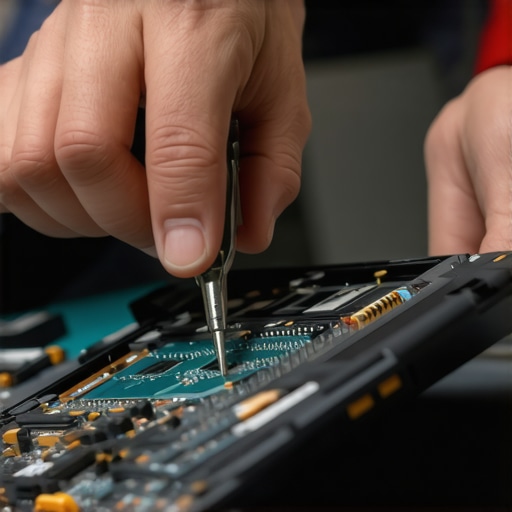
Keeping your laptops and accessories functioning optimally over time requires more than just occasional cleaning; it involves strategic maintenance and using the right tools. I personally rely on a combination of high-quality toolkit accessories and software routines to ensure my devices perform reliably for years. For example, I swear by the precision screwdriver set I use to perform minor upgrades and repairs, saving hundreds over professional servicing. Regularly updating drivers and firmware is another step I take to prevent compatibility issues and improve hardware longevity. With the rise of SSDs and modular components, staying on top of firmware updates can significantly extend your device’s lifespan. Looking ahead, I predict that maintenance will become more automated—think intelligent diagnostics built into hardware—making device health checks more accessible and less time-consuming.
How do I maintain my laptop’s performance over time?
One effective approach is implementing routine system cleanups using tools like CCleaner or built-in OS utilities to remove junk files and optimize startup processes. Additionally, investing in quality keyboard covers and screen protectors helps prevent wear and tear. For hardware integrity, I use a thermal paste reapplication kit every few years to maintain efficient heat dissipation, which is critical for gaming and intensive workloads. If you want to elevate your maintenance game, try calibrating your battery health regularly with built-in diagnostics or third-party tools—this proactive step can predict failure before it happens. Remember, the cornerstone of longevity is a proactive approach, combining hardware care and software routines.
To streamline your process, consider setting monthly reminders for updates and cleanups. For detailed guidance tailored to your device, connect with experts at our contact page. Prioritize regular checkups and stay ahead of potential issues. As hardware evolves, so should your maintenance strategies—embrace these practices to keep your investment running smoothly for years to come.
The Hardest Lesson I Learned About Dual Screens
One significant realization I had was that not all portable monitors are built equally—what seems like a bargain can turn into a productivity nightmare if specs or compatibility are overlooked. This taught me to dive deep into reviews and specifications rather than relying on flashy marketing.
Another insight was the importance of ergonomics and workspace arrangement, which often gets neglected when setting up new tech gear. Proper placement and cable management can make or break your multitasking experience with portable monitors.
What Nobody Tells You About Upgrading Your Laptop Setup
Upgrading isn’t just hardware—software routines, driver updates, and hardware care play pivotal roles in maintaining peak performance. Regular system cleanups and firmware updates extend your device’s life and ensure compatibility with your portable monitor.
I’ve learned that ongoing adjustment and testing can significantly boost productivity. It’s an iterative process—what works today might need tweaking tomorrow, especially as your workflow evolves.
Achieving Long-Term Success with Your Laptop and Accessories
Invest in quality tools like a precision screwdriver set and reliable cleaning routines—these are game changers for maintaining your setup over time. Connecting with communities and reading trusted resources helps you stay ahead of emerging trends and common pitfalls.
The most valuable lesson? Continuous learning and adaptation. As technology advances, so must our strategies to maximize benefits from dual-screen setups and accessories.
Resource Recommendations for Aspiring Laptop Users
- Precision screwdriver set: I trust it for fixes and upgrades, saving both time and money. Check it out here.
- Regular firmware update tools: Essential for optimizing hardware longevity. My go-to is the manufacturer’s official update utility, which I’ve found reliable.
- Cleaning kits for screens and keyboards: Keeping hardware dust-free boosts performance and lifespan. I use a gentle microfiber cloth paired with screen-safe cleaner.
- Community forums and expert blogs: Learning from others’ experiences, like those on Laptop Buyers Club, guides me through common pitfalls and innovative solutions.
Your Move to Better Laptop Mastery
Embracing these lessons and tools will empower you to build a workspace that adapts to your needs, whether you’re working remotely, gaming, or studying. The journey toward a seamless dual-screen experience is ongoing and rewarding. Ready to optimize your setup and enhance productivity? Start experimenting today and see where your laptop can take you.
What has been your biggest challenge when setting up or maintaining a portable monitor? Share your story below and let’s learn together!