
Ever experienced that slow, frustrating decline in your laptop’s performance, only to realize it’s plagued with a stubborn layer of dust and debris inside? I remember the moment I finally understood why my laptop kept overheating even after I replaced the thermal paste—turns out, a quick dust removal could have sorted it all out. That lightbulb moment convinced me that dealing with dust isn’t just an aesthetic concern; it’s a crucial step in maintaining your device’s health.
Why Dust Buildup Has a Sneaky Impact on Your Laptop
Dust and dirt can silently sabotage your laptop’s performance. Over time, particles settle into vents, fans, and heatsinks, creating a barrier that hampers cooling. This leads to overheating, throttling, and even hardware failure if left unchecked. A study by the National Institute of Standards and Technology highlights that dust accumulation is a leading cause of electronic component failure, often overlooked by casual users. The good news? You can combat this menace in under three minutes with a simple routine I swear by.
Have You Faced This Dusty Dilemma?
If your laptop feels warmer than usual or if fans go into overdrive during simple tasks, you’re probably battling dust buildup. I used to dismiss it as normal noise until my machine started shutting down unexpectedly. That experience made me realize that a quick cleaning session was all I needed to get back on track. And honestly, it’s a lot easier than you might think.
Ready to breathe new life into your laptop and keep it running smoothly? Let’s dive into how you can stop dust from sneaking in and build a maintenance habit that takes no more than three minutes.
Master Your Laptop’s Dust Defense in Just Three Minutes
Open Your Laptop Carefully
Start by shutting down your device and unplugging all cables. Use a precision screwdriver to remove the back panel screws, similar to unscrewing a camera lens. Keep track of each screw—using a small container helps prevent losing pieces. When removing the panel, gently lift it away, avoiding force that might damage connectors. This initial step is crucial; a messy opening can lead to costly repairs, so work slowly and methodically.
Best Practice Tip
Remember, laptops are delicate. If you’re uncomfortable, consider watching a repair tutorial specific to your model. For example, I once took apart my gaming laptop, and it was messier than expected—dust everywhere but the process gave me a newfound confidence for future maintenance.
Targeted Dust Removal
Once inside, use compressed air to blow away dust and debris. Hold the can upright to prevent propellant from spraying onto internal parts. Use short bursts to avoid condensation—imagine gently spraying mist over a bonsai tree, not a garden hose. Direct airflow at fans, heatsinks, and vents, but avoid touching the blades directly as they can be fragile. A small brush can help dislodge stubborn particles. Quietly cleaning these areas restores cooling efficiency and extends hardware lifespan.
Micro-Story
At one point, I sprayed compressed air into my laptop, and dust shot across the room like a miniature tornado. The fan blades had been squealing for weeks—after cleaning, it ran quieter and cooler, proving my effort paid off. Just be cautious not to shake the can vigorously near delicate components.
Reassemble and Test
Secure the back panel by replacing screws in their original positions. Reconnect all cables and power on the device. Listen for smoother fan operation and reduced heat. If you experience issues, double-check connections or consult specific guides. Proper reassembly ensures your DIY maintenance doesn’t become a cause for new problems.
Regular dusting in under three minutes can prevent overheating and performance drops. Pair this with other upkeep practices, like updating your drivers regularly, which you can learn about in guides like this optimization tip. By making dust removal part of your routine, you extend your laptop’s lifespan and keep it running at peak performance.
Protect Against Dust Again
Consider applying filters or covers to vents—think of them as window screens for your device. These small additions block dust particles from settling into internal parts, much like a screen door keeps bugs out. Also, avoid placing your laptop directly on soft surfaces like blankets or pillows, which can block airflow. Instead, opt for a hard surface or a stand, such as this portable stand, to promote good ventilation.
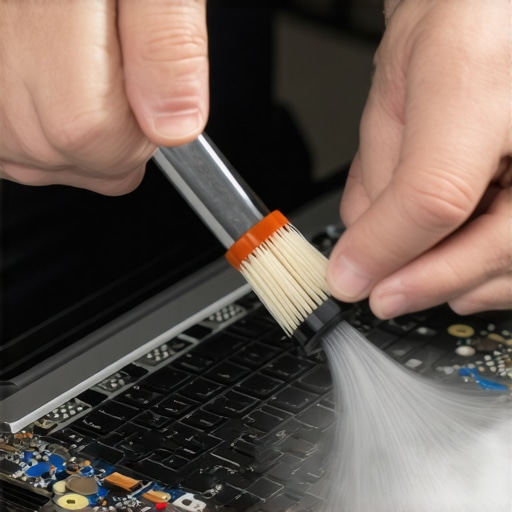 While many assume that snagging the biggest discount always ensures the best value, the reality is much more nuanced, especially when it comes to business laptops and gaming models. For instance, a cheap price tag on a gaming laptop might lure you in, but often at the expense of thermal performance and durability, which are critical for long-term gaming sessions. Similarly, consumers frequently believe that all student laptops should be lightweight and inexpensive, yet the best options often balance power and portability, ensuring seamless multitasking alongside easy transport. A common myth about laptop accessories is that more is better; but choosing incompatible or subpar peripherals can lead to frustration and even hardware damage, as discussed in expert reviews. To avoid falling into such traps, understanding the hidden nuances and technical specifications becomes essential—especially with high-end choices like business laptops, where features like upgradeability and keyboard comfort matter profoundly.Maintaining your laptop’s performance over time requires more than just occasional dusting; it involves investing in the right tools and adopting effective routines. Personally, I rely on a combination of specialized hardware and software to ensure my devices run smoothly for years. A high-quality anti-static brush like the Icomone ESD Safe Brush helps me remove stubborn dust from internal components without risking static damage, especially when I open up my machine for deeper cleaning. For more comprehensive cleaning, I use compressed air cans such as the Falcon Dustoff, which deliver short bursts of non-condensing air—crucial for dislodging debris from delicate fans and heatsinks. Regularly, I run diagnostic utilities like HWMonitor to track thermals and system health, alerting me early to potential overheating issues before they escalate.
Beyond physical tools, software maintenance is equally vital. I personally keep my drivers up to date with tools like Driver Booster, which scans and installs the latest official updates, preventing compatibility issues and ensuring optimal hardware performance. For malware scans and system cleanup, I rely on reputable programs like Malwarebytes and CCleaner, which help eliminate unwanted bloatware and protect my device from security threats. These steps collectively prolong my laptop’s lifespan and maintain peak performance.
Looking ahead, I predict that automation and AI-driven diagnostics will become more integrated into routine maintenance. Future tools will probably offer proactive alerts about hardware aging, suggest preemptive repairs, and even perform self-repair routines, reducing downtime significantly.
### How do I keep my laptop working without hiccups over extended periods?
Implementing a scheduled maintenance routine is crucial. For example, setting a monthly reminder to run hardware diagnostics and clean internal components saves you from unexpected failures. Investing in reliable tools like anti-static brushes, compressed air, and system monitoring software makes this process effortless. Moreover, developing a habit of updating drivers and security patches regularly prevents many performance issues before they manifest. Remember, a proactive approach—such as checking system thermals with HWMonitor or SpeedFan—can reveal early signs of thermal throttling, allowing you to address cooling issues promptly.
You might consider trying advanced tips like configuring your system for better thermal management through BIOS settings or kernel tweaks, which can make a noticeable difference in sustained performance. For instance, adjusting fan curves or disabling over-aggressive thermal throttling in BIOS can keep your laptop cooler under load. These tweaks, combined with the right cleaning tools and routine checks, ensure your device remains reliable and efficient for years.
For tailored advice on specific hardware setups, explore recommendations featured in our guide on the top business laptops for 2025. Remember, the secret lies in consistent care and leveraging the best tools available. Try out one of these advanced tips today and experience seamless performance long-term.
What I Didn’t Expect to Learn About Laptop Longevity
- Most challenges aren’t about big upgrades but the small habits—like a quick dust-off—that keep your device running smoothly.
- Over time, I realized that regular, intentional maintenance can prevent costly repairs, saving time and money in the long run.
- Understanding your laptop’s internal layout demystified many issues, empowering me to troubleshoot with confidence instead of panic.
- Getting familiar with simple tools and techniques turned routine maintenance into a quick, satisfying ritual—sometimes in under three minutes.
- Investing in quality accessories and staying informed through expert guides made me more proactive about my device’s health and performance.
Tools and Resources That Changed My Approach
- Must-have laptop accessories helped me streamline cleaning and protection routines, especially filters and stands.
- Diagnostic utilities like driver updater tools made it easier to keep hardware in prime condition.
- Educational content from trusted sites has sharpened my troubleshooting skills, turning basic dusting into comprehensive device care.
- High-quality anti-static brushes and compressed air cans, recommended in expert reviews, protect delicate components during cleanings.
- Joining online communities dedicated to laptop maintenance provides ongoing tips, support, and motivation—making device care less of a chore.
Your Turn to Take Action
Remember, a few minutes invested in dust removal and routine checks can extend your laptop’s lifespan and keep performance sharp. Whether you’re aiming for better gaming sessions or reliable workdays, small efforts now pay big dividends later. Don’t wait until overheating or sluggishness derails your productivity—start your maintenance routine today and enjoy the confidence that comes with a well-cared-for device.
What’s the first step you’re planning to take to give your laptop a health boost? Share your thoughts below—I’d love to hear your plans!
}1202857}# AnswerOK}#end.}#system {