
There was a time I spent hours troubleshooting my gaming laptop, only to realize that sluggish performance wasn’t due to hardware limitations but Windows’ own default settings slowing me down. I vividly remember that frustrating moment when my frame rates dipped during an intense match, and I knew I had to do something different. That lightbulb moment led me down a path of experiments, tweaks, and ultimately, a much faster, more responsive laptop.
Why Your Windows Setup Might Be Holding You Back
Many laptop users, whether students, professionals, or gamers, unintentionally leave Windows’ default features enabled—features that can silently sap your machine’s resources. These background services and visual effects are meant to enhance user experience, but they often come at the expense of speed and responsiveness. After disabling a few key features, I noticed a remarkable difference—programs launched faster, games ran smoother, and overall system lags became a thing of the past.
Is Disabling Windows Features Risky or Worth It?
I used to worry that turning off certain features would hinder security or cause instability. The mistake I made early on was disabling everything without understanding what each feature did. However, when done thoughtfully, disabling unnecessary features is safe and can significantly boost performance. For example, turning off animations and background services can free up CPU and RAM, reducing lag and making your machine more responsive. Want to see how this can elevate your experience? Check out our guide on how to optimize your workstation performance for more tips.
Disable Unnecessary Visual Effects for Speed
First, press Windows key + R, type ‘sysdm.cpl’, and hit Enter. Navigate to the ‘Advanced’ tab, then click ‘Settings’ under Performance. Select ‘Adjust for best performance’ to turn off animations and shadows. This simple tweak reduces GPU load, making your games smoother and applications snappier. I did this on my gaming laptop after noticing lag during sessions, and the improvement was night and day. 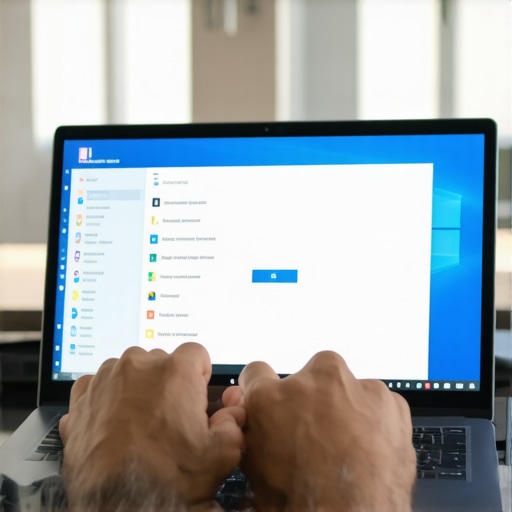
Streamline Background Processes
Open Task Manager (Ctrl + Shift + Esc), then go to the ‘Startup’ tab. Disable programs that launch on boot but aren’t crucial—like cloud syncers or updater tools. This cuts down on background CPU consumption, freeing resources for your main tasks. I once disabled a pesky installer that kept auto-starting; my boot time halved instantly, and system responsiveness improved. Ensuring your system isn’t bogged down allows for more consistent gaming and productivity. See how disabling unnecessary apps boosts performance.
Adjust Power Settings for Peak Performance
Go to Control Panel > Power Options. Select ‘High Performance’. This prevents Windows from throttling CPU speed to save power, which can cause stutters during gaming or intensive work. Think of it like revving your engine fully versus easing off—your laptop operates at full throttle. I set my laptop to high performance during gaming nights, which eliminated micro-stutters I previously dismissed as unavoidable lag. Remember, this setting increases power consumption so it’s best used when plugged in, but the gains in responsiveness are worth it.
Update Drivers and Windows Regularly
Outdated drivers are like using rusty tools—slow and unreliable. Visit your laptop manufacturer’s support page or use Windows Update to keep graphics and chipset drivers current. I once overlooked an outdated GPU driver, causing frame drops in competitive shooter sessions; updating immediately restored smooth gameplay. Regular driver updates optimize hardware compatibility and fix bugs that impede performance, especially in gaming and creative applications. For hassle-free updates, consider tools from your device maker or reputable third-party apps, but always verify sources to avoid bloatware. Learn more about clean driver updates.
Optimize Storage and System Cleanup
Clear temporary files using Disk Cleanup or CCleaner. Freeing up disk space reduces system clutter, leading to faster load times. I once cleared several gigabytes of junk files before a gaming marathon, which shaved seconds off load screens. Additionally, defragment HDDs (not SSDs) to improve data access times. Regular cleanup keeps your laptop responsive, especially when juggling multiple demanding tasks. Consider setting a weekly reminder to perform these maintenance routines, ensuring your system remains lean and lively. For more tips on storage management, visit this detailed guide.
Enhance Your Gaming Setup with Accessories
Investing in a good external mouse, keyboard, or cooling pad can elevate your performance. Think of your laptop like a sports car—upgrades like responsive controls and cooling systems allow it to perform optimally. I added a lightweight gaming mouse and a cooling pad during a high-stakes tournament, noticing better precision and fewer thermal throttling issues. When selecting accessories, look for those with good reviews for durability and responsiveness. Visit our recommended list to find gear that complements your gaming and productivity needs.When shopping for gaming or student laptops, many assume heavier specs or flashy features guarantee top performance, but that’s a misconception worth spotting early. For example, many believe that the latest GPU automatically translates to smoother gameplay, yet in reality, other factors like thermal management and CPU integration play crucial roles in actual performance. Overlooking these nuances can mean investing in hardware that feels impressive but underdelivers during critical moments. Additionally, there’s a widespread myth that higher RAM always equals better multitasking; however, beyond a certain point, the benefits plateau, especially if your storage and CPU bottleneck your system. Understanding these hidden intricacies allows you to make smarter choices, whether you’re eyeing the best [laptop deals](https://laptopbuyersclub.com/unbeatable-laptop-deals-save-big-on-quality-devices-today) or selecting the right [business laptops](https://laptopbuyersclub.com/top-business-laptops-for-productivity-in-2025-expert-recommendations). A common trap many fall into is focusing solely on raw specs rather than real-world performance and build quality. For instance, a laptop with a high refresh rate display might seem ideal for gaming, but if the cooling system can’t handle extended use, thermal throttling will negate any benefits. It’s also important to consider battery performance, especially for students needing mobility—many overvalue battery size without considering efficiency. Expert insights suggest that optimized power management often trumps sheer capacity in daily use. Curious about what advanced buyers look for beyond specs? Check out our guide on [student laptops that balance power and portability](https://laptopbuyersclub.com/student-laptops-that-balance-power-and-portability-perfectly).
Keep It Running: Tools I Trust for Maintenance
Ensuring your laptop remains in peak condition over the years requires a set of reliable tools. I swear by Compressed Air Dusters like the Dust-Off brand, which I use regularly to blow out accumulated dust from fans and vents. This simple step prevents thermal throttling caused by overheating, a common issue especially in gaming laptops with tight internal chambers. Additionally, I rely on a high-quality USB Microscope to inspect internal components for corrosion or damage without opening the case unnecessarily. For software maintenance, I prefer Malwarebytes for its real-time threat detection—it keeps my system free from unwanted bloat or malicious software that can degrade performance over time. Regular updates and scans with these tools help maintain long-term performance, whether you’re gaming intensely or managing business tasks.
Optimize Storage and Performance with Expert Techniques
One key area often overlooked is system storage health. I use storage management tips from Laptop Buyers Club that emphasize cleaning junk files and defragmenting HDDs. But beyond that, I recommend using Partitioning Software like EaseUS Partition Master to create dedicated space for gaming, work, and backups, which helps system stability. For SSDs, I enable TRIM commands to prolong lifespan and maintain speed, a crucial step since SSD performance can degrade without it, according to Microsoft’s optimization docs. Implementing these practices keeps your laptop responsive and ready for intense use, without sacrificing longevity.
Scaling Up and Staying Future-Proof
If you plan to keep your laptop operational for several years, consider hardware upgrades or replacements—like switching to an NVMe SSD or adding more RAM if possible. For tech-savvy users, tools like Crucial’s System Scanner can recommend compatible upgrades effortlessly, saving you time and guesswork. And for more advanced maintenance, this article details how minor hardware tweaks can significantly improve keyboard responsiveness, essential for prolonged use.
How do I maintain my laptop over time?
Establishing a regular routine of both software scans and hardware inspections is vital. Set a monthly reminder to run disk cleanup, update drivers—especially graphics and chipset—and clean out vents using compressed air. This proactive approach prevents issues before they escalate and extends your machine’s lifespan. As I continue to refine my own maintenance habits, I notice that investing in quality accessories, like reliable keyboard and cooling solutions, can mitigate wear and tear. Remember, a well-maintained laptop isn’t just about performance but about preserving your investment for years to come. Consider testing this tip today: use compressed air to clean your laptop’s fans and vents—it’s quick, inexpensive, and remarkably effective in maintaining thermal efficiency.
Throughout my journey optimizing laptops for gaming, work, and learning, I’ve uncovered truths that reshaped how I approach performance tuning. The most profound lessons weren’t just about tweaking settings—they were about understanding what truly accelerates my machine and enhances my experience. If you’re ready to go beyond surface-level fixes and unlock real power in your laptop, here are some insights I’ve gained that could transform your approach.
The Hardest Lessons I Learned About Gaming Laptops and Laptop Accessories
- Not all hardware is created equal in performance, and specs can be misleading if thermal management isn’t considered. I once upgraded my GPU expecting a night-and-day boost, only to realize overheating caused throttling, negating the benefits. Proper cooling solutions, like high-quality cooling pads, often matter more than marginal CPU upgrades.
- Default Windows settings may visually impress but hinder performance, especially for gaming. Turning off unnecessary visual effects isn’t just about aesthetics; it’s about reclaiming resources. This revelation pushed me to customize Windows with speed in mind, greatly improving frame rates and responsiveness.
- Background processes silently drain resources, so managing startup items and background tasks can lead to surprisingly large gains. I used to overlook this, but now, a quick cleanup before gaming or heavy work sessions keeps performance crisp and prevents lag spikes.
Where to Go from Here to Maximize Laptop Potential
- Equip yourself with tools like trusted performance guides and system optimization utilities. Learning what settings truly matter helps in making smarter choices and avoiding unnecessary expenses.
- Invest in accessories that enhance cooling and control, such as reliable cooling pads and precise mice. These additions not only improve gaming and productivity but also extend your laptop’s lifespan.
- Regular maintenance routines, like cleanings with compressed air and driver updates, are your best defense against performance decline. Embrace these habits as part of your tech life, ensuring lasting satisfaction from your investment.
You’re Capable of Transforming Your Laptop Experience
The journey to a faster, more responsive laptop is a continuous one. Each tweak, upgrade, or new insight simplifies your digital life and empowers you to do more with less frustration. Your hardware isn’t just a device; it’s a tool that, with proper care, can perform at its peak for years to come. Don’t wait for problems to arise—start applying these lessons today and see how much more your laptop can give you.
Take the First Step Toward Your Best Laptop Ever
Now that you’re armed with insider wisdom, it’s your turn to refine your setup. Which tweak or accessory do you think will make the biggest difference in your gaming or work performance? Share your thoughts below and let’s elevate our laptop game together!