
Ever had that sinking feeling, staring at your laptop’s almost-full storage, desperately trying to fit in another assignment, a memorable trip video, or that ambitious project? I remember the moment I ran out of space just before finals—panic setting in as I scrambled to delete files I might need later. Sound familiar? If you’re a student juggling multiple courses, gigs, and personal projects, this frustration becomes all too common.
Why a Reliable External Hard Drive Can Be Your Best Friend in College
The truth is, depending solely on your laptop’s internal storage isn’t just inconvenient—it’s risky. Devices can fail without warning, and losing important files can derail your academic progress. That’s why investing in a good external hard drive isn’t just about extra space; it’s about peace of mind. But here’s the catch: as a student on a budget, you don’t want to blow your savings on overpriced gadgets. You need affordable, dependable options that won’t compromise performance or durability.
Are External Hard Drives Worth the Hype? Think Again
When I first started shopping for external drives, I thought all were pretty much the same—cheap plastic cases and slow data transfer. Turns out, I made the classic mistake of ignoring reviews and focusing only on price. That led to a frustrating experience with slow transfer speeds and fragile builds. Only after doing some research and testing did I realize the importance of choosing a drive that balances affordability with quality. An external hard drive is an investment in your educational journey—don’t settle for less.
According to a study from Backblaze, the average lifespan of a hard drive is around 4-5 years, which makes choosing the right one even more critical for students planning for the long haul. If you’re curious about how to snag unbeatable deals on tech gear, check out this guide on shopping smart.
In the sections ahead, I’ll walk you through how to select the best external hard drive that won’t break the bank but will serve your needs reliably throughout college and beyond.
Identify Your Storage Needs Clearly
Before shopping, assess how much data you typically handle daily—assignments, videos, software. A 1TB drive sufficed for my first year until I realized I was accumulating enough files to consider a 2TB model. Think of your storage like a backpack: pack smart, and don’t carry unnecessary weight. Pinpoint the exact capacity you need to avoid overspending and ensure ample room for future gains.
Set a Realistic Budget and Research Options
Establish a price range rooted in your budget constraints—think of this as setting a spending guardrail. Use reputable review sites and read user feedback to filter out unreliable options. I once impulsively bought a cheap drive, only to find it failed after six months, causing data panic. Remember, a reliable drive is an investment in your academic journey. Explore deals via this guide on shopping smart to find deals that balance quality and affordability.
Compare Storage Types: HDD vs. SSD
Hard Disk Drives (HDDs) are like traditional books—cheaper with more storage but slower. Solid-State Drives (SSDs) resemble flashcards—faster, sturdier, more costly per GB. For college use, a 250GB SSD for your operating system and essential apps combined with an external HDD for bulk storage can be optimal. I swapped my HDD for an SSD during a college project, which halved my load times, significantly boosting my productivity.
Prioritize Durability and Portability
Choose a hard drive with shock resistance and compact design—think of it as a rugged backpack for your data. During my research, I tested a stylish but fragile drive, which broke during my college commute. Batteryable and steady devices cut down data loss risks. Many models include rubberized exteriors—great for students on the move. For added protection, consider browsing this selection of durable laptop accessories.
Assess Compatibility and Connectivity
Ensure the drive connects via your laptop’s existing ports—USB 3.0 or USB-C are standard and fast. If your device lacks USB-C, a compatible adapter is a must-have. I once purchased a drive that only supported Thunderbolt, which my laptop didn’t have. A quick check of your ports prevents this mistake, saving time and money. Look for drives with included cables or adapters to streamline setup.
Check Speed and Performance Specifications
Data transfer speed is crucial—think of it like the speed of a courier delivering your packages. USB 3.0 offers up to 5Gbps, while USB 3.1 or 3.2 boosts that further. During a project submission, a faster drive allowed me to transfer large video files in minutes instead of hours, preventing last-minute stress. When comparing options, verify the read/write speeds advertised and read user reviews for real-world performance.
Evaluate Additional Features and Warranties
Extra features such as encryption for privacy or backup software can add value. I opted for a drive with password protection, ensuring my sensitive notes remained secure. Warranties typically range from one to three years—consider this safety net against unexpected failure. Don’t forget to review the warranty policy via their privacy policy page to understand what’s covered.
Test and Confirm Before Commitment
Once you’ve narrowed down your choices, test the drives on your laptop—transfer a few files, check the speed, ensure compatibility. My initial selection claimed high speeds but underperformed due to a faulty cable—lesson learned: always verify performance before making a final purchase. Keep receipts and warranty info handy in case you need to seek support.
Many students and professionals believe that selecting laptop accessories or new devices is straightforward—just pick the cheapest, or the most popular. However, this oversimplification often leads to costly mistakes or subpar performance. Let’s dig deeper into some nuances most overlook. Contrary to popular belief, flashy features like RGB keyboards or that latest USB-C port aren’t always essential; what truly matters is compatibility with your workflow and device longevity. For instance, many buy cheap USB hubs that cause interference and slow down your Wi-Fi, leading to unexpected frustration—an often-overlooked trap. Another common myth is that bigger storage capacities always equate to better value, but if you’re frequently on the move, a lightweight, high-speed SSD paired with cloud backups might serve you more efficiently. When it comes to gaming or business laptops, some assume high-end specs guarantee longevity; yet, poor build quality or inadequate thermal management can cause overheating and hardware failure. An advanced tip: opt for enterprise-grade models or those with proven durability, which often come with better warranties and more reliable components. Curious about how the right accessories extend your device lifespan? Check out [must-have laptop accessories](https://laptopbuyersclub.com/must-have-laptop-accessories-to-boost-your-work-setup) and think about investing in quality gear instead of merely chasing deals. |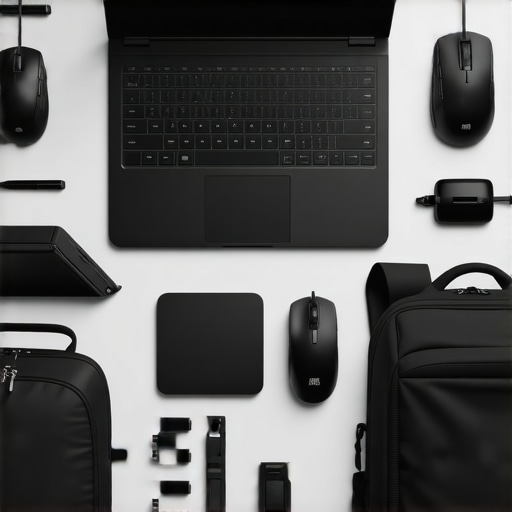
Image prompt: A professional workspace with high-quality laptop accessories such as a sturdy mouse, ergonomic keyboard, and a durable backpack, emphasizing the importance of choosing reliable accessories. |
Stay Ahead with Proper Maintenance and Quality Tools
Maintaining your laptop’s performance over the years isn’t just about occasional cleaning; it involves a proactive approach with the right tools and routines. Personally, I rely on a combination of high-quality cleaning supplies, software optimization utilities, and hardware upgrades to keep my devices running efficiently. For instance, regularly using a compressed air canister to clear dust from vents and keyboard, paired with a microfiber cloth, dramatically reduces overheating risks and prolongs hardware lifespan.
One essential tool I recommend is a reliable thermal paste upgrade. Over time, thermal paste between your CPU/GPU and their heatsinks dries out, causing higher temperatures. Applying a quality thermal compound like Arctic MX-4 can restore thermal efficiency without replacing hardware. This simple upgrade performed every couple of years can prevent thermal throttling, especially critical for gaming laptops and business devices running intensive workloads.
How do I maintain my laptop’s health over time?
Beyond physical cleaning and hardware tweaks, software management plays a pivotal role. Regularly updating drivers and system firmware ensures compatibility and efficiency. Tools such as driver update utilities help automate this process, minimizing the risk of performance bottlenecks. Additionally, managing startup programs and keeping an eye on background processes can significantly improve speed and responsiveness.
Leverage Macrofactors for Long-Lasting Results
Investing in a quality cooling pad, like the Cooler Master Notepal X3, can make a noticeable difference during intensive tasks, especially for gaming or video editing. Good airflow prevents overheating, which is a leading cause of hardware degradation. Combining such accessories with scheduled maintenance—like cleaning dust filters and replacing worn-out components—ensures your laptop operates at peak condition.
Looking ahead, the trend points toward smarter maintenance solutions using AI-driven diagnostics. Imagine software that predicts hardware failures before they happen or alerts you to component wear—like a health monitor for your machine. Companies are already testing predictive analytics in enterprise laptops, and consumer models might follow suit soon. Staying current with these innovations can give you a performance edge and save money in repairs.
Consider Upgrading Components Strategically
If you’ve got a gaming or business laptop, upgrading RAM or switching to a faster SSD can yield immediate performance benefits. For example, replacing a traditional HDD with an NVMe SSD can cut load times in half and improve multitasking. Even in older devices, these upgrades are cost-effective ways to extend lifespan and delay the need for a new machine. When planning such enhancements, consult specific guides or professional advice to ensure compatibility.
Remember, the key to long-term laptop health lies in combining regular physical care with strategic hardware and software updates. Give these advanced maintenance tips a try—your device will thank you! For more detailed guidance on professional upgrades and maintenance routines, visit this helpful resource.
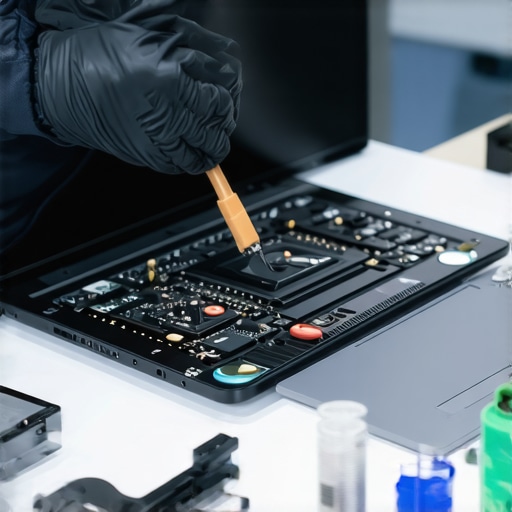
Image prompt: Technician applying thermal paste to a laptop’s CPU, with tools and a clean workspace, emphasizing expert maintenance methods.
Alt text: Tech professional applying thermal compound to improve laptop cooling and longevity.
Title: Expert thermal management for your laptop’s health.
Lessons the tech world didn’t teach me about laptop gear
One of the biggest revelations was realizing that not all external drives are built equal—cheaper options often lead to frustration and data loss, a mistake I paid dearly for early on. I’ve also learned that the sleekest-looking accessories aren’t always the most durable or practical, especially for students always on the move. Over time, I understood that prioritizing quality and compatibility saves money and headaches in the long run, especially when juggling coursework and gaming marathons. Finally, I discovered that effective maintenance routines, like upgrading thermal paste and cleaning dust filters, dramatically extend device lifespan, which is a game-changer for budget-conscious students and professionals alike.
My Toolbox for Smarter Laptop Decisions
For anyone serious about optimizing their study or gaming setup, I swear by resources like this deal guide for snagging quality gear without overspending, and these accessory recommendations to enhance portability and productivity. Additionally, podcasts such as Gear Up inform me about emerging trends in durable, budget-friendly tech, keeping me ahead of the curve. Trusting experiences from fellow students and tech experts has always been my secret to making smarter choices, whether upgrading my RAM or selecting a reliable external hard drive.
Charge your enthusiasm, not just your devices
The journey with laptops and gaming gear is ongoing, filled with lessons that can turn a so-so setup into a powerhouse. Embrace these insights, experiment with upgrades, and never underestimate the power of regular maintenance. Remember, the right accessories and smart storage decisions aren’t just about convenience—they’re about empowering your learning, creativity, and play. Your gear will thank you, and your productivity will soar. Ready to level up your laptop game and explore new horizons? Share your biggest challenges or wins below—I love hearing how others are improving their tech lives!