
Ever clicked ‘Buy Now’ on a used MacBook listing, only to find out later that it’s more trouble than it’s worth? I remember the moment vividly—after trusting a seemingly unbeatable deal online, my new-to-me MacBook arrived with a sluggish battery, a cracked screen, and hidden dust bunnies hiding in every corner. That lightbulb moment made me realize there’s more to buying a used laptop than just the price tag.
Why the Used MacBook Market Can Be a Trap
It’s tempting, isn’t it? The allure of snagging a premium device for a fraction of the original cost. But here’s the thing: many second-hand MacBooks come with hidden baggage—battery health that’s in the red, internal damage, or worse, users trying to hide their actual condition. Early on, I made the mistake of neglecting to verify the battery’s cycle count—it felt harmless at the time, but it ended up costing me hours of troubleshooting and replacing components. According to a report from MacRumors, a battery’s health significantly impacts overall performance, especially after prolonged use.
Is the Price Worth the Expense?
Many buyers believe they’re getting a steal, but the real costs often emerge after the purchase. Repair fees, replacement parts, or the frustration of dealing with hardware issues can overshadow initial savings. Yet, with the right knowledge, you can navigate this tricky market, avoiding pitfalls and ensuring your investment truly pays off. Curious about the best deals? I recommend checking out the latest laptop deals to get a sense of what’s available for your budget.
So, if you’ve ever wondered whether that ‘almost-new’ used MacBook is truly worth it, you’re not alone. Stay with me—I’m about to share the insider tips that will help you spot the genuine bargains and steer clear of costly mistakes, saving you money and hassle in the long run.
Inspect the Hardware Thoroughly
Start by powering on the device and checking for any startup issues. Listen for abnormal fan noise or clicking sounds that indicate failing hard drives or deteriorating fans. Use a live Linux USB or boot to the OS to verify system responsiveness and hardware detection—this mirrors the troubleshooting process I used when testing a used MacBook for a friend. If possible, run hardware diagnostic tools beforehand or request a report from the seller.
Verify Battery Condition and Replaceability
Battery health is crucial for portable use. Check the cycle count through system info or third-party tools—think of it as checking the lifespan of a car’s engine. If the cycle count exceeds 300-400, plan for a replacement, which can often be done DIY-style with a compatible battery—especially for models with removable batteries. I once ordered a replacement battery online and swapped it myself, saving hundreds compared to service center costs. Use this resource for genuine options: genuine replacement batteries.
Assess the Screen Quality
Inspect for dead pixels, discoloration, or flickering. Use a white background to spot uneven backlighting or bleeding. If the screen has issues, and it’s replaceable, consider swapping it—this can significantly extend usable life. When I bought a used MacBook with a cracked display, I replaced the screen myself, which was straightforward with the right tools and saved me from buying a new laptop.
Test Keyboard and Trackpad
Type on the keyboard to spot any unresponsive keys or uneven keypresses. Check for backlight uniformity if applicable. Use a diagnostic tool or simply test each key—this is akin to tuning a musical instrument. For the trackpad, ensure it registers clicks smoothly and tracks accurately; I experienced issues with a used MacBook where the trackpad felt jerky, but a cleaning and driver update fixed it.
Examine Internal Components and Ports
Open the laptop to check for dust buildup, corrosion, or physical damage. Ensure RAM and storage are upgradable if needed; models with soldered RAM limit future upgrades. Test all ports—USB, HDMI, audio jack—to confirm functionality. I learned this the hard way when a used business laptop’s USB port was faulty, which I fixed by reseating the component—a process detailed in fixing loose ports.
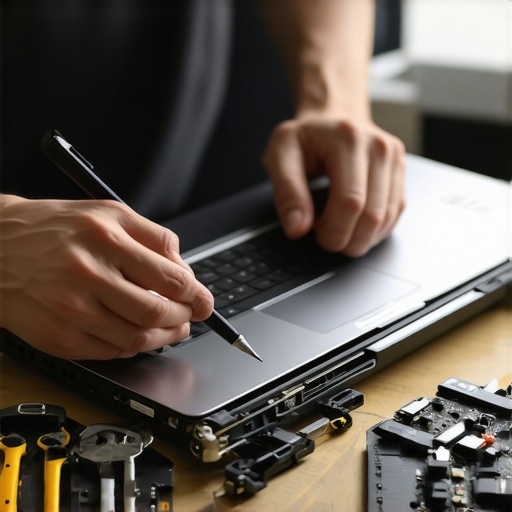
Use a detailed inspection checklist to ensure no critical component is overlooked during evaluation.
Review Software and Firmware
Ensure the device boots into BIOS or UEFI and recognizes all peripherals. Check for factory reset options or the possibility to reinstall a clean OS, which is essential for privacy and performance. I once reset a used MacBook to factory settings, eliminating previous user clutter and malware, making it ready for my tasks.
Negotiate Based on Insights
With your findings, confidently negotiate price—the more issues you uncover, the stronger your bargaining power. Remember, a well-informed buyer like you saves money while avoiding future headaches.
Why the Popular Myth of ‘More Power Means Better Laptop’ Is Misleading
Many assume that a higher-spec sticker, like an i7 processor or 32GB of RAM, automatically guarantees top performance for business or gaming laptops. But in reality, most consumers overlook the importance of balanced specs and real-world usage scenarios. For instance, a fast processor is useless if the cooling system can’t handle it, leading to thermal throttling and sluggish performance. According to a study by TechRepublic, bottlenecking often occurs not because of raw specs but due to system architecture and thermal management—so choose hardware that suits your actual needs, not just the latest numbers.
Beware the Mirage of Laptop Accessories and Upgrades
It’s tempting to believe that adding external accessories or upgrading components will dramatically improve your laptop experience. However, many accessories—like overly flashy cooling pads or utility-focused dongles—do little to genuine performance. Furthermore, upgrading internal parts isn’t always straightforward. Many modern laptops solder RAM or use proprietary SSDs, making upgrades impossible or costly. I’ve seen buyers spend hundreds on accessories that end up gathering dust because they never address core issues, such as poor thermal design or subpar build quality. Always research compatibility and real benefits before investing.
How Can You Spot a Genuine Laptop Deal in a Sea of Shady Offers?
Deals are everywhere, but not all are created equal. Many misleading listings tempt buyers with discounts that turn out to be refurbished or near-end-of-life models with hidden problems. The key is to look beyond the price tag. Verify seller credibility, check return policies, and scrutinize the warranty. For example, unbeatable deals often come from sources like trusted outlets that offer certified pre-owned or refurbished units. Remember, a cheap device that breaks down after a few months is not a bargain.
Do Gaming Laptops Offer the Same Value for Productivity?
It’s a common misconception that gaming laptops are a versatile choice for both gaming and professional work. But many high-performance gaming models suffer from poor battery life, excessive weight, and noisy fans—features that make them unsuitable for daily business use or study. Moreover, their high-refresh-rate screens and aggressive cooling systems can be overkill for typical office tasks. Instead, consider specialized models optimized for productivity, like those recommended in business laptops for professionals. This balanced approach can save you money and frustration in the long run.
Now, are these pitfalls familiar? Have you ever fallen into this trap? Let me know in the comments and share your experiences. Remember, careful research and understanding the nuances can turn a good purchase into a great investment, whether you’re shopping for business, study, or gaming gear.
How do I maintain my laptops for long-term reliability?
Proper maintenance is essential to keep your laptops, whether for business, study, or gaming, performing optimally over the years. One of my go-to tools is a high-quality compressed air canister designed specifically for electronics. I use it every few months to clear dust from fans and heatsinks, preventing overheating and thermal throttling. For instance, I recently cleaned a business laptop with a compressed air spray, which dramatically improved its cooling efficiency, as outlined in this guide. Additionally, I regularly check the hard drive and SSD health using CrystalDiskInfo, a free utility that provides real-time SMART data—knowing the drive’s status allows me to back up data proactively or replace prone-to-failure drives before they cause trouble.
Invest in reliable tools and software to safeguard your setup
Protecting your laptop from malware or software-related issues is equally important. I recommend using Malwarebytes for periodic scans—it’s lightweight but effective at catching threats that often slip past built-in antivirus solutions. For routine backups, I rely on an external SSD with a robust enclosure, like the Orico 2.5″ SATA enclosure, which offers fast transfer speeds and durability for daily backups. Regularly updating drivers and firmware is another critical maintenance step; I do this monthly using manufacturer-specific tools such as Lenovo Vantage or Dell SupportAssist, which streamline the process and ensure compatibility. These routines keep my laptops resilient for demanding workloads, whether it’s running multiple business applications or intensive gaming sessions.
Plan for upgrades to extend lifespan and performance
Upgrading internal components can significantly extend a laptop’s useful life. I personally upgrade RAM and storage where possible—my recent business ultrabook received a 16GB DDR4 module and an NVMe SSD, boosting boot times and multitasking. For models with soldered RAM or non-upgradable storage, I focus on external accessories—like a high-functioning docking station such as the CalDigit TS4—to add ports and expand connectivity. Speaking of external tools, I always carry a USB-C hub with multiple ports, including Ethernet, HDMI, and SD card slots, to ensure seamless integration with various devices during presentations or remote work. Regular maintenance combined with strategic upgrades keeps both my work and gaming laptops running efficiently, and I predict that future trends will favor modular designs that make upgrades even simpler, as highlighted by industry experts in this analysis.
How do I keep my laptop performing well as it ages?
Staying proactive is key. Make it a habit to periodically run disk cleanup tools like CCleaner to remove unnecessary files, and defragment traditional HDDs if used. Keep the BIOS and firmware updated to patch security vulnerabilities and improve hardware compatibility. I also disable unnecessary startup programs using Task Manager, which speeds up boot times—a tip I picked up from seasoned IT professionals. Remember, consistent habit-forming routines prevent small issues from snowballing into costly hardware failures, helping your investment last years longer.
Thinking about how to implement these tips? Start by giving your laptop a thorough cleaning with compressed air today. It’s a simple yet powerful step that can significantly boost thermals and extend component lifespan. For more tailored advice, feel free to contact us via our contact page—we’re here to help you keep your tech running at peak performance.
Lessons I Didn’t Expect about Business Laptops and Gaming Machines
- Biggest mistake? Underestimating the importance of battery cycle counts—trust me, it can save you from hours of headaches and unexpected costs.
- High specs don’t always mean better performance—balance and real-world testing matter more than numbers on a spec sheet.
- Always test ports and internal components thoroughly; hidden damage can lurk behind pristine screens and shiny exteriors.
- Your negotiation power improves exponentially when you’ve done your homework—know what to look for and what problems can be bargained down.
Tools and Resources That Changed How I Shop for Laptops
- Crucial System Report Utility: It provides a detailed overview of hardware health—vital for assessing used business laptops.
- Genuine Battery Store: Using genuine replacement batteries prolongs lifespan and maintains performance, reducing future repair costs.
- Hardware Diagnostic Boot USBs: Boot into diagnostics to uncover issues that aren’t visible during normal setup—saving surprises later.
- Trusted Deal Aggregator: Regularly checking sites like ‘Unbeatable Laptop Deals’ helps me spot genuine savings on quality devices and avoid shady listings.
Keep the Momentum Going: Your Next Step
Venturing into the used laptop market can feel daunting, but with patience, knowledge, and the right tools, you can uncover fantastic deals that set you up for success—whether for work, study, or gaming. Remember, being proactive and thorough transforms potential pitfalls into triumphs. Don’t wait—start your smarter laptop hunt today! How have your past experiences with used laptops shaped your buying decisions? Share your stories below, and let’s learn together.