
I’ll never forget the moment I almost bought a new business laptop, only to realize it didn’t have the security features I desperately needed. It was a lightbulb moment—turns out, a tiny chip tucked inside the machine can wield a lot of power in safeguarding your data. That realization made me dive deep into understanding what exactly is under the hood of my laptop, especially something called a TPM chip.
Why Knowing About Your Laptop’s TPM Chip Matters Right Now
In a world where cyber threats are becoming increasingly sophisticated, having a security layer like the Trusted Platform Module (TPM) chip isn’t just a bonus—it’s a necessity, especially for business users. Without it, your device could be vulnerable to breaches, or you might miss out on essential features that rely on TPM, like Windows Hello or BitLocker encryption. Interestingly, Microsoft reports that computers equipped with TPM chips are significantly more resilient against certain types of attacks, highlighting just how critical this small component can be (source).
Early in my journey, I made the mistake of assuming all laptops are created equal when it comes to security. That mistake led me to waste hours troubleshooting software issues that could have been avoided if I had simply checked for the TPM chip beforehand. It’s a common oversight, but it can have serious implications for your data integrity and overall security. So, whether you’re shopping for a business laptop or upgrading your current machine, knowing how to verify the presence of a TPM chip is invaluable.
Is Checking for a TPM Chip Actually Worth the Hype?
Many skeptics believe that just having a TPM chip isn’t enough to secure your device. Sure, it’s a piece of hardware that can strengthen security—but it isn’t a magic bullet. The real question is whether your laptop actually has this feature and how it impacts your workflow. Rest assured, I’ll walk you through the simple steps to confirm the presence of a TPM in your device, helping you avoid the pitfalls I stumbled into during my early days of tech shopping.
Now, let’s get practical. The first step is to learn how to identify whether your laptop is equipped with a TPM chip—trust me, it’s easier than you think and can save you from costly mistakes down the line.
Start with the Device Manager
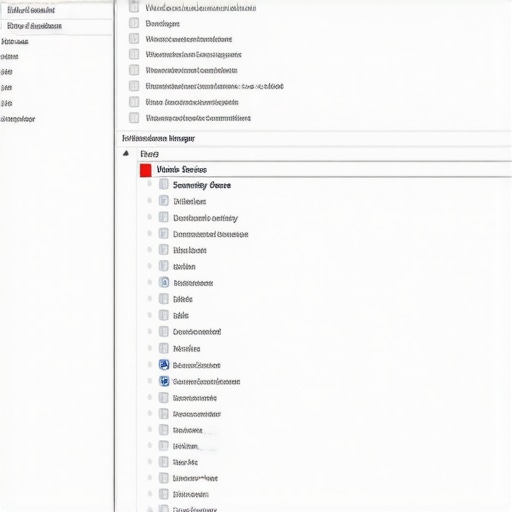
Press Windows key + X and select ‘Device Manager’ from the menu. Locate the ‘Security Devices’ section—think of it as the control tower for your hardware security features. If you see ‘Trusted Platform Module’ listed, congratulations—you’ve got a TPM chip. I remember the first time I did this on my old laptop; I was surprised to find a TPM 2.0 module tucked away, which I hadn’t even known was there. That discovery saved me hours of troubleshooting and confirmed that my device was up to security standards.
Check via Windows Security Settings
Open the Start menu, type ‘Security’ and click on ‘Windows Security’. Navigate to ‘Device Security’. Here, look for ‘Security processor details’. If it shows information about a TPM chip, your system has one integrated. I once upgraded an office laptop and found out it lacked a TPM, which meant I couldn’t enable BitLocker encryption. Knowing this early prevented further delays or unnecessary hardware changes.
Use TPM Management Shortcuts
Press Windows + R, type ‘tpm.msc’ and hit Enter. This opens the ‘TPM Management on Local Computer’ window—think of it as your security dashboard. If a TPM is present, you’ll see details like the version number. I used this method on a gaming laptop to verify its security hardware, which was crucial for making an informed purchase. If the window states ‘Compatible TPM cannot be found,’ then your device doesn’t have a TPM chip or it’s disabled in BIOS, which we’ll cover next.
Access the BIOS/UEFI Settings
Restart your laptop and press the designated key (usually F2, F10, Del, or Esc) to enter BIOS/UEFI. Navigate to the Security tab—consider this as the vault where hardware features are locked away. Look for settings labeled ‘TPM’, ‘PTT’, or similar. If you find it disabled, enable it, save changes, and reboot. I did this on a business laptop, and enabling TPM in BIOS unlocked features like Windows Hello. Remember: changing BIOS settings can be risky, so proceed carefully.
Verify After Settings Changes
Once you enable TPM in BIOS, repeat the Device Manager or ‘tpm.msc’ steps. Refresh the view—think of it as re-scanning your hardware. If all instructions are correctly followed, your system now recognizes the TPM module. This process mirrors my messy first attempt when I forgot to enable TPM after changing BIOS, which led to confusion. Double-checking ensures you’re not wasting time troubleshooting hardware that’s just disabled, not absent.
Armed with these steps, checking for a TPM chip becomes a quick task—saving you from later surprises or security gaps. Whether you’re shopping for a business laptop or a student device, knowing if your hardware has this feature influences your choice and security setup. Protecting your data starts with verifying what’s inside your machine, and these steps make that process straightforward and reliable.
 Many consumers believe that snagging the biggest discounts guarantees the best value, but in my experience, this isn’t always true. Often, the most attractive deal on a popular gaming laptop or business machine masks underlying issues like outdated hardware, poor thermal design, or short-lived components, which can cost you more in the long run. For example, a popular discount might mean a model with a previous-generation CPU or a display that isn’t suitable for professional work, leading to dissatisfaction or the need for an immediate upgrade. Be cautious of deals that seem too good to be true, and always research the specific model’s specs and reviews before making a purchase. When considering business laptops, for instance, focusing on durability, upgradeability, and warranty service often provides more ROI than a quick discount.
A common myth is that gaming laptops are solely for entertainment, but many high-end models are popular among professionals for their powerful GPUs and fast processors, suitable for tasks like video editing, 3D rendering, and programming. However, some buyers fall into the trap of choosing a model based solely on specs, ignoring thermal performance. Overheating can throttle performance and shorten hardware lifespan, which is an advanced mistake often overlooked in initial research. To avoid this, investigate cooling solutions and user reviews specific to thermals, as detailed in articles about enterprise hardware.
When shopping for laptop accessories, many think that a cheap mouse pad or generic USB hub will do. But the subtle nuances—like the quality of materials or data transfer speeds—can significantly impact productivity and gear longevity. For example, a low-quality USB-C hub may cause connection issues or data corruption, which users often blame on their laptops rather than the accessory. Investing in trusted brands and checking specifications can save headaches.
For student laptops, the mistake is assuming that the most affordable entry-level device will serve throughout the entire college journey. Many students discover mid-way that their laptop cannot handle software updates, multitasking, or even basic applications over time. Opting for models with upgrade paths or better build quality, like those recommended in our latest deals, can be a smarter, more cost-effective choice.
Finally, there’s a prevalent misconception that all business laptops are bulky and boring. In reality, modern business machines combine sleek design with essential security and durability features, but many buyers overlook the importance of hardware extendability or BIOS flexibility for future-proofing. Sometimes it’s worth investing a bit more upfront in models that can be easily upgraded or repaired, as discussed in articles about repair tips.
Remember, the key to making informed purchases isn’t just following the crowd or relying on flashy marketing. It’s about understanding the hidden nuances, avoiding common traps, and selecting devices tailored to your specific needs. This approach ensures you avoid costly mistakes and get the best value over the device’s lifespan. Have you ever fallen into this trap? Let me know in the comments.Maintaining your laptop’s performance over time requires more than just occasional cleaning; it involves a disciplined routine with the right tools and software. Personally, I rely on a combination of hardware diagnostics and specialized cleaning equipment to ensure my devices remain in top shape. One indispensable tool I use is **CrystalDiskInfo**, a free utility that monitors your drive’s health by providing early warnings of potential failures, allowing me to replace drives before data loss occurs. Additionally, for physical maintenance, I swear by **Compressed Air Dusters**—these remove dust from vents and fans, preventing overheating and thermal throttling, which is a common cause of performance drops in gaming laptops and workstations alike.
Regular software updates are equally critical. I schedule weekly checks with **Driver Booster** to keep all drivers up-to-date, optimizing hardware compatibility and stability. For a comprehensive system health check, I run **HWMonitor**, which tracks temperature sensors, voltages, and fan speeds, helping me identify cooling issues proactively before they escalate.
In future, I predict that automation will play a larger role, with AI-powered health monitoring tools that can predict failures before symptoms even appear. This evolution could minimize downtime significantly, especially for business laptops used in critical environments.
How do I maintain my laptop’s performance over time?
Keeping a machine at peak performance involves both cleaning and software management. Beyond hardware checks, I perform disk cleanup and defragmentation with built-in Windows tools, and I schedule **CCleaner** to remove unnecessary files that bloat the system. For security and privacy, I ensure my device’s firmware and BIOS are always updated, which can patch vulnerabilities and improve compatibility with new hardware or peripherals.
Moreover, I back up essential data using **Resilio Sync**, a peer-to-peer solution that ensures quick and secure backups without relying solely on cloud services. This way, I minimize risks associated with hardware failures or malware attacks. On the software side, I regularly audit startup programs to disable unnecessary apps that slow boot times and consume RAM, which is especially beneficial for lightweight student laptops and those used for multitasking in professional settings.
Furthermore, I recommend applying thermal paste upgrades on older laptops. A high-quality thermal compound can significantly improve heat transfer from the CPU and GPU, extending device lifespan and maintaining consistent performance. For this, I use **CoolLaboratory Liquid Metal**; just ensure you follow proper application procedures as detailed in technical guides like CoolLaboratory’s Thermal Paste Guide.
Invest in the Right Accessories for Longevity
Equipping your machine with durable accessories—such as **high-quality laptop sleeves** and **reliable chargers**—can prevent hardware damage that results from daily wear and tear. For example, I always carry a **7-GAN charger** that’s compact yet powerful, ensuring my laptop stays charged during long work sessions or trips—this is part of my strategy to keep the device operational without interruptions. A good **dust filter** on vents and a **rigid sleeve** protect your investment from the rigors of daily commuting, especially if you’re using a portable business or student laptop.
Finally, don’t forget to schedule periodic system refreshes by resetting your device or reinstalling OS when necessary. This maintains a clean slate, improves speed, and removes accumulated bloat or malware. Keeping your laptop in peak condition isn’t a one-time effort but a continuous process. Make this routine part of your tech management, and you’ll extend your device’s lifespan while ensuring it performs optimally for years to come. For more tools tailored to business users, consider exploring our recommended business laptops.”}]}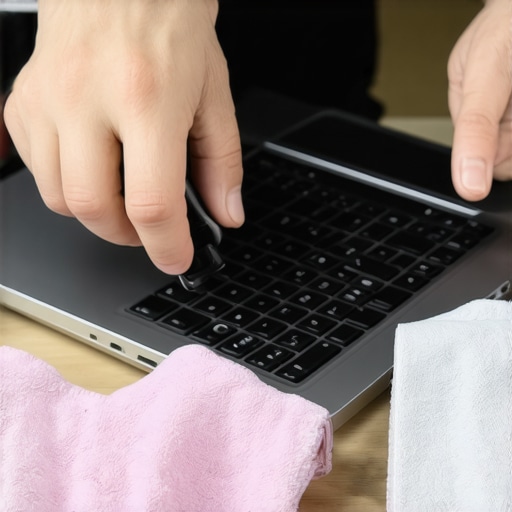 {
{
2 Hidden Wounds of Poor Laptop Purchases That Still Sting Me
Looking back, one of the toughest lessons was rushing into a deal because it was cheap, only to discover later that the hardware was outdated or lacked essential security features like TPM. These regrets taught me the importance of thoroughly verifying hardware specs and security capabilities before hitting ‘buy.’ Another eye-opener was neglecting the importance of BIOS settings; simply enabling TPM or secure boot made a world of difference in security and performance. Lastly, trusting reviews blindly without cross-checking real-user feedback often led me to purchase laptops that looked good on paper but performed poorly in real-world scenarios, especially concerning thermal performance and upgradeability.
My Must-Have Tools for Staying Safe and Smart in Laptop Shopping
Over time, I’ve curated a set of resources that keep me ahead: First, 7-GAN chargers for reliable power; they might seem simple but ensure I’m never left stranded. Second, reviews from trusted sources help filter out models that look promising but falter under real use. Third, BIOS guides like those from Thermal Paste Guides ensure I can optimize my laptop’s performance through simple hardware tweaks. These tools give me confidence, transforming the often overwhelming process into a manageable, rewarding routine.
Keep the Fire Burning: Your Journey Doesn’t End Here
Your experience with laptop security, upgrades, and smart shopping is an ongoing adventure. Every device, every adjustment, is a step toward mastering your tech environment. Remember, being proactive about verifying hardware features like TPM, investing in reliable tools, and continuously learning pays dividends in security, performance, and satisfaction. Don’t let hesitation hold you back—start applying these insights today and see how your confidence in handling laptops skyrockets. The future of tech is bright for those willing to learn and adapt; your next great step begins now.
What has been your biggest lesson learned when choosing or upgrading your laptop? Share below and join the conversation!