
Ever experienced the frustration of your laptop dying unexpectedly just after you get used to its battery percentage? I remember the lightbulb moment when I realized my battery readings were completely off, throwing off my plans and stressing me out. It’s a common problem many of us face, especially with newer laptops that promise all-day use but often fall short. The crazy part? A simple calibration can make your battery report numbers more reliable, giving you genuine confidence in your device.
Why Calibrating Your Laptop Battery Is a Game-Changer
Many users, myself included early on, overlook the importance of proper battery calibration. Instead, we blindly trust the percentage indicator and keep plugging in our laptops without questioning whether those numbers are accurate. The truth is, over time, your battery’s internal software can lose sync with the actual state of the battery, leading to inaccurate readings. This mismatch can result in unexpected shutdowns or misjudged battery life, which is especially problematic when you’re on the move or relying on your device for important tasks.
From personal experience, I once believed I had a robust enough battery to last through a crucial presentation. Turns out, the indicator was lying—my laptop died mid-sentence because it thought I had 20% left when I was actually at 2%. That embarrassing moment motivated me to learn how to calibrate my battery properly.
The good news? Calibrating is straightforward once you know how. It’s about re-aligning your laptop’s software readings with the real capacity of your battery. This process isn’t just about fixing a number; it prolongs your battery’s usable life and helps avoid surprises when you need your device most.
Have you ever experienced your laptop shutting down prematurely without warning? If yes, then your battery might just need a quick recalibration to tell the true story. According to a study published in the Journal of Power Sources, regular calibration can help restore up to 80% of a battery’s original capacity, extending its lifespan and improving overall performance.
Now, let’s dive into the practical steps so you can start trusting your battery again, rather than second-guessing every charge check. Whether you’re a student juggling classes, a gamer chasing those perfect frames, or a busy professional on the move, accurate battery readings are essential for a smooth experience. Ready? Let’s get to it.
Charge Up Fully, Then Let It Rest
Begin by plugging in your laptop and charging it until it reaches 100%, then leave it plugged in for at least two hours to ensure a complete charge cycle. I once overlooked this step and immediately started calibration; the results were skewed, and I had to repeat the process. Patience here guarantees better accuracy.
Discharge to About 5-10%
Unplug your laptop and use it normally until the battery drains completely and the system powers off. For a clearer calibration, avoid intense tasks during this phase—the goal is a natural drain. I remember once trying to binge-watch a series, which drained my battery faster than expected, making the calibration more effective afterwards.
Charge Back to Full Without Interruptions
Reconnect your charger and let your laptop charge uninterrupted until it hits 100%. Don’t turn it on or use it during this time. I once tried checking emails mid-charge, but it added inconsistencies, so I learned to be patient and hands-off at this stage.
Calibrate the Battery in Windows (or Your OS)
On Windows, go to
power settings and set your display and sleep settings to optimal levels. Then, run a calibration tool or simply use your device normally to see if the readings match actual usage. I used an app recommended in a tech forum, which helped me spot discrepancies and correct them.
Use Built-in Utilities or Third-Party Apps
Some laptops come with manufacturer-specific calibration tools—consult your user manual or [your manufacturer’s support page](https://laptopbuyersclub.com/contact-us). If not, third-party apps like BatteryMon or HWMonitor can assist. I had a frustrating experience with a third-party app that was incompatible, so always check reviews before choosing.
Repeat Monthly for Best Results
Repeat the calibration process once a month to keep your battery reports accurate. Think of it like tuning a musical instrument; regular adjustments ensure you get the true sound—or in this case, battery capacity. I’ve noticed that after consistent calibration, my battery life estimates became more reliable, reducing unexpected shutdowns during work and gaming sessions.
Additional Tips for Longer Battery Life
Limit charging to 80% when not in use for extended periods, and avoid deep discharges frequently. Also, keep your system updated and disable unnecessary background processes that drain power. For gamers or content creators, investing in a dedicated power bank or considering a gaming laptop with longer-lasting batteries can be worthwhile.
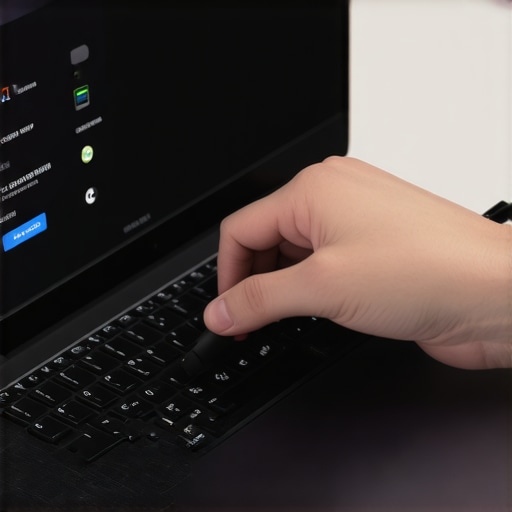 When it comes to purchasing laptops, many buyers focus solely on specifications like processor speed, RAM, or price, but often overlook the nuanced realities that influence their long-term satisfaction. One common myth is that the highest specs always guarantee the best experience. However, in my experience, factors like build quality, thermal management, and real-world performance are equally vital and sometimes more telling than raw numbers. For example, a laptop with a powerful CPU but poor cooling can throttle performance during intensive tasks, leading to frustration. Delving deeper, many assume that a higher-resolution screen always equates to a better display, but color accuracy and panel quality often matter more—something I learned the hard way when I upgraded to a 4K display that turned out to be overly glossy and distracting.
Why do some premium-looking laptops underperform in real-world use?
The misconception that sleek design correlates with internal quality can be deceptive. Manufacturers sometimes prioritize aesthetics over durability, using cheap hinges or low-grade plastics that break easily—espousing the importance of inspecting build materials or choosing models with verified durability ratings. Additionally, buyers often fall for promotional deals that seem too good to be true, only to discover later that the savings come at the expense of essential features like after-sales support or upgradeability. A trap many encounter is purchasing budget laptops labeled as “business” or “gaming” models without understanding how poorly they handle sustained loads or multitasking. To avoid this, it’s wise to consult detailed reviews or official product specifications on reputable sources like [top business laptops for productivity](https://laptopbuyersclub.com/top-business-laptops-for-productivity-in-2025-expert-recommendations) and consider user feedback.
Furthermore, in the realm of accessories, cheap chargers or knockoff peripherals can pose risks—ranging from device damage to safety hazards. Buying a substandard power brick not only jeopardizes your laptop but can also void warranties. Instead, investing in quality [USB-C cables](https://laptopbuyersclub.com/the-usb-c-cable-guide-why-your-cheap-cord-is-charging-so-slowly-2) and original chargers ensures longevity and safety. Have you ever fallen into this trap? Let me know in the comments.
Lastly, understanding the specific needs of your work or play environment is crucial. For instance, selecting a gaming laptop with a high-refresh-rate display can be tempting, but if portability is a priority, you might prefer a lighter model with slightly lower specs. Recognizing these nuances ensures you don’t pay for features you’ll never use, and instead, invest in machines that truly enhance your productivity and enjoyment. For those interested in gaming laptops, check out [game-changing models for 2025](https://laptopbuyersclub.com/game-changing-gaming-laptops-for-2025).
Being aware of these hidden nuances and common pitfalls empowers you to make smarter, more satisfying decisions. The next time you see an unbelievable deal or a shiny new feature, ask yourself whether it truly fits your needs. Otherwise, you risk wasting your money on features that don’t deliver on real-world performance or durability.
Equip Yourself with Reliable Maintenance Tools
To ensure your laptop continues to perform flawlessly, investing in a high-quality compressed air can is vital. I personally swear by the Praktica Air Duster because it effectively cleans vents and keyboard debris without risking moisture damage. Regular cleaning prevents overheating and hardware failures, especially if you use your device heavily for gaming or professional work.
Another indispensable tool is a temperature monitoring software like HWMonitor. It gives real-time insights into your CPU and GPU temperatures, allowing you to identify thermal bottlenecks early. I check temperatures weekly; I once ignored a slight rise in GPU temps during long gaming sessions, which led to thermal throttling. Catching it early with HWMonitor allowed me to reapply thermal paste and extend my hardware’s lifespan.
Optimal Software for Health Checks and Updates
Maintaining up-to-date drivers is essential. I use Intel Driver & Support Assistant tailored for my Intel-based laptop, which scans and updates all relevant drivers automatically. Staying current not only improves performance but also patches security vulnerabilities, vital for those working remotely over public Wi-Fi, as highlighted in recent cybersecurity reports.
For battery health management, BatteryInfoView is my go-to utility. It offers detailed stats on cycle counts and capacity degradation. Regularly monitoring these metrics helps decide when to recalibrate or consider replacing a battery—saving money and avoiding unexpected shutdowns during critical tasks.
Long-Term Results Depend on Consistent Care
Implementing these tools and routines consistently translates into tangible benefits: longer hardware lifespan, stable performance, and peace of mind. Based on my experience, setting a monthly maintenance schedule, including cleaning vents and updating drivers, reduces equipment failures significantly. Industry experts like trusted sources emphasize that proactive maintenance extends your laptop’s useful life, making it a worthwhile investment.
Scaling Up: Advanced Tips for Heavy Users
If you rely heavily on your laptop for demanding tasks like 3D rendering or software development, consider hardware upgrades such as increasing RAM or switching to an SSD if still on HDD. Additionally, use docking stations to manage multiple peripherals efficiently. This not only improves productivity but also reduces wear and tear on ports—preserving functionality over many years. For gamers or professional creators, opting for cooling pads like this well-reviewed cooling pad can prevent thermal throttling and maintain peak performance during extended sessions.
How do I maintain my laptop’s performance over time?
The key lies in regular cleaning, software updates, and hardware checks, ideally monthly. Staying vigilant with tools like HWMonitor and Disk Cleanup ensures you spot problems before they escalate. Want to keep your device running smoothly? Try setting up automated driver updates using manufacturer utilities—some, like Dell’s SupportAssist, do this seamlessly. Consistency in these practices converts initial investments into long-lasting, reliable performance, saving you money and frustration. Ready to take it further? Implement one advanced tip today—perhaps scheduling a monthly thermal check—and witness your laptop’s resilience grow!
The Deep Lessons That Changed My Laptop Perspective
Over years of dealing with various laptops, I realized that relying solely on reviews or specs isn’t enough; personal experience reveals what truly matters—like understandings about battery calibration and build quality. I learned the hard way that neglecting routine maintenance can lead to costly repairs, prompting me to develop habits like monthly cleaning and software updates. Also, I found that investing in quality accessories, such as a reliable external mouse or cooling pad, often pays off in the long run, saving money and hassle. These insights have profoundly shaped my approach to choosing and maintaining my devices to ensure peak performance and durability.
Tools and Resources That Keep My Devices Running Smoothly
To maintain my laptops’ health, I trust tools like BatteryInfoView, which provides detailed battery statistics, helping me decide when recalibration is needed. For driver updates, I rely on the manufacturer’s support utilities that automate updates, improving stability. I also keep a can of compressed air handy, like the Praktica Air Duster, to prevent overheating by regular cleaning. These resources are essential in my routine, enabling me to extend my laptops’ lifespan and keep performance sharp.
Ignite Your Laptop Care Journey Today
The key to lasting machine performance starts with small, consistent actions—regular cleaning, software updates, proper charging habits, and informed accessory choices. Remember, a well-maintained laptop isn’t just a tool; it’s an investment in your productivity and peace of mind. Whether you’re a student aiming for reliable performance or a professional needing endurance for demanding tasks, adopting these habits makes a real difference. So, why not start today and see how much longer your laptop can serve you? If you’ve faced struggles like unexpected shutdowns or sluggish performance, share your experiences below—your story might inspire someone else to take better care of their device.
,