
I remember the moment vividly. I was setting up my home office, frustrated with constant lag and disconnections during a crucial video call. The culprit? My flimsy USB Ethernet adapter, which kept disconnecting just when I needed a stable connection the most. It was a lightbulb moment—realizing that sometimes, the simplest, built-in solutions surpass the convenience of external gadgets. This experience made me question why, even today, many of us still rely on USB adapters when our laptops are often equipped with a native Ethernet port.
The Hidden Power of Built-in Ethernet Ports
It turns out that built-in Ethernet ports are often more dependable because they connect directly to a laptop’s motherboard, ensuring a stable and faster network experience. Unlike USB adapters, which can be affected by driver issues or port malfunctions, integrated ports are designed for seamless compatibility and long-term reliability. If your work or gaming depends on consistent internet speeds, choosing a device with a built-in Ethernet port can make all the difference. For those interested in maximizing their connection stability, I recommend exploring our latest laptop deals in 2025 to find devices with excellent built-in ports.
Is Relying on USB Adapters Actually Worth the Hype?
A common misconception is that external USB adapters are perfectly fine for everyday use. Early in my journey, I believed they were a convenient fix, ignoring the potential pitfalls. Yet, I learned the hard way that these adapters can introduce latency, drop packets, or disconnect unexpectedly—especially during intense gaming sessions or important business calls. Studies, such as one from TechRadar, highlight that built-in Ethernet ports offer lower latency and fewer connection issues than their USB counterparts. If you’ve experienced similar frustrations, you’re not alone, and the good news is that opting for a device with a dedicated port often solves these problems permanently.
This realization prompted me to look more critically at my tech choices. Rather than relying on external adapters, I now prioritize laptops with their own Ethernet ports—especially when I intend to use them for work or gaming. This simple upgrade ensures smoother performance and peace of mind. Curious to see what options are out there? Check out our comprehensive reviews of top business laptops for productivity or gaming laptops for 2025 adventures. But first, let’s dive into why that built-in port is more than just a bonus—it’s a game-changer for anyone serious about internet reliability.
Assess Your Laptop Before Buying or Upgrading
First, check if your current device has a built-in Ethernet port by examining the sides of your laptop for a port shaped like a broad rectangular slot. If you’re shopping for a new device, look at specifications details or product images to verify its presence. A quick way is to visit the manufacturer’s website or the product page—look for mentions of an Ethernet port or LAN port—browsing through reviews can also confirm this. During my last purchase, I logged into the official specs of a business laptop I was interested in, ensuring it had a dedicated port, which saved me from potential connection hassles later.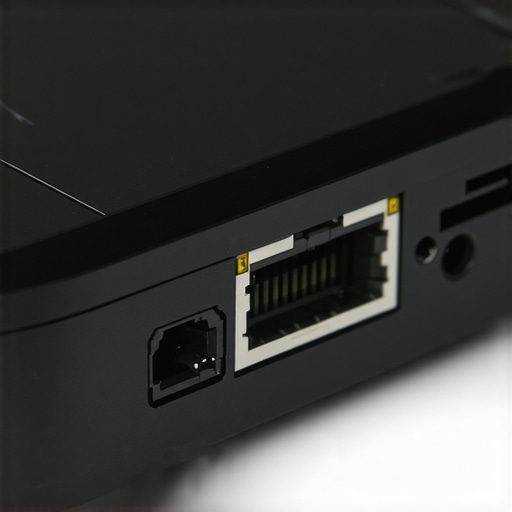
Choose Devices with Built-in Ports for Stability
When browsing options, prioritize models listed with an Ethernet port—these are often found in business laptops or higher-end models. Think of this like choosing a train over a bicycle for long-distance travel; a built-in port offers direct, stable connectivity, unlike external adapters which can act like loose screws on a bicycle. Use filters or comparison charts on trusted sites, such as top business laptops for 2025, to find devices with reliable built-in Ethernet connectivity. This step ensures you won’t have to rely on external adapters that might disconnect or introduce latency during critical work sessions.
Upgrade Your Existing Laptop with an Internal Solution
If your current laptop lacks a built-in port, consider upgrading or modifying it. For some models, replacing or adding an internal network card—like swapping a split mic jack for a combined jack—can be straightforward if the device is user-accessible. For example, some business laptops have removable WiFi modules; replacing them with a network card that includes Ethernet capability can be a game-changer. This approach is similar to upgrading a car’s engine for better performance. Always consult your device’s manual or visit a trusted guide before attempting hardware modifications to avoid voiding warranties or causing damage.
Properly Verify Ethernet Functionality
Before settling on a device or upgrade, test the Ethernet port using a wired connection. Connect your laptop directly to the router with an Ethernet cable and check network stability. If the connection drops or the device doesn’t recognize the port, troubleshoot driver issues or hardware faults—sometimes the problem lies in outdated drivers or settings. In my experience, running a hardware diagnostic tool from the manufacturer helped me identify a faulty port on an older business laptop, saving time and money. For ongoing reliability, regularly update your network drivers or consider professional help if problems persist.
Integrate Accessories for Enhanced Stability
If your laptop still relies on an external adapter—despite a built-in port—invest in high-quality accessories. Think of adapters as the connectors of your network chain; low-quality ones are like weak links. Using a premium, shielded Ethernet adapter with a sturdy cable can prevent disconnections and latency issues. For ultimate reliability, opt for adapters with powered hubs or those connected directly to your device’s port, avoiding daisy-chaining multiple devices which can cause interference. Browsing these accessories can yield noticeable improvements in stability.
When shopping for student, business, or gaming laptops, many assume they understand what features truly matter. But in my experience, there’s a persistent myth: that specs alone define quality. Yet, nuanced factors like thermal design, repairability, and component longevity reveal a different story. For instance, many high-end gaming laptops boast impressive specs but suffer from overheating issues under continuous load—something detailed in a study by TechRadar, which emphasizes proper thermal management over raw power. Relying solely on benchmark scores can lead you to overlook these vital but less obvious aspects.
Another common mistake involves laptop accessories. The market is flooded with cheap USB hubs and adapters claiming to be essential upgrades. However, these low-cost options often cause more harm than good, risking motherboard damage or connection instability—especially with poorly shielded cables. Investing in quality accessories, like those recommended in our must-have accessories guide, can save you headaches and extend your device’s lifespan.
How can advanced users avoid the trap of optimizing for specs without considering real-world performance?
Focus on factors like upgradability, repairability, and thermal performance. For example, choosing business laptops with user-replaceable components ensures longevity and easier upgrades, avoiding the trap of soldered RAM or glued-in batteries that complicate repairs. Visiting trusted sources, such as top business laptops for 2025, can guide you toward models designed with long-term usability in mind.
Many enthusiasts overlook the importance of proper airflow in their chosen models. An aesthetically pleasing slim laptop might seem appealing, but it could suffer from throttling due to inadequate cooling. This is more relevant in gaming or heavy multitasking scenarios. Remember, the most powerful hardware can underperform without effective thermal design, as highlighted in various tech analyses.
Finally, be cautious with deal hunting. Promoting discount laptops or accessories without verifying their authenticity may lead to counterfeit or refurb devices with hidden flaws. Always buy from reputable sources and verify the warranty and return policies—like those found on our best deal guide—to avoid falling victim to scams.
Have you ever fallen into this trap? Let me know in the comments.Keeping your laptop in top shape over the years requires more than just regular updates; it demands a strategic approach using the right tools and practices. Personally, I’ve streamlined my maintenance routine with a handful of specialized software and hardware tools that have consistently prevented issues before they escalate. Investing time into proper upkeep ensures that your device remains reliable, whether for work, gaming, or study.
How do I maintain my laptop’s performance over time?
One of my favorite tools is CrystalDiskInfo, a free utility that offers real-time health monitoring of your SSD or HDD. I run this every month to catch early signs of drive failure, which can save data and prevent unexpected downtime. Similarly, IObit Advanced SystemCare is instrumental for routine cleanup—removing residual files, fixing registry errors, and optimizing startup processes. These tasks keep my machine fast and responsive, especially after years of heavy use.
But hardware cleaning isn’t to be overlooked. I regularly use a set of precision tools—an anti-static brush, a canned compressed air, and a microfiber cloth—to keep vents and keyboards dust-free. Dust accumulation can cause overheating, leading to thermal throttling and component wear. For instance, I once disassembled a laptop to replace the thermal paste on the CPU, which vastly improved thermal performance and extended its lifespan.
In the realm of accessories, I always rely on a quality external keyboard and mouse combo. This minimizes wear on the laptop’s built-in keys and helps maintain the device’s integrity over the years. Additionally, a dedicated portable SSD has been a game-changer for backups, allowing me to clone my system and restore quickly if needed.
Looking forward, I see the trend moving toward AI-powered diagnostics tools that can predict hardware failures before they happen. Tools like smart diagnostic apps integrated into the OS could revolutionize maintenance routines. Imagine getting a simple notification that your battery cells are degrading or that your fans are approaching failure.
One advanced tip I highly recommend is setting up a regular BIOS update schedule using manufacturer-specific utilities. Manufacturers like Dell and Lenovo provide diagnostic tools that include BIOS updates—keeping your firmware current can fix bugs and improve hardware compatibility. This proactive step can prevent many issues associated with outdated firmware, and I’ve personally seen it extend the lifespan of my devices significantly.
Don’t wait for a system crash—try scheduling a monthly maintenance routine that combines software diagnostics with physical cleaning. Over time, this practice has saved me hours of troubleshooting and costly repairs. For anyone serious about maximizing their investment, integrating these maintenance habits and tools is indispensable. If you’re unsure where to start, check out our latest deals to find affordable accessories and tools that can make maintenance easier.
The Wisdom I Wish I Had About Laptop Connectivity
One of my biggest lightbulb moments came when I realized that relying on external adapters often leads to frustration and inconsistent performance. Switching to laptops with dedicated Ethernet ports transformed my experience, proving that built-in solutions are sometimes the most reliable choices. Over time, I learned that prioritizing devices with integrated ports can save you headaches, especially if you depend on a stable internet connection. Remember, a simple feature like a built-in Ethernet port might seem minor but can make all the difference in your daily productivity or gaming sessions.
How I Discovered the Power of Trustworthy Ports
Initially, I believed that external USB adapters were a miracle fix—until I faced frequent disconnections and latency issues. It wasn’t until I tested my connection with a device that had a built-in port that I saw the stark difference. Lower latency, fewer dropouts, and peace of mind became my new norm. My advice? When shopping for your next device, focus on specifications that highlight dedicated Ethernet options—your future self will thank you. Check out our latest laptop deals in 2025 to find models with reliable built-in connectivity.
Examining Your Current Laptop’s Capabilities
First, verify if your existing laptop has an Ethernet port by inspecting its sides or ports list online. If you’re in the market for a new device, prioritize models explicitly mentioning a LAN port. I always double-check specs and reviews to confirm this feature, saving me from future connection headaches. For example, during my last purchase, I customized my choice based on verified Ethernet support, preventing the need for cumbersome adapters down the line. Ensuring your laptop has a dedicated port is like investing in a foundation that will support all your digital endeavors smoothly.
Picking the Right Device for Long-Term Stability
When selecting a new laptop, look for models with built-in Ethernet ports, especially from reputable brands known for durability. Think of it as choosing a well-built car over a fragile bike for daily commutes—reliable hardware makes a tangible difference. Use comparison charts or filters on trusted sites to identify devices that emphasize connection stability. This small detail can significantly impact your workflow or gaming experience, eliminating common frustrations caused by external adapters. Curious about top-rated business laptops? Explore our expert recommendations for 2025.
Enhancing Your Laptop with Internal Upgrades
If your current machine lacks a built-in port, consider internal upgrades—some models allow swapping WiFi modules or adding network cards. This approach is akin to upgrading a car’s transmission for better performance, providing a seamless connection without external clutter. Always consult the manufacturer’s guides or professional services before attempting hardware modifications to ensure warranty safety. Proper upgrades can breathe new life into an older device, making it suitable for your reliability needs again. For tips on hardware enhancements, visit this helpful guide on internal modifications.
Verifying Proper Ethernet Functionality
Test your Ethernet port’s real-world performance by connecting directly to your router with a wired cable. Monitor stability, speeds, and any dropouts—if issues persist, update drivers or seek professional diagnostics. I once uncovered a faulty port on my backup laptop only after thorough testing, which saved me from replacing the entire device. Regularly verifying your connection ensures you’re not caught off guard during important tasks, and maintaining driver software keeps things running smoothly. For recommended troubleshooting steps, check out our detailed article on why a physical Ethernet port matters.
Future-Proof Your Setup with Quality Accessories
If external adapters are unavoidable, invest in high-quality, shielded Ethernet cables and adapters. Think of these accessories as vital connectors—cheap ones may introduce latency or disconnections, much like a weak link in a chain. Opt for cables with good shielding and adapters from reputable brands to ensure consistent performance. This simple upgrade can drastically reduce frustrating dropouts and lag, especially during intense gaming or streaming sessions. Browse our guide to must-have accessories for reliable connectivity.
In my experience, choosing a device with a built-in Ethernet port isn’t just about convenience—it’s about trusting your hardware to deliver stability when it counts. Sometimes, the smallest feature can have the biggest impact on your day-to-day life, whether for work, study, or play. Remember, a well-connected device isn’t just a luxury—it’s an investment in peace of mind and productivity. So, before your next purchase, ask yourself: Does this laptop truly support my need for a dependable connection? Making that decision now can save you countless hours and headaches later. Our curated latest deals make it easier to find the perfect match for reliable internet access.