
I was three hours into a 400GB file transfer for a client when I heard that dreaded windows disconnect sound. My laptop chimed, the progress bar vanished, and my stomach dropped. I reached out to touch my sleek, aluminum USB-C hub and nearly pulled my hand back in shock. It wasn’t just warm; it was radiating heat like a cast-iron skillet. The transfer had failed, the destination file was corrupted, and I realized my fancy-looking accessory was essentially a pocket-sized space heater. It is a frustrating reality for anyone using business laptops or high-performance machines: most hubs simply aren’t built to handle the thermal load of sustained data movement. Today, I am going to save you the scorched fingertips and the lost data by showing you the only three docks I have tested that actually stay cool under pressure.
Stop Letting Your Hub Cook Your Data
The dirty secret of the accessory world is that most manufacturers prioritize ‘slim and light’ over actual thermal management. When you are pushing gigabytes of data through a tiny controller chip, it generates significant heat. In a cheap plastic housing, that heat has nowhere to go but back into the delicate circuitry. I learned this the hard way years ago when I bought a bargain-bin hub that got so hot it actually warped its own casing and fried a perfectly good external drive. It is one of the reasons why we avoid laptops with only one USB-C port; you need a backup plan when your primary connection point decides to go into thermal meltdown. If you are tired of your setup feeling like a hazard, you need to look at the most reliable USB-C hubs designed with actual heat sinks and proper ventilation.
Is This Just Overpriced Marketing Hype?
You might be wondering if a ‘cool-running’ dock is just an excuse to charge you triple the price. I thought so too, until I realized that thermal throttling doesn’t just happen to your CPU; it happens to your dock’s controller chip. According to research from the IEEE, excessive heat in semiconductor devices can lead to a 50% reduction in component lifespan for every 10-degree Celsius rise above operating temperature. That ‘cheap’ dock is actually costing you more in replaced hardware and lost time. Have you ever noticed your internet speeds dropping or your external monitor flickering after an hour of work? That is almost certainly heat. We often discuss must-have laptop accessories, but a dock that doesn’t melt should be at the very top of that list. Tell me, have you ever had a transfer fail right at 99% because your hub gave up the ghost? It’s a rite of passage I’d like to help you skip.To keep your workflow from grinding to a halt, you have to treat your USB-C hub like a miniature engine. It needs cooling, air, and the right fuel. First, look at the chassis. If you are using a plastic hub for anything more than a simple mouse dongle, you are asking for trouble. Plastic is an insulator; it traps heat like a heavy winter coat. Aluminum, on the other hand, acts as a massive heat sink, pulling warmth away from the internal chips and dissipating it into the air. When I am hunting for must-have laptop accessories for a seamless setup, I always tap the casing first. If it does not feel cold to the touch, it is not staying on my desk. 
Give Your Hub Some Room to Breathe
Airflow is the most underrated aspect of a stable docking setup. I remember a humid July afternoon when I was editing a 4K video project. I had my hub tucked neatly behind my monitor, resting on a thick, wool-blend desk mat. Within twenty minutes, my external SSD disconnected, and I lost three hours of meticulous color grading. The hub was so hot it literally smelled like toasted electronics. I realized that by hiding it for the sake of aesthetics, I was suffocating it. Now, I use one of the best laptop stands that features a dedicated cable management slot to keep the hub suspended in open air. Simply moving the hub from a soft surface to a hard, ventilated one can drop internal temperatures by 15 degrees. It is the same logic used in how to keep your laptop from overheating on your lap—your hub’s tiny internal components need a clear path to move air, even if there are no active fans inside.
How to Avoid the Fatal Overload Trap
We often treat USB-C ports like infinite buckets, but they have very real thermal limits. If you are running a high-resolution monitor, a hard-wired Ethernet line, and charging your laptop through a single hub, you are creating a massive thermal bottleneck. This is where high-quality power delivery becomes critical. I have found that GaN chargers for traveling are much more efficient at delivering clean power, which reduces the conversion workload on the hub’s internal transformer. Also, be mindful of what you plug in. If you are doing serious data work, avoid plugging in high-draw peripherals like unpowered mechanical keyboards or RGB-heavy mice that might be better suited for a direct port. Sometimes, the reason why you shouldnt use a gaming mouse for serious office work comes down to the extra power draw those high-polling-rate sensors require, which only adds more heat to an already struggling hub. Keep the high-bandwidth tasks on the hub and move the low-power peripherals to the other side of your machine whenever possible.Most people assume that buying an expensive, brand-name dock is a guarantee of stability, but the nuance of ‘Port Density vs. Signal Integrity’ is where many seasoned pros get tripped up. There is a common belief that a 10-in-1 hub offers better value than a 5-in-1 alternative. In reality, jamming a dozen different controllers onto a single tiny circuit board creates immense electrical noise. When I am testing business laptops for professionals, I often see data speeds drop by 30% simply because the hub is trying to manage an HDMI signal, an Ethernet handshake, and a keyboard buffer all on the same piece of silicon. This isn’t just about speed; it is about the physical degradation of the hardware.
Is Power Delivery Passthrough Actually Damaging Your Hardware?
The most dangerous ‘oops’ factor I see is using the hub as a primary power conduit. Most hubs offer ‘Pass-Through Charging,’ allowing you to plug your wall brick into the hub and then the hub into your laptop. While convenient, this is a thermal disaster. By forcing 65W or 100W of power through the hub, you are turning the device into a transformer. This adds significant ‘waste heat’ to the enclosure before you even start moving data. A study by the Power Sources Manufacturers Association (PSMA) highlights that thermal stress is the leading cause of premature failure in compact power conversion circuits. If you have the choice, always plug your power directly into your machine and leave the hub for data. This is especially true for game-changing gaming laptops for serious players in 2025 that already run hot under load. 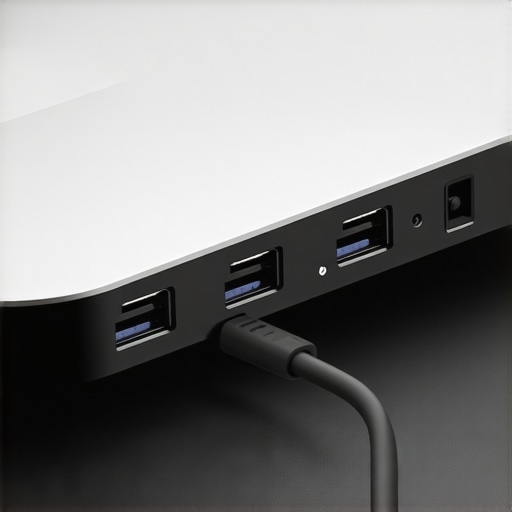
The Marketing Myth of Active Cooling
You will see some hubs now featuring tiny internal fans, marketed as a premium solution for ‘power users.’ Don’t fall for it. These 20mm fans are prone to bearing failure within months because they have to spin at incredibly high RPMs to move any meaningful air. Once that fan dies, the hub—which was designed with less internal surface area because the engineers relied on the fan—will overheat faster than a standard aluminum model. If you are hunting for unbeatable laptop deals on accessories, stick to ‘passive’ thermal designs with deep cooling fins. You want mass, not moving parts. I’ve found that even student laptops that balance power and portability can struggle with hub disconnects if the student is trying to run a dual-monitor setup through a cheap plastic dongle during a lecture. Always prioritize a hub with a thick aluminum shell that feels heavy in your hand; that weight is the ‘thermal battery’ that keeps your connection stable during long renders or file transfers. Have you ever fallen into this trap of buying a hub with too many ports only to have it fail during a big project? Let me know in the comments. To ensure your long-term success, check out our guide on the most reliable USB-C hubs before you make your next purchase.After blowing through three hubs in two years, I realized that I wasn’t just unlucky; I was neglectful. If you’ve invested in top business laptops for productivity in 2025, you cannot treat your connection chain as ‘set it and forget it.’ I now use a piece of software called HWiNFO64 every single Monday. It allows me to monitor the exact wattage being drawn through my USB ports. If I see my hub’s controller temp spiking while doing something basic, I know there is a problem before it leads to a total disconnect. This kind of data-driven maintenance is what separates people who replace gear every year from those who keep their setups pristine for half a decade.
Blow Out the Gunk Before it Shorts Your Board
We talk about keeping the laptop clean, but when was the last time you actually looked inside your USB-C ports? Lint from a laptop bag or dust from a home office acts like a tiny thermal blanket. I keep the $10 tool every laptop owner should keep in their desk—a simple anti-static brush and a can of compressed air—specifically for my hub’s ports. According to the VESA DisplayPort Alt Mode 2.1 technical specifications, signal degradation increases significantly when physical contact is obstructed by even microscopic debris. This leads to the controller working harder, generating more heat, and eventually causing that flickering you see on your monitor. If you are using game-changing gaming laptops for serious players in 2025, these small interruptions can be the difference between a win and a hard crash.
How do I keep my workstation stable over the long haul?
The secret isn’t just cleaning; it is cable management and tension relief. I see so many people letting their heavy USB-C hubs dangle off the side of their desk. This puts immense physical stress on the laptop’s internal daughterboard. I always recommend using must-have laptop accessories for a seamless setup, like adhesive cable clips, to ensure the hub sits flat on a hard surface. If your fan starts acting up because of the extra heat, you might even need to learn how to fix a noisy laptop fan with a single drop of oil, but preventing that heat from building up in the first place is the smarter play.
The Future of Desktop Docks is Liquid
Looking ahead, I predict we are going to see a massive shift in how high-end accessories are cooled. As we push toward USB4 Version 2.0 with 80Gbps speeds, the heat generated will be too much for passive aluminum shells. I expect to see the same tech from game-changing gaming laptops for 2025 adventures—specifically vapor chambers—migrating into our desk docks. For now, your best bet is to find unbeatable laptop deals on gear that prioritizes mass over flash. My advice? Download a hardware monitor today and check your port temperatures during your next big file transfer. If they are over 60°C, it’s time to reposition your hub.
What Experts Won’t Tell You About Port Longevity
After years of testing, the biggest lightbulb moment was realizing that ‘port density’ is usually a trap. If you find a hub that claims to do 10 things at once for a bargain price, it is likely cutting corners on the internal copper shielding. I now prioritize hubs that have a little bit of weight to them; that extra metal is essentially a life insurance policy for your data and a safeguard for business laptops for professionals.
Another lesson: Cable length is your enemy. Every extra inch of the pigtail cable attached to your hub adds resistance and generates more heat. I always look for hubs with short, thick, braided cables—they handle high-wattage throughput much better than the thin, plastic-coated variety that comes with cheap knock-offs. Also, never underestimate the power of a firmware update. Manufacturers often release patches that optimize power distribution between ports. If your external monitor flickers, it might not be the hardware dying; it might just be the software needing a quick refresh to manage the electrical load better.
My Go-To Resources for a Reliable Desk
To keep my setup from melting down, I rely on a few specific tools. First, I use HWiNFO64 to monitor the internal thermals of my machine’s bridge chips during heavy transfers. Second, I always have the $10 tool every laptop owner should keep in their desk handy to clear out the microscopic debris that causes arcing in USB-C ports. Lastly, I’ve entirely swapped my bulky power bricks for high-efficiency GaN chargers for traveling which keep the ‘dirty power’ to a minimum and significantly reduce the thermal workload on my hub’s internal transformer.
Build a Better Connection Starting Today
You’ve invested a lot in your hardware, so don’t let a poorly designed accessory become the single point of failure for your career. By prioritizing thermal mass, keeping your ports clean, and giving your hub the air it needs to breathe, you ensure that your must-have laptop accessories actually last as long as the machines they support. Your data is too valuable to be cooked by a cheap controller chip. #IMAGE_PLACEHOLDER_E#
Have you ever had a USB-C hub fail right in the middle of an important presentation or a critical file transfer? Let me know your horror stories in the comments below!