
I still remember the cold sweat that broke out on my forehead when my trusty old laptop—the one that got me through three years of late-night projects—suddenly refused to boot. I had noticed some weird stuttering the week before, but I just figured it was a bloated Windows update or a thirsty Chrome tab. I was wrong. By the time I realized my drive was failing, it was too late. I lost hundreds of photos and a nearly finished freelance project because I didn’t know how to read the room. Today, I want to make sure that never happens to you. [image_placeholder]
Your Laptop Is Trying to Warn You with These Glitches
Unlike the old spinning hard drives that used to click and moan like a haunted house before they died, an SSD (Solid State Drive) is a silent killer. It doesn’t make a sound. It just stops. I made the massive mistake early on of thinking that because my machine was one of those high-end business laptops for professionals, it was somehow invincible to hardware failure. It wasn’t. One of the first things you’ll notice is “ghost” files—folders that take forever to open or files that simply refuse to save. If you are using student laptops that boost productivity, you might notice the system hanging for five seconds every time you try to open a PDF. Don’t ignore that. Your drive might be struggling to find a healthy block of flash memory to write to. According to reliability reports from Backblaze, while SSDs are generally more reliable than HDDs, they still face wear-and-tear issues that can lead to sudden, unrecoverable failures once they hit their write limits.
Is It Actually Possible to Predict a Drive Failure?
You might be skeptical, thinking that electronic components either work or they don’t. But SSDs actually keep a secret diary of their own health called S.M.A.R.T. data. I used to think these diagnostic tools were just for tech geeks, but checking them is as vital as checking the oil in your car. If you’ve been hunting for top laptop deals in 2025, you need to know that even a brand-new drive can occasionally be a dud. Have you ever experienced a sudden “Blue Screen of Death” that seemed to fix itself after a reboot? That’s often the first symptom of a drive that’s losing its grip on reality. Before you even think about how to secure your data before selling your old laptop, you need to ensure the drive is healthy enough to even perform a backup. If things are already looking grim, you might want to look into the best budget SSDs for reviving older student laptops as a quick and affordable replacement. Have you ever had a laptop suddenly freeze up on you without any clear reason? Tell me about it in the comments, because catching these signs early is the only way to save your digital life.
The Diagnostic Tools That Actually Work
Think of checking your SSD’s health like a regular blood pressure check; it’s non-invasive but tells you everything you need to know before a crisis. I use a tool called CrystalDiskInfo. It’s free, lightweight, and gives you a literal ‘Health Status’ percentage. If that number is anything below 90%, or if you see ‘Caution’ highlighted in yellow, your drive is already failing. On some game-changing gaming laptops for serious players in 2025, the high heat generated by the GPU can actually bake the SSD nearby, accelerating this wear. If you’re a student using student laptops that balance power and portability perfectly, you might see the ‘Reallocated Sectors Count’ increasing—this is the drive’s way of marking ‘dead’ parking spots where data can no longer live safely.
Don’t Wait for the Total Blackout
The moment you see a warning, stop everything. I once ignored a ‘Caution’ alert on my personal workstation because I was in the middle of an edit. Two hours later, the system froze, and when I rebooted, I got the dreaded ‘No Bootable Device’ error. I spent the next 48 hours using a Linux live USB to scrape data off a drive that was physically too hot to touch. If you catch it early, you can use the only 3 USB-C docks that don’t overheat during transfers to move your critical files to an external source. Many people make the mistake of trying to run a full system backup after the drive starts failing, but the intense read/write activity can actually finish off a dying drive. Prioritize your most important documents first.
Physical Replacement Without the Heartache
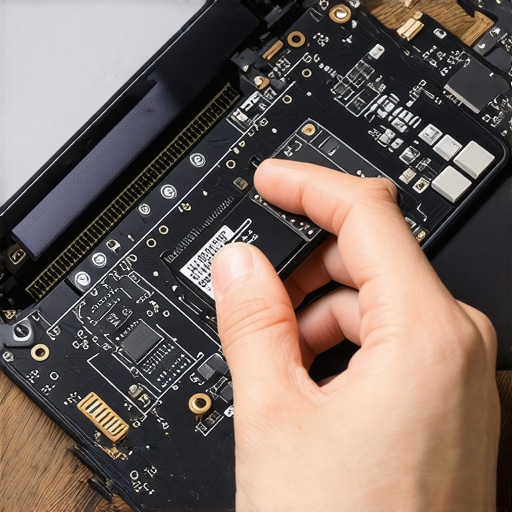
Once you’ve secured your data, it’s time for surgery. You don’t need a degree in engineering, but you do need the $10 tool every laptop owner should keep in their desk—a precision screwdriver set. Before you even touch the internals, you must learn how to properly ground yourself before opening your laptop. A single static spark can turn a simple SSD swap into a dead motherboard. If you are working on older machines, look for the best budget SSDs for reviving older student laptops to get back up and running without breaking the bank. For those who deal with massive 4K video files, remember that internal SSDs are for speed; we still prefer external hard drives for bulk photo storage to keep the system drive lean. When you install the new drive, ensure it is seated firmly in the M.2 slot or SATA bay.
Clean Installs vs. Cloning
You have two choices: clone the old drive to the new one or start fresh. Cloning is faster, but if your old drive had file system corruption, you’re just moving the mess to a new house. I always recommend a clean install of Windows or macOS. It’s like moving into a brand-new apartment; you don’t want to bring all the junk from your old attic. While you’re at it, check out must-have laptop accessories to boost your work setup to see if a cooling pad might help prevent your new drive from suffering the same heat-related fate as the last one.
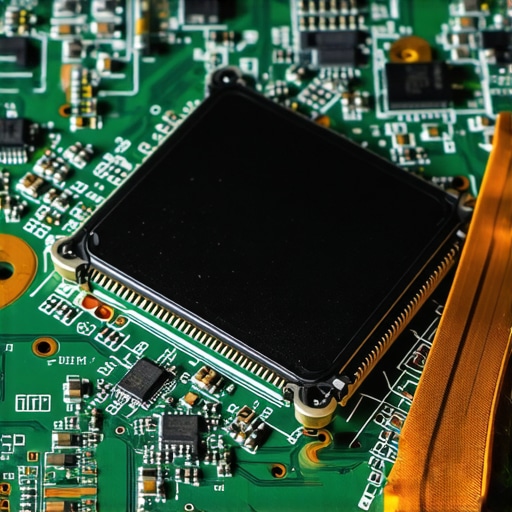
Let’s dig deeper into the ‘pro’ trap. Everyone says that buying a premium brand ensures longevity, but I’ve found that the obsession with ultra-thin aesthetics is actually a silent death sentence for storage. When you browse business laptops for professionals, you’re often paying a premium for portability at the expense of thermal headroom. A drive that constantly runs at high temperatures will fail years before one kept in a cooler environment. In fact, technical research by the storage standards group JEDEC indicates that for every 5-degree Celsius rise in operating temperature, the long-term data retention of an SSD can be significantly compromised. This is exactly why you should avoid slim gaming laptops for heavy rendering; the internal components are packed so tightly that the SSD is essentially sitting in a convection oven without a fan.
Why do some of the most expensive laptops fail first?
The hidden nuance here is that modern SSD controllers are designed to throttle their speed to prevent immediate melting, but they cannot prevent the slow, molecular degradation of the NAND cells caused by heat soak. If you’ve been scouring top laptop deals in 2025, you might find a ‘steal’ that was actually a workhorse for a crypto miner or a video editor who ignored thermal management. This is the ultimate ‘oops’ factor: buying a used machine based on specs alone without realizing the storage has already been baked to its limit. Before you commit your hard-earned cash, you absolutely must learn how to check if a used gaming laptop was used for mining. It isn’t just about the GPU; it’s about the cumulative stress on the silicon.
RAM Is Actually Your SSD’s Best Friend
Another common myth is that RAM and storage live in separate worlds. While the debate over why your gaming laptop needs more than 16gb of ram now is usually about framerates, it’s also about saving your SSD. When you run out of memory, your operating system starts ‘paging’—essentially using your SSD as fake RAM. This creates a relentless cycle of small, aggressive writes that can burn through a drive’s endurance rating in half the expected time. For those choosing student laptops that balance power and portability perfectly, prioritizing 16GB over a slightly faster CPU is the smartest move for long-term reliability. Similarly, why students should prioritize screen brightness over resolution is a lesson in practicality, but ignoring your memory-to-storage ratio is a lesson in hardware failure. Have you ever fallen into this trap of prioritizing a thin chassis over proper cooling? Let me know in the comments.
Once you’ve addressed the RAM and cooling issues, the next battle is against software bloat that acts like a slow-acting poison for your hardware. I personally use HWInfo64 to keep a constant eye on my sensors. It’s not just about looking at the temperature; it’s about watching for the ‘Thermal Throttling’ flag. If you see that flag turn red during a normal session, your laptop is actively dying to protect itself. This is vital to understand if you want to stop your gaming laptop from thermal throttling in summer. Most people think their computer is just ‘getting old,’ but often it’s just the OS performing unnecessary background tasks that keep the CPU in a high-power state, wearing out the silicon and the battery simultaneously.
How do I keep my hardware running like new for years?
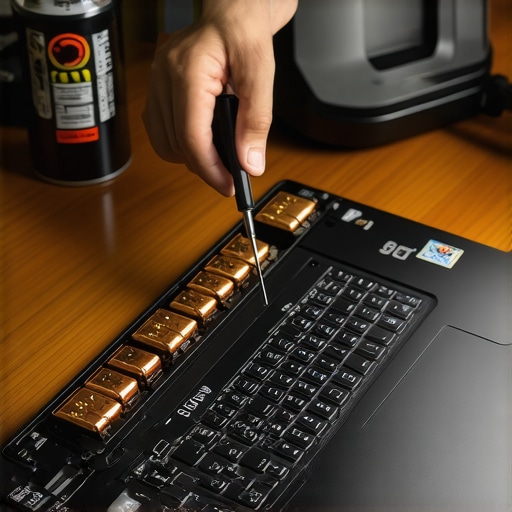
The secret isn’t a magic app; it’s a combination of physical hygiene and monitoring. I recommend a deep clean every six months. You don’t need an expensive kit—just the $10 tool every laptop owner should keep in their desk, which is usually a simple P5 or PH00 screwdriver and a can of compressed air. If your fan starts to rattle, don’t buy a new one immediately; you can often learn how to fix a noisy laptop fan with a single drop of oil, specifically sewing machine or watch oil. This mechanical upkeep prevents the friction that eventually leads to total fan failure, which is why most gaming laptops fail right after the warranty expires. They simply cook themselves from the inside out because a $2 plastic fan stopped spinning at 5,000 RPM.
Beyond the physical, you need to respect the TBW (Total Bytes Written) rating of your storage. According to technical documentation from Micron, the endurance of NAND flash is a finite resource. Every time you download a 100GB game or edit a massive video file, you are ‘using up’ a piece of that drive’s life. To mitigate this, I suggest using the best ways to cool your laptop without a bulky pad, such as simply elevating the rear of the machine. Heat accelerates the degradation of these cells. Also, stop the habit of working in bed; I’ve seen countless machines ruined because you should never use your laptop on a soft blanket, as it chokes the intake vents and traps heat against the bottom casing where the SSD usually sits.
As we look toward the future, the trend is thankfully shifting away from the ‘disposable’ tech of the last decade. We are seeing a massive push for modularity. In a few years, I predict that even entry-level student laptops that boost productivity and learning will feature user-replaceable parts as standard, driven by ‘Right to Repair’ legislation. This is why it is so important to learn how to find official repair guides for your exact model now. Instead of buying a new machine when the screen flickers or a port breaks, you’ll just swap the module. For now, investing in must-have laptop accessories to boost your work setup—like a high-quality GaN charger and a sturdy stand—will do more for your machine’s longevity than any software ‘cleaner’ ever could. My advanced tip for you this week: Download a tool to check your SSD’s ‘TBW’ status and compare it to the manufacturer’s rating; you might be surprised how close you are to the limit.
I still remember the cold sweat that broke out on my forehead when my trusty old laptop—the one that got me through three years of late-night projects—suddenly refused to boot. I had noticed some weird stuttering the week before, but I just figured it was a bloated Windows update or a thirsty Chrome tab. I was wrong. By the time I realized my drive was failing, it was too late. I lost hundreds of photos and a nearly finished freelance project because I didn’t know how to read the room. Today, I want to make sure that never happens to you.
[image_placeholder]
Your Laptop Is Trying to Warn You with These Glitches
Unlike the old spinning hard drives that used to click and moan like a haunted house before they died, an SSD (Solid State Drive) is a silent killer. It doesn’t make a sound. It just stops. I made the massive mistake early on of thinking that because my machine was one of those high-end business laptops for professionals, it was somehow invincible to hardware failure. It wasn’t. One of the first things you’ll notice is “ghost” files—folders that take forever to open or files that simply refuse to save. If you are using student laptops that boost productivity, you might notice the system hanging for five seconds every time you try to open a PDF. Don’t ignore that. Your drive might be struggling to find a healthy block of flash memory to write to. According to reliability reports from Backblaze, while SSDs are generally more reliable than HDDs, they still face wear-and-tear issues that can lead to sudden, unrecoverable failures once they hit their write limits.
Is It Actually Possible to Predict a Drive Failure?
You might be skeptical, thinking that electronic components either work or they don’t. But SSDs actually keep a secret diary of their own health called S.M.A.R.T. data. I used to think these diagnostic tools were just for tech geeks, but checking them is as vital as checking the oil in your car. If you’ve been hunting for top laptop deals in 2025, you need to know that even a brand-new drive can occasionally be a dud. Have you ever experienced a sudden “Blue Screen of Death” that seemed to fix itself after a reboot? That’s often the first symptom of a drive that’s losing its grip on reality. Before you even think about how to secure your data before selling your old laptop, you need to ensure the drive is healthy enough to even perform a backup. If things are already looking grim, you might want to look into the best budget SSDs for reviving older student laptops as a quick and affordable replacement. Have you ever had a laptop suddenly freeze up on you without any clear reason? Tell me about it in the comments, because catching these signs early is the only way to save your digital life.
The Diagnostic Tools That Actually Work
Think of checking your SSD’s health like a regular blood pressure check; it’s non-invasive but tells you everything you need to know before a crisis. I use a tool called CrystalDiskInfo. It’s free, lightweight, and gives you a literal ‘Health Status’ percentage. If that number is anything below 90%, or if you see ‘Caution’ highlighted in yellow, your drive is already failing. On some game-changing gaming laptops for serious players in 2025, the high heat generated by the GPU can actually bake the SSD nearby, accelerating this wear. If you’re a student using student laptops that balance power and portability perfectly, you might see the ‘Reallocated Sectors Count’ increasing—this is the drive’s way of marking ‘dead’ parking spots where data can no longer live safely.
Don’t Wait for the Total Blackout
The moment you see a warning, stop everything. I once ignored a ‘Caution’ alert on my personal workstation because I was in the middle of an edit. Two hours later, the system froze, and when I rebooted, I got the dreaded ‘No Bootable Device’ error. I spent the next 48 hours using a Linux live USB to scrape data off a drive that was physically too hot to touch. If you catch it early, you can use the only 3 USB-C docks that don’t overheat during transfers to move your critical files to an external source. Many people make the mistake of trying to run a full system backup after the drive starts failing, but the intense read/write activity can actually finish off a dying drive. Prioritize your most important documents first.
Physical Replacement Without the Heartache
Once you’ve secured your data, it’s time for surgery. You don’t need a degree in engineering, but you do need the $10 tool every laptop owner should keep in their desk—a precision screwdriver set. Before you even touch the internals, you must learn how to properly ground yourself before opening your laptop. A single static spark can turn a simple SSD swap into a dead motherboard. If you are working on older machines, look for the best budget SSDs for reviving older student laptops to get back up and running without breaking the bank. For those who deal with massive 4K video files, remember that internal SSDs are for speed; we still prefer external hard drives for bulk photo storage to keep the system drive lean. When you install the new drive, ensure it is seated firmly in the M.2 slot or SATA bay.
Clean Installs vs. Cloning
You have two choices: clone the old drive to the new one or start fresh. Cloning is faster, but if your old drive had file system corruption, you’re just moving the mess to a new house. I always recommend a clean install of Windows or macOS. It’s like moving into a brand-new apartment; you don’t want to bring all the junk from your old attic. While you’re at it, check out must-have laptop accessories to boost your work setup to see if a cooling pad might help prevent your new drive from suffering the same heat-related fate as the last one.
Let’s dig deeper into the ‘pro’ trap. Everyone says that buying a premium brand ensures longevity, but I’ve found that the obsession with ultra-thin aesthetics is actually a silent death sentence for storage. When you browse business laptops for professionals, you’re often paying a premium for portability at the expense of thermal headroom. A drive that constantly runs at high temperatures will fail years before one kept in a cooler environment. In fact, technical research by the storage standards group JEDEC indicates that for every 5-degree Celsius rise in operating temperature, the long-term data retention of an SSD can be significantly compromised. This is exactly why you should avoid slim gaming laptops for heavy rendering; the internal components are packed so tightly that the SSD is essentially sitting in a convection oven without a fan.
Why do some of the most expensive laptops fail first?
The hidden nuance here is that modern SSD controllers are designed to throttle their speed to prevent immediate melting, but they cannot prevent the slow, molecular degradation of the NAND cells caused by heat soak. If you’ve been scouring top laptop deals in 2025, you might find a ‘steal’ that was actually a workhorse for a crypto miner or a video editor who ignored thermal management. This is the ultimate ‘oops’ factor: buying a used machine based on specs alone without realizing the storage has already been baked to its limit. Before you commit your hard-earned cash, you absolutely must learn how to check if a used gaming laptop was used for mining. It isn’t just about the GPU; it’s about the cumulative stress on the silicon.
RAM Is Actually Your SSD’s Best Friend
Another common myth is that RAM and storage live in separate worlds. While the debate over why your gaming laptop needs more than 16gb of ram now is usually about framerates, it’s also about saving your SSD. When you run out of memory, your operating system starts ‘paging’—essentially using your SSD as fake RAM. This creates a relentless cycle of small, aggressive writes that can burn through a drive’s endurance rating in half the expected time. For those choosing student laptops that balance power and portability perfectly, prioritizing 16GB over a slightly faster CPU is the smartest move for long-term reliability. Similarly, why students should prioritize screen brightness over resolution is a lesson in practicality, but ignoring your memory-to-storage ratio is a lesson in hardware failure. Have you ever fallen into this trap of prioritizing a thin chassis over proper cooling? Let me know in the comments.
Once you’ve addressed the RAM and cooling issues, the next battle is against software bloat that acts like a slow-acting poison for your hardware. I personally use HWInfo64 to keep a constant eye on my sensors. It’s not just about looking at the temperature; it’s about watching for the ‘Thermal Throttling’ flag. If you see that flag turn red during a normal session, your laptop is actively dying to protect itself. This is vital to understand if you want to stop your gaming laptop from thermal throttling in summer. Most people think their computer is just ‘getting old,’ but often it’s just the OS performing unnecessary background tasks that keep the CPU in a high-power state, wearing out the silicon and the battery simultaneously.
How do I keep my hardware running like new for years?
The secret isn’t a magic app; it’s a combination of physical hygiene and monitoring. I recommend a deep clean every six months. You don’t need an expensive kit—just the $10 tool every laptop owner should keep in their desk, which is usually a simple P5 or PH00 screwdriver and a can of compressed air. If your fan starts to rattle, don’t buy a new one immediately; you can often learn how to fix a noisy laptop fan with a single drop of oil, specifically sewing machine or watch oil. This mechanical upkeep prevents the friction that eventually leads to total fan failure, which is why most gaming laptops fail right after the warranty expires. They simply cook themselves from the inside out because a $2 plastic fan stopped spinning at 5,000 RPM.
3 Hard Truths About SSD Wear That No One Tells You
Most people think digital parts don’t wear out, but every write to an SSD is a physical change at the cellular level. First, stop filling your drive past 80%; SSDs need ‘breathing room’ to perform wear-leveling, or you’ll burn through cells exponentially faster. Second, while you’re hunting for top laptop deals in 2025, remember that high capacity doesn’t always mean high endurance. Look for the TBW (Total Bytes Written) rating in the specs. Finally, heat is the ultimate silicon killer. Simply using the best ways to cool your laptop without a bulky pad, like raising the back of the case, can add years to your storage life. If you’ve ever ignored a ‘slow’ boot time, you were likely witnessing the drive’s controller struggling to find healthy NAND blocks in real-time.
My Personal Go-To Kit for Hardware Health
I don’t leave my data to chance. I rely on a specific stack of tools and habits to keep my machines running. I check my S.M.A.R.T. status monthly using CrystalDiskInfo and keep my fan vents clear with the $10 tool every laptop owner should keep in their desk. For my workstation, I’ve added must-have laptop accessories to boost your work setup, including an external backup drive that mirrors my important folders daily. I trust these tools because they provide raw data, not just vague ‘performance’ scores. If you’re a student, I highly recommend learning how to find official repair guides for your exact model so you can replace a failing drive yourself for the cost of parts alone.
Stop Playing Russian Roulette With Your Data
Hardware will always fail eventually; it is a law of physics. But it doesn’t have to be a tragedy. By paying attention to the subtle glitches and using the right monitoring tools, you can stay one step ahead of a total blackout. Whether you are rocking one of the game-changing gaming laptops for serious players in 2025 or a budget machine for school, your digital life is worth the ten minutes it takes to run a health check. Don’t wait until the screen goes black to value your files. Have you ever had a laptop drive die without warning, or did you catch the signs just in time? Let’s swap survival stories in the comments below!