
I was sitting in a crowded airport terminal, sweat pricking my forehead as I watched the little battery icon on my taskbar. 80%. It wouldn’t budge. I shook the cable. I flipped the plug. I even blew into the port like it was an old Nintendo cartridge. Nothing. I was convinced I’d need to scour the web for unbeatable laptop deals just to finish my work. It felt like a betrayal. I’d spent a fortune on this machine, and here it was, refusing to give me its full potential right when I needed it most. I felt like a failure as a tech guy, especially after I went out and bought a cheap, third-party brick because I assumed mine was broken. Spoiler: finding a replacement charger that doesn’t fry your board is hard, and it didn’t even fix the problem. [image-placeholder]
Your Laptop Isn’t Broken, It’s Just Being Smart
It turns out, that 80% ceiling isn’t a glitch in the matrix or a sign of a dying cell. It is actually a sophisticated protection mechanism designed to stop you from killing your battery prematurely. Most modern business laptops and gaming laptops now come with “Smart Charging” or “Battery Health” modes pre-enabled. I learned this the hard way after I spent sixty bucks on a cable I didn’t need. If I had just checked my settings, I would have saved enough for some must-have laptop accessories. Lithium-ion batteries are like people; they hate being under too much pressure. Keeping a battery at 100% all the time is like trying to hold your breath for three hours straight—eventually, something is going to snap. Whether you are using student laptops or high-end workstations, this software cap is there to keep your hardware out of the landfill.
Does Limiting My Charge Actually Save My Hardware?
You might be thinking this is just a corporate conspiracy to make you carry a heavy charger everywhere. But the chemistry is solid. According to Battery University, a leading authority in battery testing, keeping a Li-ion battery at a lower state of charge and avoiding the high-voltage stress of that final 20% can significantly extend the number of discharge cycles you get. This is why many manufacturers are pushing these settings out in BIOS updates. Early in my tech journey, I left my old rig plugged in 24/7 on my desk. I didn’t know how to tell if a battery was swelling until my trackpad literally popped out of the chassis like a jack-in-the-box. It was a terrifying—and expensive—lesson. Now, I embrace the 80% cap as a badge of honor for my battery’s longevity. Have you ever stared at your battery icon in a cold sweat wondering why it won’t budge? Drop a comment or reach out via our contact page if your machine is acting up; I’d love to help you troubleshoot your specific model. Let’s look at how you can actually change these settings if you really need that full 100% for a long trip.
Unlock the Full Capacity When You Actually Need It
Most people think they can just click the battery icon in the taskbar and find a slider to fix their charging cap. Sadly, Windows doesn’t make it that easy yet. On most business laptops, this setting is buried deep within manufacturer-specific software. For example, if you’re rocking a Lenovo, you need to open Lenovo Vantage. On a Dell, it’s Dell Power Manager. I remember a frantic morning before a red-eye flight to Seattle where I realized my ‘workhorse’ was capped at 80% while I was still at home. I spent twenty minutes digging through my top business laptops for productivity settings until I found the ‘Peak Shift’ or ‘Battery Extender’ mode. Once I flipped that switch to ‘Standard’ or ‘Full Charge,’ the percentage finally started climbing toward 100%. If you are hunting for unbeatable laptop deals, checking if the model has a user-controlled battery threshold is a pro move before you buy. 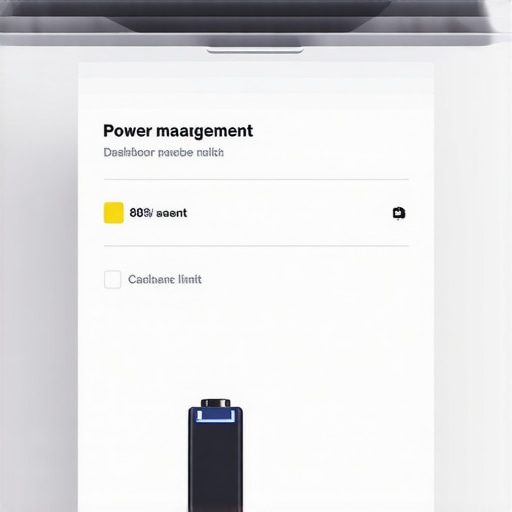
Check Your Proprietary Control Center First
If you are using game-changing gaming laptops, the software is usually even more specialized. Look for apps like Armoury Crate, MyAsus, or Alienware Command Center. These tools often have a ‘Battery Care’ section where you can choose between ‘Maximum Lifespan’ (60%), ‘Balanced’ (80%), or ‘Full Capacity’ (100%). It’s also a great time to check other health stats; I always recommend users learn how to verify the battery health of a used laptop purchase even on new machines, just to see what the ‘full charge capacity’ actually is compared to the ‘design capacity.’ If you find that your battery is draining fast even after hitting 100%, you might be dealing with internal heat issues, so knowing how to stop your gaming laptop from thermal throttling in summer is equally vital for preserving that hardware. Sometimes, using GaN chargers for traveling can help get that final 20% faster when you’re in a rush at the gate, but it won’t do a thing if the software is blocking the current.
Force the Change Through the BIOS
Sometimes, the software is just a middleman that doesn’t actually communicate with the motherboard properly after an update. If you can’t find the setting in Windows, or if the setting won’t ‘stick’ after a reboot, you’ll have to go to the source: the BIOS. This is where student laptops often hide their power management settings to keep things ‘simple’ for the average user. Restart your machine and tap F2 or Delete to enter the setup. Look for ‘Power Management’ or ‘Advanced’ settings. I once helped a student who was convinced his unbeatable laptop deals find was a dud because it stopped at 60% in his dorm room. We found a ‘Life Extension Mode’ hidden in the BIOS. We toggled it to ‘Disabled’ for his finals week, and he suddenly had three extra hours of battery life to finish his papers in the library. Just remember to turn it back on when the library marathon is over; otherwise, you might discover why most gaming laptops fail right after the warranty expires because the constant high-voltage heat cooked the cells to death. If the BIOS feels too intimidating, you can always check our contact page for a bit of one-on-one guidance on your specific model.Let’s dig deeper into the world of hardware longevity. Most people assume that if they snag one of those unbeatable laptop deals, they’ve already won the game. But in my years of tearing down machines, I’ve found that the ‘Oops’ factor usually hits about six months after the warranty expires. Everyone obsesses over the CPU and GPU specs, yet they completely ignore the structural integrity of the chassis. I’ve seen more high-end game-changing gaming laptops end up as expensive paperweights because the owner didn’t realize why your laptop hinge is destined to fail. You can’t upgrade a snapped plastic frame, but you can always close a few browser tabs. In my experience, a mid-range business machine with a magnesium alloy frame will outlast a ‘spec-beast’ consumer laptop every single time because it’s built for the actual rigors of travel. 
Why Does My 100W Charger Still Feel Sluggish?
This is a nuance most people miss: the ‘handshake.’ You might buy a massive third-party power brick, but if your cable lacks an ‘E-Marker’ chip, your laptop and charger will fail to agree on a high-voltage profile. According to a technical deep-dive by ChargerLAB, without this chip, many systems will default to a basic 5V output as a safety measure. You think you’re fast-charging, but you’re actually sipping power through a tiny straw. This is why learning how to find a replacement charger that actually communicates with your motherboard is vital. If you’re a professional on the move, we’ve found that GaN chargers for traveling are the only way to get high-wattage performance in a form factor that won’t weigh down your bag.
Stop Overpaying for Specs You Will Never Use
There is a persistent myth that expensive digital cables improve performance. While there is the real difference between cheap and expensive HDMI cables regarding shielding and bandwidth for 4K/120Hz, paying for ‘gold-plated’ connectors for a basic office setup is a total scam. The same applies to peripherals. Many users buy high-DPI gaming mice for their spreadsheets, but why you shouldn’t use a gaming mouse for serious office work often comes down to ergonomic fatigue and unnecessary weight. If you want must-have laptop accessories to boost your work-setup, look for the only 3 USB-C docks that don’t overheat during heavy file transfers. A cool-running dock is far more important for your laptop’s health than a mouse with a thousand buttons. Have you ever fallen into the ‘high-spec’ trap and regretted it later? Let me know in the comments.I’ve learned that the difference between a three-year upgrade cycle and a seven-year one is often just a bit of canned air and the right screwdriver. If you’re hunting for top laptop deals in 2025, you need to be prepared to open that chassis. I keep the $10 tool every laptop owner should keep in their desk—a precision bit set—right next to my mousepad. I’ve used it to tighten loose hinges on business laptops for professionals and to clean out the fur-clogged fans of a friend’s gaming rig.
Fresh Thermal Paste to Beat the Heat
It’s not just about the external shell. You have to think about the ‘guts.’ Every eighteen months, I perform a ritual: I crack open the case and re-apply the thermal interface material. According to testing by the experts at Thermal Grizzly, factory-applied paste often dries out or is applied poorly, leading to hotspots that degrade the silicon over time. If you want to know how to choose the right thermal paste, look for high thermal conductivity (measured in W/mk). Applying a fresh pea-sized drop can drop your temperatures by 10 degrees, effectively saving you from thermal throttling in summer and extending the life of your motherboard. For those using student laptops that boost productivity, maintenance is your best defense against the “slow computer” blues. Instead of buying a new machine when yours feels sluggish, try the best budget SSDs for reviving older student laptops. Swapping a mechanical drive or a slow NVMe for a high-performance one is the single best ROI you can get. 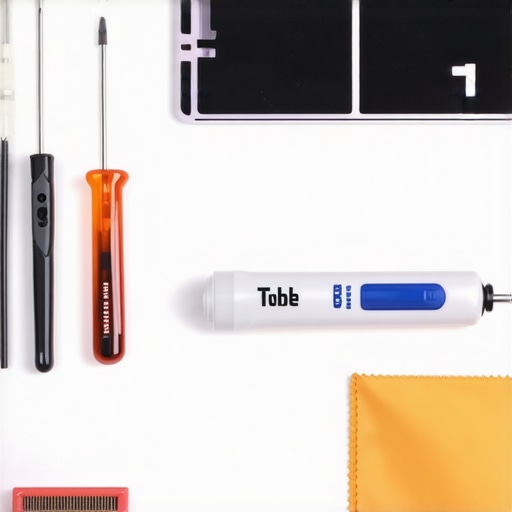
How can I keep my laptop running like new for five years?
One trick I swear by for game-changing gaming laptops is undervolting. By using a tool like Throttlestop or Intel XTU, you can actually reduce the voltage your CPU receives without sacrificing clock speed. This reduces heat, which is the primary killer of electronics. I’ve seen why most gaming laptops fail right after the warranty—it’s almost always heat-related stress on the solder joints. I also never travel without must-have laptop accessories to boost your work-setup, which includes a simple microfiber cloth. It sounds basic, but skin oils are acidic and can permanently etch the coating on gaming laptops with OLED screens. That’s why we still carry a microfiber cloth everywhere. If you want your screen to stay crisp, wipe it down every single night before you close the lid.
Modular Machines are the Future of Tech
I predict that the “sealed box” era of laptops is coming to an end. We are already seeing a shift toward modularity where parts are easily swappable. If you know how to find official repair guides, you can replace a keyboard or a screen for a fraction of the cost of a new unit. I honestly believe that in five years, the best game-changing gaming laptops will be sold as upgradeable kits rather than static products. If you’re feeling brave, I challenge you to open your laptop today—just to look. See if there’s dust in the fins or if your battery has any visible bulging. If you’re nervous about it, check our contact page and I can walk you through the basics of your specific model.
Hard Truths from a Decade of Tearing Down Laptops
After years of repairing everything from budget Chromebooks to high-end workstations, I have realized that the software ‘smart’ features are only half the battle. One of the biggest lessons I have learned is that heat is a much faster killer than battery cycles ever will be. If your machine is constantly running hot, that 80% cap is just a band-aid on a bullet wound. I also learned that you should never trust a manufacturer’s ‘Auto’ settings blindly; periodically checking your battery health stats manually will save you from a surprise shutdown during a meeting. Finally, stop thinking that ‘more expensive’ always means ‘more durable.’ Some of the top laptop deals in 2025 are actually more repairable than the flagship models that glue their batteries into the chassis.
My Personal Survival Kit for Mobile Professionals
I don’t leave the house without a few specific items that ensure my hardware survives the road. First, I always have a high-wattage power source. I’ve found that GaN chargers for traveling are non-negotiable because they provide clean power without the bulk. I also keep a digital copy of my specific machine’s documentation bookmarked; knowing how to find official repair guides is the difference between a quick fix and a $200 repair bill. For software, I rely on HWiNFO64 to watch my thermal sensors like a hawk, and I always ensure I have must-have laptop accessories to boost your work-setup that include a simple riser to keep the bottom vents clear of dust and fabric.
Master Your Machine Before It Masters You
At the end of the day, your laptop is a tool, not a fragile artifact. By understanding why that 80% limit exists and knowing how to bypass it when necessary, you are taking back control from the algorithms. Whether you are hunting for unbeatable laptop deals or trying to squeeze two more years out of your current daily driver, maintenance is your best investment. Don’t be afraid to dive into the BIOS or open the case for a quick cleaning. Your hardware is capable of lasting much longer than the marketing teams want you to believe. If you ever feel stuck or your battery starts behaving like a moody teenager, reach out through our contact page and we can look at your specs together. What is the one hardware failure that always seems to happen to you at the worst possible time? Let me know in the comments below!