
Have you ever sat down to start your study session only to be greeted by a sluggish, unresponsive laptop? I remember the frustration vividly—waiting for programs to open, watching my laptop grind through tasks, and feeling the creeping suspicion that my computer just wasn’t up to the job. That moment was my lightbulb moment: I needed more than just the basics; I needed a machine that could handle my demanding workload without breaking a sweat. Today, I’ll share how I realized that 16GB of RAM isn’t just a luxury—it’s the minimum requirement for students who want to stay productive and stress-free.
The Shift in Laptop Expectations for Students
When I first bought my laptop as a student, I thought I could get away with 8GB of RAM. It seemed enough at the time—enough for browsing, word processing, and light multitasking. But as coursework, research tools, and even casual gaming piled up, I noticed a difference. My laptop slowed down, especially when juggling multiple tabs, virtual machines, or editing large files. That was my wake-up call: the demands on a student’s laptop have rapidly increased, and sticking to the old standards leads to constant frustration.
Recent studies confirm this trend—research from TechRepublic indicates that 16GB of RAM can significantly improve multitasking and future-proof your device against upcoming software updates and demands. It’s not just about speed; it’s about avoiding that sinking feeling of your laptop choking when you need it most. If you’ve faced these issues too, you’re not alone. The good news is, upgrading to 16GB can transform your experience from sluggish to seamless.
Is More RAM Really Necessary for Students Today?
Many skeptics ask, “Isn’t 8GB enough for a student?” The truth is, what seemed sufficient a few years ago is quickly becoming obsolete. Modern apps, especially those used in programming, data analysis, or digital design, leverage more memory. Plus, with the rise of online collaboration tools and cloud-based research, multitasking has become the norm. I once tried to save on costs and bought a cheaper laptop with 8GB RAM, thinking I’d upgrade later. That was a mistake—my workflow suffered, and I spent more time troubleshooting or closing tabs than actually working.
To avoid falling into the same trap, I recommend looking into student laptops designed to boost productivity. Many models now come with 16GB of RAM as standard, giving students the headroom they need for demanding tasks. Upgrading your laptop’s RAM might be an investment, but it pays off in time saved and stress reduced.
In the upcoming sections, I’ll guide you through how to choose the right laptop, what specifications to look for, and how to get the best deals on devices that meet this crucial minimum. Whether you’re a student in engineering, arts, or business, I’ll help you avoid the pitfalls I once fell into and set you up for success with a machine that works as hard as you do.
So, have you faced the struggle of a slow laptop holding you back? If yes, keep reading—you’re about to learn how to fix that for good.
.
Determine Your Laptop’s Compatibility
Start by identifying your current RAM capacity and the maximum supported amount. To do this, open your device’s documentation or use system info tools like system info utilities. For a hands-on approach, remove the back panel (if accessible) and check the RAM modules directly. Remember, not all laptops are easy to upgrade—some ultrabooks or sleek models have soldered RAM, making upgrades impossible. I once tried to upgrade a ultrabook with soldered RAM, only to realize it was glued to the motherboard—a valuable lesson in doing thorough research beforehand.
Acquire the Correct RAM Modules
Next, choose the right RAM. For most students, 16GB of DDR4 RAM at 3200MHz offers the best balance between performance and affordability. Think of RAM as a highway—more lanes mean more cars can travel smoothly without traffic jams. If you’re into gaming or video editing, consider 32GB modules. When shopping, look for reputable brands like Corsair or Kingston. To get the best deals, visit trusted outlets like top deal sites, and watch out for open-box or refurbished options, which often come with warranties but significantly lower prices.
Prepare Your Workspace and Tools
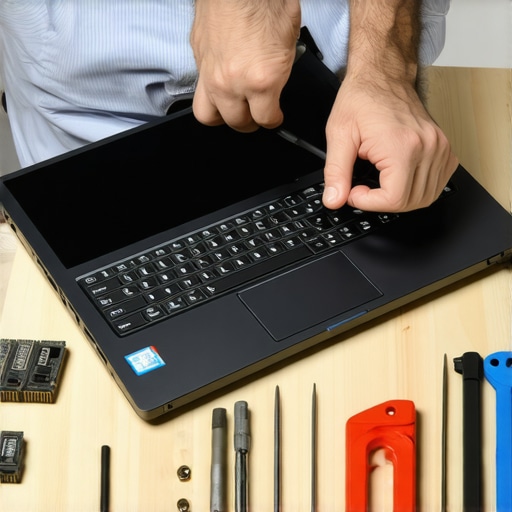
Create a static-free environment to prevent damage. Gather necessary tools: a small Phillips screwdriver, anti-static wrist straps, and possibly plastic pry tools. Think of this as preparing your toolkit before a home repair—skimping on tools or static protection can lead to irreversible damage. I once skipped static precautions and accidentally fried a RAM module—lesson learned the hard way. Always power down, disconnect from power sources, and wear your anti-static wrist strap to discharge static buildup.
Remove the Old RAM and Install the New Modules
Open the laptop’s back cover carefully, locating the RAM slots—usually near the battery or along the edges. Release any locking clips and gently remove the existing RAM modules. Insert the new modules at a 45-degree angle, then press down until they click into place. Lock clips should secure firmly. Consider it like installing a new memory card in a camera—align, press, and lock. When I upgraded my student laptop, I took my time to ensure each module snapped correctly; rushing often led to improperly seated RAM, causing boot failures. Confirm the modules are firmly inserted and reassemble the case.
Verify the Upgrade and Test Performance
Power on your device and check if the new RAM is recognized. On Windows, go to Task Manager > Performance tab > Memory. If it reflects the upgraded capacity, you’re all set. Run intensive applications or multitask to test stability. For example, I opened multiple Chrome tabs and a virtual machine simultaneously to see if my laptop handled it smoothly. If issues arise, double-check the seating of the modules. This hands-on approach guarantees your upgrade is successful and that your device can handle next semester’s demanding projects.
Upgrading RAM might seem intimidating at first, but with careful preparation and following these steps, it becomes manageable—even for those new to hardware tinkering. Not only does this boost performance, but it also extends your laptop’s lifespan, making your investment last through tough coursework and beyond.
Access Resources for Troubleshooting
If you encounter issues, consult reliable guides or reach out through contact channels. Additionally, joining online forums can provide community support. Remember, patience is key—quick fixes can lead to costly mistakes. After my initial attempt, I took a step back, researched more, and eventually succeeded, transforming my sluggish laptop into a powerhouse for my studies.
Once your RAM is upgraded, consider complementing it with essential accessories to maximize productivity—such as external keyboards, cooling pads, or portable docks. For recommendations, check out must-have accessories. This ensures your machine operates at peak performance with all the right tools.
 Many people assume that picking a high-end laptop automatically guarantees top performance and longevity, but in my experience, there’s more beneath the surface. For instance, a common misconception is that the most expensive gaming laptops are always the best choice for serious gamers; however, many models slow down after a few months due to thermal design flaws, as detailed in studies on hardware thermal throttling. This trap often leads buyers to overpay for features they don’t need or that don’t perform as advertised.
Furthermore, in the realm of business laptops, many believe that the latest models with the highest specs are the most secure and reliable, but some manufacturers prioritize flashy hardware over effective security features. One overlooked nuance is the importance of hardware-based privacy measures, like physical shutter switches for webcams, which provide a straightforward layer of physical security absent in many premium models.
When considering laptop deals, remember that bargain prices sometimes hide hidden costs—such as limited upgradeability or poor after-sales support. Always scrutinize specifications and seller reputations; for example, refurbished units can offer excellent value, especially when sourced from trusted outlets.
For student laptops, the common myth is that you need a MacBook or the latest ultrabook to stay productive. But in reality, modular and repairable options like ThinkPads often outperform sleek ultrabooks in durability and long-term maintainability, which is crucial during extended studies. Check out this article on student laptops designed for productivity.
In the case of laptop accessories, many assume that all accessories are equally beneficial, but choosing the wrong mouse, keyboard, or external drive can hinder productivity and even cause ergonomic issues. For example, I learned the hard way that using an unergonomic mouse can lead to wrist strain over time. Investing in accessories tested for comfort and performance, like those highlighted in must-have accessories for seamless setup, is essential.
Lastly, when it comes to gaming laptops, the common myth is that the most RGB-lit, flashy models are the best for performance. But in reality, many high-performance gaming laptops suffer from thermal and power management issues, causing performance dips after just a few months. For example, some models with advanced cooling tech, like phase change cooling, maintain high frames per second longer, which is vital for serious gamers seeking consistent performance. Check out the latest gaming laptops for 2025 for in-depth comparisons.
Understanding these nuances helps you make smarter choices, avoiding costly mistakes and ensuring your investment truly meets your needs. Have you ever fallen into this trap? Let me know in the comments.
How do I keep my laptop performing reliably over time?
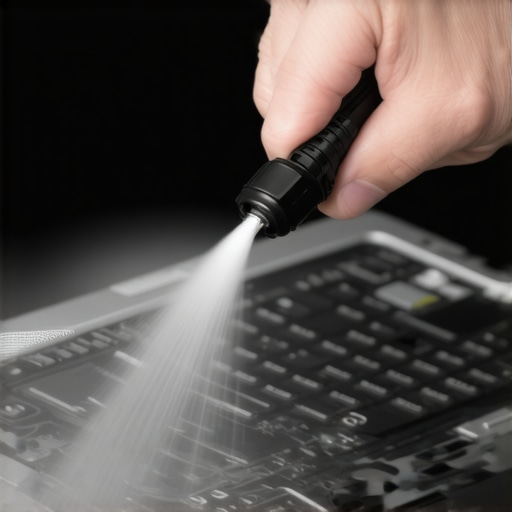
Maintaining your laptop’s health is essential for ensuring sustained performance, especially given the increasing demands of modern software and multitasking. Personally, I rely on a combination of hardware upkeep, software management, and strategic upgrades to keep my devices in top shape. Regularly cleaning out dust from vents and fans prevents thermal buildup that can throttle performance. Using compressed air, I typically remove accumulated dust every six months, which I find to be vital—studies show that dust can reduce airflow by up to 50%, leading to overheating and potential hardware failure. Proper cleaning is simple but often overlooked, yet it makes a notable difference in longevity.
For software health, I make it a habit to keep my OS and drivers up to date using trusted tools like Windows Update or manufacturer’s utility software. This practice not only patches security vulnerabilities but also optimizes hardware interaction. I also schedule quarterly disk cleanup and defragmentation sessions—tools like CCleaner or built-in Windows utilities streamline this process. Over time, fragmented files can slow down your storage devices, especially HDDs; SSDs, however, benefit from TRIM commands that help maintain speed, a topic explored thoroughly in phase-change cooling tech. Regular maintenance through these methods ensures your laptop remains snappy and responsive.
Upgrading components can extend a laptop’s lifespan significantly. For example, adding more RAM or swapping out for an SSD can breathe new life into an aging machine. I recommend consulting your device’s specifications beforehand; many business laptops, such as those reviewed in tested models with swappable motherboards, facilitate upgrades easily. Performing these upgrades on a reputable service provider’s advice prevents potential damage and ensures compatibility. Making upgrades telescopes your device’s usefulness, often delaying or negating the need for a costly new purchase.
To stay ahead, I suggest monitoring battery health using specialized tools like BatteryInfoView or manufacturer-provided diagnostics. This practice can alert you to capacity degradation early, allowing you to calibrate or replace batteries before performance drops significantly. Remember, a healthy battery keeps your workflow smooth and mobile—crucial for students and professionals alike.
In the future, I think this focus on proactive maintenance and smart upgrades will become even more important with the rising complexity of laptop hardware and software. As manufacturers introduce more integrated components, DIY maintenance may become trickier, but with the right tools and knowledge, it will still be manageable. I encourage you to try implementing routine hardware checks and regular cleaning schedules—it’s the best way to ensure your laptop continues powering your productivity without interruption.
Start small: schedule a quick dusting session and update your drivers this weekend. These small steps can lead to big improvements in performance and longevity. Don’t wait for your device to slow down or break—be proactive and enjoy consistently reliable performance over the long term.
For those seeking to maximize their setup, investing in quality laptop accessories like cooling pads or external keyboard and mouse combos can further enhance your efficiency and keep your device cool under load.
Reflecting on the road to mastering laptop performance, I’ve uncovered some hard-earned lessons that changed my perspective on investment and maintenance. First, I realized that premium hardware alone isn’t enough—it’s about how you optimize and care for your device daily. Second, I learned that DIY upgrades, like expanding RAM, can extend a laptop’s lifespan significantly if approached with patience and proper tools. Lastly, I discovered that the real power lies in understanding your specific needs and selecting gear that adapts seamlessly to your evolving demands. These insights have transformed my approach, turning what once felt overwhelming into a journey of continuous improvement.
Secrets Most Pros Won’t Reveal About Laptop Choices
- I used to believe that the newest models always meant better performance, but now I see the importance of longevity and upgradeability, features often hidden in the fine print. For example, selecting a business laptop with swappable components can save money and frustration down the line.
- Understanding the myths around gaming laptops taught me that thermal management and sustained performance outperform flashy features and RGB lighting. Exploring models with advanced cooling solutions, like phase-change cooling tech, made a noticeable difference in long-term usability.
- Realizing that some high-end ultrabooks have soldered RAM pushed me to focus on devices that support future upgrades, especially critical for students balancing coursework and personal projects.
Ready for Your Next Steps
Empowered with these lessons, I encourage you to look beyond surface specs and focus on how a laptop can grow with you. Dive into reviews, explore upgrade options, and consider accessories that enhance your workflow. Remember, the right tools can turn a modest machine into a powerhouse, supporting your ambitions today and tomorrow. Check out our curated list of essential accessories to amplify your setup and make every moment with your device more productive.
Your Turn to Take Control
What’s the one upgrade or accessory that made the biggest difference in your laptop experience? Share your story below and inspire others on their tech journey. Whether it’s a RAM boost, an ergonomic mouse, or a cooling pad, small changes can lead to extraordinary results.
.