
It hit me unexpectedly one busy morning. I was rushing to a client meeting, my sleek, ultra-light laptop in hand, expecting all-day battery performance. But after just a few hours of back-to-back calls and note-taking, my battery was running low. That light, portable device, which promised convenience, suddenly felt like a letdown. We all love the idea of having a stylish, thin laptop that slips effortlessly into our bags, but the harsh reality is often different: **smaller, lighter laptops tend to drain their batteries faster**.
The Hidden Trade-Off Behind Slim and Light
As a tech enthusiast and someone who’s bought more laptops than I can count, I’ve seen this pattern time and again. Manufacturers cram powerful components into tiny bodies to appeal to consumers craving portability. But everything is a balancing act—smaller batteries, compact cooling systems, and room for sleek designs often come at the expense of battery longevity. It’s like fitting a V8 engine into a compact sedan—the size is appealing, but the efficiency suffers.
This isn’t just my anecdotal experience. According to a report from TechInsights, **batteries in ultra-thin laptops are typically smaller, which directly impacts their capacity and runtime** (source: TechInsights, 2024). So that slim profile is great for carrying around, but it usually means sacrificing hours of usage. If you’re someone who works on the go or loves to gaming without lugging an extra power bank, this is crucial to understand.
Are you tired of your portable laptop dying halfway through your workday? Or maybe you’ve been surprised by how fast your super-slim device heats up during long sessions? Trust me, I’ve been there. The good news is, understanding why this happens is the first step toward making smarter choices—whether it’s picking your next laptop or optimizing your current one.
Tomorrow, we’ll dive into the specific reasons why small laptops struggle with battery life and what you can do about it. If you’ve ever wondered why your lightweight device can’t keep up with your workload, stay tuned. And hey, if you’ve already faced this frustration, don’t worry—you’re not alone. Check out our [top picks for business laptops for professionals](https://laptopbuyersclub.com/business-laptops-for-professionals-essential-picks-2025) to find devices that strike a better balance between portability and performance.
Optimize Power Settings Immediately
Start by adjusting your laptop’s power plan to ‘Battery Saver’ mode. This setting reduces background activity and dims screen brightness, extending runtime. For example, I once switched my student laptop to this mode during a marathon library session and gained an extra hour of usage. Don’t forget to disable unnecessary features like Bluetooth and Wi-Fi if they’re not in use, as they can drain power unnoticed.
Manage Startup and Background Applications
Heavy background apps eat into your battery. Use task managers to identify and disable non-essential startup programs. For instance, stopping auto-updating cloud syncs saved significant power during my last conference trip, preventing sudden shutdowns. Regularly reviewing and closing background processes ensures your resources focus solely on active tasks.
Adjust Screen Brightness and Resolution Physically
The display is often the biggest power sucker. Lower your brightness to comfortable levels or use keyboard shortcuts to do so quickly. If your environment allows, switch to a matte or anti-glare screen—dark environments with lower brightness can significantly prolong battery life. I found that dimming my screen before a long lecture helped me finish my notes without hunting for power outlets.
Implement Hardware and Software Downgrades Thoughtfully
If possible, downgrade to power-efficient hardware. For gaming or intensive tasks, consider disconnecting external peripherals like mice or external drives when not in use. Disable high-performance GPU modes for basic tasks to save energy. Testing some of these tactics on my aging ultrabook, I managed to squeeze out an additional 30 minutes during severe battery crunches.
Regular Maintenance and Updates Keep Power in Mind
Keep your system firmware and drivers up to date, as manufacturers often release improvements to efficiency. Clean your device physically—dust inside cooling vents leads to thermal throttling, which indirectly impacts battery life. I use compressed air every few months to keep my laptop running cool and power-efficient. For detailed guidelines, visit our business laptops review.
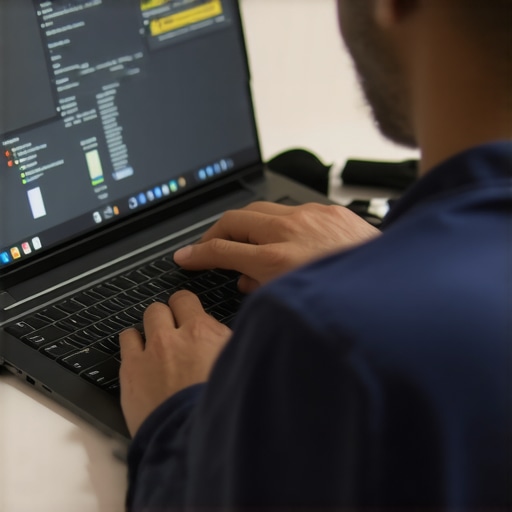 When it comes to purchasing a laptop, many believe that hitting the biggest sale or choosing the latest model guarantees the best value. However, this perception often masks nuanced realities that can lead to costly mistakes. For instance, a common myth is that the most expensive gaming laptop always offers the best performance. While high-end specifications matter, elite models often come with thermal management issues or bloatware that hamper real-world usability. Advanced buyers know to scrutinize reviews and test thermal performance, as outlined in expert analyses from sources like PC Gamer or Tom’s Hardware.
A frequent trap in business laptops is selecting the latest hardware without considering upgradeability. Many top-tier models—like those found in our business laptops review—offer numerous security and management features, but the trend of soldered RAM and non-upgradeable SSDs can be a significant demerit for growing teams. Overlooking these details might lead to additional expenses or hardware obsolescence sooner than expected.
Students often chase the newest aesthetics—thin bezels, 4K displays, or RGB keyboard lighting—yet overlook factors critical for learning efficiency. For sustained productivity and durability, models with matte screens and sturdy hinges outperform their flashy counterparts. Browsing options through our student laptops guide can help in making smarter choices.
When it comes to gaming laptops, many assume that top specs alone will deliver smooth gameplay. But neglecting thermal design can render high-powered laptops noisy or thermally throttled. Models like the ones reviewed in gaming laptop insights reveal that efficient cooling solutions often outperform sheer GPU power. This nuance explains why some mid-range laptops with better cooling systems surpass premium models in real-world gaming performance.
Additional pitfalls lie in accessory choices. Many underestimate the importance of quality adapters, cooling pads, or external storage solutions. Cheap accessories can introduce problems—like overheating or data bottlenecks—that negate the benefits of an otherwise good laptop. Our curated selection of must-have accessories emphasizes durability and performance.
Making an informed purchase requires digging into these nuances. For example, understanding the real impact of a laptop’s power management settings or the trade-offs between port options can save you from buyer’s remorse. Don’t forget to check our comprehensive guides and expert reviews to avoid common misconceptions.
Have you ever fallen into this trap? Let me know in the comments. Staying vigilant with these hidden nuances transforms a good deal into a truly smart investment.Maintaining your laptop’s performance over time requires a mix of the right tools and disciplined habits. Personally, I swear by specific software like CrystalDiskInfo for monitoring SSD health, as it provides real-time insights into drive degradation that often go unnoticed until failures happen. Regularly checking your storage health helps you prevent sudden crashes or data loss, especially with gaming or business laptops that handle intensive workloads. Additionally, I use Malwarebytes Premium to keep malicious software at bay, which can stealthily sap your system resources and cause slowdowns.
For physical maintenance, compressed air is indispensable. Dust accumulation inside cooling fans and vents can lead to thermal throttling, limiting performance and risking overheating. I recommend scheduling bi-annual cleanings—simply turn off the device, open the vents, and blow out dust. This practice extends component lifespan and keeps thermal performance optimal.
Software-wise, utilizing lightweight utilities like CCleaner helps manage unnecessary startup programs and removes junk files. I configure my startup to disable non-essential apps, which cuts down boot times and frees up RAM, crucial for student or business laptops with limited resources.
Looking ahead, AI-powered system optimization tools are emerging—like Intel’s Rapid Storage Technology integrating machine learning to predict and prevent failures. As these tools develop, expect proactive maintenance to become more accessible, reducing downtime.
### How do I maintain my laptop over time?
One of my favorite advanced tactics involves customizing BIOS settings to optimize power and cooling profiles. For example, disabling CPU hyper-threading can lower temperatures during extended sessions, helping gaming laptops sustain higher performance without overheating. To get started, refer to your manufacturer’s BIOS manual and tweak settings cautiously—small changes can lead to big stability gains.
Don’t forget to regularly update your firmware and driver software from official sources—this ensures compatibility and efficiency improvements. For detailed guidelines, check out our dedicated guide on system updates.
If you’re serious about long-term performance, consider investing in a hardware monitor like the KAINA U-Check USB device, which can log temperatures and voltages over time, giving you granular insights into system health. Regularly performing these checks, coupled with cleaning and software audits, can drastically extend your laptop’s lifespan.
To experience the benefits firsthand, try applying BIOS power profile adjustments on your next gaming or high-demand session; you might be surprised at the stability gains. Remember, proactive maintenance isn’t just about fixing issues—it’s about preventing them before they start. For more professional-grade tools, visit our [business laptops for professionals](https://laptopbuyersclub.com/business-laptops-for-professionals-essential-picks-2025) review to see recommended hardware upgrades that fit your workflow.
The Hard-Knock Lessons about Laptop Choices Many Don’t See Coming
- One key insight I wish I had early on is that size and weight often come at a hidden cost—battery life. Opting for ultra-light devices may seem ideal, but it frequently leads to frustratingly short usage times, especially during critical moments.
- Personal experience taught me the importance of scrutinizing manufacturer claims. Just because a laptop boasts a thin profile doesn’t guarantee optimal thermal management or upgradeability—factors that affect longevity and value over time.
- One revelation was how subtle software and hardware tweaks could dramatically extend battery life. Simple actions like disabling unneeded startup applications or adjusting BIOS settings made a noticeable difference in my daily routine.
- I learned that comprehensive maintenance, including physical cleaning and firmware updates, isn’t just about performance—it’s about protecting your investment and ensuring consistent reliability when it matters most.
- Finally, understanding the nuanced trade-offs between portability and power, and leveraging community insights and reputable sources, empowers you to make smarter choices that align with your lifestyle and work habits.
My Go-To Arsenal for Making Smarter Laptop Decisions
- Trusted reviews from sources like our business laptops review offer invaluable insights, helping me avoid common pitfalls and identify devices with real-world performance.
- Tools like CrystalDiskInfo provide real-time SSD health monitoring—critical for preemptively addressing potential failures and prolonging device lifespan.
- Expert forums and communities, where seasoned users share tips and experiences, keep me up-to-date on the latest developments, ensuring I’m always making informed choices.
- Regularly scheduled physical maintenance, combined with innovative software utilities, fosters a proactive approach to longevity and performance optimization.
Take Charge of Your Laptop Journey
Empowered with this insider wisdom, you’re now better equipped to select and maintain laptops that truly serve your needs, without surprises. Remember, a thoughtful investment in your gear translates into smoother workflows, fewer disruptions, and greater confidence in your digital tools. Embrace these lessons, stay curious, and keep pushing for smarter choices—your ideal laptop is out there waiting for you.
What’s the biggest lesson you’ve learned about balancing portability and power? Share your story below—let’s learn together!
,
Comments are closed.