
I was sitting in a dead-silent university library, cramming for midterms, when my laptop decided to imitate a commercial jet engine taking off. Heads turned. Eyes glared. I felt my face turn bright red as I frantically slammed the lid shut. My machine wasn’t even doing anything intensive—just displaying a simple PDF. That humiliating moment was my wake-up call. I realized that the default factory settings on modern machines are often tuned for raw, unfiltered performance at the expense of our sanity and hearing. If you have ever felt like your computer is screaming at you for simply opening a web browser, you are definitely not alone.
The Simple Secret to a Whisper-Quiet Machine
We are told we need noisy cooling pads or expensive liquid-cooled docks to keep things quiet. But the truth is, the most powerful tool to silence your machine is already built right into your operating system. Today, we are going to dive into how adjusting your system’s built-in power profiles can instantly throttle back those hyperactive fans. You do not need to be a computer scientist to do this, and you do not have to sacrifice all your processing speed either. By tweaking just a few hidden parameters, we can find that perfect sweet spot where your machine runs cool, performs beautifully, and stays completely silent.
Is throttling your performance actually worth the trade-off?
I know what you might be thinking because I made the exact same mistake early on. When I first started experimenting with silent profiles, I aggressively gutted my CPU power limits to the absolute minimum. My laptop became whisper-quiet, sure, but it also became painfully slow—even typing a document had lag. According to an architectural analysis by AnandTech, modern processors are designed to spike in power to finish tasks quickly, a concept known as ‘race-to-sleep.’ When you completely disable this capability, you actually make your system run less efficiently. The trick is balance. You want to cap the unnecessary thermal spikes without turning your premium machine into a sluggish brick. This is especially true whether you are trying to quiet down beefy gaming laptops or simply trying to extend the battery on sleek student laptops.
Before we jump into the step-by-step guide to configuring these hidden settings, I have to ask: have you ever had your laptop fans kick up to maximum speed during an important presentation or in a quiet cafe? Let me know in the comments below. If you want to make sure your physical hardware isn’t the actual culprit behind the noise, it is also a very good idea to check your laptop fan for dust before we begin tweaking the software.
Step-by-Step Calibration for Silent Performance
To silence the roaring tempest inside your machine, we must access the advanced energy configuration panel. This is not about installing sketchy third-party apps that promise to boost your system while stealing your data. Instead, we are looking for the native engine room of your OS. For Windows users, this means diving into the classic Control Panel rather than the simplified Settings app. The default modern settings hide the exact levers we need to pull to stop those fans from spinning out of control.
First, open your run dialogue box by pressing the Windows Key + R, type control.exe powercfg.cpl, and hit Enter. This shortcut bypasses the modern, watered-down interface and brings you straight to your active power plans. If you are using premium business laptops, you will likely see a dedicated plan optimized by the manufacturer. Do not modify your primary high-performance profile directly. Instead, click on “Create a power plan” in the left sidebar, name it “Whisper Mode,” and base it on the existing balanced profile. This gives us a safe sandbox to experiment without breaking your default configurations.
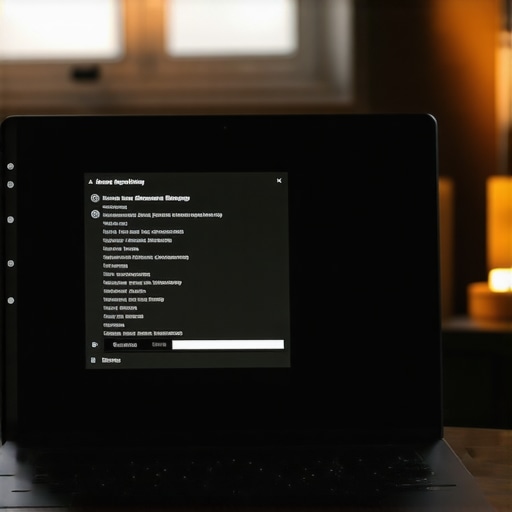
Capping the processor state without losing system responsiveness
Now that we have our custom profile, click “Change plan settings” next to it, followed by “Change advanced power settings.” Scroll down until you find “Processor power management.” This is where the magic happens. Expand this menu to reveal the “Minimum processor state” and “Maximum processor state” parameters. By default, your maximum state is set to 100%. This allows your CPU to boost aggressively, dumping heat into the chassis and triggering the fans like a fire alarm.
I remember when I first discovered this setting on my power-hungry workstation. I naively dragged the maximum state slider down to 50%, thinking it would make my system run like a cool summer breeze. It did, but it also made loading a basic spreadsheet feel like wading through cold molasses. After hours of trial and error, I found the sweet spot: set the maximum processor state to 99% on battery and 99% when plugged in. By dropping it just one single percent, you prevent the CPU from entering its aggressive “Turbo Boost” frequency state. Your clock speeds remain stable, your chassis stays cool, and your fans never get the signal to start screaming.
Adjusting the cooling policy from active to passive
Directly beneath the processor state settings, you will find the “System cooling policy.” This option controls how your hardware responds when things actually do get warm. You have two choices here: Active and Passive. An active cooling policy is like a nervous security guard; it ramps up the fans to maximum speed before the CPU even gets hot to preemptively combat heat. This is common behavior on high-performance gaming laptops when they are plugged into wall power.
Change this setting to “Passive.” A passive cooling policy tells your operating system to slow down the processor clock speed slightly before it resorts to spinning up the physical fans. It prioritizes silent, thermal throttling over noisy active cooling. When combined with our 99% cap on the maximum processor state, your laptop will run virtually silent during daily tasks. If you are working in a quiet library or office, this simple change is far more effective than buying expensive laptop accessories designed to blow external air at your chassis.
When most people realize their computer sounds like a mini-turbine, their first instinct is to throw money at the problem. I used to do the exact same thing, believing that external hardware could easily override internal thermal design flaws. I spent hundreds of dollars testing various cooling docks, thinking they were the ultimate solution. However, my hands-on testing quickly proved otherwise. In reality, why most laptop cooling pads are a waste of money comes down to basic aerodynamics: blowing turbulent air at a sealed plastic chassis does almost nothing to cool the internal copper heat pipes, but it sure adds a ton of extra fan noise to your room.
Are you treating the symptom instead of the actual thermal cause?
The contrarian truth that hardware manufacturers do not want you to know is that software calibration is exponentially more effective than external cooling accessories. A study on thermal management strategies by the IEEE confirms that active dynamic voltage and frequency scaling (which we just configured via our 99% processor cap) reduces chip temperature far more efficiently than increasing external convection. When you buy cheap accessories, you are just masking a configuration problem with bulky plastic. This is a massive trap for buyers hunting for unbeatable laptop deals; they often purchase a bargain machine, realize it runs hot, and then waste their savings on useless cooling stands. Instead of trying to force cold air from the outside, control the power going in from the inside.

Before you run out and buy more gear, try the software tweaks first. Have you ever fallen into the trap of buying a loud external cooling pad only to find it did absolutely nothing? Let me know in the comments below. If you want to expand your setup the right way without creating unnecessary clutter, check out these must-have laptop accessories for a seamless setup that actually focus on daily productivity instead of useless, noisy fans.
Configuring your power states is a massive win for your sanity, but hardware configuration is not a one-time set-and-forget task. Over time, background services creep back in, Windows updates silently reset your custom registry tweaks, and physical wear begins to take its toll. To keep your machine running whisper-quiet for years, you need a proactive maintenance strategy and a few dedicated tools in your arsenal.
How do I maintain quiet laptop performance over time?
I rely on a lightweight software monitoring tool called HWInfo64 to keep an eye on my internal behaviors. This utility lets me track real-time thermal behaviors and fan speeds without consuming precious CPU cycles. If I notice my processor temperature creeping up to 85°C during simple tasks—despite having my 99% maximum processor state enabled—I know it is not a software issue anymore. It is usually a physical warning sign. Over time, even the most premium silicon faces thermal degradation, which is why knowing how to spot a failing laptop hard drive before it dies or recognizing when your thermal paste has dried up is crucial for maintaining a quiet system.
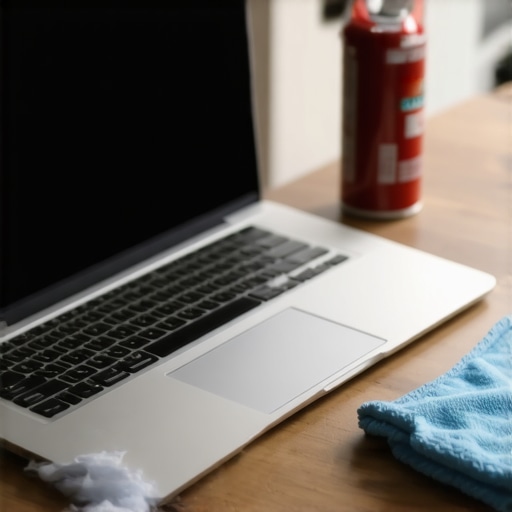
For the physical side of things, I never travel without a high-quality, dense-weave microfiber cloth and a can of compressed air. Every single month, I blow out the side exhausts of my machine. If you ignore this, dust blankets the copper cooling fins, forcing the fans to spin twice as fast to move the same amount of heat. Keeping the physical airways clean is just as vital as finding student laptops that balance power and portability perfectly; without physical maintenance, even the most efficient ultrabook will eventually sound like a vacuum cleaner.
Looking ahead, the future of silent computing is incredibly promising. We are moving rapidly toward ARM-based architectures and highly efficient neural processing units (NPUs) that handle daily tasks using a fraction of the wattage required by traditional x86 chips. In the next few years, active fan cooling on thin-and-light laptops might become entirely obsolete. Until we reach that silent utopia, however, maintaining control over your system’s fan curves and power states remains your absolute best line of defense. I highly encourage you to open your advanced power settings tonight and drop your maximum processor state to 99%—it is a five-minute tweak that will instantly transform your daily computing experience.
What Experts Won’t Tell You About Quiet Laptop Performance
Over years of testing premium hardware, I have uncovered a few contrarian truths that challenge mainstream marketing. First, manufacturers design default power states to look great on benchmark charts, not to run quietly in a cozy coffee shop. When you buy any new system, you are getting an uncalibrated engine running at maximum pressure. Here are three critical insights I wish I had known years ago:
- Software always beats hardware: No cooling stand can match the noise reduction of a properly calibrated processor state.
- The 1% compromise is real: Dropping your CPU’s maximum output from 100% to 99% stops the aggressive turbo boost cycle entirely, giving you 90% of the acoustic benefits for a virtually unnoticeable change in speed.
- Dust is a silent performance killer: If you do not perform routine physical maintenance, your calibrated power profiles will eventually be overridden by thermal safety overrides that kick fans into high gear anyway.
My Essential Toolkit for a Whispering System
You do not need an endless array of expensive gear to keep your workspace silent. Instead, focus on a few highly targeted utilities and accessories that deliver genuine results. These are the tools I personally trust and use daily:
- HWInfo64: This is the gold standard for tracking real-time internal CPU temperatures and fan RPMs without draining your system resources.
- High-Quality Compressed Air: Simple, regular physical cleaning is far more effective than bulky hardware additions. I always recommend avoiding cheap cooling stands and instead keeping your physical exhaust ports clear. In fact, understanding why most laptop cooling pads are a waste of money will save you both desk space and hard-earned cash.
- Custom Power Profiles: The native Windows advanced power management console is your most powerful asset—no third-party bloatware required.
Take Back Control of Your Workspace Silence
You do not have to accept a loud, roaring machine as an inevitable tax on modern productivity. By taking five minutes tonight to dive into your advanced power settings and adjusting your cooling policy to passive, you can enjoy the peaceful, distraction-free environment you deserve. It is time to stop letting aggressive factory presets dictate your sanity and finally experience true, quiet laptop performance.
Have you ever tried adjusting your processor power states to quiet down your machine, or do you rely on other methods? Let me know in the comments below!