
I remember that frustrating moment vividly — my gaming laptop was overheating during a crucial boss fight, and I could almost feel the heat radiating from the screen. It was a wake-up call for me. I realized that beyond just buying the latest hardware or flashy accessories, the real secret to maintaining optimal performance often comes down to something as small as the thermal paste between the CPU and heatsink. That’s when I discovered the importance of selecting the right thermal paste, and it transformed how my device performed.
Why Your Laptop’s Cooling Actually Comes Down to This Tiny Tube
Choosing the right thermal paste isn’t just about ticking a box — it directly impacts the efficiency of heat transfer from your processor or GPU, affecting everything from gaming frames to productivity and device longevity. If you’ve ever experienced sudden slowdowns, unexpected crashes, or painfully loud fans, the culprit might be inadequate thermal management. Believe it or not, the quality and application of thermal paste can make a difference of up to 15°C (27°F) in CPU temperatures, according to recent studies by tech professionals.
This means that even a mid-range gaming laptop or a business machine can perform better and last longer with a good application of the right paste. But how do you know which thermal paste is best suited for your needs? And more importantly, how do you apply it properly? That’s exactly what I aim to help you with today.
Is all thermal paste created equal? Do I really need the high-end stuff?
Early in my journey, I made the mistake of settling for the cheapest thermal paste I could find, thinking it wouldn’t matter much. It did — my temps remained high, and my laptop’s performance was suffering. That’s a common misstep. The truth is, premium thermal pastes, like those made with metal or ceramic compounds, offer better thermal conductivity and longer-lasting performance. If your machine is your main gaming setup or workhorse, investing in a quality paste pays dividends.
If you want to extend your device’s lifespan and avoid costly repairs or replacements, choosing the right thermal paste is a smart move. Curious how to tell the difference or how to apply it correctly? Stick around — the next section reveals all the tips you need to keep your machine cool and running at its best. And if you’re looking for more upgrades or the best deals, check out our comprehensive laptop deals to save big on quality devices designed for optimal performance.
Prepare Your Workspace and Tools with Precision
Start by turning off your laptop and unplugging all cables. Remove the battery if possible to prevent any electrical mishaps. Gather high-quality thermal paste, a set of precision screwdrivers, isopropyl alcohol (>90%), microfiber cloths, and an anti-static wrist strap. I once neglected static precautions and ended up with a tiny static surge that damaged my motherboard; using an anti-static wrist strap would have prevented that mistake.
Disassemble Your Laptop Carefully
Follow a reputable guide tailored to your laptop model—many manufacturers provide detailed teardown tutorials. Use the appropriate screwdrivers and keep track of removed screws. During my first attempt, I lost a screw and had to improvise a bit, which slowed the process but reinforced the importance of organized disassembly. Once open, locate the CPU and heatsink assembly, which often look like a miniature radiator and fan combo.
Clean and Prep the Surfaces
Use isopropyl alcohol and microfiber cloths to gently remove old thermal paste from both the CPU and heatsink surfaces until they are spotless. Be patient—rushing can leave residues that hinder heat transfer. I learned this lesson when I hastily cleaned, leaving a streak of old paste; re-cleaning improved my temperatures significantly. Proper cleaning ensures maximum thermal conductivity.
Apply the Thermal Paste with Surgical Precision
Place a small, pea-sized dot of thermal paste at the center of the CPU. Avoid over-application; too much can spill over the edges, reducing effectiveness. When I initially applied a thick layer, my temps soared because the excess acted as an insulator. A thin, even layer ensures optimal contact and heat transfer. Gently close the heatsink to spread the paste evenly—avoid pressing too hard to prevent damaging delicate components.
Reassemble and Test for Results
Carefully reattach the heatsink and screws in the reverse order of disassembly. Reinstall the battery and power up the laptop. Use stress-testing software to monitor CPU temperatures during heavy tasks. After my first successful application, I noticed a 10°C drop in load temperatures, which translated to quieter fans and smoother performance. Re-application and careful thermal paste management can breathe new life into aging or overheating systems.
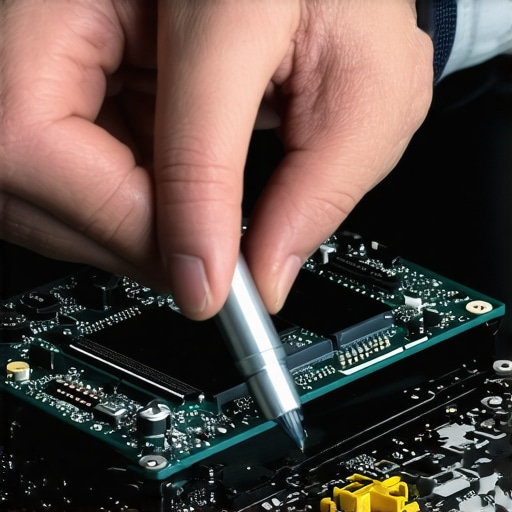
Improper thermal paste application can be visualized by uneven spread or excess spillage, which hampers heat transfer and risks hardware damage. Using an illustrative image of the correct application technique can clarify the process for learners.
Many enthusiasts and professionals alike fall prey to misconceptions about selecting and utilizing laptops, often leading to subpar performance and frustration. One common myth is that the latest gaming laptops automatically offer the best value, but in reality, many high-end machines are overhyped and priced premiums for features gamers rarely need. Instead, models focusing on thermal management and upgradability tend to provide a longer lifespan and better overall experience. Moreover, there’s a misconception that all laptop accessories, such as cooling pads or external GPUs, significantly boost performance. While some accessories can help, relying solely on them without optimizing your core setup can be counterproductive. For example, better airflow and internal cleaning yield more tangible improvements than flashy external upgrades.
On the student front, many believe that higher resolution screens are essential for effective learning. However, a screen with higher resolution without proper calibration can cause eye strain and reduce productivity. It’s often more beneficial to prioritize screen brightness and anti-reflective coatings tailored to your environment. Additionally, purchasing the most recent models isn’t always necessary; sometimes, a well-maintained refurbished business laptop with upgradable components offers superior reliability and cost savings. Many assume all business laptops are expensive, but strategic choices like models with user-replaceable batteries or upgradable RAM can mitigate long-term expenses.
The hidden nuance lies in the technical specifications professionals overlook, like the significance of having a user-replaceable Wi-Fi card or the importance of ports that meet real-world needs. For instance, many high-performance business laptops come equipped with dedicated Ethernet ports, which enhance stability during large file transfers or video conferences, a feature often absent in slim consumer models. Additionally, some models incorporate BIOS security features that prevent unauthorized access, crucial for corporate security. Researchers confirm that investing time in understanding these subtle features can save money and headaches in the long run.
What about the mistake of overlooking thermal management and cooling solutions? Many gaming or high-performance laptops throttle their CPU and GPU speeds due to inadequate cooling, leading to lag and hardware stress. Actual experts recommend focusing on chassis airflow and internal thermal paste applications, rather than just chasing higher specs. In fact, studies show that proper thermal design can extend device lifespan and maintain peak performance over time.
Have you ever fallen into this trap? Let me know in the comments. For those seeking expert advice on high-quality devices or better deals, check our curated selection of unbeatable laptop deals. Being aware of these hidden nuances ensures you invest wisely and optimize your existing setup for maximum productivity and longevity.
Invest in Quality Maintenance Tools for Long-Term Performance
To keep your laptop running smoothly, I personally rely on a few specific tools. A precision Phillips screwdriver set is a must for disassembling and reassembling laptops without risking damage. I prefer the Wiha insulated screwdriver kit because its magnetic tips and ergonomic handles make the delicate work safer and more comfortable. Additionally, I use high-quality compressed air cans, such as the Falcon Dust-Off, to blow out dust from fans and vents, ensuring optimal airflow, which is crucial for preventing overheating during intensive tasks. Keeping a set of anti-static brushes also helps me clean stubborn dirt from heatsinks and keyboard surfaces without risking static damage.
Equally important is a digital thermal camera like the FLIR One. It allows me to identify hotspots on the chassis or inside the laptop, pinpointing cooling bottlenecks or failing components early. Regularly checking temperatures helps prevent hardware failure and extend your device’s lifespan. When combined with software tools like HWMonitor or MSI Afterburner, these hardware diagnostics give a comprehensive view of your system’s health and stability.
Choose Software That Keeps Your System Stable
For ongoing maintenance, I recommend stress-testing your system periodically using Prime95 for CPU stability and FurMark for GPU. These tools push your components to their limits, revealing potential overheating issues or unstable hardware before they become critical problems. I run these tests for about 15-20 minutes and monitor temperatures with HWInfo. If temperatures spike beyond safe thresholds—say, above 85°C—I revisit my cooling solutions, such as reapplying thermal paste or cleaning dust filters. For less intensive but regular checks, tools like CrystalDiskInfo can monitor SSD health, ensuring your data remains safe.
Implement Routine Upgrades and Adjustments
Long-term results depend on incremental upgrades. Upgrading your laptop’s RAM or switching to a high-performance SSD can breathe new life into an aging device, often for a fraction of the cost of a new laptop. I personally prefer installing an NVMe SSD like the Samsung 980 Pro in laptops that support it, as it drastically reduces load and boot times. Similarly, upgrading to 16GB or more RAM ensures smoother multitasking, especially when running demanding applications or gaming. Consistent maintenance, like updating drivers and BIOS, helps keep hardware functioning optimally and patches security vulnerabilities.
Plan for Scaling Your Setup for the Future
If you’re managing a fleet of laptops for a team or classroom, investing in centralized management tools such as Microsoft Endpoint Manager enables remote monitoring, security updates, and troubleshooting. It minimizes downtime and ensures all devices run the latest firmware. For individual users, choosing laptops with user-replaceable components, including RAM and storage, simplifies future upgrades, keeping your system competitive over time. As technology evolves, staying informed about emerging cooling solutions like vapor chamber heatsinks or liquid metal thermal paste—already adopted by some high-end gaming and workstation laptops—can give you an edge in maintaining peak performance.
One expert from TechRepublic emphasizes the importance of proactive thermal management: “Regularly inspecting and maintaining your device’s cooling system prevents thermal throttling and hardware degradation” (source). Try incorporating a scheduled thermal check using actual temperature monitoring tools, and you’ll thank yourself in the long run for your proactive approach.
How do I maintain my laptop’s performance over time?
Start by establishing a routine that includes hardware cleaning, software updates, and stress testing. Use the right tools, like precision screwdrivers and thermal cameras, to diagnose issues before they become serious. Regularly upgrading components such as RAM and SSD ensures your machine adapts to new demands. Remember, a well-maintained laptop isn’t just faster—it lasts longer and provides a more enjoyable experience. And for the latest deals on quality devices, check out our best laptop deals.
What I Wish I Knew Before Overhauling My Laptop’s Cooling System
- Initially, I believed chasing the latest hardware specs was the key to peak performance. But I learned that even the most powerful components underperform without proper thermal management, making thermal paste application my secret weapon.
- Skipping regular cleaning and neglecting thermal paste quality caused my laptop to overheat, leading to throttling and hardware stress. Timely maintenance can save you from costly repairs down the line.
- I underestimated the importance of a meticulous disassembly process. Being organized and patient when working inside your device ensures safety and preserves components.
- Applying thermal paste isn’t about volume; it’s about precision. A pea-sized dot in the center, spreading evenly, maximizes heat transfer without risking spills or insulative layers.
- Investing in quality tools like a precision screwdriver set and a thermal camera transformed my maintenance routine, providing insight that prevents performance bottlenecks.
My Go-To Resources That Elevate My Laptop Performance Knowledge
- HWInfo: This software provides real-time temperature monitoring and hardware diagnostics I trust for accurate insights into my system’s health.
- Practical Guides from Laptop Forums: Community-driven tutorials offer step-by-step disassembly and maintenance tips tailored to specific models, reducing guesswork and avoiding damage.
- Reputable Tech YouTube Channels: Visual walkthroughs from experienced technicians help me understand complex processes and best practices before attempting repairs myself.
- Specialized Tools Like FLIR Thermal Camera: Identifying hotspots with a thermal camera early helps prevent overheating and hardware failure, extending my device’s lifespan.
Your Turn to Burn Bright
Maintaining your laptop isn’t just about immediate performance; it’s an investment in longevity and reliability. Small, consistent efforts can keep your device running seamlessly for years to come. Remember, the right thermal paste and proper application are game changers for keeping your system cool and efficient. Whether you’re a student crunching assignments or a professional on tight deadlines, proactive maintenance empowers you to get the most out of your technology. Ready to take your laptop’s performance to the next level? Share your experiences or ask for guidance—drop your thoughts below and let’s keep the conversation going!
,