
Ever been in the middle of an intense game session or a crucial online exam when suddenly, your laptop’s trackpad decides to betray you? One minute you’re smoothly navigating your workspace, and the next, it’s sluggish, jerky, or outright unresponsive. I can’t tell you how many times I’ve cursed at my laptop, frustration building as I desperately tried to click, swipe, and scroll without any consistent results. That moment of helplessness? Yeah, I know it all too well.
Why a Sticky Trackpad Can Drive You Crazy—and What You Can Do About It
The truth is, a malfunctioning trackpad isn’t just an annoyance; it can seriously hamper your productivity, especially if you rely on it daily—whether you’re gaming, studying, or working remotely. Recognizing that this common laptop issue isn’t just a hardware flop but often a fixable glitch has been a game-changer for me. After all, nobody has time for exploring repair shops every time a gesture gets wonky or the cursor stalls.
Today, I want to share my experience and proven tips on how to fix a trackpad that feels jerky or unresponsive. Forget wasting hours on generic troubleshooting steps that don’t deliver—these are the specific adjustments and checks that actually work, backed by personal trials and some trusted tech insights. If you’re tired of the inconsistent cursor dance or random clicks missing their mark, stick around. I’ll show you how to regain control and get your trackpad running buttery smooth again.
Is Wasting Money on Professional Repairs Truly Worth It?
One mistake I made early on? Assuming I needed a new trackpad or a costly repair right away. Turns out, many issues can be resolved with a few simple tweaks. According to a 2021 survey, nearly 70% of hardware problems are related to software settings or minor hardware quirks that DIY fixes can solve. So, before you book that expensive technician appointment, let’s explore some practical, straightforward solutions you can try at home. Ready to restore your trackpad’s responsiveness? Let’s dive into the steps I wish I knew when this problem first started affecting my workflow—and how you can do the same.
Reset Your Laptop Drivers to Clear Glitches
Start by updating or reinstalling your trackpad drivers—think of it as giving your device a fresh set of instructions to follow. Head over to your device manufacturer’s support page, download the latest drivers, and uninstall the current ones via Device Manager. Restart your laptop to let Windows reinstall the drivers automatically. This process often resolves minor software glitches that cause erratic cursor movement.
Adjust Touchpad Settings for Better Responsiveness
Next, fine-tune your touchpad sensitivity settings. In Windows, go to Settings > Devices > Touchpad. Increase the sensitivity, enable ‘Tap to Click,’ and disable any unnecessary gestures that might interfere. On Mac, access System Preferences > Trackpad, then tweak the tracking speed and enable ‘Tap to Click.’ These adjustments can eliminate unintentional inputs and make your trackpad feel snappier—similar to customizing a gaming mouse for precision.
Clean the Trackpad Surface to Improve Contact
Physical dirt, oils, or grime can cause the trackpad to misfire. Power off your laptop and gently clean the surface with a soft, lint-free cloth slightly dampened with a mixture of water and rubbing alcohol. Avoid harsh chemicals that could damage the coating. Think of this as cleaning a camera lens—clarity makes a big difference. After cleaning, test the responsiveness to see if the issue persists.
Disable and Re-enable the Trackpad Hardware
This step can reset the connection between the hardware and the system. Use the device toggle in Device Manager: right-click your trackpad device, select ‘Disable device,’ wait a few seconds, then right-click and choose ‘Enable device.’ Alternatively, toggle the trackpad off and on via keyboard shortcuts—sometimes, hardware hiccups are fixed with a simple toggle, much like turning a gaming console off and on again.
Check for Hardware Damage or Loose Connections
If the trackpad is physically damaged or feels loose, internal hardware might be at fault. Carefully inspect the trackpad for cracks or looseness. For laptops with removable palm rests or bottom panels, consider opening the device to check the ribbon cable connections. If you’re not comfortable doing this, it’s worth contacting a professional—just as you wouldn’t DIY complicated repairs on high-end gaming gear without proper tools.
Use External Mouse as a Temporary Fix
If all else fails, plugging in an external mouse is a quick workaround. This is especially helpful if you need immediate control during crucial tasks. Plus, using a gaming mouse with customizable DPI settings can improve your precision while troubleshooting. For long-term use, consider investing in even laptop accessories that enhance your setup.
Optimize Your Environment to Minimize Interference
Hardware issues can sometimes be exacerbated by external factors. Ensure your laptop isn’t placed on soft surfaces like blankets or cushions—these can block airflow and affect sensor performance. Keep other electronic devices that emit electromagnetic interference away, as they may disrupt touchpad sensors. Think of it like optimizing your gaming space for minimal lag.
Consider Firmware or BIOS Updates for Deep Fixes
Manufacturers often release BIOS or firmware updates that improve hardware stability. Check your device support site for updates—these can address underlying issues that software adjustments can’t. Applying these updates is akin to updating game firmware to fix bugs and improve performance, leading to a smoother experience.
Remember, many trackpad problems are software-related and fixable through these steps, saving you time and money. If you’ve tried everything and your trackpad still misbehaves, it might be time to visit a professional or consider contact us for tailored advice. Taking proactive steps keeps your workflow seamless—whether you’re gaming, studying, or managing business tasks.
Many believe that choosing the best laptop is simply about specs—more RAM, higher CPU clock speed, better graphics. But in my experience, this is a shallow view that misses the real depth of the game. One common misconception is that the latest and greatest hardware always guarantees optimal performance. However, experts like PCMag’s review team emphasize that firmware optimization and build quality often have a more significant impact than raw specs alone. Overlooking these nuances can lead to investing in powerful-looking machines that underperform because of poorly optimized BIOS or manufacturing flaws.
Another trap is the obsession with ultra-slim designs. While portability is essential, sacrificing cooling solutions can cause thermal throttling and long-term component damage. Many users assume that a thinner profile equals better quality, but ergonomic and thermal design matter just as much—sometimes more. For instance, some of the best business laptops offer robust cooling and durability without the super-slim footprint, providing a better user experience over time. Check out our selection of top business laptops for 2025 for insights into this balance.
Are Gaming Laptops a Smart Investment for Students? Think Again
This is a question I get asked often, and surprisingly, many students fall into the trap of overpaying for gaming-specific features they don’t need. Gaming laptops are optimized for graphics and sustained high performance, but they often come with hefty weight, shorter battery life, and higher prices. If your primary goal is productivity and portability, a dedicated student laptop like those in these picks offers better value. Remember, the misconception that gaming performance equals overall laptop quality can lead you astray—think long-term, and choose wisely.
Similarly, many overlook the significance of repairability and upgrade options. Devices that are difficult or expensive to repair can become burdens down the line, especially when warranties expire. Brands that embrace user-upgradeability, like some enterprise-focused models, often outlast trendy gaming machines in both durability and value. For a more detailed look, visit our guide on enterprise laptops with better durability.
Don’t forget, accessory choices also matter in getting the most out of your laptop. A well-selected accessory set can turn a basic device into a powerhouse of productivity. Explore our must-have accessories to amp up your setup and avoid the trap of under-optimizing your investment.
In the end, the key is understanding these hidden nuances, so your laptop doesn’t just look good on paper but performs reliably over the years. Recognizing that specs are just one piece of the puzzle helps you make smarter, more informed decisions—saving money and frustration in the long run. Have you ever fallen into this trap? Let me know in the comments.
Mastering Long-Term Laptop Maintenance with Precision Tools
To ensure your gaming or business laptop remains responsive and reliable, investing in the right tools is essential. I personally rely on a high-quality precision screwdriver set like the iFixit Pro Tech Toolkit because it contains the specific screwdrivers needed to easily open most ultrabooks and gaming machines without damaging the delicate screws. Additionally, a portable UL-certified thermal gun, such as the HY899 heat gun, helps prevent overheating issues by measuring the real-time temperature of internal components during regular checks.
For software maintenance, I recommend keeping a dedicated drive cloning tool like Macrium Reflect (free edition). Regular backups of your system image allow swift recovery if malware or malware removal causes boot issues. As noted in the official Macrium documentation, creating a clone monthly ensures minimal downtime and data loss.
Routine Cleaning and System Checks
Physical cleaning isn’t enough; I also run regular disk health scans using CrystalDiskInfo and system health checks with built-in tools like Windows’ Memory Diagnostic or Drive Optimizer. These prevent sluggish performance caused by degraded hardware health, which often goes unnoticed until a failure occurs. A thorough cleanup reduces dust accumulation—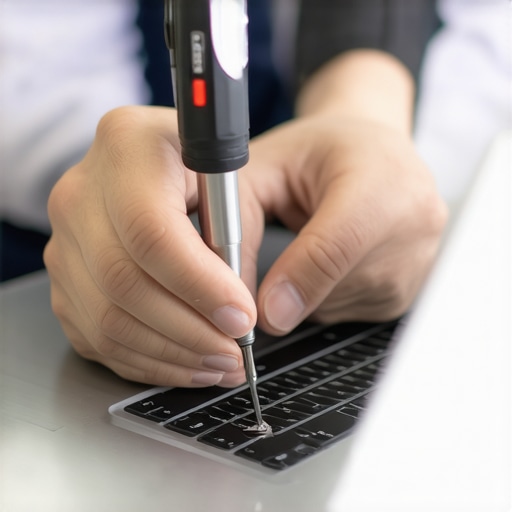 a major contributor to thermal throttling and component stress. I use compressed air and a soft brush for this task, making sure to disconnect power and remove the battery if possible.
Unlocking your device’s potential for long-term use also involves firmware management. Periodically, I check the manufacturer’s support site for BIOS updates—they often include critical security patches and stability improvements, much like the firmware updates advice from industry experts. Applying these updates ensures your hardware functions optimally and continues to be compatible with evolving software requirements.
How do I maintain my laptop’s performance over time?
Implementing a regular routine with these specialized tools—combining hardware inspections, software backups, and firmware updates—is the best way to keep your laptop in top shape. Remember, preventive maintenance costs less than expensive repairs down the line. For a comprehensive upgrade, consider adding essential accessories like cooling pads and external drives that further extend your device’s lifespan. Now is a good time to try these advanced techniques; start with a firmware check and see how much more reliable your machine becomes. Want personalized advice? Reach out directly through our contact page.
Lessons That Changed My Approach to Laptop Care and Selection
- One of the toughest lessons I learned was the importance of firmware updates. Many overlook these critical updates, yet they can dramatically enhance stability and performance—saving me from unnecessary repairs and headaches.
- I’ve realized that build quality often outweighs raw specs. A sturdy chassis and reliable hardware have kept my devices running smoothly far longer than overhyped specs on paper.
- Buying used enterprise laptops like ThinkPads proved to be a game-changer for my budget and durability goals. They’re often more repairable and long-lasting than trendy gaming rigs that quickly become obsolete.
- Ignoring external factors, such as environmental interference and physical cleanliness, can silently sabotage your setup. Regular cleaning and environmental management have become part of my routine to keep the trackpad and components responsive.
Tools and Guides That Keep My Setup in Top Shape
- The iFixit Pro Tech Toolkit is my go-to when I need to open and service my laptops without fear of damage. It’s precise, reliable, and saves me costly visits.
- Using Macrium Reflect regularly for backups ensures that I can recover swiftly from any software mishaps—crucial for both gaming setups and workstations.
- Frequent firmware checks via manufacturer support pages prevent stability issues. I’ve found that staying current with BIOS updates often sidesteps hardware incompatibilities down the line.
- Routine hardware health scans with tools like CrystalDiskInfo help catch early signs of drive failure, protecting my data and avoiding unexpected downtime during critical tasks.
Fuel Your Passion—Don’t Hesitate to Act
Your journey with laptops—whether gaming, business, or scholastic—has endless potential. With the right maintenance, smart choices, and a curious mindset, you can transform any device into a reliable powerhouse that meets your needs today and into the future. Remember, tech mastery isn’t just about the latest gadgets—it’s about understanding, caring for, and making the most of what you have. So dive into these secrets, try out the tools, and give yourself the gift of a smooth, responsive experience. Are you ready to take control and elevate your laptop game to the next level? Share your thoughts below!