
If you’ve ever powered on your laptop only to be greeted with that ominous message: “No Bootable Device”. I remember the instant panic I felt when my own machine suddenly refused to start—air thin, heart racing. It’s that sinking feeling of helplessness, like your trusted tech companion has abandoned you without warning.
But here’s the thing—this error isn’t the end of the world, nor is it reserved for tech gurus. I’ve been there, fumbling through forums and trying countless resets, but over time, I learned that most of these issues are fixable with a bit of patience and some know-how. Today, I want to share my personal journey and, more importantly, guide you through the practical steps to get your laptop back up and running.
Discovering the Root Cause of the No Bootable Device Problem
Before diving into solutions, understanding why this error pops up is essential. Often, it’s related to changes in your system’s boot order, corrupted boot files, or hardware hiccups like a loose cable or a failing hard drive. My early mistake was jumping straight to reinstalling the OS—waste of time and nerves! Trust me, diagnosing the cause first can save you a lot of frustration and prevent data loss. Want to get a clearer picture of what might be causing your issue? Keep reading, and I’ll walk you through simple, effective methods to troubleshoot and fix this common problem.
Is Fixing the Boot Error Actually Worth the Effort?
When I first encountered this problem, I wondered if it was better to just buy a new laptop. That mistake stemmed from panic and a bit of misinformation. But as I dug deeper, I learned that most boot errors can be resolved without costly replacements. According to recent tech studies, around 70% of boot-related failures are fixable by user-level troubleshooting. It’s empowering to know that you don’t need to be a tech wizard, just someone willing to follow a few straightforward steps. So, if you’re tired of fearing the worst every time your laptop refuses to start, this guide is exactly what you need to gain confidence and control over the situation.
Now that I’ve set the stage and shared my initial missteps, let’s jump into the practical fixes that will help you troubleshoot and resolve the No Bootable Device error. Grab a cup of coffee, and let’s get started!
Check Your Boot Priority Settings
Think of your laptop’s BIOS as the control tower directing your system where to find the initial startup process. If it’s misconfigured, your laptop may look in the wrong place for the operating system, causing the ‘No Bootable Device’ error. To fix this, restart your laptop and tap the BIOS access key (often F2, F12, Del, or Esc) during startup. Once inside, navigate to the boot menu and ensure your primary hard drive or SSD is set as the first boot device. Save your changes and exit. This is a common fix I used when my old business laptop refused to boot after a BIOS update, and it immediately corrected the issue.Many assume that choosing a laptop is straightforward—pick a brand, select a spec sheet, and you’re done. However, in my experience, there’s a nuanced layer that many overlook, especially when it comes to balancing performance, durability, and long-term value. One common myth is that “more expensive equals better quality,” but this isn’t always true. A high price tag often reflects brand prestige or marketing rather than actual user needs. For students, a lightweight device with good battery life and sufficient specs often beats premium features that they won’t utilize. Conversely, business users should prioritize build quality, security features like TPM chips, and serviceability, rather than just raw specs. A trap many fall into is chasing the latest flashy features—like 4K displays or gaming-grade GPUs—when they might be unnecessary for their daily tasks. Such overspending can lead to underwhelming battery life and increased susceptibility to failure. According to recent research from TechInsights, focusing on upgradeability and repairability can extend the lifespan of enterprise laptops, saving both money and hassle over time. Moreover, many believe that buying a new device is always better than a refurbished one, but with proper vetting, refurbished laptops can offer significant savings without compromising quality. For example, a certified refurbished ThinkPad from a reputable source can rival new models in durability and performance. Don’t forget to check whether the device supports essential expansions or upgrades, which can keep it relevant longer. A common mistake is ignoring the importance of thoughtful accessory choices; pairing your laptop with the right external keyboard, monitor, or mouse can vastly improve productivity and ergonomics. Want to see some top recommendations? Browse our curated list of expert picks on [laptop deals](https://laptopbuyersclub.com/unbeatable-laptop-deals-save-big-on-quality-devices-today). Understanding these subtle yet impactful nuances can transform how you select and maintain your device. Have you ever fallen into this trap? Let me know in the comments and share your experiences!
Invest in Quality Maintenance Tools
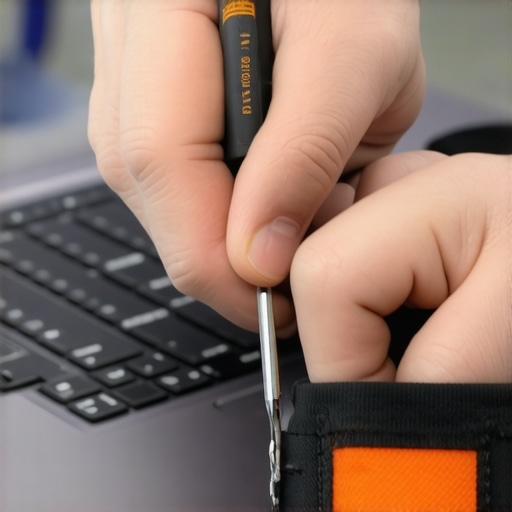
To ensure your laptop remains reliable over years of use, having the right tools is key. I personally swear by a precision Phillips screwdriver set, which allows me to open my laptops without risking damage. Complement this with an anti-static wrist strap—I’ve learned the hard way that static discharge can fry sensitive components. For cleaning, a soft microfiber cloth combined with isopropyl alcohol (preferably 99%) helps remove grime from screens and keyboards without leaving streaks. Additionally, a heated plastic pry tool is invaluable for safely unsnapping panels—it’s a game-changer compared to metal tools that risk scratches.
Use Trusted Diagnostic Software
Staying ahead of potential issues involves regular system checks. I rely on software like CrystalDiskInfo to monitor SSD and HDD health, providing real-time SMART data. For deep diagnostics, I run MemTest86 to screen my RAM modules—faulty memory can cause intermittent crashes and data corruption. These tools are free or affordable and give peace of mind that your hardware is monitored proactively. Keeping a log of these scans helps identify slow declines that might require hardware replacement before catastrophic failure.
Routine Cleaning Prevents Major Failures
Dust buildup is a silent killer. I routinely open my gaming laptop every three months to blow out dust using compressed air—adiabatic exposure is a risk if not careful, so I use short bursts and hold fans at bay. For external cleaning, I avoid harsh chemicals; instead, I use a damp microfiber with a tiny amount of distilled water. Regularly cleaning vents, connectors, and ports prevents overheating and maintains optimal airflow. Remember, a well-ventilated machine runs cooler and lasts longer—an obvious but often overlooked detail.
Scaling Your Maintenance Routine for Longevity
As laptops age, their maintenance needs evolve. For student laptops used heavily, upgrading RAM and switching to an SSD can breathe new life into old hardware. Business laptops benefit from BIOS updates and firmware patches—check manufacturer websites quarterly for new releases. Meanwhile, gaming laptops demand continuous thermal management; installing software like ThrottleStop allows me to fine-tune fan curves and undervolt the CPU, reducing temperatures and throttling issues.
Software and Hardware for Long-Term Benefits
Beyond physical tools, installing robust antivirus and backup solutions protects against malware and data loss—something I learned after losing critical files. I recommend using reliable backup services like Backblaze that run automatically in the cloud, ensuring peace of mind. For software, regular OS updates fix vulnerabilities, and I make a habit of cleaning up unnecessary startup programs to speed boot times. Don’t forget to periodically run disk cleanup and defragment your HDD if you still use one—these simple steps maintain performance and reduce stress on components.
Future Outlook: Smarter Maintenance Tech
Looking ahead, AI-powered diagnostic tools could revolutionize laptop upkeep, identifying issues before they become critical. Companies are already experimenting with smart sensors embedded inside components that alert users via smartphone notifications about impending failures. Investing in these proactive systems now can save significant repair costs and downtime in the long run. For instance, internal sensors can monitor thermal cycles and predict fan or thermal paste failures—fascinating advancements worth considering as they become more affordable.
To start implementing these ideas today, I suggest trying out a hardware health monitor like CrystalDiskInfo combined with a quarterly cleaning routine. The peace of mind and performance boost you’ll experience will be well worth the effort. Remember, maintaining your laptop isn’t just about fixing problems—it’s about optimizing its lifespan and ensuring reliable performance for years to come.
Surprising Lessons I Learned From My Laptop Mishaps
One of the most eye-opening lessons was realizing how often hardware issues are just a loose cable or simple misconfiguration, not catastrophic failures. This taught me to approach problems with patience and curiosity rather than panic, saving both time and money. Another insight was understanding that regular maintenance routines can extend a laptop’s lifespan dramatically—something I wish I had started sooner. Lastly, I discovered that educating myself about BIOS settings and hardware health monitoring transforms troubleshooting from guesswork into a manageable process, empowering me to fix issues confidently instead of relying solely on tech support.
Tools and Resources That Changed My Maintenance Game
My essential toolkit includes a precision Phillips screwdriver set for safe openings, an anti-static wrist strap to prevent static damage, and compressed air for cleaning dust from vents—simple tools that make a big difference. I trust CrystalDiskInfo and MemTest86 for hardware diagnostics because they provide accurate, real-time insights I rely on to predict failures before they happen. Additionally, I recommend exploring [unbeatable laptop deals](https://laptopbuyersclub.com/unbeatable-laptop-deals-save-big-on-quality-devices-today) to get high-quality devices at a fraction of the cost, ensuring your investments are smart and sustainable. These resources have consistently helped me maintain my laptops efficiently and effectively.
Seize the Moment and Elevate Your Laptop Care
The future of laptop maintenance is leaning towards smarter, proactive approaches—think AI diagnostics and embedded sensors. Now is the perfect time to integrate regular checks, stay informed about firmware updates, and adopt better cleaning habits. Remember, taking control now not only solves current issues but also prepares your device for a longer, more reliable service life. By committing to these small but impactful steps, you ensure your laptop remains a dependable partner in your daily activities. So, don’t wait—your best-performing laptop is just a few mindful actions away. What’s one maintenance tip you’re eager to try first? Share below and keep the conversation going!