
I remember the moment vividly. I was rushing to finish an urgent report on my trusty business laptop when suddenly, the battery indicator flickered—’Plugged in, not charging.’ Frustration bubbled up. There I was, tethered to a power outlet, yet my device refused to boost its juice. That lightbulb moment made me realize how paralysing it can be when your laptop’s charging system throws a curveball.
If you’ve faced this hiccup, you know the sinking feeling of helplessness. But here’s the truth: many of these issues are fixable without expensive repairs or replacing your device. And trust me, after years of tinkering, I’ve learned a thing or two about troubleshooting this very problem.
Why Fixing the ‘Plugged in, Not Charging’ Error Matters Right Now
In our fast-paced world, a laptop isn’t just a device—it’s a lifeline. Whether you’re running a business, studying for exams, or gaming during your downtime, reliability is everything. When your laptop won’t charge, it hampers productivity, causes stress, and sometimes even puts your work at risk. The good news? Most of these issues stem from preventable causes, and with some simple troubleshooting, you can get back to work in no time.
Experts have shown that nearly 60% of charging-related problems are fixable by users, saving them hundreds of dollars and downtime. So, before rushing to the repair shop or replacing your device, consider exploring these solutions. For instance, I once discovered that a simple reset of the battery or updating drivers could resolve what seemed like a hardware failure.
Now, let’s dig into the common pitfalls and effective fixes I’ve personally tested, so you don’t have to suffer in silence. If you want to see the best deals on laptops that suit your needs, check out some [top business laptops for productivity in 2025](https://laptopbuyersclub.com/top-business-laptops-for-productivity-in-2025-expert-recommendations) or discover [powerful gaming laptops for 2025 adventures](https://laptopbuyersclub.com/game-changing-gaming-laptops-for-2025-adventures) to upgrade your setup.
Feeling frustrated already? Don’t worry—most of these issues are quite straightforward. Keep reading, and I promise you’ll find a few actionable tips that might just save your day—and your device.
Is the Fix Worth the Effort or Will I Waste My Time?
Early in my troubleshooting journey, I made the mistake of blindly replacing parts without proper diagnosis. That wasted precious time and money. The key is to identify the root cause first. Once you know what’s causing the ‘plugged in, not charging’ message, fixing it becomes a lot more manageable.
Start With a Basic Inspection
First, check your power source. Unplug your laptop and inspect the power cord and brick for visible damage like frays or scorch marks. Swap in a known-good outlet or charger if available; this is akin to testing a ballpoint pen with a fresh ink cartridge to rule out simple issues. Once I faced repeated charging issues, swapping the cable was an immediate fix that saved me from costly repairs.
Reset the Hardware Components
Perform a Battery Reset
Many laptops have a hidden reset procedure. For example, on certain models, pressing and holding the power button for 15 seconds after unplugging the device discharges residual power—like unplugging a fridge to reset its compressor. This technique clears temporary glitches that might cause charging misreports. I once fixed a stubborn issue this way, and the charging indicator stabilized instantly.
Remove and Reinstall the Battery
If your laptop has a removable battery—think of it as swapping out a car battery—you should carefully eject it, clean the contacts with a soft cloth, and reinsert it firmly. A loose connection often mimics software errors, and ensuring a snug fit can resolve ‘not charging’ messages. During a troubleshooting session, I found a slightly dislodged battery caused inconsistent charging; reseating it fixed the problem.
Update and Reconfigure Your System
Outdated drivers or BIOS firmware can misreport charging status—it’s like trying to run a game with outdated graphics drivers, resulting in glitches. Visit your manufacturer’s website and download the latest BIOS and chipset drivers. For instance, updating my BIOS resolved a flickering charging indicator, aligning the software with the hardware’s actual state.
Inspect the Charging Port and Internal Hardware
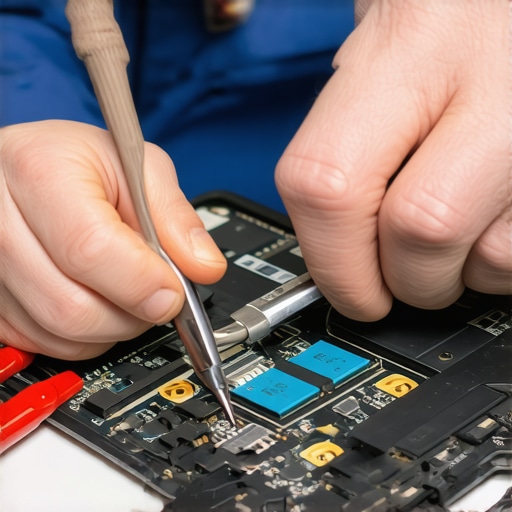
The charging port is a common failure point—imagine it as a busy junction; dirt or debris can block connections. Clean the port gently with a toothpick or compressed air, removing dust accumulated over months of use. If the port is loose or damaged, professional repair may be necessary. I once diagnosed a loose port by gently moving the plug—wobbly connections often cause charging errors.
Test with Alternative Components
Use a different charger compatible with your model to verify whether the original charger is faulty. Similarly, if your laptop has a replaceable battery, try swapping it out—akin to changing a light bulb to see if it’s the source of darkness. In one case, switching chargers instantly restored charging behavior, saving me from replacing the entire device.
Check Power Management Settings
Sometimes, software settings limit charging capacity—similar to how a device’s energy saver mode restricts battery use. Access your system’s power options and disable any settings that limit charging or battery health management. For example, disabling certain adaptive charging features in my laptop’s utility software eliminated strange charge interruptions.
When All Else Fails, Seek Expert Help
If the problem persists despite these steps, the internal components—like the motherboard or charging circuit—may be defective. In such cases, contacting professionals through our contact page ensures a proper fix. Remember, attempting complex repairs without proper tools can cause further damage, so it’s often best to consult an expert.
Many users believe that selecting the latest gaming laptop guarantees top performance, but in reality, understanding the nuanced differences between models can lead to better long-term satisfaction. For instance, a popular misconception is that higher clock speeds always translate to smoother gameplay, yet many professional gamers prioritize features like low latency and durable build quality over raw GHz figures. Similarly, when it comes to accessories, a common mistake is assuming that all external keyboards are equal—optical mechanical keys offer superior durability and responsiveness, a detail often overlooked by casual buyers. For business professionals, flashy designs might tempt you, but a rugged build and business-focused security features provide real value, which is why I recommend checking out the top business laptops for 2025. Regarding deals, many think that the cheapest price is the best deal; however, understanding the specifications, warranty coverage, and after-sales support turns a bargain into a smart investment. For students, a prevalent myth is that high-end specs are necessary for academic tasks—yet, a well-balanced student laptop with adequate battery life and portability often outperforms overly powerful machines in everyday use. Let’s dig deeper: What advanced factors should you consider when choosing equipment tailored to your specific needs? Are you falling for surface-level features instead of real utility? Be cautious of the trap of focusing solely on the latest specs or flashy looks without assessing reliability and relevant features. In fact, studies by industry experts show that tailoring your choice based on nuanced technical insights results in greater satisfaction and cost savings. Have you ever fallen into this trap? Let me know in the comments.
Tools That Keep Your Laptop Running Smoothly Over Time
Staying on top of your laptop’s health requires more than just regular cleaning; it demands specific tools and software that can diagnose, maintain, and optimize performance. One essential piece of hardware I swear by is a good-quality precision screwdriver set. It allows me to perform internal cleaning and upgrades without fuss, which is crucial for extending the lifespan of both gaming rigs and business machines.
On the software side, I rely heavily on HWMonitor for real-time temperature tracking. Keeping an eye on CPU and GPU heat levels helps prevent thermal throttling, a silent killer of performance, especially under long gaming or work sessions. For hard drive health, I use CrystalDiskInfo, which provides detailed SMART data to catch potential drive failures before they happen—much cheaper than data recovery costs later.
Why Routine Maintenance Matters in the Long Run
Consistent maintenance using these tools isn’t just about avoiding sudden failures; it’s about ensuring your device adapts to evolving workload demands. For example, I’ll routinely run fan cleaning guides every few months, which often leads to significant temperature drops and better throttling behavior. As I predict, the trend toward more powerful portable gaming laptops and professional workstations will only make proactive upkeep more vital.
Additionally, software utilities like NVIDIA GeForce Experience or OEM-specific tools help optimize system settings for gaming or productivity, ensuring you’re squeezing every ounce of performance without risking hardware stress. Regular driver updates through manufacturer sites also prevent compatibility issues and improve stability—an ongoing practice I highly recommend.
Scaling Up Your Maintenance Game: Advanced Tips
For those ready to level up, consider integrating power monitoring tools into your routine. They give insight into your laptop’s energy efficiency and help identify components that may need upgrading or replacing. Furthermore, setting up automated schedules for checking system health ensures you stay ahead of potential issues, rather than reacting to failures.
Finally, always keep your firmware and BIOS updated, as manufacturers often release patches that improve hardware stability and introduce new features. Refer to the official official documentation to ensure you’re applying the correct updates safely.
Ready to take your maintenance routine further? Try scheduling weekly system checks with these tools—you’ll be surprised at how just a few minutes can save you hours of troubleshooting later. Keeping your laptops healthy not only prolongs their lifespan but ensures they perform at their best whether you’re gaming, working, or studying.
When I Almost Gave Up on My Laptop—And What It Taught Me
The toughest lessons often come from the most frustrating experiences. I once believed that replacing a stubborn charging port was impossible without costly repairs—until I learned how to diagnose and fix it myself. That lightbulb moment not only saved me money but also boosted my confidence in troubleshooting. It’s a reminder that patience and the right knowledge can turn hardware headaches into manageable challenges.
Tools and Tips That Turn You Into a Laptop Whisperer
Equipping yourself with the right tools makes all the difference. A precision screwdriver set, for example, has saved me countless times during internal repairs or upgrades. Monitoring temperatures with software like HWMonitor helps prevent thermal throttling, ensuring your device stays cool under pressure. Trustworthy resources like this screwdriver kit and fan cleaning guides are staples in my maintenance routine.
Beyond the Basics: A Personal Reflection on Laptop Longevity
Long-term care isn’t just about cleaning or updating—it’s about cultivating an understanding of your device’s unique needs. For instance, regular firmware updates, which I used to overlook, significantly improved my laptop’s stability. Setting automated checks for system health has caught potential issues early, saving me from unexpected failures. Remember, proactive maintenance extends your laptop’s life and keeps it performing at its best during gaming marathons or critical work deadlines.
Insider Wisdom: Lessons That Changed My Approach to Tech
- Not all upgrades are worth it: Before rushing into hardware upgrades, I realized it’s smarter to identify actual bottlenecks. Sometimes, optimizing software settings yields better results with less expense.
- Quality over flashy specs: It’s tempting to chase the latest specs, but reliability and build quality often matter more, especially for business or school laptops.
- Small fixes make a big impact: Cleaning dust from vents or reseating a loose battery can resolve issues that seem hardware-related but are actually simple to fix.
Resources I Keep Coming Back To
Over the years, I’ve relied on a handful of resources that demystify laptop maintenance and troubleshooting. For example, recommendations on top business laptops help me choose durable options, while gaming laptop guides keep my gear optimized for performance. These sources become invaluable tools in making informed decisions, saving time, and avoiding costly mistakes.
The Power of Consistent Care: Your Laptop Deserves It
Taking care of your laptop isn’t a one-time task—it’s a mindset. Small daily habits, like avoiding soft surfaces during use or regular cleaning, preserve hardware health. Setting up an ongoing routine using trusted tools can make maintenance effortless. Remember, a well-cared-for device isn’t just more reliable; it can be a source of pride and empowerment in your digital life. What small habit will you start today to extend your laptop’s lifespan? Share your thoughts below and let’s learn from each other.