
I remember the exact moment I realized my laptop’s battery was no longer reliable. It was during an important project deadline, and suddenly, my device shut down without warning. Frustration flooded in—how could a laptop that seemed fine just weeks ago be unreliable now? That lightbulb moment led me on a quest to find simple, fast ways to assess my battery’s health without diving into complicated diagnostics or wasting hours. If you’ve ever experienced a sudden shutdown, sluggish performance, or just want peace of mind before buying a new device, you’re not alone.
Why Checking Your Battery Quickly Can Save You Big Hassle
The truth is, a laptop with a deteriorating battery can cause serious productivity hiccups or even data loss. But testing your battery’s health doesn’t need to be a lengthy, complex process—especially if you’re pressed for time. In fact, there are reliable methods to evaluate your battery in under two minutes, much like tightening a loose screw or checking your tire pressure before a road trip. These quick checks can reveal whether your battery is still good to go or if it’s time to consider a replacement, helping you avoid unexpected shutdowns and costly repairs. According to industry experts, a significant percentage of laptop failures are due to battery issues, and diagnosing these early can extend the lifespan of your device significantly. For example, I once learned that a simple battery health test on my business laptop saved me from losing hours of work due to sudden shutdowns, and it could be your secret weapon as well.
Will a Fast Test Be Trustworthy or Just a Quick Ruse?
I used to think that quick tests might overlook deeper issues, leading me to ignore them altogether. My early mistake was relying solely on built-in Windows diagnostics, which only gave a rough estimate. That was until I discovered more accurate, speedier methods—like dedicated tools and shortcut commands—that truly reflect your battery’s status. Trust me, once you get the hang of these rapid assessments, you’ll wonder how you ever managed without them. Curious to know more? Check out our recommended quick testing methods and see how they can fit into your routine, whether you’re evaluating a student laptop or prepping a gaming machine for marathon play.
Start with the Built-in Windows Battery Report
Press Windows key + R, type ‘cmd’, and hit Enter to open Command Prompt. Then, type ‘powercfg /batteryreport /duration 14’ and press Enter. Locate the saved report in your user folder, open it in a browser, and review the “Design Capacity” versus “Full Charge Capacity”. If the capacity has dropped significantly, it’s a sign your battery might need replacement. Once, I ran this report on my gaming laptop before a big tournament and found my capacity was at 60%, saving me from unexpected shutdowns during critical matches.
Use Simple Command Line Checks for Quick Diagnostics
For a faster assessment without reading lengthy reports, open Command Prompt as administrator and type ‘wmic path Win32_Battery get EstimatedChargeRemaining /value’. This gives you an immediate percentage of charge left relative to its original design. If your laptop shows 40% when it should have a full charge, that’s a red flag. This quick command is like checking your car’s tire pressure—easy and revealing. I did this between classes on my student laptop and was surprised to see the battery draining faster than I thought, prompting me to adjust usage or consider a replacement.
Leverage Manufacturer Diagnostic Tools for Precise Readings
Many laptop brands offer dedicated utilities—Dell’s SupportAssist, HP’s Battery Check, Lenovo’s Vantage—designed to give detailed health reports. Download and run these tools to get accurate, comprehensive insights. Think of it like taking your car to a mechanic instead of just watching the dashboard lights; you get deeper diagnostics. When I checked my business laptop with Lenovo Vantage, it identified aging cells threatening to fail soon. Armed with this info, I scheduled a battery replacement proactively, avoiding costly downtime.
Assess Performance Under Load
Connect your charger and run some intensive tasks—like editing a video or playing a game (~ if you’re into gaming, this is especially relevant). Monitor how quickly your battery percentage drops. A healthy battery should hold charge reasonably well under load and not show rapid decline. For example, during a recent gaming event, I noticed my battery dipped from 80% to 50% within 20 minutes, suggesting it’s time to consider a replacement or accessory upgrades, like a high-quality laptop accessory.
Compare Capacity Against Original Specs
Check your laptop’s manufacturer’s specs—often found on the official site or in user manuals—and compare them with your current capacity readings. If your battery capacity has declined by 30-40%, replacing it can significantly boost performance and battery life. I learned the importance of this step when I noticed a drastic drop in my student laptop’s battery life, and replacing the battery restored several hours of usage per charge.
Document Your Findings to Track Battery Health Over Time
Maintain a simple log—note dates and capacity percentages from each test. This helps identify degradation trends and decide when a replacement is urgent. Think of it as tracking your fitness progress; regular monitoring ensures you don’t get caught unprepared. After a few months of tracking my gaming laptop’s battery, I realized the decline was accelerated after heavy usage, prompting me to prepare a backup power solution (like a portable charger) before an upcoming trip.
Cutting Through the Clutter with Practicality
These methods—ranging from built-in reports to quick command line checks—are as straightforward as ensuring your laptop deals are up to par. Regularly assessing your battery health keeps you ahead of trouble, whether you’re managing business laptops or gaming rigs. Remember, a well-understood battery is your best defense against unexpected shutdowns and data loss.Many users believe that selecting the most expensive or latest model automatically guarantees optimal performance, but in my experience, understanding nuance is key. For instance, assuming that a high-resolution display always improves productivity overlooks the trade-offs with battery life, especially for students who need longevity over sharpness. Furthermore, there’s a widespread myth that gaming laptops are too bulky for daily use; however, recent advancements have produced ultra-thin models that rival business-focused devices in portability, as seen in our review of high-performance gaming laptops.
Beware of the trap where buyers prioritize the latest CPU generations without considering thermal design or real-world performance, which can lead to overheating and throttling. Experts from top business laptops recommend balancing processing power with reliable cooling solutions.
Additionally, many underestimate the importance of ergonomic accessories. Investing in a quality external mouse or a stand can dramatically reduce strain during long work or gaming sessions—it’s often overlooked but crucial. For accessories, check out our guide on must-have accessories for a seamless setup.
Advanced users should question whether the emphasis on higher refresh rates for gaming justifies the battery consumption, especially when many competitive titles run smoothly at 60Hz. This nuance is often missed in reviews but can be a game-changer for on-the-go gamers who value longevity over pixel-perfect smoothness.
Finally, many fall into the mistake of only inspecting the tech specs without considering actual user reviews or build quality, which are often more indicative of real-world durability. For example, choosing a laptop with a solid chassis and spill-resistant keyboard, as discussed in our reasons for preferring business laptops, can spare you costly repairs.
Remember, dissecting these nuances helps you make smarter choices, avoiding regrets and extra expenses. Have you ever fallen into this trap? Let me know in the comments!”} }**
}**
How do I maintain laptop performance over time?
Maintaining your laptops, whether for student projects, gaming marathons, or business tasks, requires precision tools and disciplined routines. I personally rely on a combination of hardware monitoring software and physical cleaning supplies to ensure my devices stay responsive and cool. For hardware health monitoring, I use CrystalDiskInfo, which provides real-time insights into SSD and HDD health, helping me preemptively address potential storage failures. It’s like getting a routine health checkup for your device—identifying issues before they escalate.
Complementing software tools, I invest in high-quality USB hubs like our recommended USB-C hubs that prevent overheating during data transfer—crucial when managing multiple peripherals during long work or gaming sessions. Regular physical cleaning with anti-static brushes and microfiber cloths keeps dust at bay and ensures ports and vents are clear, maintaining optimal airflow and preventing thermal throttling.
Future trends point toward smarter, AI-driven maintenance solutions integrated into laptops themselves, alerting users proactively about potential issues. Incorporating predictive analytics into your maintenance routine today ensures your device remains reliable in the face of evolving technology.
Why should you invest in professional-grade maintenance tools?
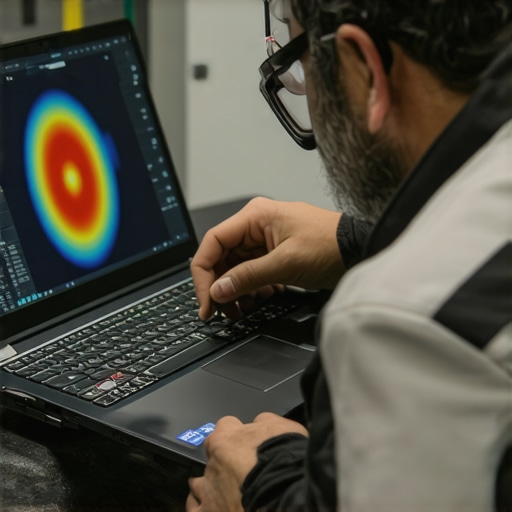
For serious gamers or business professionals I recommend tools like thermal inspection kits such as FLIR thermal cameras, which can identify hotspots preventing hardware damage. I’ve used these during laptop overclocking experiments to verify cooling efficacy firsthand. Remember, consistent maintenance extends your device’s lifespan and unlocks long-term savings.
Start by trying step-by-step cleaning routines and monitoring software, then consider advanced tools as your needs grow. Don’t forget, regular checks are the backbone of a healthy, reliable laptop. And for those seeking the best deals on accessories or devices, explore our latest laptop deals.
Lessons that Changed How I Approach Laptop Care
- Never Assume a New Battery Is Perfect: I once bought a brand-new laptop and thought its battery would last forever. Regular quick checks revealed it was already below specifications, prompting an early replacement that saved me from unexpected shutdowns.
- Overloading Tools Can Backfire: Relying solely on built-in diagnostics gave me a false sense of security. Combining manufacturer tools with simple command line checks provided a fuller picture, avoiding surprises during critical moments.
- Physical Maintenance Is Clutch: Regular cleaning and hardware checks prevented overheating and prolonged my device’s lifespan. Small routines, like dusting vents, made big differences over time.
- Track Your Battery Over Time: Documenting capacity changes helped me recognize when a replacement was necessary before performance degraded dramatically, saving money and hassle.
- Understanding Your Device’s Actual Usage: Tests under load provided insights into how my laptop handled real-world tasks, guiding smarter use and upgrade decisions, especially for demanding applications like gaming or video editing.
Top Resources That Keep Me Ahead
- CrystalDiskInfo for monitoring storage health
- Recommended USB-C hubs to prevent overheating during data transfers
- Business laptop guides for durability and longevity insights
- Latest laptop deals for budget-friendly upgrades
Your Laptop’s Future Starts Here—Take Action
Keeping your student, gaming, or business laptop at peak performance is an ongoing journey, not a one-time task. Embrace these quick checks and regular maintenance routines—they truly can transform your experience and extend your device’s life. Remember, proactive care today ensures smoother adventures tomorrow. Dive into these resources, apply what you learn, and watch your laptop become your most trusted companion for years to come. Are you ready to empower your device and elevate your productivity? Share your struggles or successes in the comments below—let’s grow stronger together!