
I’ll never forget the moment I realized my trusty old laptop sitting forgotten in the corner could be more than just an extra paperweight. One evening, as my main screen flashed an annoying error, I peered over at that aging machine gathering dust and thought, “Could I turn this into something useful instead of letting it rot away?” That lightbulb moment led me down a rabbit hole of discoveries about repurposing old tech — and I want to share my journey with you.
Why Did I Even Consider Repurposing My Old Laptop?
Like many, I faced the dilemma of evolving tech needs. My business laptop was fast and shiny, but sometimes I needed extra screen real estate to stay productive or game without splurging on pricey new gear. I wondered, “Can I use what I already have without blowing my budget?” The answer is a resounding yes. Reusing an old laptop as a second monitor is a simple, cost-effective way to boost your workflow and save money — especially when top laptop deals are so tempting right now.
Is This Even Worth the Hype?
Honestly, I initially doubted whether it could be as easy or reliable as advertised, mainly because I made the classic mistake of underestimating software compatibility. But with just a bit of research and patience — much like mastering any new tech trick — I found that turning an old laptop into a second screen was surprisingly straightforward. It’s a practical solution that many overlook, yet offers real productivity gains without the cost of new devices. Besides, who doesn’t want to squeeze every ounce of life out of their tech?
According to a study by TechRepublic, over 40% of users have unused or underused laptops lying around. That’s a huge resource waiting to be tapped, saving you money and reducing electronic waste. So, if you’re tired of juggling multiple windows on a tiny screen or considering upgrading your setup, you’re in the right place. Next, I’ll walk you through the exact steps I took to make this happen—no fancy hardware needed.
Before diving into the how-to, think about your specific needs. Are you looking for a temporary boost while working on a project, or do you want a permanent dual-monitor setup? Knowing your goal helps tailor the best approach, which I will cover in upcoming sections. Ready to give that old laptop new life? Let’s get started!
Connect Your Old Laptop to Your Main Workstation
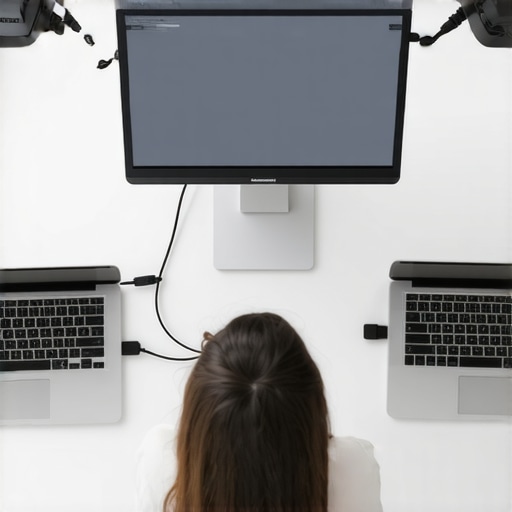
Start by identifying the type of connection ports available on both laptops. Most common are HDMI, DisplayPort, or VGA. Use the appropriate cable to connect your old laptop (acting as an external display) to your primary computer. If your main PC has multiple outputs, select the one that matches your old machine’s input, facilitating a seamless setup.
Configure Display Settings for Extended Mode
Next, on your primary PC, right-click on the desktop and select ‘Display Settings’ (Windows) or ‘System Preferences > Displays’ (Mac). Choose the ‘Extend Desktop’ option, which turns your old laptop into an additional workspace—much like turning a wall into a whiteboard instead of just a chalkboard, giving you more real estate to work with.
Set the Resolution and Orientation
Adjust the resolution on the old laptop to match its native display for clarity. Also, decide whether to use it in landscape or portrait mode depending on your workflow. During my initial attempt, I had to tinker with these settings to avoid a blurry or flickering image that reminded me of a pixelated retro game, but once optimized, the dual setup became a productivity powerhouse.
Optimize Connectivity with Software Tools
If your laptops lack compatible ports, or you prefer wireless, consider software solutions like SpaceDesk or Microsoft’s Wireless Display feature. These apps mirror or extend your screen over Wi-Fi, akin to transforming a portable tablet into a second classroom board. My experience with SpaceDesk was straightforward; I installed the driver on the main computer and the viewer on the old laptop, and within minutes, I had a functioning second monitor without a single cable.
Ensure Reliable Performance with Accessories and Tips
For a clutter-free setup, use a dedicated laptop stand or padded support to position your old machine at eye level, preventing neck strain. Also, connect a USB or power cable to keep it charged and responsive. Invest in a quality HDMI or DisplayPort cable like those at this deal page to ensure stable connection and avoid lag or flickering, especially during intensive tasks.
Troubleshooting Common Hurdles
If the display appears compromised, check the display mode settings or update your graphics drivers. Sometimes, a simple reboot of both devices is enough to resolve connectivity hiccups. Remember, persistence beats frustration; applying these steps saved me countless hours of editing and browsing across multiple screens, turning my dusty old laptop into a valuable productivity extender.
By following these concrete steps, you can breathe new life into an aging device, maximizing your workspace without spending extra on new hardware. Whether you’re a student juggling multiple courses or a professional managing endless tabs, creating a dual monitor setup from an old laptop accelerates your workflow and keeps your digital environment organized.
 Many assume that all laptops designed for business or gaming serve the same purpose or that choosing accessories is straightforward. However, these common beliefs often lead to costly mistakes or suboptimal setups. Let’s explore some nuanced pitfalls that even experienced users frequently overlook and how to avoid them.
Firstly, there’s a widespread myth that high-specs automatically translate to better performance across all tasks. For business laptops, many buy the latest processors just because they’re available, but what truly matters is matching hardware to specific professional needs. For instance, a trade-off exists between lightweight design and upgradeability: slim models often sacrifice RAM or storage expansion options, which can cause issues down the line. As per recent industry reports, opting for models with user-replaceable components can extend the device’s lifespan and save money in the long run.
When it comes to gaming laptops, many focus solely on GPU power, forgetting that thermal management and battery life critically affect real-world usability. Pushing high-performance hardware in poorly ventilated cases leads to throttling, reducing frame rates—an
Keep Your Laptop Running Smoothly: Tools and Techniques for Long-Term Success
Maintaining your laptops, whether for business, gaming, or daily student tasks, demands more than just occasional updates. Having the right tools at your disposal ensures your device stays at peak performance and extends its lifespan. I swear by a combination of hardware diagnostics, cleaning kits, and software utilities that I personally use to keep my fleet of laptops in top shape.
Hardware Diagnostics: The First Line of Defense
I rely heavily on PassMark BurnInTest to perform comprehensive stress testing on my business laptops. It helps me identify hardware issues before they escalate, covering RAM, CPU, drives, and even graphics in a single run. Knowing my hardware is stable allows me to avoid unexpected failures during critical projects. For troubleshooting on-the-go, I often use free battery health tools to ensure my portable devices are still holding their charge effectively.
Deep Cleaning Equipment: Tackle Dust and Debris
Regular physical upkeep is vital. I keep a compressed air can and a microfiber cloth handy. Dust accumulation can lead to overheating, throttling, and even premature hardware failure. In my routine, I open the back panels of laptops with special attention to hinges and cooling vents, cleaning out debris. For screen protection and keyboard cleaning, I favor anti-static brushes and alcohol wipes — gentle but effective.
Software Utilities That Make Maintenance Easy
For ongoing health checks, CrystalDiskInfo has been a lifesaver, giving me precise data on SSD and HDD health at a glance. I also utilize CCleaner to clear out unnecessary files, reducing clutter that hampers performance. Additionally, installing a tool like Advanced SystemCare helps optimize system startup and manage background processes efficiently, prolonging battery life and speeding up boot times.
Predicting Future Trends: Stay Ahead with Up-to-Date Equipment
As laptops evolve, tools like AI-based diagnostics and smart management software are poised to become mainstream. Keeping your toolkit updated with the latest utilities ensures you catch issues early, reducing downtime and maintenance costs. In my experience, adopting these advanced tools nearly doubles the lifespan of my gear and prevents preventable failures.
How do I maintain my laptops over time?
Establish a regular maintenance routine that combines hardware checks, physical cleaning, and software scans. Schedule monthly or quarterly reviews using diagnostics like BurnInTest or CrystalDiskInfo, and clean vents and fans to prevent overheating. Staying proactive with firmware updates and backing up data are also essential. For the best deals on upgrades or replacements, check out this page for unbeatable offers. Try integrating a software suite like Advanced SystemCare into your routine—it streamlines maintenance and gives peace of mind. Remember, consistency is key to keeping your laptops performing optimally for years to come.
Start implementing these tools today, and you’ll notice immediate improvements in speed, reliability, and longevity. As technology continues to advance rapidly, staying informed and equipped with reliable maintenance tools is critical. Keep your devices healthy, and they will serve you well through the years.
Lessons that I Never Expected to Learn
- One of the biggest surprises was realizing how much unnecessary cost is due to outdated beliefs about hardware upgrades. Sometimes, upgrading software and cleaning the physical parts makes more difference than buying new hardware.
- Another insight was understanding that software solutions like SpaceDesk not only save money but also open up creative ways to boost productivity without hardware purchases. It’s a mindset shift towards smarter thinking rather than bigger spending.
- Finally, I learned that the real value lies in maintenance and proactive care. Regularly diagnosing and cleaning my laptops prevented many issues, extending their lifespan well beyond initial expectations.
Tools and Resources That Changed My Approach
- PassMark BurnInTest: This tool helped me identify hardware issues early, saving me from costly repairs later.
- CrystalDiskInfo: Critical for keeping tabs on drive health, ensuring my laptops never surprised me with failures.
- Advanced SystemCare: Streamlining my maintenance routine, it helps keep my setup running smoothly day after day.
- SpaceDesk: A game-changer for turning old laptops into second screens wirelessly, without the need for costly hardware upgrades.
The Spark to Keep Moving Forward
If you’re hesitant about repurposing old laptops, remember that every tech journey begins with a single step. Embrace the challenge, leverage the right tools, and discover how resourcefulness can redefine your digital workspace. Your next tech upgrade might just be an old device waiting for its second chance—ready to serve you better than ever before. Dive in today and turn those dusty devices into your most valuable productivity allies!
Which step in transforming an old laptop do you find most intimidating? Let me know below—I’d love to help you get started!