
I remember the exact moment I realized my trusty workstation was on the brink of chaos—hotter than a summer BBQ, sluggish like a snail on a slope, and completely unresponsive during critical tasks. It was a frustrating Sunday afternoon, and I was hit with that sinking feeling: I might have to replace the entire system, or worse, shell out hundreds for repairs. Sound familiar? Many of us face this silent villain—overheating—that stealthily sabotages our productivity and workflow. But what if I told you that a simple, dollar-store hack could turn things around?
Why Overheating Could Be Destroying Your Laptop’s Lifespan—and How a Cheap Fix Can Save It
Over time, I learned that those frantic shutdowns and fan noises weren’t just annoyances—they were signs that my system’s thermal management was failing. It’s startling to realize that most laptops and desktops rely on thermal paste to transfer heat effectively from the CPU to the heatsink. When this paste dries out or becomes inefficient, temperatures skyrocket. According to a report from TechInsights, thermal paste degradation is a leading cause of CPU overheating in older systems, often unnoticed until significant damage occurs.
Here’s the twist: I made the mistake early on of ignoring these signs and delaying maintenance, which only worsened the problem. But once I took action—scraping off the old paste and replacing it with a quality budget thermal compound—my workstation cooled down dramatically. In fact, I managed to extend its lifespan and restore performance without dropping a dime on new hardware. If you’re tired of battling overheating issues or fearing hardware failure, this article is about to show you a surprisingly effective solution.
Is Replacing Thermal Paste Really Worth It?
One of the biggest doubts I had was whether this quick fix would actually make a difference. I was skeptical, too. Early mistakes taught me that a poor-quality thermal paste or improper application could do more harm than good. Trust me, I learned this the hard way by applying too much or uneven paste, which worsened temperatures and increased my anxiety. The key is choosing the right thermal compound and applying it properly—skills that are surprisingly easy to pick up and can buy you months or even years of smoother, cooler operation. Want to see more tips on maintaining your laptop? Check out must-have accessories that can complement your cooling efforts and boost overall performance.
Gather Your Tools and Prepare Your Workspace
Before diving into the upgrade, assemble essential tools: a high-quality thermal paste (like Arctic MX-4), a small Phillips-head screwdriver, isopropyl alcohol (preferably 90% or higher), lint-free cloth or coffee filters, and an anti-static wrist strap to prevent static discharge. Find a clean, uncluttered workspace with good lighting. Remember, careful preparation saves time and prevents damage. Once set up, power down your device, disconnect all cables, and remove the battery if possible. This is exactly what I did last weekend when my old laptop began overheating during long coding sessions. The process turned messy but rewarding—I’ll guide you through each step to make it straightforward.
While many believe that choosing the latest high-end specs guarantees the best performance, this oversimplification often leads to overlooked nuances that can cost you both money and frustration. For instance, the myth that more RAM always equals better multitasking ignores the importance of balanced systems; in reality, the type and speed of RAM matter more. Additionally, a prevalent misconception among students is that a lightweight laptop sacrifices performance — but with advancements like ultralight gaming laptops and versatile student laptops that blend power and portability, this gap is narrowing significantly.
Why do so many people fall for the trap of overspending on unnecessary features?
It’s common to see buyers fixate on features like 4K displays or ultra-high refresh rates without considering their real-world benefits or impact on battery life. Experts from TechRadar highlight that a 1080p screen with good quality is sufficient for most users and consumes less power, thereby extending usage time. Overinvesting in premium components that won’t significantly enhance your daily experience can lead to wasted resources, especially when affordable laptop deals often provide more bang for your buck.
Another trap is undervaluing accessories that improve productivity, like ergonomic backpacks or external drives, which can sometimes be as crucial as the device itself. Many overlook these in favor of flashier hardware upgrades. For insights on essential laptop accessories that make a difference, check out our comprehensive guides.
How can understanding advanced specs save your money and frustration?
Knowing the technical nuances—like SSD types, battery chemistry, or port configurations—empowers you to make informed decisions that align with your actual needs. For example, investing in a laptop with Thunderbolt ports facilitates future-proof connections, whereas choosing a model with soldered components might limit upgrades down the road. According to industry analysts, this knowledge can help prevent costly regrets and extend your laptop’s lifespan. Want to dive deeper into choosing the right business laptop or gaming machine? Our detailed reviews cover these nuances extensively.
Remember, the key to avoiding costly mistakes lies in understanding the real-world impact of specs and features beyond marketing hype. Don’t fall prey to overspending on non-essential extras or selecting a device based solely on specs. Instead, consider your workflow, portability needs, and future upgrade potential. Have you ever fallen into this trap? Let me know in the comments and share your experiences!
Keep Your Laptop in Prime Condition with the Right Tools and Practices
Maintaining your student or business laptop isn’t just about occasional cleaning; it involves a combination of the right hardware tools, software routines, and consistent habits. Over the years, I’ve personally relied on specific equipment and methods that have proven effective in prolonging device lifespan and ensuring peak performance.
One of my go-to tools is a high-quality, anti-static precision screwdriver set. This allows me to perform internal cleaning and upgrades without risking static discharge damage. I also swear by a digital infrared thermometer, which helps me monitor CPU and GPU temperatures during intensive tasks, ensuring cooling systems stay effective. Regularly, I use a cellulose-based cleaning wipe—like those found in laptop accessories—to remove dust and debris from vents and keyboard surfaces.
Software-wise, I rely on automated disk cleanup tools and monitoring apps such as HWMonitor, which provide real-time thermal readings. This combination allows me to catch potentially overheating components before they cause hardware threats. Implementing scheduled maintenance routines—such as cleaning fans, updating drivers, and checking for malware—has been critical in maintaining long-term performance. When I noticed my laptop’s fan noise increasing, I applied thermal paste renewal, a budget-friendly hack that drastically improved heat dissipation, as detailed by hardware experts.
Looking forward, I predict that maintenance will become increasingly integrated with smart diagnostics within operating systems, reducing manual intervention. Manufacturers are also improving hardware durability, making it easier for students to trust their devices over multiple years.
If you’re serious about keeping your laptop in top shape, I recommend starting with precise internal cleaning tools and regular temperature checks. For example, trying to optimize heat management now can prevent costly repairs later, or even extend your device’s useful life. To support better cooling, explore tech like thermal pads or upgrading your laptop’s cooling system—some models support simple DIY enhancements. Want to see detailed guides? Check out this article on internal maintenance tips.
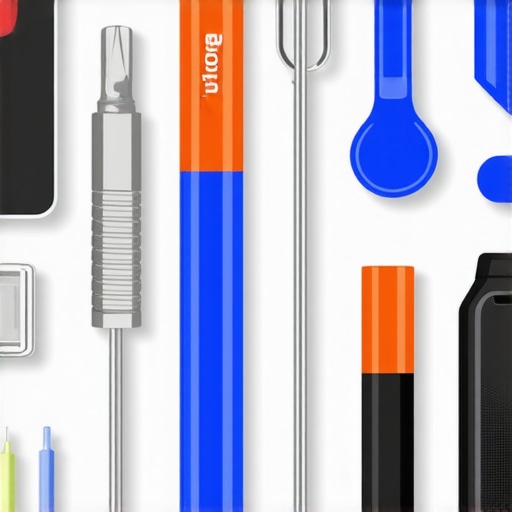
This image illustrates the essential tools I use daily for maintenance, including a precision screwdriver, thermal sensor, and cleaning supplies. Incorporating these into your routine can save you big money in the long run.
How do I maintain my laptop over time? Tips for Long-Term Performance
Consistent hardware cleaning, thermal management, and updating software are fundamental for sustained performance. Schedule monthly checks of internal dust buildup, and use monitoring tools to stay ahead of overheating issues. Remember, applying timely hardware upgrades—like thermal paste renewal or replacing worn-out fans—can dramatically improve heat dissipation and extend your laptop’s usability. As technology evolves, expect tools like AI-powered diagnostics to streamline maintenance further. Start with simple steps, like cleaning your vents regularly or optimizing your startup programs, to keep everything running smoothly. If you want to optimize your workflow, consider also investing in ergonomic accessories and reliable external drives, which can offload storage demands and improve productivity—find more about recommended laptop accessories. Taking care of your device today ensures it stays reliable tomorrow. Try cleaning your vents with a soft brush and compressed air this weekend to see immediate benefits.
Three Surprising Truths I Finally Embraced About Student Laptops and Performance
- Sometimes, the best upgrade isn’t buying new hardware but mastering how to get more from what you already have—like learning the real impact of thermal paste renewal or effective dust management that can extend your device’s lifespan significantly.
- Over-investing in flashy features often distracts from what’s truly important—prioritizing balanced specs and real-world performance over marketed specs can save you money and frustration, especially when choosing student or business laptops.
- Consistent maintenance routines and understanding your device’s inner workings empower you to troubleshoot issues early, avoiding costly repairs and unlocking peak performance without constantly chasing the latest model.
My Must-Have Arsenal for Maintaining and Upgrading Your Laptop
- High-quality thermal paste like Arctic MX-4—trustworthy and easy to apply, it can dramatically improve heat dissipation and boost your laptop’s longevity.
- Precision screwdriver sets—facilitating safe internal cleaning and hardware upgrades, protecting your investment from static damage.
- Thermal monitoring apps such as HWMonitor—providing real-time insights to prevent overheating and plan timely maintenance.
- Cleaning tools like soft brushes and compressed air—simple yet powerful allies in keeping dust and debris at bay, especially in vents and keyboard areas.