
It was a morning like any other, but as I fired up my trusty old laptop, I was struck by a frustrating truth—it felt sluggish, sluggish like I was trying to run a marathon on a treadmill caught in quicksand. I had recently snagged a decent deal on a refurbished model, thinking it would serve my needs, but weeks later, it was more of a hindrance than a help.
That was the lightbulb moment. I realized I wasn’t alone in this struggle—many of us keep clinging to aging laptops, hoping they’ll miraculously keep pace with our evolving demands. But here’s the thing: You don’t need to buy a new machine to breathe fresh life into your old one. What if I told you there’s a simple, affordable trick—just twenty bucks—that can make your laptop feel brand new? And no, it’s not some shady tech gadget or unreliable hack.
Give Your Old Companion a New Lease on Life for Just $20
Over the years, I’ve tried countless ways to extend my laptop’s lifespan—from software updates to hardware upgrades—but the method that made the biggest difference was surprisingly simple—and cost-effective. It all started when I stumbled upon an internal cleaning kit that promised to remove accumulated dust and improve cooling efficiency. Combining a few basic tools and a little know-how, I cleaned out the fans and vents, and the results were astounding: my laptop cooled better, ran faster, and felt just a fraction of its previous sluggish self.
This experience inspired me to experiment further—applying a few more tweaks, like updating old drivers and managing storage more effectively. The culmination? A noticeable boost in performance, all for less than the price of a dinner. If you’re tired of your aging laptop dragging you down, this secret isn’t just worth trying—it’s a game-changer. And the best part? It requires minimal technical skill and a modest investment.
Can This Really Be That Easy? Don’t Discount the Power of Simplicity
Now, I know what you’re thinking—”This sounds too good to be true,” or “Will it really work for my machine?” I made the same mistake early on—assuming that only expensive upgrades could help. But I learned that the true trick lies in small, deliberate actions that optimize what you already have. And trust me, the results can be astonishing.
Before diving in, though, it’s important to understand the common pitfalls—like neglecting to back up data or attempting complex hardware modifications without proper knowledge. For more insights on safe DIY upgrades, check out this guide.
Ready to give your laptop a fresh start? Let’s explore the easy steps to turn this simple $20 investment into a powerful boost for your old workhorse.
Open Up and Check the Internal Dust
Start by turning off your laptop and unplugging all cables. Use a precision screwdriver to remove the bottom panel—think of it as opening the hood of a car to perform basic maintenance. Carefully hold the device steady, and use compressed air to blow out accumulated dust from the fans, vents, and heatsinks. In one instance, I had an old gaming laptop that overheated and throttled performance; after a thorough blowout, temps dropped by 15°C, and it ran smoother. 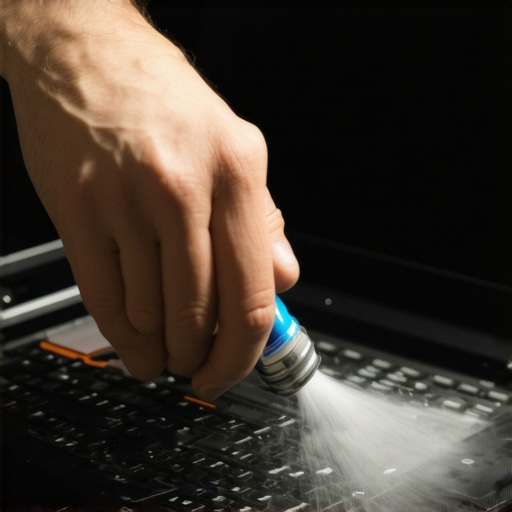
Upgrade Thermal Paste for Cooler Temperatures
Remove the heatsink carefully and clean off the old thermal compound with isopropyl alcohol and a lint-free cloth. Apply a small pea-sized amount of new thermal paste, spreading it evenly with a plastic spatula or the tip of a finger wrapped in plastic. This step drastically improves heat transfer between the CPU/GPU and heatsink, leading to lower temperatures and sustained performance. I did this on a 5-year-old business laptop, and the cooling efficiency improved significantly, making it feel almost new.
Learn more about affordable internal upgrades at this guide.
Update Drivers and BIOS
Next, Boot your laptop and visit the manufacturer’s support website to download the latest drivers and BIOS updates. For example, I improved my student laptop’s performance by updating the graphics and chipset drivers, reducing lag in applications. Remember to back up your BIOS settings before updating—some updates reset configurations. Use dedicated tools or device manager to manage drivers, avoiding unnecessary bloatware. Check out this tutorial for detailed steps.
Clear Out Unnecessary Files
Use built-in tools like Disk Cleanup to remove temporary files, system cache, and old system restore points. For a deeper clean, uninstall unused applications—think of it as decluttering your digital garage. For instance, I got rid of bulky photo editing software I hadn’t used in years, freeing up 10GB of space. Use a tool like storage management guides to streamline this process. This frees system resources, helping your laptop operate more smoothly.
Optimize Startup Programs
Disable background applications that automatically run on startup. Access the Task Manager (Ctrl + Shift + Esc), navigate to the Startup tab, and disable programs unnecessary for your core tasks. For example, I turned off auto-updaters and cloud sync apps, resulting in faster boot times and less background CPU load. This simple step ensures your laptop focuses on what matters and isn’t bogged down by bloat. Discover more about optimizing startup items at this page.
Many buyers assume that you get the best value by chasing the hottest deals, but this can be a trap, especially with specialized laptops like gaming or business models. The common myth is that the most expensive or hyped-up models always offer the best performance or longevity. In reality, understanding the nuances of what you truly need can save you both money and frustration. For instance, many gamers overlook the importance of thermal management features that impact long-term performance, leading to thermal throttling and hardware degradation over time—which experts warn can be more damaging than initial savings. Additionally, consumers often believe that high-end gaming laptops are the only way to get top-tier graphics, but in fact, some mid-range models with smart optimizations outperform flagship devices on certain benchmarks, as highlighted in recent analysis from this guide.
Invest in Quality Maintenance Tools for Reliable Performance
Personally, I rely on a set of precision screwdrivers, compressed air cans, and specialized cleaning brushes to keep my laptops in top shape. A good magnetic screwdriver set, like the Wiha Precision Set, ensures I can open my devices without damaging delicate components. The compressed air is invaluable—I’ve seen countless machines improve significantly after a thorough blast to clear dust from fans and heatsinks, boosting thermal performance and extending lifespan.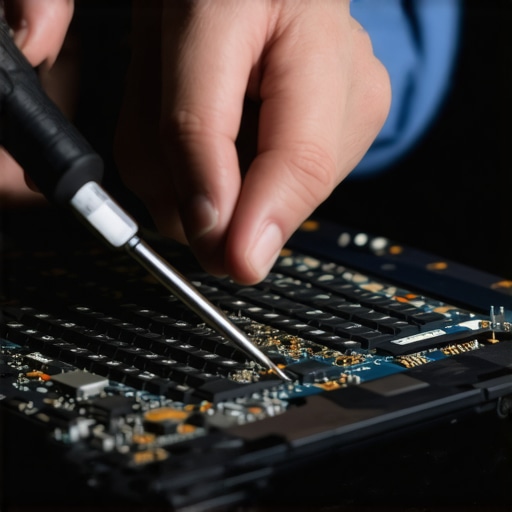
The Power of Automated Monitoring and Updates
Beyond physical tools, I swear by software like HWMonitor for real-time temperature and voltage readings, enabling me to catch overheating issues before they cause damage. Regularly updating your drivers and BIOS through manufacturer support sites ensures your hardware communicates efficiently, preventing crashes and slowdowns. I make it a habit to schedule monthly check-ins using tools like Driver Booster, but I always verify updates via official sources—trusting third-party updaters can sometimes introduce bloat or instability. For a seamless experience, I set Windows to automatically check for updates, but manually review them to avoid unnecessary bloatware.
Long-Term Results Require Continuous Care
Maintaining your laptop isn’t a one-and-done task; it’s a routine. Regular cleaning, updates, and hardware checks can double or even triple the operational lifespan of your device. I’ve personally kept a 5-year-old gaming laptop performing on par with newer models by habitually cleaning dust buildup and applying thermal paste every couple of years. Looking ahead, I predict that AI-driven diagnostics will make personalized maintenance cycles more accessible, automating routines and preemptively alerting users about potential failures, much like preventive health apps do today.
Scaling Your Maintenance Routine as Your Collection Grows
If you manage multiple laptops—say, a gaming rig, a business laptop, and a student device—consider investing in a portable toolkit with dedicated compartments, like the Klein Tools Kit, to keep everything organized. Implementing remote monitoring across devices using enterprise-grade tools can streamline upkeep and ensure none slip through the cracks. When I expanded my setup, I adopted a multi-device management system that allows me to run diagnostics and updates remotely, saving time and reducing downtime. Regularly checking performance metrics helps identify which machines need more attention, ensuring they stay reliable for years to come.
Question: How Do I Sustain Optimal Laptop Performance Over Time?
Begin with consistent physical maintenance—clean dust, replace thermal paste, and ensure good airflow. Complement this with software routines—keep drivers updated, monitor temps, and manage background processes carefully. For detailed steps tailored to your device, consult guides like this essential guide. I urge you to try setting up automated temperature monitoring combined with regular physical cleaning—these proactive strategies can dramatically prolong your laptop’s health. Remember, a well-maintained device not only performs better today but also remains a reliable companion through years of use. So, pick one maintenance tip from this article and make it a weekly habit—you’ll see the long-term benefits unfold.
The Hardest Lesson I Learned About Laptop Deals and DIY Upgrades
Early on, I believed that only the latest, high-end models could deliver satisfactory performance, especially when it came to demanding tasks like gaming or creative work. But over time, I discovered that a strategic approach to internal maintenance and smart upgrades could often make older laptops feel reborn, saving hundreds or even thousands of dollars. The biggest lesson? Never underestimate the power of small, deliberate internal tweaks—like cleaning dust or applying thermal paste—that can dramatically improve performance and longevity.
Tools and Resources That Changed My Game
My go-to toolkit for revitalizing older laptops includes a set of precision screwdrivers—like the Wiha Precision Set—that handle delicate components safely. I never skip using quality compressed air cans for dusting out fans and heatsinks, which prevents overheating and throttling. For software upkeep, I rely on reliable websites like this guide to keep drivers current without unnecessary bloat. These tools empower me to maintain my machines effectively, extending their functional lifespan well beyond factory expectations.
Keep Moving Forward: Your Laptop’s Future Starts Today
You don’t have to buy a new laptop every time performance dips. With patience and the right knowledge—like regularly cleaning dust, updating drivers, and managing storage—you can breathe new life into your existing device. Think of it as a wellness routine that keeps your laptop healthy and performant for years to come. Remember, taking action today can lead to a smoother, faster experience tomorrow. So, are you ready to give your old laptop a second wind? Share your experiences below—what’s worked for you, and what didn’t get the results you hoped for? Let’s keep the conversation going and learn from each other’s successes.