
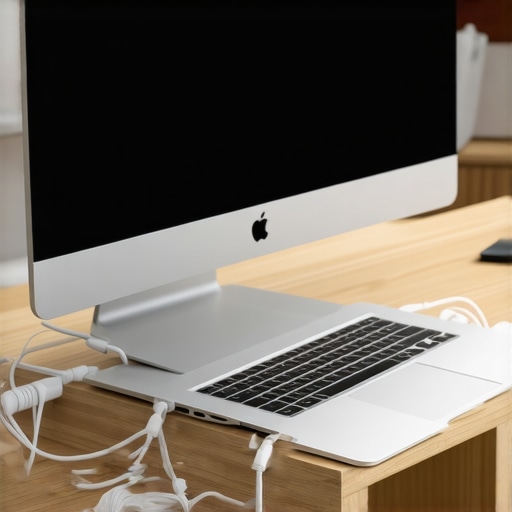
I remember the exact moment my desk setup pushed me over the edge. It was a rainy Tuesday morning, and I was frantically searching for my morning coffee under a literal mountain of tangled cables, adapters, and two sprawling laptops. My work-issued PC and my personal MacBook Pro were competing for every square inch of physical real estate on my wooden desk, looking like two sunbathing seals taking up the entire beach. I ended up knocking my coffee straight onto a notebook. That was the day I realized my horizontal laptop habit was actively killing my focus, my productivity, and my sanity.
The Simple Trick to Reclaiming Your Workspace
We buy sleek, thin machines because we love minimalist design, but then we ruin our desks by laying them flat and plugging in five different dongles. I made a massive mistake early on by buying a cheap, flimsy plastic stand that immediately tipped over under the weight of my MacBook, nearly cracking the screen. That expensive lesson taught me that investing in must-have laptop accessories to boost your work setup is not about vanity; it is about protecting your gear and clearing your mind. Today, we are going to solve the workspace crisis once and for all by finding the absolute best vertical docks that securely hold your machines, keep them cool, and instantly double your usable desk space.
Are vertical docks actually safe for your expensive hardware?
It is the question everyone asks me, and honestly, I used to worry about it too. Won’t my laptop overheat if it is closed? Will the heavy metal scratch the beautiful aluminum finish of my machine? According to a thermal study by Puget Systems, modern processors are fully designed to throttle and manage heat safely even when operating in closed-clamshell mode, meaning your machine is perfectly safe as long as the vents aren’t completely blocked. High-quality vertical docks are lined with protective silicone grip pads that prevent any metal-on-metal contact, completely eliminating the risk of cosmetic damage. Have you ever knocked a drink over near your flat laptop, or struggled with a desk so cluttered you couldn’t even find your mouse? Let me know in the comments below, because I want to hear your workspace horror stories as we dive into the best options on the market.
Setting up a vertical dock is not just about dropping your machine into a slot; it is about configuring a high-efficiency command center. When I first tried this, I made the mistake of leaving my cables loose, which meant my expensive MacBook was constantly being yanked sideways whenever I adjusted my external monitor. To prevent your setup from resembling a chaotic spiderweb, you need to follow a structured approach that prioritizes stability, thermal efficiency, and clean cable routing.
Choose a Dock with Adjustable Tension
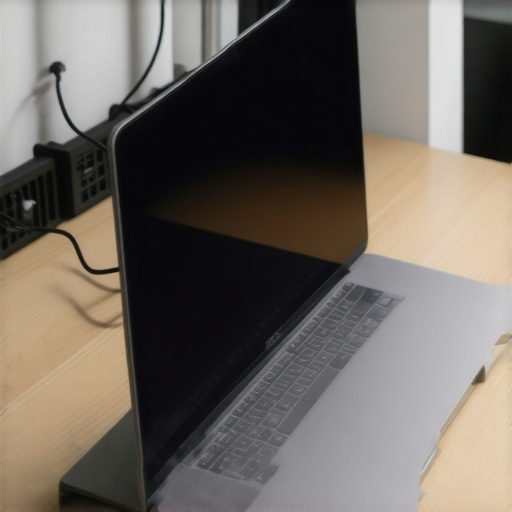
Laptops come in all shapes and sizes. A chunky workstation needs a completely different slot width than an ultra-thin notebook. If you use a fixed-width stand, your computer will either wobble dangerously or won’t fit at all. I highly recommend an adjustable aluminum dock that uses tension screws on the bottom. When setting mine up, I placed my closed laptop inside the slot, gently tightened the screws until the silicone pads hugged the chassis snugly, and then gave it a light nudge test. It should feel like a solid block of concrete on your desk, completely immune to accidental bumps or elbow strikes.
Ensure Optimal Thermal Dissipation
Many users worry about heat buildup when running their machines in closed-clamshell mode. To keep temperatures low, position the laptop so its exhaust vents point upward into the open air rather than down toward your desk surface. Placing your machine on a hard, flat desk surface in this vertical orientation is actually much better for airflow than leaving it flat on soft materials, which is why you should never use your laptop on a soft blanket. By standing the machine vertically, you allow heat to naturally dissipate upward away from the internal components.

Route Your Cables to Prevent Port Damage
The heavier your display and power cables are, the more gravity will pull down on your laptop ports. Over time, this constant downward tension can loosen your USB-C connections, causing intermittent signal drops to your external monitor. To solve this, run your cables behind your desk monitor arm or secure them to the back of the vertical dock itself using Velcro straps. This creates a strain-relief loop so that any accidental tugs pull on the strap, not on your fragile motherboard ports. If you are setting up a workspace for university or remote office tasks, getting your cable management right is just as important as choosing student laptops that boost productivity and learning.
Configure Your Display and Power Settings
Once your laptop is docked vertically, you need to make sure it does not go to sleep when you close the lid. In Windows, head to your Control Panel, locate the Power Options, and change the setting for “When I close the lid” to “Do nothing” while plugged in. On macOS, this feature is managed automatically as long as your system is connected to an external display, a keyboard, and a power brick. Always make sure you are using a certified, high-quality power source to avoid unexpected system shutdowns or battery degradation during heavy multi-tasking sessions.
Now that we have established a solid physical and logical layout, let’s address the elephant in the room: the conventional wisdom surrounding closed-clamshell setups. You will hear dozens of self-proclaimed workspace gurus insist that keeping your machine permanently closed under heavy workloads is a direct recipe for a fried motherboard. In my experience, however, the real danger is not heat buildup itself, but rather the quality of the peripheral hardware and power delivery systems you connect to your machine.
The Hub Myth and Why Your Dock is Actually Bottlenecking Your System
Everyone tells you to just buy the cheapest multi-port adapter you can find online, but this is an incredibly common trap. Many budget hubs claim to support dual 4K monitors and high-speed data transfer simultaneously, but they do so by aggressively throttling power delivery or dividing bandwidth in ways that force your system to work twice as hard. When a laptop has to constantly struggle against inconsistent voltage, it generates far more internal heat than it would during a heavy gaming session. This is why your high-end laptop struggles with multi-tasking, even when you think you have plenty of RAM to spare.
Why do so many users experience system crashes when docking their laptops?
The culprit is almost always power delivery negotiation. A study by the USB Implementers Forum (USB-IF) revealed that sub-standard power negotiation profiles in cheap docks frequently cause minor voltage spikes that force modern operating systems into a protective kernel panic. To prevent this, you should avoid cheap, uncertified hubs and instead look for docks with dedicated power chips that match your laptop’s exact input requirements. If you are shopping around for new gear, keeping an eye out for high-quality certified options is just as critical as hunting down the top laptop deals in 2025.
Another nuance that people completely overlook when transitioning to a vertical desktop layout is how their operating system handles graphics rendering. When your laptop screen is closed, your dedicated GPU (if you have one) often has to work overtime to scale the UI across larger, non-native external resolutions. I have seen users buy premium docks only to find their mouse cursor lagging across the screen because of display scaling issues. Setting up your workspace correctly is an investment in your daily focus and the lifespan of your machine.
Have you ever fallen into this trap and noticed your machine stuttering or heating up when docked? Let me know in the comments because I would love to hear how you resolved your setup issues.
When transitioning to a vertical desktop layout, another nuance that people completely overlook is how their operating system handles graphics rendering. When your laptop screen is closed, your dedicated GPU (if you have one) often has to work overtime to scale the UI across larger, non-native external resolutions. I have seen users buy premium docks only to find their mouse cursor lagging across the screen because of display scaling issues. Setting up your workspace correctly is an investment in your daily focus and the lifespan of your machine.
Have you ever fallen into this trap and noticed your machine stuttering or heating up when docked? Let me know in the comments because I would love to hear how you resolved your setup issues.
My Battle-Tested Maintenance Routine for Clamshell Setups
Keeping a docked workstation running flawlessly over the long term requires more than just plugging it in and forgetting it. Every weekend, I perform a quick ritual to ensure my machine doesn’t choke on dust or suffer from silent thermal degradation. First, I completely power down the system and use a can of compressed air to blow out the exhaust ports. Because the laptop sits vertically, dust can settle deeply into the hinge vents if you don’t stay proactive. To keep my workspace pristine without damaging the hardware, I always rely on a gentle cleaning method, which is why learning how to clean laptop screen smudges without leaving streaks is a life-saver for my external panel and the glossy glass of my docked machine.
How do I maintain my vertical laptop setup over time?
To preserve your machine’s physical and internal health, you must check your physical connections and thermal profiles regularly. Cable tension shifts as you move things on your desk, which can loosen the USB-C ports. Once a month, inspect the silicone padding inside your vertical stand to ensure it hasn’t compressed to the point of allowing metal-on-metal contact. I also recommend using hardware monitoring software, such as HWMonitor or HWiNFO64, to track your CPU core temperatures under load. According to the official Intel Developer Zone documentation, sustained temperatures above 90 degrees Celsius will trigger thermal throttling, which actively degrades your processor’s lifespan. If you notice your docked system constantly hitting these limits, it is time to adjust your fan curves or reconsider your stand’s placement relative to your desk’s airflow.
The Hardware and Software Tools I Personally Trust
I don’t believe in generic recommendation lists. The tools I use on my own desk are there because they have survived years of heavy daily abuse. For physical cable routing, I completely bypass cheap plastic clips and use heavy-duty braided sleeves. If you are struggling with a complex array of peripherals, investing in the best usb-c cables for fast charging and data will instantly eliminate flickering screen issues and data bottlenecks. For my input devices, I pair my vertical setup with a mechanical keyboard because the tactile feedback keeps my typing speed high while my laptop remains tucked away. This level of physical customization is exactly why we prefer mechanical switches for laptop docks rather than relying on flimsy membrane keyboards that ruin the desktop experience.
Where This Docking Trend is Heading Next
Looking ahead, I predict we are on the verge of seeing vertical docks integrated with active thermoelectric cooling (Peltier tiles) and built-in smart power delivery negotiation. As laptops become more powerful and compact, the demand for stands that actively pull heat away from the chassis—rather than just holding the machine—will skyrocket. We will also likely see docks that automatically adjust their slot width using motorized precision clamps to fit any machine perfectly without manual screw adjustments. My challenge to you today is to take five minutes, shut down your system, and inspect your ports. If you feel any physical strain on your USB-C cables, recreate your cable routing with a strain-relief loop today to save your motherboard from a very expensive repair down the road.
I remember the exact moment my desk setup pushed me over the edge. It was a rainy Tuesday morning, and I was frantically searching for my morning coffee under a literal mountain of tangled cables, adapters, and two sprawling laptops. My work-issued PC and my personal MacBook Pro were competing for every square inch of physical real estate on my wooden desk, looking like two sunbathing seals taking up the entire beach. I ended up knocking my coffee straight onto a notebook. That was the day I realized my horizontal laptop habit was actively killing my focus, my productivity, and my sanity.
The Simple Trick to Reclaiming Your Workspace
We buy sleek, thin machines because we love minimalist design, but then we ruin our desks by laying them flat and plugging in five different dongles. I made a massive mistake early on by buying a cheap, flimsy plastic stand that immediately tipped over under the weight of my MacBook, nearly cracking the screen. That expensive lesson taught me that investing in must-have laptop accessories to boost your work setup is not about vanity; it is about protecting your gear and clearing your mind. Today, we are going to solve the workspace crisis once and for all by finding the absolute best vertical docks that securely hold your machines, keep them cool, and instantly double your usable desk space.
Are vertical docks actually safe for your expensive hardware?
It is the question everyone asks me, and honestly, I used to worry about it too. Won’t my laptop overheat if it is closed? Will the heavy metal scratch the beautiful aluminum finish of my machine? According to a thermal study by Puget Systems, modern processors are fully designed to throttle and manage heat safely even when operating in closed-clamshell mode, meaning your machine is perfectly safe as long as the vents aren’t completely blocked. High-quality vertical docks are lined with protective silicone grip pads that prevent any metal-on-metal contact, completely eliminating the risk of cosmetic damage. Have you ever knocked a drink over near your flat laptop, or struggled with a desk so cluttered you couldn’t even find your mouse? Let me know in the comments below, because I want to hear your workspace horror stories as we dive into the best options on the market.
Setting up a vertical dock is not just about dropping your machine into a slot; it is about configuring a high-efficiency command center. When I first tried this, I made the mistake of leaving my cables loose, which meant my expensive MacBook was constantly being yanked sideways whenever I adjusted my external monitor. To prevent your setup from resembling a chaotic spiderweb, you need to follow a structured approach that prioritizes stability, thermal efficiency, and clean cable routing.
Choose a Dock with Adjustable Tension
Laptops come in all shapes and sizes. A chunky workstation needs a completely different slot width than an ultra-thin notebook. If you use a fixed-width stand, your computer will either wobble dangerously or won’t fit at all. I highly recommend an adjustable aluminum dock that uses tension screws on the bottom. When setting mine up, I placed my closed laptop inside the slot, gently tightened the screws until the silicone pads hugged the chassis snugly, and then gave it a light nudge test. It should feel like a solid block of concrete on your desk, completely immune to accidental bumps or elbow strikes.
Ensure Optimal Thermal Dissipation
Many users worry about heat buildup when running their machines in closed-clamshell mode. To keep temperatures low, position the laptop so its exhaust vents point upward into the open air rather than down toward your desk surface. Placing your machine on a hard, flat desk surface in this vertical orientation is actually much better for airflow than leaving it flat on soft materials, which is why you should never use your laptop on a soft blanket. By standing the machine vertically, you allow heat to naturally dissipate upward away from the internal components.
Route Your Cables to Prevent Port Damage
The heavier your display and power cables are, the more gravity will pull down on your laptop ports. Over time, this constant downward tension can loosen your USB-C connections, causing intermittent signal drops to your external monitor. To solve this, run your cables behind your desk monitor arm or secure them to the back of the vertical dock itself using Velcro straps. This creates a strain-relief loop so that any accidental tugs pull on the strap, not on your fragile motherboard ports. If you are setting up a workspace for university or remote office tasks, getting your cable management right is just as important as choosing student laptops that boost productivity and learning.
Configure Your Display and Power Settings
Once your laptop is docked vertically, you need to make sure it does not go to sleep when you close the lid. In Windows, head to your Control Panel, locate the Power Options, and change the setting for “When I close the lid” to “Do nothing” while plugged in. On macOS, this feature is managed automatically as long as your system is connected to an external display, a keyboard, and a power brick. Always make sure you are using a certified, high-quality power source to avoid unexpected system shutdowns or battery degradation during heavy multi-tasking sessions.
Now that we have established a solid physical and logical layout, let’s address the elephant in the room: the conventional wisdom surrounding closed-clamshell setups. You will hear dozens of self-proclaimed workspace gurus insist that keeping your machine permanently closed under heavy workloads is a direct recipe for a fried motherboard. In my experience, however, the real danger is not heat buildup itself, but rather the quality of the peripheral hardware and power delivery systems you connect to your machine.
The Hub Myth and Why Your Dock is Actually Bottlenecking Your System
Everyone tells you to just buy the cheapest multi-port adapter you can find online, but this is an incredibly common trap. Many budget hubs claim to support dual 4K monitors and high-speed data transfer simultaneously, but they do so by aggressively throttling power delivery or dividing bandwidth in ways that force your system to work twice as hard. When a laptop has to constantly struggle against inconsistent voltage, it generates far more internal heat than it would during a heavy gaming session. This is why your high-end laptop struggles with multi-tasking, even when you think you have plenty of RAM to spare.
Why do so many users experience system crashes when docking their laptops?
The culprit is almost always power delivery negotiation. A study by the USB Implementers Forum (USB-IF) revealed that sub-standard power negotiation profiles in cheap docks frequently cause minor voltage spikes that force modern operating systems into a protective kernel panic. To prevent this, you should avoid cheap, uncertified hubs and instead look for docks with dedicated power chips that match your laptop’s exact input requirements. If you are shopping around for new gear, keeping an eye out for high-quality certified options is just as critical as hunting down the top laptop deals in 2025.
Another nuance that people completely overlook when transitioning to a vertical desktop layout is how their operating system handles graphics rendering. When your laptop screen is closed, your dedicated GPU (if you have one) often has to work overtime to scale the UI across larger, non-native external resolutions. I have seen users buy premium docks only to find their mouse cursor lagging across the screen because of display scaling issues. Setting up your workspace correctly is an investment in your daily focus and the lifespan of your machine.
Have you ever fallen into this trap and noticed your machine stuttering or heating up when docked? Let me know in the comments because I would love to hear how you resolved your setup issues.
When transitioning to a vertical desktop layout, another nuance that people completely overlook is how their operating system handles graphics rendering. When your laptop screen is closed, your dedicated GPU (if you have one) often has to work overtime to scale the UI across larger, non-native external resolutions. I have seen users buy premium docks only to find their mouse cursor lagging across the screen because of display scaling issues. Setting up your workspace correctly is an investment in your daily focus and the lifespan of your machine.
Have you ever fallen into this trap and noticed your machine stuttering or heating up when docked? Let me know in the comments because I would love to hear how you resolved your setup issues.
My Battle-Tested Maintenance Routine for Clamshell Setups
Keeping a docked workstation running flawlessly over the long term requires more than just plugging it in and forgetting it. Every weekend, I perform a quick ritual to ensure my machine doesn’t choke on dust or suffer from silent thermal degradation. First, I completely power down the system and use a can of compressed air to blow out the exhaust ports. Because the laptop sits vertically, dust can settle deeply into the hinge vents if you don’t stay proactive. To keep my workspace pristine without damaging the hardware, I always rely on a gentle cleaning method, which is why learning how to clean laptop screen smudges without leaving streaks is a life-saver for my external panel and the glossy glass of my docked machine.
How do I maintain my vertical laptop setup over time?
To preserve your machine’s physical and internal health, you must check your physical connections and thermal profiles regularly. Cable tension shifts as you move things on your desk, which can loosen the USB-C ports. Once a month, inspect the silicone padding inside your vertical stand to ensure it hasn’t compressed to the point of allowing metal-on-metal contact. I also recommend using hardware monitoring software, such as HWMonitor or HWiNFO64, to track your CPU core temperatures under load. According to the official Intel Developer Zone documentation, sustained temperatures above 90 degrees Celsius will trigger thermal throttling, which actively degrades your processor’s lifespan. If you notice your docked system constantly hitting these limits, it is time to adjust your fan curves or reconsider your stand’s placement relative to your desk’s airflow.
The Hardware and Software Tools I Personally Trust
I don’t believe in generic recommendation lists. The tools I use on my own desk are there because they have survived years of heavy daily abuse. For physical cable routing, I completely bypass cheap plastic clips and use heavy-duty braided sleeves. If you are struggling with a complex array of peripherals, investing in the best usb-c cables for fast charging and data will instantly eliminate flickering screen issues and data bottlenecks. For my input devices, I pair my vertical setup with a mechanical keyboard because the tactile feedback keeps my typing speed high while my laptop remains tucked away. This level of physical customization is exactly why we prefer mechanical switches for laptop docks rather than relying on flimsy membrane keyboards that ruin the desktop experience.
Where This Docking Trend is Heading Next
Looking ahead, I predict we are on the verge of seeing vertical docks integrated with active thermoelectric cooling (Peltier tiles) and built-in smart power delivery negotiation. As laptops become more powerful and compact, the demand for stands that actively pull heat away from the chassis—rather than just holding the machine—will skyrocket. We will also likely see docks that automatically adjust their slot width using motorized precision clamps to fit any machine perfectly without manual screw adjustments. My challenge to you today is to take five minutes, shut down your system, and inspect your ports. If you feel any physical strain on your USB-C cables, recreate your cable routing with a strain-relief loop today to save your motherboard from a very expensive repair down the road.
What the Workspace Gurus Won’t Tell You About Long Term Docking
After years of running high-performance hardware in closed-clamshell configurations, I have learned a few crucial realities that rarely make it into aesthetic desk-setup videos. First, the heat radiating through your keyboard deck does not just vanish; on some ultra-thin systems, the display panel itself sits incredibly close to the hot chassis when closed, which can accelerate screen degradation over several years. Second, if you use a Bluetooth keyboard and mouse, you may experience significant signal interference. This happens because metal stands block the internal wireless antennas of your laptop. Running a wired setup or using dedicated USB dongles is almost always the better choice for uninterrupted workflow.
My Ultimate Workspace Toolkit
To help you get started on the right foot without wasting money on weak accessories, here are the exact resources I trust for a high-performing desk layout: I strongly suggest investing in premium docks that feature heavy steel bases to prevent tipping. I always rely on a braided sleeve system to bundle power cords, monitor cables, and speaker wires into a single sleek cord. For active thermal tracking, HWiNFO64 remains my absolute favorite software because it provides real-time data on how hot my CPU and GPU are running inside the closed chassis. Lastly, I highly recommend picking up must-have laptop accessories for a seamless setup to bridge the gap between your physical machine and your external display monitors safely.
Take Back Your Physical Space Today
There is absolutely no reason to let your physical workspace be held hostage by a massive horizontal laptop footprint and a messy tangle of power bricks. Transitioning your machine to a vertical dock is the single most effective physical upgrade you can make to clear your mind, improve your focus, and protect your precious hardware from accidental spills. If you choose the right tools and manage your cables correctly, your machine will run cooler, faster, and much safer than before. Take the plunge and get your computer off the flat desk surface; your posture and your daily productivity will thank you.
Have you ever struggled with managing multiple monitors and laptop docks at your home office desk? Let me know in the comment section below!