
It was 2:00 AM, and I was hunched over my desk like a gargoyle, squinting at a spreadsheet that was clearly meant for a much larger screen. I had my primary machine—one of those high-end business laptops—open, but I was drowning in windows. My neck hurt. My eyes were burning. In a moment of pure desperation, I looked over at the bookshelf and saw my old, battered Dell from 2016. It was literally covered in a layer of gray fuzz. I thought, “There has to be a way to make that thing useful again without spending sixty bucks on a flimsy plastic stand.” I spent the next three hours failing. I tried to plug an HDMI cable from one to the other, thinking it was a “magic” two-way street. It is not. I felt like an idiot. But that failure led me to the solution I am sharing today.
Your Old Laptop Still Has a Job to Do
The truth is, most of us have a “graveyard” drawer. You know the one. It is filled with tangled cords, a mouse that clicks twice when you want it to click once, and at least one laptop that is “too slow” for modern games but too good to throw away. If you are currently rocking one of the latest gaming laptops, your old machine might seem like a relic. But that screen? It is still perfectly vibrant. Using it as a second monitor is the ultimate productivity hack, especially when you realize that organizing your desktop for deep focus often requires more than one physical display. I have found that instead of scouring for the latest laptop deals, your best upgrade might already be sitting in your house. [image_placeholder_1]
Is This Method Actually Smooth Enough for Real Work?
I know what you are thinking. You have tried those “wireless display” apps before and they were laggy, pixelated messes that made you want to throw your router out the window. I had that same skepticism. I worried that my old student laptops would not have the processing power to keep up. However, when you set it up correctly—skipping the junk software and using the built-in protocols or high-quality laptop accessories—the experience is surprisingly seamless. A study by the University of Utah found that using a second monitor can increase productivity by up to 44% for text editing tasks. I want to help you avoid the mistake I made: thinking you need a specialized video capture card or a complex wired adapter for a basic secondary screen. Have you ever felt that “one-screen claustrophobia” where you are constantly Alt-Tabbing your life away? I am going to show you how to break out of that cage using the tech you already own. We are going to dive into the best software-free methods and the specific apps that actually work without turning your desk into a fire hazard.
Unlock the Hidden Wireless Display Feature
Most people do not realize that Windows has a built-in ‘Miracast’ feature that treats other computers like wireless projectors. It is the easiest way to bridge the gap between your high-performance business laptops and that old machine gathering dust. First, grab your old laptop—the one you are turning into a monitor—and head to Settings > System > Projecting to this PC. You might have to click ‘Optional Features’ to install the ‘Wireless Display’ tool if it is not already there. I remember doing this with a crusty old Pavilion; I spent twenty minutes looking for a button that was not there because I had not installed the optional feature first. Once it is active, set it to ‘Available everywhere on secure networks.’ Now, on your main machine, hit Win + K. Your old laptop should pop up like magic. Select it, and boom: you just doubled your screen real estate for zero dollars.
Don’t Let Slow Wi-Fi Kill Your Workflow
Wireless is great until it stutters. If you are using older student laptops, their internal Wi-Fi cards might be the bottleneck. I once tried to edit a 4K video using a wireless second screen and nearly threw my mouse across the room because the lag was so bad. The trick is to ensure both devices are on the 5GHz band of your router. If that still feels sluggish, you can actually create a mobile hotspot on your main PC and connect the secondary laptop directly to it. This cuts out the ‘middleman’ router and significantly reduces input lag, making the experience feel as snappy as if you were using expensive laptop accessories. 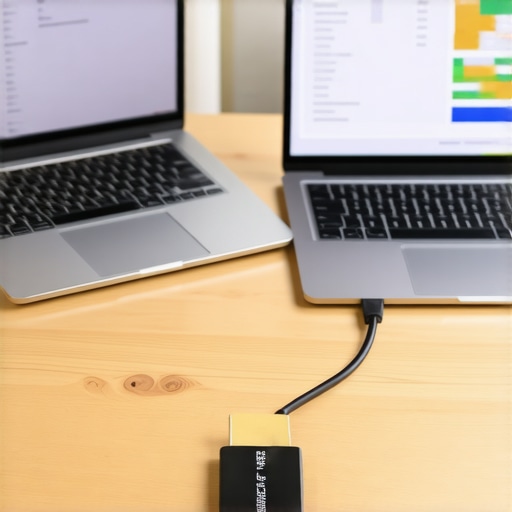
The Hardware Shortcut for Zero Lag
If you want a connection that never drops, software won’t cut it. You need a video capture card. I am not talking about the four-hundred-dollar rigs streamers use; you can find tiny HDMI-to-USB adapters in many laptop deals for under twenty bucks. You plug an HDMI cable into your main laptop’s output and the other end into the capture card, which then plugs into the USB port of your old laptop. Use a free app like OBS (Open Broadcaster Software) to view the incoming ‘video feed’ in full screen. This was a game-changer for my setup. It turned a laggy, pixelated mess into a crystal-clear secondary display that I could even use for monitoring discord while playing on high-end gaming laptops.
Revive the Performance of Your Old Machine
Sometimes the old laptop is just too slow to even run the receiving software properly. In those cases, you might need to do a quick ‘surgical’ intervention. I found that installing one of the best budget SSDs can breathe enough life into an old machine to make it a perfect dedicated monitor. If your old beast has a screen that is better than your current one—which happens more often than you would think—it is worth the ten-minute upgrade. You can also explore how to use a tablet as a second monitor if your old laptop’s screen is physically damaged. If you are running a complex multi-monitor array, check out the most reliable USB-C hubs to ensure your main machine can handle the outgoing signals without overheating or crashing.There is a common myth that ‘new is always better,’ especially when scrounging through laptop deals for a second display. I am going to go against the grain here: stop buying those ninety-dollar plastic monitors. Most of them use bottom-tier panels that actually hurt your productivity because the color mismatch between your primary machine and the cheap secondary screen is jarring. I have found that the panels in older business laptops—even those from 2019—often have far superior contrast ratios and color gamuts compared to modern ‘budget’ displays. If you are doing anything more sensitive than a basic spreadsheet, you are much better off reviving an old machine than buying a disposable monitor. [image_placeholder_1]
Is Your Old Screen Secretly Sabotaging Your Color Accuracy?
If you are currently rocking one of the latest gaming laptops with OLED screens, the visual gap between your devices will be massive. However, for standard office work, you must learn how to calibrate your laptop monitor to bridge that gap. A study published by the Journal of the Society for Information Display found that even a minor deviation in color temperature between dual screens can increase visual search times and contribute to cognitive fatigue during long shifts. I made the mistake of ignoring this for months, wondering why I had a headache every Tuesday by noon. Once I matched the white balance on my old student laptops to my main workstation, the eye strain vanished instantly.
The USB-C Trap That Kills Your Signal
The biggest ‘oops’ factor I see is people overwhelming their bandwidth without realizing it. Even if you are using the most reliable USB-C hubs, you can run into a wall. Did you know why your wi-fi signal drops when you plug in a usb drive? It is often due to 2.4GHz interference from unshielded cables. If your ‘wireless monitor’ setup suddenly starts lagging the second you plug in a peripheral, that is your culprit. This is why investing in high-quality laptop accessories with proper shielding is non-negotiable for a professional setup. I once spent two days troubleshooting my router when the fix was just moving a cheap USB hub three inches further away from my laptop’s Wi-Fi antenna. 
Don’t Ignore the Power Draw Paradox
Another mistake is assuming your old laptop can just ‘sit there’ forever. Using a second laptop as a monitor means you are running two motherboards, two CPUs, and two cooling systems. This can significantly heat up a small desk space. If your old machine starts sounding like a jet engine, you should check out the best ways to cool your laptop without adding more noise to your workspace. I have found that propping the secondary laptop on a vertical stand actually helps airflow more than those bulky cooling pads ever did. Have you ever fallen into this trap where a ‘simple’ hardware addition broke your entire workflow? Let me know in the comments.Maintaining a multi-screen environment isn’t just about the initial connection; it’s a marathon. If you’ve successfully bridged your latest business laptops with an old relic, you’re now running hardware that might have been designed for four hours of use a day, but is now doing twelve. The fans are the first thing to go. I realized this when my secondary screen started making a rhythmic clicking sound that drove me insane. Instead of panic-buying a new machine, I learned how to replace your own laptop fan in under 20 minutes. It’s an incredibly empowering feeling to spend eight dollars on a part rather than eight hundred on a new device.
Give your hardware a fighting chance against time
The secret to longevity in this ‘zombie laptop’ setup is heat management. Most older student laptops have crusty, dried-out thermal material. If you’re serious about this setup, you need to know how to choose the right thermal paste for your machine. Applying a fresh pea-sized drop of Arctic Silver or Noctua paste can drop your temperatures by 10-15 degrees Celsius. According to the IEEE Reliability Society, maintaining lower operating temperatures is the single most effective way to extend the ‘Mean Time Between Failures’ (MTBF) for consumer electronics. If you keep it cool, it stays useful.
How can I make sure my old laptop doesn’t burn out?
I also suggest keeping the $10 tool every laptop owner should keep in their desk—a simple precision screwdriver set. You’ll need it to pop the back off and blow out the dust every few months. While you’re in there, how to verify the battery health of a used laptop purchase is a skill you should apply to your own gear. If the battery is bulging, get it out of there immediately. Since this machine is plugged in 24/7 as a monitor, it doesn’t even need the battery to function. In fact, removing a failing battery is a safety necessity for a permanent desktop rig. 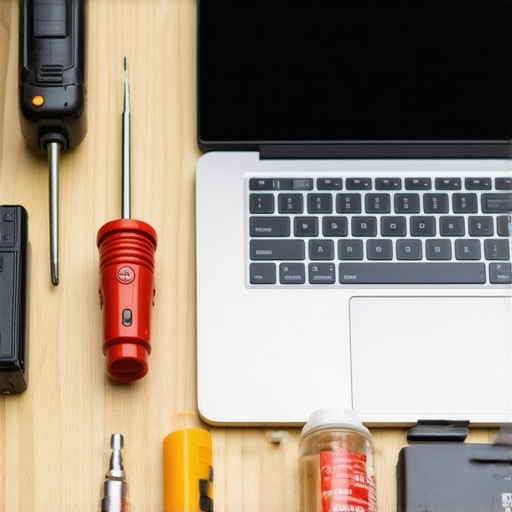
The one tool that saves your setup from the landfill
Beyond the hardware, you need a software KVM (Keyboard, Video, Mouse) solution to make the experience seamless. I personally use Barrier, an open-source project that lets me move my mouse from my high-end gaming laptops over to my secondary screen as if they were one machine. It’s much more reliable than Windows’ built-in mouse sharing. Combining this with the right must-have laptop accessories for a seamless setup, like a shared mechanical keyboard, turns a pile of old tech into a professional workstation. Looking ahead, I suspect we will see more ‘headless’ software solutions that allow our main rigs to borrow the display logic of any device on the network without any lag. We are moving toward a modular future where the ‘computer’ is just a processing hub. I challenge you to open your old machine tonight—just the back panel—and see how much dust has accumulated. It’s the first step in taking control of your hardware’s lifespan without needing the latest laptop deals to feel productive.
Three Myths About Repurposing Old Screens That Almost Kept Me in the Dark
I used to believe that unless I had a high-speed fiber connection, a wireless monitor was a total waste of time. I was wrong. The biggest lesson I learned wasn’t about the software; it was about the physical environment. First, don’t assume your desk setup has to stay static just because you’re using older gear. I struggled for weeks with neck pain before I learned how to fix a wobbly laptop stand with household items to keep my secondary machine perfectly aligned with my primary one. Second, I realized that privacy and security still matter even on retired machines. Before you turn that old beast into a permanent display, you should definitely know how to secure your data before selling your old laptop or repurposing it, just to ensure your old files don’t become a liability. Finally, remember that the hardware doesn’t need to be flawless to be effective. Even a screen with a few minor scratches is infinitely better than the ‘one-screen claustrophobia’ that limits your focus.
The Practical Gear That Keeps My Multi-Screen Setup From Crashing
You do not need a massive budget to make this work. In fact, most of the best laptop accessories to boost your work setup are tools you likely already have. I always keep the $10 tool every laptop owner should keep in their desk—a simple precision screwdriver—nearby because you will inevitably need to tighten a loose hinge on that older chassis. If you decide to go the wired route with a capture card, keep in mind the real difference between cheap and expensive HDMI cables usually comes down to shielding. This is vital when you are running cables right next to Wi-Fi antennas that can cause interference. Using a high-quality cable ensures your secondary display stays crisp and lag-free, regardless of how many other devices are on your network.
Stop Waiting for an Upgrade and Use What You Have Today
It is incredibly easy to fall into the trap of thinking you need to wait for the next round of top laptop deals to improve your efficiency. But the most sustainable tech is the hardware you already own. Whether you are transitioning from retired student laptops to high-performance business laptops, the extra screen real estate is a genuine game-changer. Don’t be afraid to crack open that old machine and give it a second life. Your productivity—and your eyes—will thank you for the extra space. Have you ever tried to bridge two different types of laptops together for a dual-monitor rig? Let me know in the comments below!