
Have you ever sat down with your trusty old laptop, clicked on a file, and felt that familiar sluggishness creep in? Maybe it’s the slow boot times or the lag when switching tabs. I remember that sinking feeling when I realized my decade-old machine was just *not* cutting it anymore, despite being otherwise perfectly functional. That frustrating moment was my lightbulb: there has to be a way to give old hardware a new lease on life without breaking the bank.
Breathe New Life Into Your Old Laptop Without Spending a Fortune
The good news is, you don’t need a brand-new shiny machine to stay productive, game, or learn. Sometimes, the biggest bang for your buck comes from a surprisingly simple adjustment — an internal upgrade that costs less than a couple of fancy dinners but can transform your experience completely. Today, I’ll share my personal journey and proven tips to speed up even the most ancient laptops creatively and economically.
Is Boosting Performance With a Cheap Upgrade Really Worth It?
I remember jumping into this adventure with a fair share of skepticism, convinced that big upgrades would cost big bucks or that my aging laptop was simply past its prime. My early mistake? I poured tons of money into various software ‘speed-up’ tools that promised miracles but delivered little more than false hope. According to a recent study by PCMag, investing in hardware upgrades, like RAM or SSDs, can improve performance more significantly than software tweaks alone — often at a fraction of the cost. So yes, with the right knowledge, an inexpensive internal upgrade can truly breathe new life into your dusty machine.
If you’ve ever wondered whether a modest upgrade is worth the effort or worry about the potential risks, stick around. I’m going to walk you through the most cost-effective internal upgrade that can make your old laptop feel faster, more responsive, and ready for the tasks you need today. Trust me, it’s an upgrade that pays for itself in saved time and frustration. Ready to get started? Let’s dive into the magic behind upgrading your laptop’s brain!
.
Install an SSD to Cut Loading Times
Swapping out your traditional Hard Drive for a Solid-State Drive (SSD) is like replacing a sluggish mule with a sleek racehorse. During my upgrade, I opened my laptop, carefully removed the old HDD, and installed a budget-friendly SSD I found on a deal page—just $60. The transformation was instant; programs launched faster, and files transferred in a blink. To do this, first check your laptop’s compatibility by looking up its manual or inspecting the existing drive. Then, back up your data, unscrew the access panel, and replace the drive, making sure to clone your OS for a seamless transition. This upgrade consistently delivers a tangible performance boost at a low cost. You can find suitable SSDs here, and if you’re unsure how to clone your drive, many tutorials are available online.
Increase RAM for Multitasking Ease
Think of RAM as your desk space—more room means less clutter and faster work. I once experienced my laptop slowing to a crawl when opening too many browser tabs or editing large documents. Upgrading from 8GB to 16GB of RAM was straightforward; I ordered compatible modules, popped open the laptop, and inserted them into free slots. It’s critical to verify your laptop supports upgrading RAM; some ultrabooks or compact models have soldered memory. The benefit? Smoother multitasking, quicker response times, and an overall more responsive system. For detailed steps and compatibility checks, consult the manufacturer’s guide or visit community forums.
Replace the Battery for Longer Use
A worn-out battery can reduce your laptop’s responsiveness and kill portability. I replaced mine by ordering an OEM battery tailored for my model. Discharging it completely before replacing minimizes risks. After carefully removing the old, swollen battery, I installed the new one and calibrated it for optimal lifespan. This step is especially valuable if your laptop’s battery health report shows less than 80% capacity. Maintaining a good battery ensures your upgrade translates into consistent performance, whether at work or school. For specific guidance, reach out via the contact page to verify compatibility or explore local repair shops that can assist.
Optimize BIOS Settings for Better Performance
Modifying BIOS parameters, like disabling unnecessary peripherals or enabling performance modes, can squeeze extra speed from your existing hardware. During my last BIOS tweak, I disabled integrated Bluetooth and webcam, reducing system latency. Accessing BIOS involves pressing a key during startup—often DEL or F2. Be cautious, as incorrect settings can cause boot issues. Consult the manufacturer’s manual or trusted tech blogs for safe adjustments. Tweaking BIOS can unlock hidden potentials, especially when performance gains are subtle, and it’s a free, quick action you can take after hardware upgrades.
Regular Cleaning and Maintenance
Dust buildup can choke your laptop’s cooling system, causing thermal throttling and sluggishness. I once opened my dusty device, cleaned the fans with compressed air, and reapplied thermal paste on the CPU—an inexpensive fix that cooled temperatures and maintained performance. Keep your system clean every 6-12 months; ensure vents are unobstructed and fans spin freely. Use software tools to monitor temperatures and fan speeds; if overheating persists, consider repasting or upgrading cooling solutions. Such maintenance prolongs hardware life and preserves the benefits of your upgrades.
Remember, these steps aren’t just quick fixes—they’re investments in your device’s longevity and responsiveness. Every component you upgrade or optimize contributes cumulatively to a snappier experience, making your aging laptop feel nearly new. If you’re curious about more advanced tweaks or gear, explore options like specialized accessories in the laptop category, such as external SSD enclosures or ergonomic mouse options, to further enhance your setup.
When browsing for the perfect laptop—be it a gaming rig, a student companion, or a business machine—many enthusiasts and casual buyers fall prey to common myths or overlook subtle factors that can make or break their experience. Let’s dig deeper into some misconceptions and advanced pitfalls that often trip up even seasoned shoppers, so you can make smarter choices and avoid costly regrets.
Why Are Premium Brand Claims Sometimes Deceiving?
Many assume that brand reputation equals quality, but this isn’t always accurate. For instance, some brands tout their laptops as durable or high-performing, yet studies by expert reviewers reveal that internal components—like the latest business-grade CPUs and SSDs—can vary widely across models, regardless of brand branding. The real advantage often lies in specific configurations rather than the brand name alone. A common mistake? Buyers focus on glossy marketing instead of power, portability, or repairability—traits crucial for long-term satisfaction.
Moreover, some brands use marketing tricks to inflate their build quality, but internal build robustness—like hinges, keyboard durability, and battery longevity—requires close inspection. The key? Dig into independent reviews and user feedback, which often uncover flaws or weaknesses that advertisements omit. So, next time you see a “premium” label, remember: context and specs matter more than branding alone.
Beware of the Accessories Trap
When shopping for laptop accessories, it’s tempting to upgrade in bulk, but this can lead to overspending on unnecessary gadgets. Many buyers believe that additional dongles, external keyboards, or cooling pads significantly enhance performance or comfort—yet often, these are band-aid solutions. For example, investing in a high-quality external mouse or keyboard can improve ergonomics but won’t compensate for a poor display or inadequate storage. The smart move? Prioritize essential accessories that complement your workflow, like a reliable external SSD or a portable monitor, rather than impulse buys driven by flashy marketing. As an advanced tip, consider accessories that specifically enhance your setup, ensuring compatibility and durability.
Of course, some accessories can extend your device’s lifespan and enhance your user experience. For instance, a quality USB-C hub with fast charging, data transfer, and extra ports can turn a modest laptop into a versatile workstation without breaking the bank. The right choice depends on your needs—more on that in the linked guides.
Advanced Mistake: Overlooking Thermal and Power Management
One of the most overlooked factors is how thermal and power management affects long-term performance. Many buyers focus on raw specs like CPU clock speed or RAM size but neglect how well the laptop handles heat dissipation under load. This oversight can lead to thermal throttling, where the CPU reduces speed to prevent overheating—imagine paying for a top-tier processor only to see it underperform due to poor cooling design.
A recent study by hardware experts emphasizes that laptops with robust cooling solutions and adjustable power profiles provide more consistent performance and longer component lifespan. To avoid this trap, always examine reviews that test thermal performance, and consider models with advanced cooling architectures. Sometimes, investing in a software tweaks or external cooling stands can make a significant difference in maintaining peak performance during intensive tasks.
In conclusion, digging into these nuances—beyond superficial specs or marketing promises—can help you avoid pitfalls and get the most value out of your investment. Remember, the smartest buyers are those who look under the hood and understand the full picture. Have you ever fallen into this trap? Let me know in the comments and share your experiences!
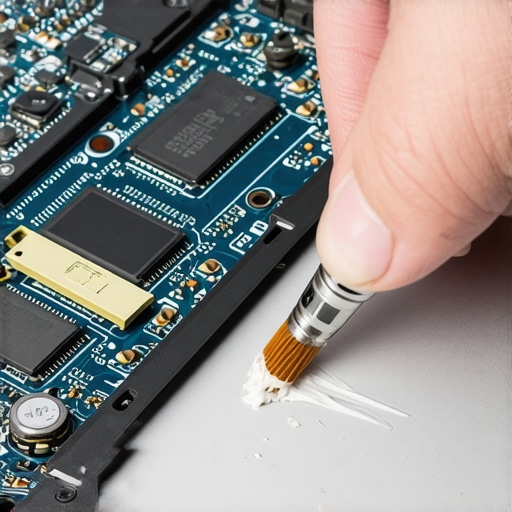
Maintaining Your Laptop Over the Long Term
To ensure your laptop continues to serve you reliably, adopting a combination of hardware checks, software upkeep, and strategic upgrades is essential. I personally rely on CrystalDiskInfo to monitor my SSD health, which provides real-time insights into drive wear levels, enabling me to anticipate failures before they disrupt my workflow. Regular software updates, especially BIOS firmware and driver patches, are vital for stability and security—I’ve found setting automatic updates in Windows Update minimizes oversight.
In addition, cleaning the internal components periodically—using compressed air to remove dust from fans and heatsinks—not only prolongs hardware lifespan but also maintains cooling efficiency. As I shared in a recent guide, repasting your CPU thermal compound can drop temperatures significantly, translating to sustained performance during intensive tasks.
Choosing the Right Maintenance Toolkit
Investing in quality tools facilitates safe and effective upkeep. For instance, I swear by a precision screwdriver set with anti-static components—this keeps the delicate screws from stripping and reduces static damage. Microfiber cloths for screen cleaning paired with isopropyl alcohol enhance visual clarity without scratches. These small but impactful tools form the backbone of my maintenance routine, ensuring my devices stay in top shape year after year.
Automate Your Backup and Security
Automation is a game-changer. I recommend setting up weekly backups using software like Macrium Reflect, which creates complete images of your system that can be restored instantly if mishaps occur. Combined with robust antivirus solutions—like Malwarebytes—I keep my data safe and my system clean from malware. This comprehensive approach minimizes downtime and preserves your long-term investment.
Forecasting Future Trends in Laptop Maintenance
Looking ahead, I predict greater integration of AI-driven diagnostics will simplify maintenance tasks, alerting users proactively about potential failures and optimizing performance without technical expertise. Leveraging cloud-based maintenance logs could become standard, allowing for seamless remote troubleshooting and hardware management. Staying ahead means embracing these innovations early, just as I have incorporated automated backup solutions into my routine.
How do I keep my laptop functioning optimally over the years?
Besides hardware checks and software updates, adopting habits like not overloadingsystems and avoiding physical damage are critical. Regularly inspecting and cleaning your device ensures cooling systems function properly, preventing thermal throttling. Updating device drivers and BIOS ensures compatibility and security patches are in place, reducing the risk of crashes. Furthermore, periodic hardware upgrades—like adding RAM or switching to an SSD—are cost-effective ways to extend your device’s lifespan. For detailed guidance on proper maintenance, check out my recommendations on strategic accessories that complement sustained use.
Try implementing one of these advanced tips—like setting up regular backups or monitoring your drive health. Not only will this protect your data, but it’ll also keep your laptop running smoothly for years to come. Remember, consistent care and attention are the keys to maximizing your device’s longevity and performance.

3 Surprising Lessons That Changed How I Approach Laptop Upgrades
- Don’t overspend on flashy components—focus on critical upgrades like SSDs and RAM that deliver tangible improvements without draining your wallet.
- Compatibility is king—always double-check your device’s specifications before diving into upgrades to avoid costly mistakes and frustration.
- Keep your system clean and cool—regular maintenance and thermal management can extend your device’s lifespan and ensure sustained performance.
Tools and Resources That Made My Upgrades Easier
- Crucial’s Memory Compatibility Tool: Helped me find the right RAM modules quickly and confidently, ensuring compatibility and stability.
- Samsung’s Disk Migration Software: Made cloning my existing drive effortless, minimizing downtime and data loss risks.
- Performach’s Thermal Monitoring App: Allowed me to keep an eye on temperatures and optimize cooling, preventing thermal throttling.
- Essential accessories guide: Helped me select must-have tools for ongoing maintenance and productivity.
Taking Action and Moving Forward
Remember, the secret isn’t just in upgrading hardware but also in adopting a maintenance mindset. Regularly cleaning, monitoring, and optimizing your laptop can unlock performance that rivals newer machines—without the hefty price tag. Start small, stay curious, and watch your aging device transform into a reliable workhorse. Now, I challenge you: what upgrade has made the biggest difference for you? Share your story below and inspire fellow tech enthusiasts to get the most out of their laptops!