
I’ll never forget the moment I heard that relentless grinding noise coming from my laptop—right in the middle of an important video call. My heart sank as I realized my trusted device was sounding more like a tiny construction site than a sleek, professional tool. That familiar whirr, suddenly transformed into a grating, metallic screech, sent me into a mild panic. I *knew* something was wrong, but I didn’t immediately understand what caused it or how to fix it.
The Initial Frustration: When Your Laptop Sounds Like a Chainsaw
Ever been there? You fire up your laptop, expecting smooth performance, only to be met with an ear-splitting grinding or squealing noise from the fan. It’s distracting at best—and terrifying at worst. I bet many of you have faced this nagging issue, especially if you rely on your laptop for work, gaming, or studying. That hum, that growl—what’s behind it?
Are We Just Overreacting to Fan Noises?
Honestly, I initially thought it was normal or just a sign of an overworked cooling system. Early on, I made the mistake of ignoring the sound, assuming it was just part of regular operation. But that quick assumption? It was a mistake. Ignoring unusual noises can lead to overheating, hardware damage, or even complete failure. According to a study by TechRepublic, overheating caused by faulty fans can decrease a laptop’s lifespan significantly, often by as much as 50%. So, neglecting a grinding fan isn’t just annoying—it’s risking your device’s future.
Today, I want to share what I’ve learned about that mysterious grinding noise—the hidden reason behind it—and more importantly, how you can diagnose and fix it. No more guessing games or costly repairs. If you’ve ever faced this problem, stick around. We’re going to unravel the mystery and restore your laptop to its silent, efficient self.
Why Your Laptop Fan Is Making That Unwanted Noise—And How To Stop It
Identify the Source of the Noise
Start by listening closely to determine if the grinding sound is coming directly from the fan area. Place your ear near the vents or use a small mirror to peek inside. Often, debris or dust can cause blades to hit obstructions, creating noise. I once noticed that a tiny piece of paper had lodged into mine, which I removed carefully with tweezers.
Clean Your Laptop Fan
Use compressed air to blow out dust from the vents. Hold the laptop upside down and spray air into the fan area, ensuring you don’t spin the blades with the pressure. This routine maintenance can significantly reduce grinding noises, as dust buildup forces fans to work harder or wobble. For detailed guidance, see this cleaning tutorial. During my experience, a quick dust-out eliminated the grinding, restoring quiet operation.
Check for Mechanical Damage
If cleaning doesn’t fix the noise, gently spin the fan blades with a plastic tool to see if any resistance or wobbling persists. Damaged bearings or bent blades may be the culprit. Now, this might require opening the chassis, which can be tricky—if you’re uncomfortable doing it yourself, consider professional repair. But if you want to try, search for guides specific to your model or visit our contact page for support.
Apply Lubrication to the Fan Bearings
For fans with accessible bearings, applying a tiny drop of lightweight machine oil can reduce friction and noise. This involves removing the fan, which is more advanced—if you’re not experienced, it’s best to consult a professional or watch step-by-step tutorials tailored to your device. This step often restores smooth operation and quiets down loud fans.
Replace the Fan if Necessary
If all else fails, fan replacement becomes the only solution. Secure a compatible replacement from a reputable supplier or check if your device is covered under warranty. Upgrading to a newer, quieter model can improve longevity and performance—especially if your current one is outdated or heavily clogged. You might find great deals on top laptop deals to get a new fan or device.
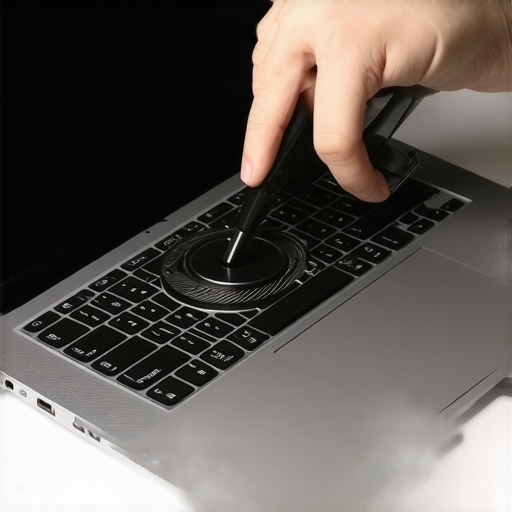 Many users believe they understand what makes a good laptop, but the truth is, common assumptions often lead to subpar decisions. For instance, a prevalent myth is that high specs always guarantee top performance; however, factors like thermal management and build quality are often overlooked. Skilled professionals scrutinize aspects like airflow design and component placement, knowing these can significantly impact longevity and reliability. Avoid falling into the trap of simply chasing the latest hardware; instead, focus on nuanced details that affect real-world usage. Overlooking these can result in unexpectedly short device lifespan or costly repairs, as highlighted by recent industry reports. For example, some gaming laptops boast impressive specs but suffer from inadequate cooling, causing throttling and overheating during intense sessions. This advanced oversight can diminish performance dramatically. Curious about how to identify these hidden flaws? Check our detailed guide on [must-have laptop accessories](https://laptopbuyersclub.com/must-have-laptop-accessories-to-boost-your-work-setup) to enhance your setup or explore our picks for [business laptops for professionals](https://laptopbuyersclub.com/business-laptops-for-professionals-essential-picks-2025). Remember, making informed choices requires more than surface-level knowledge. Have you ever fallen into this trap? Let me know in the comments.
Invest in Repair Tools for Long-Term Reliability
Having a dedicated set of repair tools can save you time and money when it comes to maintaining your laptops. I personally recommend a precision screwdriver kit, including Torx and Phillips bits, along with plastic pry tools. These allow you to open your device safely for cleaning or upgrades without risking damage. For example, I use a compact toolkit from iFixit that comes with anti-static wrist straps, ensuring grounding during repairs. Regularly investing in these tools enables me to address minor issues promptly, preventing costly professional repairs down the line.
Use Professional-Grade Software for Monitoring and Maintenance
Software like HWMonitor or CrystalDiskInfo helps me keep tabs on system health metrics such as CPU temperature, SSD health, and fan speeds. Setting up these monitors allows me to identify overheating issues or declining hardware performance early. Additionally, tools like Malwarebytes or CCleaner are vital for keeping my system free of malware and unnecessary clutter, ensuring smooth operation over years of usage. Regular software checks like these are essential for maintaining peak performance, especially if you’re scaling your business or gaming aggressively.
Prioritize Regular Physical Cleaning and Firmware Updates
Physically keeping your laptop clean—dusting vents and keyboard—makes a significant difference in thermal performance. I use compressed air every few months to clear out dust buildup that can choke airflow, which is critical for laptops used for prolonged periods. Equally important is applying firmware updates from the manufacturer, which often include security patches and hardware optimizations. For example, updating BIOS firmware has been crucial in extending my device’s lifespan and improving stability.
Think Ahead: Scalability and Upgrades
As your needs evolve—be it more demanding business tasks or gaming adventures—consider devices that support upgrades. Models with accessible RAM and storage make it easier to extend your laptop’s lifespan. Browsing for laptops that feature upgradeable components can save you from premature replacement costs. Check out unbeatable deals on durable systems that support future upgrades, giving you long-term value and peace of mind.
Predicting the Future of Laptop Maintenance
Looking ahead, AI-driven diagnostics and remote monitoring tools will become standard. These advancements will enable proactive maintenance, alerting users before minor issues turn into major failures. As businesses scale, integrating enterprise-grade management software will streamline maintenance across fleets, reducing downtime. Staying updated with the latest tools and techniques now positions you for seamless scaling and longer device longevity.
How do I maintain my business or gaming laptop over time?
Establishing a routine that includes physical cleaning, software monitoring, firmware updates, and a well-stocked repair toolkit creates a resilient maintenance strategy. Regularly review system logs and component health reports to anticipate failures. Don’t forget to back up critical data before performing hardware changes or updates. For high-performance devices, consider specialized cooling solutions like thermal pads or pads to optimize airflow. These proactive steps ensure your laptop remains reliable no matter how demanding your workload or play sessions get.
Implementing these practices can dramatically extend your device’s lifespan. I encourage you to start with investing in a quality external toolkit and scheduling routine software checks—simple steps that make a big difference in maintaining peak performance, whether you’re managing a business or enjoying immersive gaming.
The Hardest Lesson I Learned About Maintaining Laptops
- Ignoring strange fan noises can be tempting, but it often leads to costly repairs or replacements. Recognizing early warning signs saves you time and money.
- Proper cleaning and regular maintenance have spared my devices from overheating and extended their lifespan significantly. Investing in quality tools makes all the difference.
- Understanding how hardware components like bearings work allowed me to perform simple fixes, like lubrication, which can resolve noise issues without professional help.
- Swapping out a faulty fan upfront prevented a complete system failure, proving that proactive care is essential for high-performance laptops used in demanding tasks like business or gaming.
- Learning from industry experts and trusted resources has empowered me to make better purchasing decisions, focusing on build quality and thermal management rather than just specs.