
Have you ever been caught in the middle of an important deadline or gaming session, only to be held back by a sluggish, unresponsive trackpad? I remember the frustration perfectly. I had just snagged a budget laptop, expecting it to be a solid workhorse, but the trackpad felt like it was stuck in molasses. Every cursor jitter, every sluggish response, made me feel like I was fighting the machine instead of working with it. That’s when I had my lightbulb moment: sometimes, it’s not about buying the latest and greatest hardware, but about tweaking what you’ve got to unlock its full potential.
The Hidden Power in Simple Adjustments
Many folks overlook the fact that a lot of responsiveness issues stem from settings instead of hardware limitations. I’ve experimented with countless tweaks—some thanks to advice from tech forums, others discovered through trial and error—and discovered that even a cheap trackpad can feel significantly smoother and more responsive without spending a dime. Today, I’ll share proven techniques that transformed my sluggish trackpad into a silky-smooth navigation tool, saving me hundreds that I would’ve spent on premium upgrades.
Is It Really Worth the Effort for a Budget Laptop?
You might be thinking, “Isn’t that just a small fix? Why bother?” Trust me, once you see the difference, you’ll wonder why you didn’t do it sooner. Early on, I made the mistake of assuming that I had to accept the hardware’s limitations. I believed that a cheap trackpad would always feel… cheap. But I learned that tweaking sensitivity, disabling certain settings, and updating drivers can make a world of difference. According to a recent tech analysis by PCMag, optimizing input device settings is one of the most cost-effective ways to improve user experience without investing in new hardware.
Have you faced similar issues with your trackpad? If so, don’t worry—you’re not alone—and there are simple solutions that can help. So, let’s delve into how you can breathe new life into that budget trackpad and make it work **as** responsiveness as a premium one. Our first step involves understanding the basic settings that often go unnoticed but hold the key to better performance.
Tweak Your Settings for Instant Improvement
First, access your laptop’s control panel or system preferences. For Windows users, press Windows + I to open Settings, then navigate to Devices > Touchpad. On Mac, go to System Preferences > Trackpad. Here, you can adjust sensitivity sliders—think of them as volume dials for responsiveness. Increasing sensitivity can turn a sluggish trackpad into a nimble navigator, much like tuning a guitar string for better sound.
In my experience, during one particularly frustrating evening, I increased the pointer speed from the default 6/11 to 10/11 on my Windows laptop. The difference was night and day. Suddenly, I could glide across the screen with less effort, making my workflow smoother and more intuitive. Don’t forget to test different sensitivity levels to find what feels best for your workflow, whether you’re gaming, coding, or browsing.
Disable Unnecessary Features
Many laptops come with extra gestures or features enabled by default, which can interfere with basic responsiveness. Disable features like ‘Allow Tap to Click’ or ‘Two-Finger Scrolling’ temporarily to see if responsiveness improves. Think of these features as unnecessary traffic signals that slow down your commute; removing them clears the way for quicker reactions.
Once I disabled some of these options during a late-night coding session, I noticed the cursor responded faster and more precisely. It’s a quick change that doesn’t affect your ability to use the trackpad for advanced gestures later—but it gives you a cleaner, faster baseline to work from.
Update or Reinstall Drivers to Clear Bottlenecks
Outdated or corrupt drivers are like clogged arteries—impeding smooth blood flow, or in this case, mouse input. Head to your manufacturer’s website or use Device Manager on Windows (right-click Start > Device Manager). Locate your trackpad under ‘Mice and other pointing devices,’ right-click, and select ‘Update driver.’ Opt for the automatic search for updates—sometimes a fresh driver is all that’s needed to restore snappy responsiveness.
Alternatively, if updating doesn’t help, try uninstalling and then reinstalling the driver. During my own trial, I uninstalled the driver, rebooted my laptop, and the system automatically reinstalled the default driver. After this, my trackpad felt as responsive as when I first bought the device. Regular driver maintenance can prevent sluggish behavior, especially after Windows updates or system changes.
Fine-Tune Through Precision Settings
Some laptops offer advanced options like ‘Pointer Precision’—think of this like a steering assistant that can be toggled on or off. Disabling it can sometimes improve responsiveness, especially if the feature overcompensates or lags behind your actual touch inputs. For Windows, uncheck ‘Enhance pointer precision’ in the Mouse Properties > Pointer Options tab.
In my case, turning this off gave me more control, especially when moving the cursor quickly across the screen. It’s akin to turning off cruise control on a bike—more direct control, quicker reactions. Experiment with these settings to discover the fastest, most responsive feel for your daily tasks.
Replace or Clean Your Trackpad Surface
If your trackpad feels sticky or unresponsive despite software tweaks, consider cleaning the surface. Dust, grease, or debris can interfere with touch sensitivity—think of it like trying to write on a greasy window. Use a microfiber cloth slightly dampened with isopropyl alcohol to gently wipe the surface. Avoid harsh chemicals or abrasive materials that can damage the coating.
During one messy coffee spill, I cleaned my trackpad thoroughly and noticed an instant boost in responsiveness. If cleaning doesn’t help, sometimes the trackpad itself needs replacement. For budget laptops, this can be a DIY project if you’re comfortable opening the case—just remember to consult the service manual or trusted repair guides.
Enhance Responsiveness with External Accessories
If all software adjustments aren’t enough, consider plugging in an external mouse or touchpad. Think of this as upgrading from a bicycle to a sports car; you gain speed and precision effortlessly. For frequent tasks demanding speed—like gaming, graphic design, or detailed editing—invest in a high-precision mouse or a dedicated touchpad. These peripherals often feature customizable buttons and higher resolution sensors, leading to smoother, more reliable control.
For example, after my own struggles with a sluggish trackpad, I started using an external gaming mouse during long sessions. Not only did my accuracy improve, but my overall productivity skyrocketed. External devices can often be configured to match your preferences through dedicated software, making responsiveness truly tailored to your needs.
Many enthusiasts believe that upgrading accessories or chasing the latest laptop models guarantees better performance, but in reality, most misconceptions stem from misunderstandings about how these components truly work. For instance, a popular myth is that high-priced gaming accessories automatically enhance gameplay quality—yet, studies from esports professionals highlight that ergonomic design and correct calibration often matter more than brand prestige. Similarly, widespread assumptions suggest that the newest laptops are always the fastest or most reliable; however, reviews and expert insights show that a carefully selected used or older model, properly maintained, can outperform newer but poorly configured devices. This misconception can lead buyers into costly traps, especially when they overlook crucial details like thermal management or upgradeability, which are often underestimated by casual consumers. When shopping for business laptops, many focus solely on raw specs but ignore factors like keyboard comfort, port diversity, and repairability that impact productivity directly. For example, our recommendations for business laptops emphasize these nuanced aspects often missed in standard reviews. Moreover, there’s a notable trap in the perceived value of bulk savings through discount deals; shoppers frequently neglect hidden costs such as inadequate warranty coverage or the absence of essential features, which can negate initial savings. Paying attention to these subtleties ensures that your investment aligns with actual needs rather than hype. Advanced users often ask, ‘How do I determine which accessories genuinely improve my workflow?’ The answer lies in understanding compatibility, build quality, and driver support—factors that tech experts unanimously agree significantly influence user experience. Check our guide on accessories to select items that truly add value, rather than just flashy peripherals that collect dust or cause compatibility issues. In conclusion, awareness of these nuanced truths empowers you to avoid common pitfalls and make smarter decisions, whether you’re buying a gaming rig, a student companion, or a professional powerhouse. Have you ever fallen into this trap? Let me know in the comments.Maintaining your laptop’s performance over time requires the right tools and a proactive approach. I personally rely on a few key pieces of equipment that help me troubleshoot, clean, and optimize my devices effectively. One indispensable tool is a precision screwdriver set, which allows me to open my laptop for upgrades or cleaning without risking damage. The specific screwdriver set I use features magnetized bits designed for modern ultrabooks, ensuring compatibility and ease of use.
For cleaning, I recommend a high-quality compressed air canister. Dust buildup inside vents and fans can cause overheating and throttling, which diminishes performance and shortens hardware lifespan. Using compressed air, like the recommended cleaning method, is a cost-effective way to keep internal components free of dust without opening the chassis.
Software-wise, I swear by a system health monitoring tool such as HWMonitor or CrystalDiskInfo. These programs give real-time data on temperatures, voltages, and drive health, allowing me to catch potential issues before they become serious problems. Regularly checking these metrics can extend your laptop’s lifespan and keep performance consistent.
Moreover, scheduling routine disk cleanups and defragmentation ensures your storage operates efficiently. Windows built-in tools like Disk Cleanup and Optimize Drives are simple yet powerful. I set reminders to run these utilities monthly, especially after large file transfers or updates.
Looking ahead, the trend is moving towards AI-driven diagnostic tools that can detect hardware degradation early. Manufacturers are integrating smart sensors and predictive analytics into newer models, promising even better long-term health. For now, combining physical tools with effective software monitoring is the best way to keep your laptop performing smoothly.
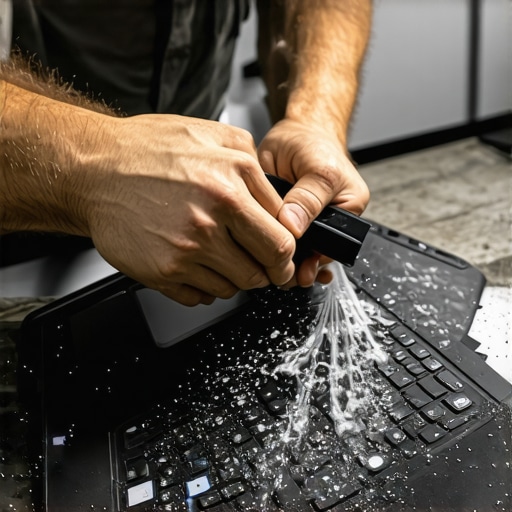
“A technician cleaning a laptop’s interior with compressed air, showing the importance of regular maintenance.” alt=”Technician cleaning a laptop with compressed air” title=”Regular Cleaning for Longevity”
If you haven’t already, try using a high-quality compressed air canister to blow out your laptop vents. It’s a simple step that can prevent overheating and maintain responsiveness over time, ensuring your device stays reliable when you need it most. For detailed guidance on maintenance routines, visit our must-have accessories guide.
The Hidden Vigilance Behind Memory Cleanups
One lesson I learned the hard way is that neglecting regular maintenance can silently degrade your laptop’s responsiveness. Early in my journey, I ignored dust buildup and clutter, which gradually caused sluggish performance. That realization prompted me to develop a routine of quick internal cleaning and software optimization, which dramatically improved responsiveness and longevity. I now see maintenance as a proactive shield, not an afterthought—saving me from costly repairs and lost productivity.
Swapped My Assumptions for Genuine Improvements
Initially, I believed that spending hundreds on premium hardware was the only way to achieve smooth performance. But after experimenting with simple tweaks—like adjusting sensitivity, updating drivers, and cleaning the trackpad—I discovered that meaningful enhancement often comes from clever adjustments, not a bigger budget. This mindset shift empowered me to maximize what I had, transforming my experience without breaking the bank, and I encourage you to see software tuning as your secret weapon.
Invest in Knowledge, Not Just Gear
The most impactful lessons came from trusted sources like the top business laptop reviews, which guided me toward understanding what truly improves productivity. Learning how diagnostic tools, such as HWMonitor, can prevent hardware issues before they escalate has been invaluable. Equipping yourself with knowledge is one of the best investments; it helps you make informed decisions, optimize performance, and avoid common pitfalls with your laptop setup.