
It was a chilly morning, and I was rushing to catch my train, laptop in tow. As I hurriedly set up my workspace on the cramped seat, I noticed something strange—my laptop was heating up way faster than usual. It wasn’t stress-testing or gaming; I was just editing some documents and browsing the web. That’s when I realized, in a lightbulb moment, that I had forgotten to disable Turbo Boost.
You see, many of us overlook this small but powerful setting. We assume that letting our CPUs run at full throttle whenever they can is a good thing. But on a moving train, with limited airflow and constant power fluctuations, Turbo Boost can be more of a curse than a blessing. Later, I learned from experts that turbo modes can cause thermal stress, disproportionately wear out the CPU, and even shorten your laptop’s overall lifespan if left unchecked.
How Turbo Boost Affects Your Laptop on the Go
Is Turbo Boost Actually Worth the Hype?
Many users, including myself early on, believed that enabling Turbo Boost would maximize performance during heavy workloads. The idea is appealing—speed up the CPU for quick tasks, then let it cool down. But in reality, Turbo Boost causes the processor to run at higher voltages and temperatures, which accelerates wear and tear.
I used to think that a brief session of high performance wouldn’t hurt. Turns out, that initial mistake was thinking short-term gains outweigh long-term damage. According to a report from TechRepublic, sustained high temperatures from overclocking features like Turbo Boost can significantly decrease the CPU’s lifespan. So, when working in scenarios like a train where cooling isn’t optimal, disabling Turbo Boost is a simple step to reduce thermal stress.
Have you ever noticed your laptop fans spinning louder during a commute? That’s a sign your CPU is working overtime, likely thanks to Turbo Boost—trying to give you that quick performance perk. But, as my own experience taught me, the long game favors a cooler, more sustainable approach.
Knowing this, my next move was clear: how to disable Turbo Boost quickly and effectively, especially when on the move. That’s what I’ll show you next—so you can keep your laptop healthy, whether you’re on a train, in a coffee shop, or working from the park. If you’re curious about other ways to optimize your portable setup, check out some recommended [student laptops that boost productivity and learning](https://laptopbuyersclub.com/student-laptops-that-boost-productivity-and-learning). Now, let’s dive into some practical steps on managing your CPU settings for optimal longevity.
Access Your BIOS or UEFI Settings
Start by shutting down your laptop completely. Power it on and immediately press the designated key to enter BIOS or UEFI—common keys include F2, F10, DEL, or ESC. Refer to your laptop’s manual or manufacturer’s support page for the exact key. Once inside, navigate to the CPU or performance settings section. Disabling Turbo Boost typically involves toggling a setting labeled ‘Intel Turbo Boost’ or similar from ‘Enabled’ to ‘Disabled.’ Save your changes and restart your laptop.
Use Manufacturer-Specific Software to Manage CPU Performance
Many laptop brands offer proprietary software tools for adjusting performance profiles. For example, Lenovo’s Vantage, Dell Power Manager, or ASUS Armoury Crate allow you to toggle Turbo Boost or set custom power plans. Download and install the appropriate utility if you haven’t already. Open the software, locate the performance or power management section, and disable Turbo Boost. Applying these changes often takes effect immediately and can be reversed easily.
Adjust Windows Power Settings for Thermal Management
Windows users can influence CPU behavior through power profiles. Press Windows + X and select ‘Power Options.’ Click on ‘Additional Power Settings,’ then choose or create a ‘High Performance’ plan. Click ‘Change plan settings,’ then ‘Change advanced power settings.’ Navigate to ‘Processor power management’ > ‘Maximum processor state,’ and reduce the percentage from 100% to a value like 99%. This subtle tweak prevents the CPU from triggering Turbo Boost without entirely disabling performance features. Apply and save your settings.
Apply Third-Party Utilities for Fine-Tuning
For more control, third-party tools like ThrottleStop or Intel Extreme Tuning Utility can disable Turbo Boost at a granular level. Download software from trusted sources and follow instructions carefully—these tools often require advanced understanding. Launch the utility, locate the Turbo Boost toggle or core multiplier settings, and disable it. Be cautious; improper use can cause system instability. Remember, these applications are mostly intended for enthusiasts, so proceed with patience and backup your system.
Verify the Changes and Monitor Performance
After applying your preferred method, restart your laptop and verify that Turbo Boost is disabled. Tools like CPU-Z or HWMonitor can display real-time CPU frequencies. If the CPU runs at a consistent, base frequency with no spikes, you’ve successfully turned off Turbo Boost. Use your laptop in typical scenarios—like during a long work session—to observe temperature and performance improvements. This step ensures the modifications are effective and your device runs cooler, especially on the go. For portable setups, controlling heat means extending your device’s lifespan and maintaining optimal performance over time.
Many people assume that all laptop accessories are created equal or that premium brand accessories automatically deliver better performance. But in my experience, this isn’t always the case. For example, some high-priced docks or external keyboards may look appealing, yet underdeliver in real-world use, especially when considering durability and compatibility. Instead of chasing the latest gadgets, focus on accessories that genuinely enhance your workflow, like a reliable USB hub that supports multiple monitors without lag.
Are All Business Laptops Made Equal for Power and Portability?
There’s a common myth that business laptops sacrifice portability for power. However, many models in this category are now engineered with a perfect balance, especially for professionals who need mobility without compromising performance. Be cautious of optional bloatware or manufacturers that push unnecessary upgrades. A deeper look into models that prioritize user-replaceable batteries and easy serviceability can save you headaches down the line. For instance, some top picks balance both features and build quality, which you can learn more about at this guide. When hunting for a deal, remember that discounts often hide the real value — don’t fall for overhyped sale tactics. Instead, check out this page for genuine savings.
Beware the Gaming Laptop Trap
Many gamers believe that just having the most powerful specs guarantees the best experience, but neglecting thermal management can lead to overheating and throttling. Advanced users know that features like vapor chamber cooling or firmware optimization make a significant difference. Buying a gaming laptop without considering these factors can result in a device that performs well in benchmarks but underperforms during extended play. Want to step up your game? Check out this review of current models. Remember, investing in a good cooling pad can extend your hardware’s lifespan and maintain consistent frame rates. Also, be wary of impulse buys during big sales; ensuring compatibility with your accessories and future upgrades can save you money long-term. Always review detailed specs, including port selection and upgradability, because not all deals are as good as they seem. For comprehensive insights, visit this page. Are you guilty of focusing only on raw specs? Let me know in the comments!
Invest in Quality Maintenance Tools
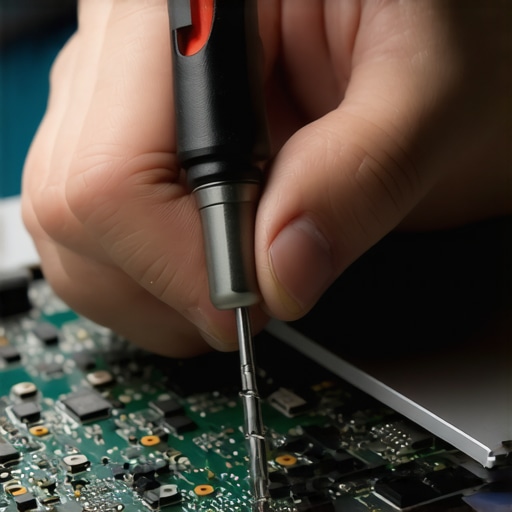
Over the years, I’ve found that having a dedicated set of reliable tools significantly simplifies the upkeep of my laptops. A precision screwdriver kit, such as the 10-screwdriver set, has become indispensable for quick repairs and upgrades. Additionally, a microfiber cloth and compressed air spray help keep vents and screens clean, preventing overheating and display issues.
Utilize Diagnostic and Performance Software
To ensure long-term health and optimal performance, I rely on software like HWMonitor and CrystalDiskInfo. These tools allow me to monitor CPU and GPU temperatures, disk health, and fan speeds. Regularly checking these metrics helps identify potential problems early, avoiding costly failures. For instance, noticing a spike in temperatures may prompt me to clean a fan or replace thermal paste before thermal throttling occurs.
Implement Automated Backup and Data Management
Scaling a laptop setup isn’t just about hardware; data management is crucial. I recommend tools like Macrium Reflect or AOMEI Backupper to automate backups. These programs ensure your important files are safe, especially when attempting frequent upgrades or repairs. Cloud storage services like Google Drive or Dropbox complement these tools by providing off-site backups, reducing the risk of data loss due to hardware failure or theft.
Plan for Upgradability and Modular Accessories
Thinking ahead involves choosing hardware that can adapt over time. External peripherals like USB-C hubs with multiple ports (including HDMI, SD card readers, and additional USB 3.0 ports) allow expansion without opening the laptop. Look for models with accessible RAM and storage slots—some business laptops excel in this regard. These make scaling your setup more straightforward, saving money and reducing downtime.
How do I maintain my laptop over time?
Regular cleaning, performance monitoring, and timely upgrades are key. Incorporate software tools to detect potential issues early and use reliable hardware accessories to extend your device’s lifespan. For example, replacing the thermal paste every few years can keep temperatures low, vastly improving performance and durability. As the demand for portable, high-performance devices grows, adopting these maintenance routines will safeguard your investment and ensure seamless productivity.
Lessons That Changed My Perspective on Portable Performance
- Disabling Turbo Boost taught me that sometimes, diminishing peak performance can seriously extend your device’s lifespan—small adjustments yield big results over time.
- I realized that thermal management isn’t just a technical detail; it’s crucial for ensuring your laptop remains reliable when you’re away from ideal cooling conditions.
- Personal experience underscored that premium accessories or high-spec models aren’t always the best choice—they need proper setup and management to truly serve your needs.
- Maintaining a proactive approach with software and hardware tweaks can turn everyday performance hiccups into opportunities for optimization and longevity.
My Secret Arsenal for Laptop Longevity and Efficiency
- HWMonitor and CrystalDiskInfo: Trusted for their clarity and real-time diagnostics, helping me catch issues early before they escalate.
- Thermal paste and a good screwdriver set: Elements I regularly use to keep my hardware running cool and perform upgrades yourself, saving money and time.
- Backups with Macrium Reflect and cloud services: A vital part of my routine to safeguard data during hardware tweaks or unexpected failures.
- External USB-C hubs and accessible hardware: Planning upgrades with future-proof accessories ensures my setup remains flexible without constant hardware replacements.
Embrace Your Laptop’s Potential Today
“Taking control of your device isn’t just about tinkering—it’s about empowering your digital life and extending your machine’s happy years. Every tweak and upgrade brings you closer to a smoother, cooler, and more reliable laptop experience, ready to tackle tomorrow’s challenges. So, go ahead—try disabling Turbo Boost or picking up that screwdriver. Your future self will thank you for it.”
What small change have you made recently that made a big difference for your laptop? Let me know below.