
I remember the exact moment I realized I was بحران on storage space. My laptop was slowing down, and I had dozens of photos scattered across folders, external drives, and cloud services. It was like trying to organize a messy closet with no closet rod left—overwhelming and frustrating. That was my lightbulb moment: I needed a better solution for storing my growing photo library.
The External Drive Revelation
Data accumulation, especially photos, happens fast. One day, your laptop’s internal storage feels spacious, and the next, it’s clogged with high-resolution images, video backups, and project files. Relying solely on your laptop’s internal drive isn’t just inconvenient; it’s risky. What if it crashes? If you’re a passionate photographer or even just an avid hobbyist, you’ve likely faced this dilemma. That’s where external hard drives come into play—they’re like the sturdy bookshelf for your digital memories.
In this post, I’ll share why external hard drives are my go-to for bulk photo storage, and how they can save you from the chaos I once wandered through. You might wonder if investing in an external drive is even worth it. Well, let me tell you, the benefits go beyond simple space—think data safety, easy access, and cost efficiency.
So, what exactly makes externals stand out? I’ll cover that in the next section. But first, have you ever faced a situation where your laptop ran out of space right before a big project or vacation? If so, you’re not alone. Keep reading to find an efficient way to manage your digital memories without breaking a sweat.
Is External Storage Really Worth the Hype?
Many skeptics believe external drives are just an extra expense or bulky inconvenience. Trust me, I made that mistake early on—buying the cheapest drive I could find, only to find it unreliable and slow when I needed it most. The truth is, investing in a quality external hard drive can prevent data loss, speed up your workflow, and free up your primary device. Reliable brands like Western Digital or Seagate have proven their worth over the years, offering durability and fast transfer speeds.
By opting for external storage, you’re not just expanding space; you’re creating a safety net in case of hardware failure or accidental deletion. Plus, with larger capacities now affordable, you can keep your entire photo library accessible in one place without constantly juggling multiple devices.
I’ll guide you through selecting the right external drive and how to organize your files effectively. But first, let’s address the common doubt many have—doesn’t external storage slow things down or pose security risks? I’ll answer that with some insights backed by industry experts, so stay tuned.
Select the Right External Drive
Start by choosing a reliable external hard drive with sufficient capacity—aim for at least 2TB if you have a large photo library. Consider brands like Western Digital or Seagate, known for durability. Think of it as picking a sturdy photo album; you want durability and space to grow. During my first purchase, I opted for a cheap, small drive, which failed me during a crucial transfer; now, I prioritize quality to avoid such mishaps.
Connect and Power Up Properly
Connect your external drive using the appropriate port—USB 3.0 or Thunderbolt—for faster data transfer. Avoid daisy-chaining multiple drives through unpowered hubs, as it’s like trying to run multiple heavy-duty appliances off one extension cord—unreliable and risky. Always plug directly into a powered port for stability. I once connected my drive through a hub, resulting in slow transfers and disconnects; plugging directly solved the issue.
Format the Drive Effectively
Format your drive with a file system compatible with your operating system—exFAT for both Windows and Mac. Formatting is like laying a fresh foundation for a house; it ensures data integrity. Use your OS’s disk management tools: on Windows, the Disk Management utility; on Mac, Disk Utility. I remember mistakenly formatting an external drive as NTFS for Mac, which caused read-only issues; choosing exFAT kept everything seamless.
Organize Files with Folder Hierarchies
Create a clear folder structure—by date, event, or project. For example, create main folders labeled ‘Vacations,’ ‘Family,’ ‘Projects,’ and subfolders inside. It’s like sorting physical photos into albums—helps you find pictures effortlessly later. I once dumped all photos into one folder, which became a digital maze during a recent search for vacation images. Structured folders saved me hours.
Implement Backup Strategies
Don’t rely solely on a single external drive. Set up multiple backups—use cloud services like Google Drive or Dropbox for off-site safety. Think of this as having a duplicate key hidden away. Regularly update backups, especially after major shoots. I learned this the hard way when a drive failed; cloud backups saved my entire library. Automate backups when possible using software tools to reduce manual effort.
Secure Your Data and Drive
Enable encryption if sensitive photos are stored. Use built-in OS encryption tools—BitLocker on Windows or FileVault on Mac. Think of encryption as locking your photo album with a password. Also, physically secure your drive in a safe or locked drawer. I once left my external drive unattended during a shoot, risking theft; physical security is crucial. Additionally, safely eject drives to prevent data corruption, much like safely removing a USB stick after a transfer.
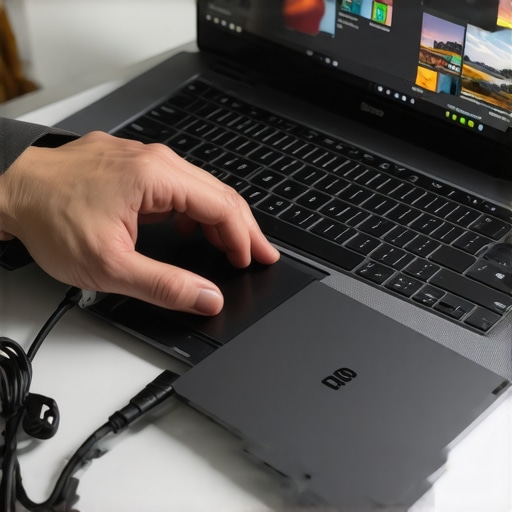
Close-up of a person properly connecting an external hard drive to a laptop with vibrant photo files displayed on the screen.
Many assume that picking the right laptop accessories or hunting for the best deals is straightforward, but there’s a subtlety that can make or break your experience. Contrary to popular belief, not all accessories or deals are created equal, and overlooking this can lead to costly mistakes. Let’s dig deeper into the advanced nuances that seasoned users avoid but many beginners miss.
First, while it’s tempting to chase after the latest flashy accessories, quality and compatibility often trump price. For instance, a must-have accessory like a USB-C hub might seem like a good deal, but if it doesn’t support your device’s power delivery or high-speed data transfer, it ends up being pointless. Always verify specifications and user reviews—don’t just look at the sticker price.
Second, many buyers fall for common myths such as thinking that all business laptops are overpriced or that student laptops need to be the cheapest options available. In reality, investing in a well-reviewed business laptop can boost productivity and longevity, saving more in the long run. Similarly, the misconception that gaming laptops are solely for gamers ignores their powerful specs suitable for creative professionals.
A mistake often overlooked is ignoring thermal management features. High-performance gaming laptops with inadequate cooling can throttle performance, damaging components over time. Upgrading or choosing models with advanced thermal designs is worth the extra effort.
Now, a question for the advanced user: How does one balance power and portability when selecting a business laptop that also handles casual gaming or creative work? The answer lies in understanding thermal design and battery technology—these factors influence performance under load. Expert insights suggest prioritizing deals that offer superior thermal management and battery life, even if it means paying a premium.
Remember, the path to smarter purchasing is paved with attention to these nuances. Don’t get lured into superficial deals or accessories without thorough research. Recognize that quality, compatibility, and proper thermal solutions are essential for long-term satisfaction. Have you ever fallen into this trap? Let me know in the comments and share your experiences.Ensuring your laptop remains dependable over years requires more than occasional restarts and updates. I recommend investing in a high-quality toolkit like the iFixit Pro Tech Toolkit, which includes precision screwdrivers and pry tools essential for cleaning and upgrading hardware components. Regularly applying thermal paste using brands like Arctic MX-4 can significantly improve cooling efficiency, preventing overheating that can shorten your device’s lifespan. Additionally, routinely cleaning your laptop’s vents and fans with compressed air—using a tool like the Falcon Dust Blower—removes dust buildup that hampers cooling. Software-wise, scheduling disk cleanup and defragmentation, especially on Windows machines, maintains optimal performance, while monitoring system health with tools like CrystalDiskInfo alerts you to potential drive issues before they become critical. Looking ahead, as laptops become more integrated with AI-driven diagnostics, utilizing built-in maintenance features will become more commonplace—think of it as having a personal technician in your device. To get started, try setting a quarterly maintenance routine that combines hardware cleaning, thermal paste reapplication, and software optimization. This proactive approach will extend your laptop’s lifespan and keep it running smoothly for years to come. For detailed procedures, consult external resources like the official iFixit guides or trusted tech forums. Remember, a well-maintained laptop isn’t just about longevity; it ensures your workflow remains uninterrupted, especially if you rely on a robust business or gaming laptop. How do I maintain my laptop over time? Prioritize regular physical cleaning combined with software health checks—this dual approach tackles the most common causes of slowdowns and hardware failure. By integrating these practices, you’re setting your device up for success well beyond the warranty period. Don’t wait for problems to arise—schedule maintenance today and experience uninterrupted productivity and gaming performance!”,
The Hidden Truths I Never Knew About Laptop Storage and Accessories
- Investing in a high-quality external drive turned out to be more than just a space solution; it became a safeguard that saved my digital memories during unexpected failures, emphasizing the importance of durability and reliability over cheapest options.
- I used to overlook the significance of proper formatting and organization, but now I realize that structured files and correct settings make your photo library accessible and stress-free, saving time and frustration in the long run.
- One of my biggest surprises was discovering that mental models—like thinking of drives as ‘digital filing cabinets’—can simplify complex backup strategies, making regular maintenance feel intuitive instead of a chore.
Tools and Resources That Transformed My Workflow
- Top business laptops for 2025: These guides helped me choose machines built for durability and long-term use, crucial for my heavy workloads and valuable data.
- Must-have accessories: A well-chosen USB-C hub and ergonomic mouse made my setup more efficient and comfortable, proving that quality accessories are investments, not expenses.
- Unbeatable laptop deals: Keeping an eye on these savings helped me upgrade without breaking the bank, proving that smart shopping is part of making a smarter setup.
Your Next Step Starts Now
Remember, a smarter approach to laptop storage and accessories isn’t just about space—it’s about peace of mind, efficiency, and confidence in your setup. As you implement these insights, you’ll find your digital life becoming less stressful and more productive. Don’t wait until storage chaos hits—start optimizing today and experience the difference in your workflow and data security.