
I remember the exact moment it clicked for me. I was sitting at my cluttered desk, trying to edit a simple family vacation clip on my modest laptop. The slideshow froze, the rendering took ages, and I felt a frustrating wave of helplessness. That tiny, nagging realization hit me: my laptop’s integrated graphics just weren’t cutting it anymore. It was like trying to hammer a nail with a butter knife—inefficient and painfully slow. Since then, I’ve come to understand that even for basic video editing, having a **dedicated GPU** isn’t just a luxury—it’s a necessity.
Unlocking Smooth Video Editing with the Right Hardware
Many newcomers to video editing assume that their everyday laptops will do the job just fine. However, I learned this the hard way. Early on, I wasted countless hours waiting for projects to render or dealing with laggy playback, all because I underestimated how crucial a dedicated graphics card is for this task. It’s not just about handling 4K footage or complex effects; even simple edits can become painstakingly slow without proper hardware support. After upgrading to a dedicated GPU, my editing workflow became noticeably faster and more enjoyable, proving that investing in the right components pays off.
Is Upgrading to a GPU Worth the Cost and Effort?
My initial mistake was sticking with a laptop that only had integrated graphics, thinking it was sufficient for occasional editing. I overlooked how much performance I was sacrificing. Today, I recommend checking out top laptop deals that include dedicated GPUs, especially if video editing is part of your routine. Upgrading might seem like a challenge or an expense, but the productivity and creative joy it unlocks make it well worth it. Trust me, once you experience seamless edits and rapid renders, there’s no turning back.
So, if you’ve ever faced that sluggish, frustrating editing process, you’re not alone. Many overlook the importance of dedicated graphics until they hit the wall. Let’s explore why a dedicated GPU can make all the difference and how to choose the right setup for your needs.
Identify Your Needs and Budget
Before diving into hardware upgrades, assess your current setup. For example, I once used a basic student laptop for small edits, but it bottlenecked my workflow. Determine whether you need a dedicated GPU, more RAM, or faster storage. Setting clear goals helps you avoid overspending and ensures you select components that align with your editing needs. Check out student laptops with optional upgrades for a starting point.
Choose the Right Hardware Components
Think of upgrading like customizing a race car: each part impacts performance. For video editing, prioritize a graphics card with proven CUDA cores or OpenCL support—think of it as adding turbo boost. Pair this with at least 16GB of RAM, comparable to increasing fuel capacity for longer rides. Use laptop deals to find affordable options featuring these components. For storage, a fast SSD—like a high-performance turbo engine—drastically reduces rendering times, akin to transforming your slow sedan into a rocket.
Research Compatible Upgrades
Not all laptops allow hardware modifications. For example, many ultrabooks have soldered components, making upgrades impossible—similar to trying to add a turbo to a non-turbo car. Check your device’s specifications or consult with experts to confirm upgradeability. If your current laptop isn’t upgrade-friendly, consider investing in a new model optimized for editing, such as those reviewed in gaming laptops that often have high-performance hardware and upgrade options.
Disassemble Your Laptop Safely
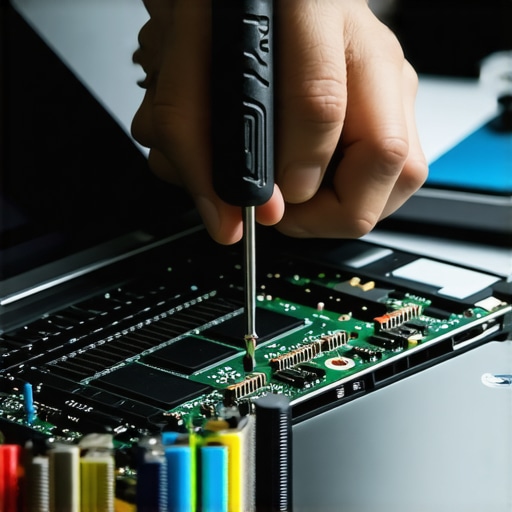
Once you’ve confirmed compatibility, prepare for disassembly. Use the appropriate tools—like a precision screwdriver set—and work in a static-free environment. I once attempted a RAM upgrade on my old laptop, which led to a minor mishap, but patience and following a detailed guide prevented further issues. Keep track of screws and connectors, as losing small parts can cause headaches later. Remember, if unsure, reaching out through contact page can connect you with professionals.
Install and Configure the New Hardware
Carefully install your upgrades—like swapping tires on a car—ensuring all connections are secure. Power on your device and verify the new hardware is recognized via system settings or device manager. Update drivers to ensure optimal performance; consider visiting your laptop manufacturer’s website or the hardware vendor’s site for the latest versions. For GPU drivers, visiting GPU manufacturer support can be helpful. Run benchmarking tools like performance testers to confirm improvements.
Test Your Editing Workflow
Finalize upgrades by testing your editing software with real projects. Monitor rendering times, playback smoothness, and system temperatures. During my first upgrade attempt, I noticed a significant speed boost after upgrading RAM, but also needed a cooling pad—like adding vents to a turbocharged engine—to prevent overheating. Use cooling solutions if necessary. Record your improvements, and tweak your settings for optimal performance. Remember, regular maintenance keeps everything running smoothly, much like tuning a race car before a big lap.Many people assume they understand what makes a good laptop accessory or how to spot the best deal, but often miss subtle nuances that can save them money and frustration. For example, a common myth is that a high price always equals better quality; in reality, many premium accessories are overpriced for what they deliver. One overlooked aspect is compatibility—buying a stylish external keyboard or mouse without verifying if it works seamlessly with your device can lead to ergonomic issues or connectivity woes. I learned this the hard way when purchasing a trendy gaming mouse that was incompatible with my laptop’s Bluetooth version, wasting both time and money.
Are Cheap Accessories Really Worth It and How to Tell?
Many think cheapest options save the most money, but in my experience, investing in reputable brands with genuine reviews pays off long-term, especially for essential gear like chargers or protective cases. Cheap chargers, for instance, can damage your laptop’s battery or even cause safety concerns, as highlighted in a study by the IEEE on low-quality power supplies increasing fire risk. Instead, look for certified accessories, and always consider compatibility to avoid the trap of buy-and-return cycles.
When it comes to laptop deals, the pitfall isn’t just about snagging the lowest price. The real trick is timing and understanding the difference between discounts on outdated models versus the latest hardware that might be worth the premium. Many fall into the trap of impulsively buying a heavily discounted ‘gaming’ laptop that underperforms because it has a low-refresh display or soldered RAM, limiting future upgrades. Be cautious and do your research—visit trusted sources like the [top laptop deals for 2025](https://laptopbuyersclub.com/top-laptop-deals-in-2025-unlock-incredible-savings-today) to get a clear view.
Speaking of gaming laptops, a common misconception is that all models with RGB lighting are high-end devices. In reality, many budget options use cheap components that overheat or throttle under load, negating the aesthetic appeal. For serious gamers or professionals, prioritizing hardware specs—like better cooling systems and upgradeability—is critical. Check reviews on performance benchmarks before investing; don’t get distracted by flashy features that are just marketing fluff.
When selecting student laptops, the trap is often choosing ultra-lightweight ultrabooks with limited ports and soldered components. These might look sleek but can limit future repairs or upgrades, leading to higher costs down the line. Instead, focus on models with user-replaceable batteries, upgradeable RAM, or SSDs, which significantly extend usability and value. Explore options in areas like [student laptops designed to endure accidental spills](https://laptopbuyersclub.com/3-student-laptops-that-can-actually-survive-a-coffee-spill) to avoid replacements due to mishaps.
Business laptops face a similar hidden trap: neglecting to verify security features such as TPM chips or BIOS protections. Paying for premium models without these essential features could compromise sensitive information. When shopping in the [business laptop category](https://laptopbuyersclub.com/business-laptops-for-professionals-essential-picks-2025), ensure you’re getting the right security and manageability features—else you might pay extra for hardware that you don’t actually need.
In conclusion, mastering these nuanced aspects of laptop accessories and deals can prevent costly mistakes and improve your overall experience. Have you ever fallen into this trap? Let me know in the comments, and share your stories or questions. Proper research and understanding of these hidden details make all the difference in making smart, long-lasting investments in your tech gear.
Invest in Reliable Maintenance Tools
To ensure your laptop stays reliable over time, I personally rely on a set of precise tools and software. A high-quality compressed’air can, like the compressed air duster, is essential for cleaning dust from delicate components such as fans and heatsinks, which prevents overheating. Additionally, a precision screwdriver kit allows for safe and effective hardware upgrades or repairs, ensuring your device remains up-to-date and functional.
Why Regular Hardware and Software Maintenance Matters
Consistent cleaning and system checks extend your laptop’s lifespan. I schedule bi-annual cleanings, using tools like thermal paste applicators to refresh heat transfer and prevent thermal throttling, backed by detailed guides from sites like experts on hardware upkeep. Likewise, software-wise, I use reputable cleanup tools such as CCleaner or Malwarebytes to remove unnecessary files and safeguard against threats, keeping my system running smoothly.
Choose the Right Software for Monitoring and Management
Monitoring tools like HWInfo give real-time insights into CPU, GPU, and SSD health, enabling early detection of potential issues. I also track my battery degradation with apps like BatteryInfoView, making it easier to plan for replacements before failure. These tools help me predict hardware needs and avoid surprises that could disrupt my workflow.
How do I maintain my laptop’s performance over time?
Consistency is key. Schedule regular physical cleanings, keep your software updated, and monitor hardware health with dedicated tools. For example, reviewing system temperatures before and after software updates helps identify whether your cooling solution is adequate or needs an upgrade. This proactive approach can prevent costly repairs and downtime. In the future, I predict that AI-driven diagnostic tools will become standard, alerting users to potential issues before symptoms even appear.
If you’re serious about long-term performance, consider trying advanced maintenance techniques like repasting thermal paste or upgrading storage with NVMe SSDs. These small investments significantly extend your device’s efficiency and lifespan.
Lessons I Wish I Learned Sooner About Laptop Hardware
One of the most valuable insights I gained was understanding the importance of investing in upgradeable components. Choosing a laptop with accessible RAM and storage options saved me money and headaches later, proving that foresight can make a significant difference. Additionally, I discovered that not all upgrades are created equal; prioritizing a good GPU and cooling solutions transformed my workflow more profoundly than just increasing RAM alone.
Another lightbulb moment was realizing the subtle art of compatibility. Even the best hardware is useless if it doesn’t play nicely with your existing setup. I learned to double-check specifications and optical drive bays before purchasing, which kept my projects moving smoothly without unexpected surprises. The journey taught me that patience and research are your best allies in hardware upgrades.
Lastly, I found that routine maintenance isn’t just for desktops. Regular cleaning tools and software checks extend the lifespan of laptops and keep performance crisp. Investing in a quality compressed air duster and monitoring tools like HWInfo can catch issues early—saving time and money down the line. These lessons, born from trial and error, have empowered me to make smarter, more confident decisions about my laptop setup.
My Must-Have Tools for a Seamless Tech Experience
Over the years, I’ve curated a toolkit that has become indispensable. First, a high-quality precision screwdriver kit—essential for safe upgrades and repairs, especially when working with delicate components. Second, a reliable compressed air duster from a trusted source, helps prevent overheating by keeping dust at bay. Third, monitoring software like HWInfo offers real-time insights into hardware health, helping me anticipate problems before they escalate. Trusting these tools means I can maintain peak performance and prolong my laptop’s life, turning maintenance from a chore into a straightforward routine.
By investing in these practical tools, I’ve learned that prevention and proactive care are key to a long-lasting, efficient laptop experience. Whenever I face doubts about hardware health or upgrades, these resources provide clarity and confidence, making me a better tech steward in my daily life.
Gear Up for Success: Take Action Today
The future of laptop optimization is bright, and now’s the perfect time to start refining your setup. Don’t wait for sluggish performance or hardware failures—take a page from my experience and begin with small upgrades, routine maintenance, and smart choices in accessories. Remember, making informed decisions today directly impacts your productivity and creative potential tomorrow. Embark on this journey with curiosity and confidence, knowing that smart hardware choices are within your reach. Your laptop has more to give; all it takes is a little know-how and proactive care.