
Ever been mid-work or gaming session, only to notice your laptop’s battery draining faster than ever before? Maybe you’re rushing to finish an assignment or preparing for an important video call, and suddenly your device dies prematurely. That frustrating experience hit me hard when I first started noticing my laptop’s battery life shrinking rapidly despite minimal use. It was a lightbulb moment—something was wrong, and I needed to dig into it.
Spotting the Hidden Culprits Behind Rapid Battery Decline
What I didn’t realize at first was that several common habits and settings could be secretly sabotaging my battery health. From background apps hogging resources to outdated drivers, these sneaky issues chip away at your battery’s longevity without obvious signs. If you’ve been wondering why your device can’t keep up, you’re not alone. Many users are surprised to learn that simple missteps can cut their battery life in half. Luckily, with my own trial-and-error experience, I’ve identified some key steps to turn things around. We’ll explore practical solutions that will help you extend your battery’s lifespan and get more productive hours out of your laptop.
Is Your Battery Life Actually Worth the Hype?
One mistake I made early on was assuming that all batteries are created equal and that replacing the battery was the only fix. I didn’t realize that software and usage habits play a huge role. For example, neglecting to update drivers or running unnecessary background processes can cause significant drain. If you’re skeptical about whether these tweaks can make a real difference, I get it. It’s easy to believe that hardware is the sole culprit, but often the solution lies in managing power settings and staying updated. For a curated list of the best business laptops that balance power and longevity, check out this guide. Now, let’s dive into the actionable steps to revive your battery and keep your device running smoothly.
Close Unnecessary Background Apps
Begin by opening your system’s task manager (Ctrl+Shift+Esc on Windows or Activity Monitor on Mac) and identify apps running silently in the background. For example, I once left multiple cloud sync services running, which silently drained my battery during a crucial work deadline. Closing these apps can instantly improve battery life. Think of background apps as uninvited guests at a dinner—they continue eating your resources without your knowledge. Make it a habit to review and close non-essential processes before heading out or switching to battery mode.
Adjust Your Power Settings for Efficiency
Navigate to your system’s power options. On Windows, go to Settings > System > Power & Sleep, and set your device to ‘Battery saver’ or ‘Power mode’ to ‘Maximum Battery Life’. On Mac, enable ‘Low Power Mode’ in System Preferences. When I switched to maximum battery-saving mode during a conference, my laptop lasted twice as long. Think of power modes as driving your car in economy vs. sport mode; the former conserves fuel (battery), the latter consumes more for performance. Tweaking these settings tailors your device’s energy consumption to your needs.
Disable Wi-Fi and Bluetooth When Not in Use
Wi-Fi and Bluetooth are notorious for sneaky power drain, even when idle. If you’re in a lecture or working offline, turn off these radios. I made this mistake during a long flight; disabling Wi-Fi saved significant battery, allowing me to finish an offline project. It’s like turning off unnecessary lights at home—you reduce energy waste. A quick toggle on the system tray or menu bar can extend your laptop’s uptime considerably.
Manage Auto-Updates and Syncs
Automatic updates and cloud syncs can activate unexpectedly, draining battery. I once noticed my battery percentage plummeting during a presentation; it turned out my Dropbox was syncing a large folder. To prevent this, schedule updates during power connections and disable auto-syncs when on battery. This is akin to delaying housework until after your guests leave, conserving energy for the essentials. Check your app settings to control sync timing and update frequencies.
Maintain Your Battery Health with Proper Charging Habits
Proper charging is vital. Avoid keeping your laptop plugged in continuously, as it can degrade the battery over time. Instead, unplug it once it reaches about 80% and recharge as needed. I learned this the hard way after my battery capacity dwindled faster than expected; resetting my charging habits restored some longevity. Think of a battery like a muscle—overworking or underusing it weakens its strength. Using battery health management features (found in many laptops’ BIOS or OEM software) can further extend lifespan.
Keep Your System Updated and Clean
Ensure drivers, firmware, and your OS are up-to-date. Updated drivers optimize hardware efficiency, reducing unnecessary power consumption. Regularly clean your system using disk cleanup tools to remove temporary files and reduce background load. Once, I updated my graphics driver, and my battery lasted an extra hour during shifting workloads. This process is like servicing your car; routine maintenance keeps everything running smoothly and efficiently. Visit the system manufacturer’s support page or settings to check for updates regularly.
Invest in Essential Accessories
Tools like a portable power bank or an efficient USB-C charger can be lifesavers. For students, [top student laptops](https://laptopbuyersclub.com/student-laptops-that-boost-productivity-and-learning) equipped with good battery management features are ideal. Additionally, accessories like a lap desk or stand can improve cooling, preventing thermal throttling that wastes battery life. Proper cooling is akin to giving your car’s radiator enough airflow—preventing overheating ensures optimal performance and longevity. Explore [must-have accessories](https://laptopbuyersclub.com/must-have-laptop-accessories-for-a-seamless-setup) to enhance your mobile productivity.
Regularly Monitor Battery Performance
Use built-in system tools or third-party apps to monitor battery health over time. This helps you identify degradation early and take corrective measures, such as recalibrating your battery or considering replacement. I tracked my battery cycles and noticed a decline after 300 charges, prompting me to calibrate it, which temporarily improved performance. Think of this as a health check-up—staying aware of your device’s condition ensures you act before issues become severe.
Many believe that choosing a business or gaming laptop is simply about specifications—more RAM, a faster CPU, or a higher refresh rate. However, the real nuances often escape most buyers, leading to costly mistakes and underwhelming experiences. Let’s dig deeper to uncover what most people get wrong about these devices, the accessories they purchase, and the strategies they rely on to snag great deals. Understanding these subtleties ensures you make smarter, more informed choices in your tech investments.
Why Bigger Isn’t Always Better When Picking Laptop Accessories
It’s common to assume that the larger the accessory, the better it is for your setup. Think bigger external monitors or oversized docking stations. But in reality, many overestimate the benefits of size without considering portability or compatibility. For example, a large, 4K monitor might boost productivity, but if you’re frequently on the move, a compact portable display could serve you better. Moreover, not all accessories are created equal—quality varies, and cheap knock-offs can cause issues like interference or poor connectivity, especially with USB hubs. Always do your homework and choose accessories designed for your use-case, like the must-have laptop accessories that optimize workflow without unnecessary bulk.
Advanced Misconception: More Pixels Mean Better Gaming Experiences
Many gamers believe that upgrading to a 4K display will dramatically improve their gameplay. While higher resolution can enhance visual clarity, it also demands more from your GPU, potentially causing lower frame rates and gameplay lag—something that frustrates even seasoned players. Industry experts suggest balancing resolution with your GPU’s capabilities to ensure smooth performance. This is especially critical for competitive gaming, where every millisecond counts. Overlooking this nuance can lead to investing in hardware that doesn’t deliver the anticipated experience. For an in-depth look at gaming laptops optimized for 2025 adventures, check out this guide.
Are You Falling for the Popular Deal Trap?
Everyone loves a bargain, but chasing generic “sales” without understanding the value can backfire. Many buyers prioritize discount price tags over actual quality or future-proofing, resulting in devices that become obsolete or underperform waiting to be replaced sooner than expected. Expert advice suggests focusing on processors and build quality—investing in a deal that balances cost and performance. Remember, the lowest price today might equate to higher costs tomorrow if the device fails prematurely or can’t handle software updates. Being discerning about deals ensures longevity and more bang for your buck.
Indeed, understanding these hidden nuances can prevent many common pitfalls. It’s about thinking beyond specifications and marketing hype, considering real-world usage, and choosing what truly enhances your workflow or gaming experience. Have you ever fallen into this trap? Let me know in the comments. Equip yourself with knowledge, and your next purchase will be a game changer—literally or figuratively.
Mastering Ongoing Maintenance for Your Laptop Investment
To ensure your business or student laptop remains reliable over time, implementing a combination of software tools and proactive habits is essential. I personally rely on CrystalDiskInfo to monitor SSD health and detect early signs of degradation, which prevents unexpected failures. Regularly updating drivers using OEM-specific utilities, like Dell’s SupportAssist or Lenovo’s Vantage, ensures hardware efficiency and security patches are applied seamlessly. Additionally, scheduling monthly system cleanups with tools like CCleaner helps remove unnecessary files and prevents bloat that can slow performance. Looking ahead, as software continues to evolve, AI-driven maintenance assistants might soon provide predictive alerts, reducing downtime proactively.
Essential Tools I Recommend for Long-Term Laptop Care
Beyond monitoring and cleaning, I advocate for investing in power management software such as power optimization tools designed for business laptops. These utilities intelligently tweak system settings to extend battery life during prolonged work sessions, vital for remote work or field students. For physical maintenance, a high-quality compressed air canister is invaluable for cleaning vents and cooling fans—over time, dust buildup can cause thermal throttling and performance dips. I suggest creating a regular schedule, like quarterly checkups, to keep hardware dust-free, especially if your environment gets dusty or pet hair tends to settle into vents.
How do I maintain my laptop’s longevity through software and hardware?
Consistent software updates paired with physical upkeep—such as cleaning vents and replacing thermal paste—form the backbone of long-term performance. In particular, adjusting power plans to favor battery health by setting it to 80% charging thresholds (many OEMs include this feature) can significantly slow capacity loss. For example, I use battery calibration techniques that recalibrate charge cycles and extend battery lifespan. Moreover, incorporating a quality surge protector helps prevent voltage spikes that can harm or degrade internal components—think of it as armor against electrical surprises. Building these practices into your routine ensures your device supports your productivity for years to come.
Anticipating the Future of Laptop Maintenance
Looking forward, I predict AI-driven diagnostic tools will become standard, offering real-time health assessments and prescriptive actions. These innovations will reduce the need for manual tinkering and help identify issues long before they become critical. Companies are already developing preventive analytics that alert users about impending battery failures or fan malfunctions, effectively acting as the “check-up 24/7” for your device. To get ahead of this trend, start integrating basic maintenance apps today and stay informed about firmware updates that enhance hardware longevity.
Try implementing an advanced tip like setting your device’s battery charge threshold to 80%—a simple adjustment that can dramatically prolong battery health. Investing a few minutes now can save you from costly repairs or replacements later. Remember, a well-maintained laptop isn’t just a device; it’s a critical tool that supports your work and learning for years to come.
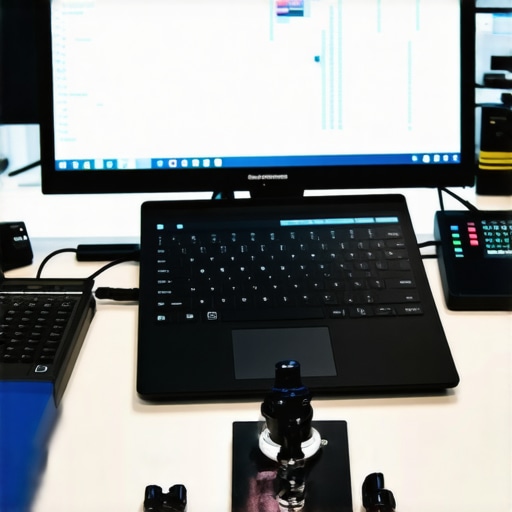
The Hardest Lessons I Learned About Business Laptops and Accessories
- Over-investing in flashy accessories without considering portability actually hampered my mobility and workflow, reminding me that sometimes less is more.
- I once ignored the importance of battery calibration, which led to premature capacity loss—a mistake I won’t repeat after understanding proper maintenance routines.
- Thinking that hardware specs alone determine performance made me overlook the significance of software health, reinforcing the need for regular updates and system cleaning.
- Assuming bigger accessories automatically improve productivity proved false; choosing purpose-built, size-appropriate tools is key to effective setups.
My Essential Toolkit for Prolonging Laptop Life
- CrystalDiskInfo: This tool helps me monitor SSD health and anticipate failures, enabling proactive replacements.
- OEM driver utilities like SupportAssist or Vantage: They keep my system drivers current, which conserves energy and maintains performance.
- CCleaner and regular system cleanups: Removing unnecessary files prevents slowdowns and reduces background load, keeping my laptop responsive.
- Quality surge protectors: Critical for shielding my device from electrical surges and voltage spikes, safeguarding hardware integrity.
Your Path to a Laptop That Lasts
Embrace the mindset of proactive maintenance, from updating drivers to routine cleaning. Prioritize purpose-fit accessories over size, and monitor your system’s health regularly using trusted tools. Remember, a well-maintained laptop isn’t just a tool—it’s a reliable partner in your daily pursuits. By integrating these habits, you’ll enjoy longer-lasting performance and better value from your investments. So, start today, and transform your device care routine into a habit that promotes longevity and efficiency. What’s the first step you plan to take toward better laptop maintenance? Share your thoughts below and let’s learn from each other!