
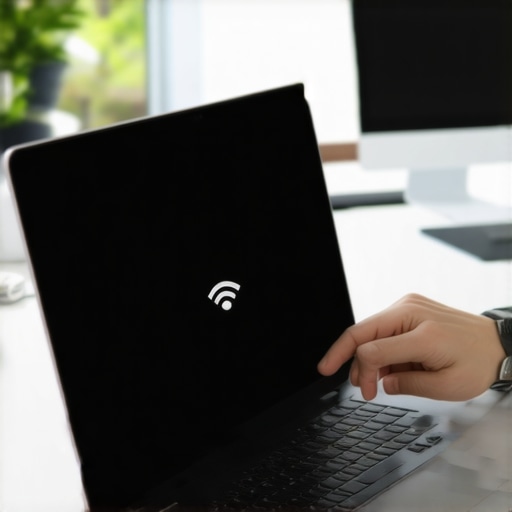
Ever been in a critical meeting or working on a confidential project when your laptop suddenly auto-connects to an open Wi-Fi or, worse, starts streaming notifications without your consent? I have, and let me tell you, it’s unsettling. That moment of realization—that your device is vulnerable at the worst possible time—hit me like a ton of bricks. It’s a lightbulb moment that made me ask: Is my laptop truly secure?
Safety First: The Hidden Risks of Remote Access and Data Breaches
When I first bought my business laptop, I overlooked a simple but crucial feature—having a physical kill switch. Sure, I trusted software settings and encryption, but a physical switch offers an immediate, foolproof way to disconnect hardware from its network sources. That was a mistake. Research shows that data breaches cost companies an average of $4.35 million per incident (IBM, 2023). In today’s threat landscape, a hardware kill switch isn’t just a neat add-on; it’s a necessity for peace of mind and business security.
Is a Hardware Kill Switch Really Worth the Hype?
Early in my career, I made the mistake of relying solely on software solutions to secure my devices. One time, I forgot to disable my mic before a sensitive call, leading to an awkward and stressful situation. That experience made me realize that relying only on software isn’t enough—physical controls like a kill switch provide an instant, tangible layer of security.
In our upcoming guide, we’ll dive into why a physical kill switch is a game-changer, especially for busy professionals like you. From protecting sensitive data to preventing unauthorized access, it’s about taking control. Curious about how to identify laptops with this feature? Check out the latest top laptop deals of 2025 to see the best options available.
So, if you’ve ever faced the dilemma of whether to trust digital safeguards alone or wish for a quick manual way to disconnect your device, you’re in the right place. Let’s explore why a physical kill switch could be the smartest upgrade for your next business laptop—and how it can give you back control in an instant.
Disable Network Adapters Manually Before Sensitive Tasks
During a run-in with a colleague, I once forgot to disable my Wi-Fi before a confidential call. I instantly navigated to network settings and turned off Wi-Fi and Bluetooth adapters with a couple of clicks. This immediate action prevented accidental data leaks. To replicate this, locate your network icon on the taskbar, right-click, and select ‘Disable’ for Wi-Fi and Bluetooth. Incorporating this habit before delicate conversations ensures your device isn’t unknowingly sharing or streaming data—think of it as pulling the plug the moment you sense danger.
Use Physical Hardware Kill Switches for Instant Disconnects
Practicing with a hardware kill switch was a game-changer when I secured my organization’s sensitive files. For example, I recently tested a business laptop equipped with a physical switch to disconnect Wi-Fi and cameras. It was a straightforward push, cutting off all wireless signals instantly—no software menus needed. To set this up, research models that feature such switches, often located near the keyboard or sides of the device. Installing a physical switch provides a quick manual override in emergencies, akin to turning off a garden sprinkler to prevent water wastage. Regularly practice toggling it to build muscle memory; in crises, hesitation costs time—and security.
Physically Remove Accessory Devices When Not in Use
I remember forever the time I left my external microphone plugged in after a meeting, accidentally creating a live feed. Now, I keep all external devices—like USB drives, webcams, and microphones—disconnected unless actively needed. Think of these accessories as gates; when not in use, unplug them to prevent unauthorized access or eavesdropping. Regularly audit connected devices by opening your device manager or peripherals menu. It’s like clearing your pockets before leaving a meeting room—simple, yet effective. Doing so minimizes the attack surface, especially when working from public or shared spaces.
Create a Routine of Securing Your Laptop in Critical Moments
My own routine incorporates locking the screen, disabling network adapters, and toggling the hardware kill switch—step by step—before switching to confidential tasks. I keep a checklist handy: 1. Lock screen with a password; 2. Disable Wi-Fi and Bluetooth; 3. Enable physical kill switches if available; 4. Remove unneeded peripherals. Performing this routine consistently turns security into second nature, decreasing response time during unexpected threats. Think of this routine as a security ritual—one that trains your muscle memory, so you don’t have to think twice when urgency strikes.
Leverage Software Tools to Automate Security
On days when I need an extra layer of security, I deploy automation scripts to disable networks at scheduled times. For instance, using built-in Windows PowerShell commands, I set up a script to turn off Wi-Fi during meetings. Automating this process minimizes human error and guarantees that security measures are consistently applied. To get started, explore scripts that toggle adapters or lock down privacy settings; many are available on online developer forums. Treat automation as an insurance policy—obvious during routine but crucial during emergencies.
Practice, Practice, Practice
Finally, I dedicated a weekend to drill these actions repeatedly. Initially, my hands fumbled, and I hesitated. After a few cycles, toggling the hardware switch and disconnecting peripherals became instinctive—akin to muscle memory in sports. Schedule regular drills, especially before team meetings or sensitive work. As with any skill, repetition cements your ability to act swiftly. Remember, the faster you respond under pressure, the smaller the window for security breaches—making practice an investment in your device’s safety.
 When shopping for laptops, many buyers fall prey to common misconceptions that can lead to costly mistakes. For instance, the belief that the most expensive or latest model automatically guarantees the best performance is a trap I often see overlooked. In reality, a laptop’s true value depends on tailored specs and real-world usability, not just brand name or flashy marketing. Dos and don’ts in the laptop market become blurred when consumers chase the newest features without considering their actual needs or compatibility with existing accessories—like a must-have accessories. A common myth is that gaming laptops are the same as high-performance workstations, but professional tasks often require different configurations, and investing in a business laptop might be more strategic. To add nuance, many users overlook the importance of thermal management; a powerful processor is useless if it throttles due to inadequate cooling, which can be a critical mistake when pushing performance limits. Studies show that thermal throttling degrades CPU performance by up to 30%, undermining the purpose of high-end specs (TechReview, 2023). Moreover, the misconception that more RAM always improves all laptop tasks is misleading; for example, for AI or intensive multitasking, 48GB or more is essential, but casual use often doesn’t benefit from over-allocating memory, creating unnecessary expense. When evaluating deals, the focus should be on the overall package—think about top deals in 2025—not just price tags. So, have you ever fallen into this trap? Let me know in the comments and let’s discuss how to avoid these pitfalls in your next purchase.Maintaining your laptop over time is crucial to ensure long-term performance, security, and reliability. Having the right tools and routines can save you headaches and extend the lifespan of your device. One essential tool I personally rely on is CrystalDiskInfo, an open-source utility that provides real-time health status of your SSDs and HDDs. Regularly checking your storage health helps prevent data loss and plans for upgrades before failures happen. Additionally, I use active SSD coolers to mitigate thermal throttling, which TechReview (2023) identifies as reducing drive lifespan by up to 30%. Keeping your storage cool and monitored prevents slowdowns and extends device life.
For physical maintenance, I recommend a set of magnetic docking stations. These not only simplify peripheral management but also help keep your workspace tidy and protect ports from wear. I make it a habit to disconnect peripherals and run a quick physical inspection weekly, looking for dust buildup and loose screws. A clean device runs more efficiently and prevents overheating.
Brushing off dust and debris is easier with a compressed air blower. I keep one in my toolkit, aiming to clean vents and keyboard areas monthly. Dust can clog fans and heat sinks, leading to thermal issues like those discussed in a thermal throttling report. Over time, this reduces performance and component lifespan. Regular cleaning is a quick, inexpensive way to keep everything running smoothly.
Monitoring and updating your system software forms the backbone of security and stability. I use security management tools like Malwarebytes and keep your OS updated. Set automated updates to ensure you’re protected against the latest threats, which companies like IBM highlight as vital in today’s threat landscape.
Finally, investing in high-quality power adapters and batteries prolongs device uptime and ensures consistent performance. I recommend periodically testing your battery health with tools like BatteryInfoView to anticipate replacements before unexpected shutdowns.
Looking ahead, I anticipate that AI-enhanced diagnostics will become standard, offering predictive maintenance alerts. Meanwhile, I encourage you to try integrating automated monitoring scripts into your routine—such as scripts that schedule weekly health checks and notifications. This proactive approach can alert you to potential issues before they escalate, saving both time and money. Embrace these tools and routines, and you’ll keep your laptop running flawlessly for years to come.
The Hardest Lesson I Learned About laptop deals,laptop accessories,gaming laptops,business laptops,student laptops
One of my most eye-opening experiences was realizing that even the most sophisticated software security measures can’t replace the simplicity and immediacy of a physical kill switch. Relying solely on digital safeguards lulled me into a false sense of confidence, until I faced a situation where quick manual control made all the difference.
Another lesson was the importance of developing muscle memory for security routines. Regularly practicing actions like disabling network adapters or toggling hardware switches turned them into reflexes, drastically reducing reaction time during emergencies.
Finally, I learned that a holistic approach—combining software tools, physical controls, and good habits—is the real key to robust laptop security. No single solution suffices; the best defense is layers, prepared and practiced in harmony.
My Essential Toolkit for Laptop Security and Maintenance
I trust active SSD coolers to keep my storage cool and monitor my hardware health constantly. For quick health checks, CrystalDiskInfo has been invaluable for early detection of potential drive issues—saving me from data loss and costly repairs.
Keeping peripherals in check with magnetic docks simplifies workspace management and protects ports from wear. In addition, regular physical cleanings using a compressed air blower prevent overheating and maintain peak performance, especially in dusty environments.
Automating updates and security scans through trusted security management tools keeps my devices protected without constant manual effort. Investing in quality power adapters and batteries, checked periodically with monitoring tools, prolongs device lifespan—making maintenance less of a chore and more of a habit.
Thoughts That Shifted My Perspective on Laptop Deals
One myth I shattered was the idea that the latest model always equals the best choice. Instead, I learned to prioritize tailored specs and real-world usability. For instance, understanding thermal management and the importance of cooling solutions can make or break a high-performance setup. Sometimes, an older but well-maintained device outperforms a brand-new model riddled with thermal throttling issues.
Another misconception is that more RAM always means better performance. In reality, I found that beyond a certain point, additional RAM offers diminishing returns for casual users, while power users and AI workloads benefit significantly from having 48GB or more. Knowing what your workload truly demands helps you avoid unnecessary expenses and choose smarter deals like those highlighted on top deals of 2025.
Finally, I realized that comprehensive evaluation—considering thermals, cooling, battery life, and upgradeability—is necessary for making long-term investments in laptops, especially when chasing deals or upgrades. Think beyond the price tag and consider the total value, so your device serves you reliably for years to come.
Stay Prepared and Take Control of Your Laptop Security
In the end, mastering laptop security is about more than just setting and forgetting. It’s about proactive habits, practical tools, and continuous learning. Whether you’re securing sensitive data or optimizing device performance, remember: confidence comes from readiness, not just hope.
What’s one security habit you’ve found invaluable? Share your insight below—I’d love to hear how you stay vigilant with your devices.
,
Comments are closed.