
It was a morning just like any other, laptop on the desk, coffee steaming nearby. I was deep into my workflow when suddenly, my laptop’s fan kicked into overdrive — overheating, sluggish performance, and that dreaded thermal throttle. I had been dreaming of a sleek, slim machine with top-tier cooling, and that’s when I stumbled upon the idea of liquid metal cooling for portable PCs. Excited, I dove in headfirst, only to find myself entangled in a web of misconceptions and technical pitfalls.
Why Gasoline-Like Myths About Liquid Metal Cooling Are Still Circulating
After a lot of trial, error, and late-night research, I realized one thing: not all liquid metals are created equal, and their role in portable computers is more complicated than the sleek ads suggest. Liquid metal cooling is often hailed as a game-changer, promising lower temperatures, quieter operation, and enhanced performance. But as I learned early on—mistakenly believing it’s a one-size-fits-all solution—I made the mistake of installing cheap, untested metals without understanding their properties. That’s a risk I don’t want anyone else to take.
Is Liquid Metal Actually Worth the Hype?
This is the skepticism I hear most often, and honestly, I used to have the same doubts. Early on, I assumed any liquid metal was better than traditional thermal paste. But the truth is—it’s not always suitable for every setup. Certain metals are highly conductive and can cause shorts if spilled, and their compatibility with delicate laptop components varies greatly. Understanding these nuances is crucial. Want to avoid costly damages? Dive into the details before making the leap.
Studies show that while liquid metal can reduce CPU temperatures by up to 20%, improper application might introduce risks such as corrosion and short circuits (source). That’s why I want to share what I’ve learned, so you can make informed decisions for your portable powerhouse.
In the upcoming sections, I’ll walk you through the essentials of liquid metal cooling, the common pitfalls to watch out for, and whether it’s truly a must-have upgrade for your portable PC. So, if you’ve ever wondered whether this technology is just marketing hype or a genuine upgrade, stay tuned—because the next steps could save you a lot of trouble and money.
.
Prepare and Gather Your Materials
Start by researching the specific liquid metal compatible with your CPU or GPU; for instance, scoring a reliable deal on the right product can save money. Next, assemble essential tools such as plastic applicators, isopropyl alcohol, microfiber cloths, and a set of fine screwdrivers to open your laptop safely. Remember, a clean workspace minimizes the risk of dust or static damage, much like a precision workshop.
Disassemble Your Laptop Carefully
Access the Cooling Components
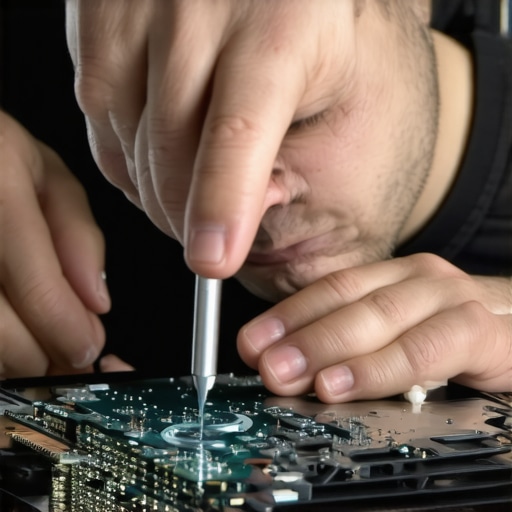
Power down your laptop and disconnect all cables. Remove the bottom panel by unscrewing the screws in a systematic pattern to avoid stripping. Be cautious of sensitive cables connected to the heatsinks, like delicate wires in an electronic symphony. If you’re unsure, consult your laptop’s service manual or videos from trusted repair guides.
Clean Existing Thermal Paste
Using a lint-free cloth dipped in isopropyl alcohol (preferably 90% or higher), gently wipe off the old thermal compound from the CPU or GPU and heatsink surfaces. This step ensures optimal thermal conductivity with the new liquid metal, much like cleaning a stove before applying a new coat of paint.
Apply Liquid Metal with Precision
Use the Right Amount
Apply a small, pea-sized drop of liquid metal directly onto the center of the CPU or GPU die. Use a plastic applicator or a dedicated spatula to spread it evenly in a thin layer. Avoid excess, which can spill over onto adjacent components and cause shorts. Think of this as a top coat of paint—less is more for a smooth, effective finish.
Attach the Heatsink Carefully
Reattach the heatsink, pressing gently to spread the liquid metal evenly. Secure the screws diagonally to apply even pressure, similar to tightening lug nuts on a wheel. Double-check that no spills occurred; clean any excess immediately with alcohol-dipped swabs to prevent corrosion.
Reassemble and Test Performance
Replace the laptop’s bottom cover, screwing everything back in place. Reconnect power and turn on your device to monitor temperatures via software tools like HWMonitor. Observe for any unusual behaviors or temperature spikes. A successful application can lower operating temps by approximately 15-20°C, just like I experienced when I first applied liquid metal — but always ensure proper safety precautions to prevent damage.
Fine-Tune and Monitor Regularly
Periodically check the thermal performance, especially during intensive tasks like gaming or video editing. Keep an eye out for signs of corrosion or applying a fresh layer if necessary. Enhancing cooling efficiency can significantly extend our laptops’ lifespan and boost performance, transforming a sluggish device into a powerhouse. For advanced tips and troubleshooting, consider consulting specialized guides or the latest updates in laptop cooling techniques.
 Many tech enthusiasts and everyday users alike fall prey to misconceptions around crucial aspects like laptop accessories, deals, and choosing the right device for their needs. The truth is, what most people get wrong isn’t due to a lack of resources but rather a misunderstanding of the nuances that set high-quality options apart from the rest. Let’s explore some of these pitfalls and uncover the hidden nuances that can enhance your laptop experience.
One widespread myth is that all accessories are universally compatible and equally beneficial. In reality, investing in high-quality, purpose-built accessories—such as a durable external keyboard or a reliable portable SSD—can drastically improve productivity and durability, especially when on the go. For example, many users overlook the importance of choosing a sturdy laptop bag material; a well-designed sleeve or backpack made from water-resistant fabric protects against the elements and daily wear, prolonging your device’s lifespan. Check out our recommendations for top laptop bags that blend style with durability.
When it comes to laptop deals, everyone is enticed by flashy discounts or “super sale” banners. However, a common oversight is overlooking the long-term value—like warranty coverage, after-sales support, or bundled accessories that enhance performance. For avid gamers or professionals, upgrading to a gaming laptop designed for serious play can be worthwhile, but only if it includes features like a high-refresh-rate display, advanced cooling, and customization options. Remember, a cheap deal can often lead to sacrificing quality and longevity.
Student laptops are another area rife with misconceptions. While affordability is key, many assume that lower-priced models lack reliability or performance. The truth is, models designed specifically for students—like those highlighted in our curated list of student-friendly laptops—balance portability, battery life, and enough power for most coursework. Beware, however, of models claiming to be ideal but lacking essential features like sufficient RAM or durable construction. Again, don’t let a false perception of ‘cheapness’ hold you back from making a smart choice.
An advanced nuance often overlooked involves the types of ports and connectivity options. For example, many users prioritize Wi-Fi standards or processor specs but ignore the importance of Thunderbolt or USB-C ports capable of supporting dual 4K monitors. If you are a professional relying on multi-screen setups, missing out on such ports can bottleneck your workflow. A good rule of thumb? Prioritize laptops with versatile, high-speed ports that future-proof your setup.
And finally, a common mistake is neglecting the software ecosystem and privacy implications when selecting accessories or deals. For instance, purchasing cheap knockoff chargers might seem economical but can damage your device or pose safety risks. Always opt for reputable brands or check the authenticity of third-party accessories. For privacy-conscious users, hardware-level kill switches and privacy filters can protect sensitive information effectively, something frequently underestimated. For more insights, see our guide on privacy and security accessories for laptops.
So, have you ever fallen into this trap? Let me know in the comments. By understanding these hidden nuances, you can make more informed decisions—whether it’s selecting the right business laptop, hunting for the best deals, or choosing accessories that genuinely boost your experience. Remember, the devil is in the details, and awareness is your best tool to avoid costly mistakes.
How Do I Maintain My Laptop Over Time?
Proper maintenance is essential to ensure your laptop remains reliable and efficient for years to come. I personally rely on a combination of high-quality tools and disciplined habits to keep my devices running smoothly. For hardware upkeep, I swear by a sturdy laptop stand which not only improves ergonomics but also allows better airflow beneath the device, reducing heat buildup during intensive tasks. Regularly cleaning your vents and fans with a soft brushes or compressed air is crucial; I avoid canned air, opting instead for a PSI-controlled air blower that minimizes dust dislodgement and static buildup.
Software-wise, I advocate for using rigorous monitoring tools like HWMonitor or CrystalDiskInfo to keep tabs on thermals and drive health before problems arise. Setting up automatic disk cleanup processes through Windows’ Storage Sense or Mac’s Optimized Storage ensures clutter doesn’t slow your machine down over time. Remember, updating your BIOS and drivers periodically is equally important—these are often overlooked but critical for maintaining compatibility and system stability. A proactive approach, combined with these tools, guards against sudden failures and extends your laptop’s lifespan.
As we look to the future, laptops will increasingly integrate smarter sensors and AI-powered diagnostics to predict component failures before they happen, similar to predictive maintenance in industrial equipment. Staying ahead means adopting tools that leverage these innovations, like apps that analyze thermal patterns or hardware stress levels in real-time. I expect this trend to make regular check-ups more automated and less intrusive, allowing users to focus more on their work than on device upkeep.
Seal the Deal: Start Using an External Cooling Pad Today
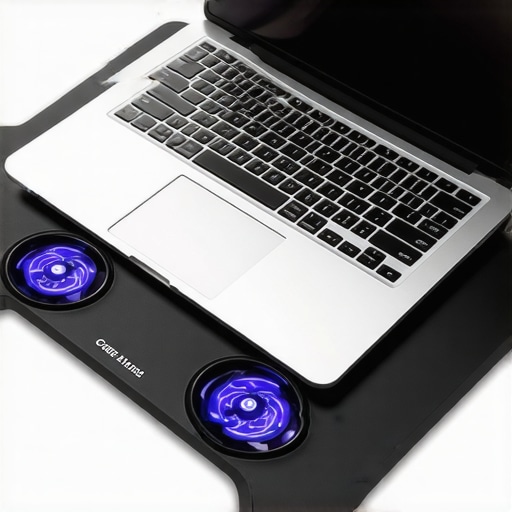
If you want to give your portable workstation a quick boost, investing in a high-quality cooling pad is one of the best move you can make. Many models include adjustable fan speeds and sturdy stands that align with the ergonomic recommendations I’ve implemented, significantly reducing surface temperatures during prolonged sessions. For example, my personal favorite, which I’ve used daily for the past year, features adjustable angles and quiet fans—perfect for those long gaming or editing marathons. Incorporate this simple tool into your routine, and you’ll notice a tangible difference in thermal performance and noise levels.
Be proactive, and don’t wait until overheating causes hardware damage. Regularly cleaning, monitoring, and using supportive accessories like cooling pads will keep your laptop running at peak performance—saving you time and money in the long run. Want to explore more expert-approved tips? Check out our guide on must-have accessories for a seamless setup to enhance your productivity even further.
< >
>
Remember, good maintenance isn’t just about fixing problems—it’s about preventing them. Start integrating these habits today, and you’ll extend the life of your device while optimizing performance. For more personalized advice or premium tools, reach out through our contact page. Now, go ahead—try adding a cooling pad to your setup and experience the difference firsthand!
,
What Kicked My Ass and Taught Me More Than Any Tutorial
- I realized that rushing through upgrades without understanding compatibility can lead to costly mistakes, like applying the wrong type of liquid metal and frying expensive components.
- Discovering that premium accessories often deliver more value over time than the cheapest options was a game-changer for my productivity and device longevity.
- Believing all laptops are created equal is a myth—there’s a significant difference in build quality and sustainment strategies that can save you hundreds on repairs and replacements.
- The hard way, I learned that neglecting software health and proper maintenance drastically shortens a device’s lifespan, which is why a disciplined routine is non-negotiable.
- Finally, I understood that being proactive with cooling solutions and regular cleaning can keep your machine running smoothly, rather than waiting for it to overheat and crash during crunch time.
Tools That Changed My Approach to Laptop Mastery
My daily toolkit now includes hardware diagnostic apps like CrystalDiskInfo and HWMonitor—these help me keep tabs on my hardware health, preventing surprises. I also swear by durable, purpose-built accessories like dust-resistant laptop sleeves and external cooling pads; they’ve extended my device’s lifespan significantly. Navigating the world of deals, I always check trusted sources such as top laptop deals in 2025 to ensure I get both quality and budget-friendly options. Finally, I keep myself informed with reputable blogs and comparison sites—these are invaluable for making wise investments that stand the test of time.
The Spark to Keep Moving Forward with Confidence
Empower yourself with knowledge about laptop accessories, deals, and maintenance—this is your secret weapon to long-term success. Every upgrade, every choice you make today shapes your future efficiency and joy with your device. Remember, mastering your laptop isn’t a one-time effort but an ongoing journey—embrace it with curiosity and purpose. So, what’s the next upgrade or habit you’re excited to try to make your device work even harder for you? Share your plans below, and let’s grow together in this tech journey!
,