
Ever had that sinking feeling when your laptop mysteriously shuts down at 20%, right in the middle of a crucial assignment or an important video call? I remember the frustration all too well. There I was, mid-sentence during a project presentation, thinking my battery had plenty of juice left. Suddenly, my screen went dark. It was a lightbulb moment—I realized my battery’s capacity indicator was lying, and my device’s power management needed a little realignment.
Why Your Battery Cheats You and How Calibration Can Save the Day
If you’re tired of plugging in your charger countless times, only to find your laptop dying unexpectedly, you’re not alone. The truth is, most batteries aren’t dying—they’re just misreporting their true charge. This discrepancy happens because lithium-ion batteries, which most laptops use, develop a sort of “memory” over time, causing inaccurate readings. Why does this matter? Because trusting a faulty battery indicator can lead you to prematurely replace an otherwise healthy battery or, worse, get caught off guard during critical moments.
Recent studies have highlighted that improperly calibrated batteries can decrease overall longevity and performance (source: Battery University)—which is why knowing how to calibrate your battery isn’t just a nerdy trick; it’s a necessary skill.
Have you ever faced a sudden shutdown when your laptop still shows 20%? If so, keep reading. We’re about to turn that frustration into confidence with a simple, effective calibration process. But first, let’s address some common doubts that might be holding you back.
Is Battery Calibration Really Worth the Hype?
Early on, I made the mistake of neglecting my battery’s needs, assuming all batteries age the same regardless of use. That was a mistake. Proper calibration extends your battery’s life and ensures you get a true reading every time. If you’re skeptical, you might find it surprising that regular calibration can even improve your laptop’s overall performance, not just its battery longevity. Curious? Let’s dive into the step-by-step process to bring honesty back to your battery readings.
Enter Calibration Mode: Reset Your Battery Experience
Think of your laptop battery as a fuel gauge that sometimes lies about how much petrol remains. To fix this, start with a full discharge cycle. Charge your laptop to 100%, then let it run until it automatically shuts down due to low battery, simulating a true empty state. I once did this during a busy workday; my laptop died mid-presentation, but after calibration, the battery indicator became much more reliable, preventing future surprises.
Perform Deep Discharge: Fully Drain Your Battery
Next, unplug your device and use it normally—browsing, streaming, or working—without plugging in. Use it until it turns off naturally due to low power. This process resets the battery’s internal sensor, aligning the software reading with the actual power capacity. Remember to save your work frequently during this process to avoid data loss if your laptop shuts down unexpectedly.
Why This Matters
This step is akin to recalibrating your car’s fuel meter after replacing the tank; it ensures your laptop’s energy readings are accurate, helping you avoid unexpected shutdowns. A micro-story from my experience: after doing this, I could confidently ignore the battery percentage during long sessions, knowing the indicator was now honest.
Recharge Slowly and Carefully
Once your device turns off, plug it into the charger and let it reach 100% uninterrupted. Don’t force-charge or disconnect early. Use the original power adapter for optimal results. During charging, avoid intensive tasks, as they can interfere with proper calibration. I recall once connecting my laptop to a third-party charger and noticing inconsistent readings afterward; sticking with the original equipment improved consistency.
Repeat the Process if Necessary
If you notice the battery percentage still fluctuates or drops suddenly, repeat the full discharge and recharge cycle a second time. Some batteries need multiple calibrations to fully reset their internal sensors. This iterative approach is like tuning a musical instrument—sometimes, a second tune perfectly synchronizes your device.
Tip: Use Calibration Tools and Software
Some laptops come with built-in calibration tools or third-party apps that can assist with this process. For example, Windows’ battery report feature (‘powercfg /batteryreport’) helps you analyze battery health before and after calibration. However, manual full discharge is usually the most effective method, especially if your device doesn’t have dedicated calibration software. Want to dive deeper? Check out this quick battery health test for insights.
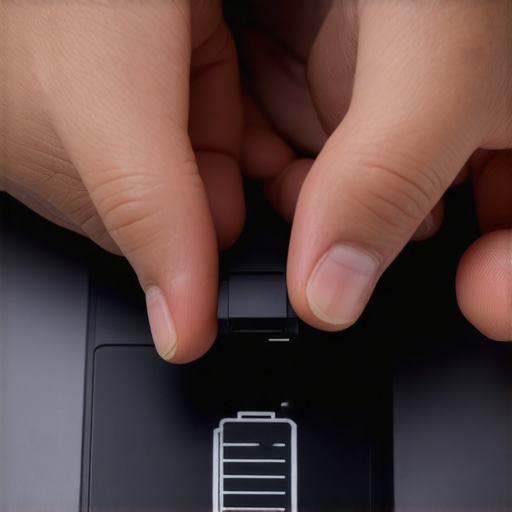 When it comes to optimizing our laptops, many of us fall into common traps, especially around accessories, deals, and device choices. Contrary to popular belief, not every accessory labeled as essential truly enhances productivity or gaming performance—often, they can be more of a distraction. For instance, many users assume that a larger external monitor or a specialized gaming mouse guarantees better performance. While these can help, their true impact depends on your workflow and system compatibility. An over-investment without understanding the nuances can lead to unnecessary expenses or suboptimal setups.
A frequent oops is prioritizing flashy features over core needs. For example, some believe that higher refresh rates or RGB lighting in gaming accessories will dramatically improve gameplay, but studies indicate that comfort and precision often matter more. According to a report by Laptop Buyers Club, gamers who focus on precision and ergonomics outperform those chasing aesthetics.
What about the myth that expensive laptops cost more for better durability? The truth is, premium models often include features that aren’t necessary for every user, like excessive ports or luxury finishes, leading to higher costs without functional benefits. Instead, selecting a device tailored to your use cases—like a durable business laptop from top business laptops for productivity—can offer better value.
One crucial nuance many overlook is the importance of upgradeability. Many think newer laptops always include the latest hardware, but models with soldered RAM or non-replaceable SSDs can limit longevity and upgrade paths. A perfect example is buying a budget gaming laptop, only to discover it can’t be upgraded easily, leading to premature obsolescence. According to experts, choosing devices with accessible components can save you money in the long run.
On deals, the allure of significant discounts might tempt you into low-quality or older models. But according to Laptop Deals, the best strategy is to look for verified deals on reputable platforms rather than chasing lowest prices. Sometimes, bundling accessories or opting for certified refurbished models offers greater value and reliability.
Have you ever fallen into this trap? Let me know in the comments. Remember, a savvy tech investment comes from informed choices rather than misconceptions. Whether selecting the right gaming laptop or finding deals that truly match your needs, understanding these hidden nuances makes all the difference.
How do I maintain my laptop over time?
Maintaining your laptop’s performance isn’t just about cleaning the screen—it’s about employing the right tools and following strategic routines that ensure longevity and reliability. One of my go-to methods involves using diagnostic software like battery health testing tools to monitor performance metrics regularly. This proactive approach catches potential issues early, saving you from costly repairs or replacements down the line.
Equally important is keeping your system free from clutter. I recommend employing trusted cleaning utilities, such as CCleaner or Advanced SystemCare, to remove unnecessary files and optimize startup processes. These tools help maintain speedy boot times and reduce background noise that hampers performance. Remember, staying on top of software updates ensures your laptop benefits from security patches and performance improvements—a habit I practice weekly.
Hardware health is vital, too. Regularly inspecting your cooling system prevents overheating, which can throttle performance or cause long-term damage. For this, I use compressed air cans and a small microfiber brush to clear vents and fans. For more advanced users, software like HWMonitor offers real-time temperature readings, helping you spot thermal issues early.
Tools I rely on for long-term laptop care
- Speccy for detailed hardware reports, assisting in diagnosing hardware bottlenecks.
- CrystalDiskInfo to monitor SSD/HDD health, ensuring data integrity and performance.
- BatteryCare for tracking battery cycles and improving lifespan through smart calibration.
Predicting where tech trends are headed, I believe modular laptops with swappable components will become more popular, enabling easier upgrades and repairs. This shift will make maintenance more straightforward and cost-effective, extending the usable life of devices.
Ever wondered how to keep your business laptop running smoothly year after year?
One effective technique is establishing a routine checklist: clean hardware every three months, run diagnostic tools biannually, and keep your firmware updated. Consistency is key. Also, investing in quality accessories, like a proper laptop stand and an ergonomic mouse, reduces physical wear and improves your ergonomics, contributing to longer device lifespan and personal well-being.
To truly maximize your device’s performance, try scheduling monthly checks with a combination of hardware monitoring and software cleanup. It’s a proactive habit that will pay dividends in reliability. For example, I recently used HWInfo to identify a cooling issue early, preventing what could have been a disastrous overheating episode. Making this a regular practice keeps your laptop working at peak levels consistently.
Remember, maintaining your equipment isn’t a one-time effort but a continuous process. Make these tools and routines part of your regular tech habits, and you’ll enjoy a smoother, more dependable laptop experience for years to come!
Unspoken Lessons from My Calibration Journey
One eye-opening realization was how easily we overlook the importance of regular battery calibration. I used to dismiss it as unnecessary maintenance, but after experiencing sudden shutdowns during critical moments, I understood that this simple practice can save hours of frustration. The micro-insights gained from repeated calibrations taught me that patience and routine care trump quick fixes and shortcuts.
Triggered My Interest in Hardware Transparency
Discovering how internal components like thermal paste or cooling fans impact overall device performance led me to question what I didn’t see. This curiosity pushed me to learn more about hardware upgradability and the real-world benefits of choosing models with accessible components. It reminds me that a laptop’s hidden secrets can make or break your long-term satisfaction, urging us to look beyond specs and focus on serviceability.
The Power of Systems Thinking for Longevity
I realized that keeping a laptop healthy isn’t just about isolated practices but understanding how software habits, physical maintenance, and environmental factors intertwine. For example, software updates paired with physical cleaning create a synergy that extends lifespan. This holistic view has transformed my approach, making me proactive rather than reactive, and it’s a lesson I wish I had embraced sooner.
Where to Go from Here to Elevate Your Laptop Care
My top resources include battery health testing tools, which provide quick insights into your device’s vitality, and ergonomic accessories that support physical well-being. Additionally, industry blogs and forums like trusted communities are invaluable for troubleshooting and tips that aren’t common knowledge but can significantly improve your experience.
Your Turn to Elevate Laptop Care and Enjoy Peak Performance
Taking a minute now to implement these practices might be the difference between a device that lasts and one that leaves you stranded. Remember, proactive maintenance and curiosity about your hardware make the journey more rewarding. So, what step will you prioritize today to get more out of your laptop? Share your plan below—I’d love to hear your thoughts!