
I remember the exact moment I realized my refurbished laptop’s sleek lid was marred by stubborn sticky residue. I was eager to give my setup a fresh look, only to find that remnants of labels, adhesives, or maybe even old sticker decals refused to budge. It was frustrating—like trying to scrub away memories of a questionable online purchase. That lightbulb moment made me dive deep into the art of cleaning laptop surfaces that have been through a lot before reaching us. If you’ve ever faced this sticky dilemma, you’re not alone, and good news: there’s a way to restore that pristine look without risking damage.
Why a Clean Laptop Lid Matters More Than You Might Think
Not only does a spotless laptop boost your workspace’s aesthetic, but it also affects the longevity of your device. Sticky residues, if left unchecked, can attract dirt, harbor bacteria, and even compromise the paint or coating on your laptop lid. Plus, a clean surface provides a better grip and reduces fingerprints, making your device look newer and more professional—especially important if you’re relying on your laptop for work or study. According to a study by Laptop Buyers Club, maintaining your device’s exterior can prevent minor cosmetic damages that often lead to costly repairs down the road. So why ignore that mess when a simple cleaning routine can keep your device fresh and functional?
Gather Your Supplies and Prepare the Workspace
Start by collecting essential cleaning materials: a soft microfiber cloth, isopropyl alcohol 70% or higher, a small spray bottle, and a plastic spudger or credit card to gently lift residues. Find a well-lit, clean workspace away from direct sunlight and static-prone surfaces. I once attempted to clean my laptop on a crowded kitchen table, which resulted in dust settling onto the surface. Moving to a tidy desk with a static mat made the process smoother and safer.
Power Down and Unplug the Laptop
Always turn off your device and disconnect all accessories before cleaning. This prevents accidental shorts or damage. I learned this the hard way when I accidentally powered my laptop on right after cleaning, causing flickering issues that took weeks to resolve. Taking these precautions ensures safety and helps achieve a streak-free finish.
Apply Alcohol-Based Solution Carefully
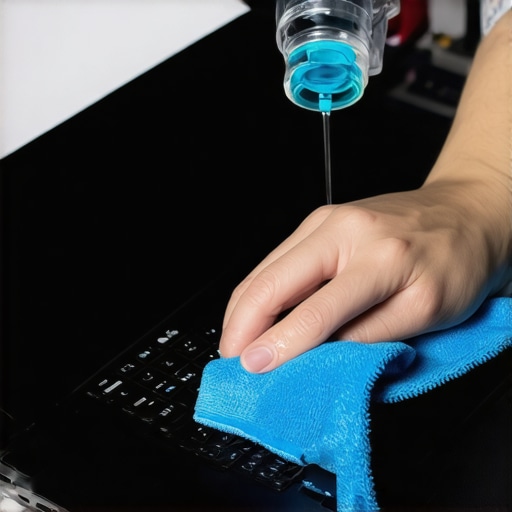
Lightly dampen the microfiber cloth with isopropyl alcohol—never pour directly onto the surface. Gently wipe the lid and surrounding areas, focusing on sticky residues. Avoid excess alcohol to prevent seepage into vents or ports. In a recent cleaning, I used a spray bottle to apply alcohol precisely, which melted away stubborn adhesive remnants without damaging the paint. This step is crucial for sanitizing and restoring the surface’s shine.
Tackle Sticky Residues with Precision
If residues persist, gently use a plastic spudger or a credit card to lift and peel them away. Do not use metal tools, as they can scratch or crack the surface. I once tried a metal knife—imagine the scratches! Using a plastic card prevented marks while effectively loosening stubborn glue or adhesive layers.
Address Textured or Hard-to-Reach Areas
For textured surfaces or edges around ports, wrap the cloth around a small brush or use a cotton swab dipped in alcohol. This ensures thorough cleaning without damage. I used an old toothbrush gently to scrub around hinges, removing accumulated grime that made my laptop lid look dull.
Dry and Inspect the Surface
Wipe down with a dry microfiber cloth to remove any remaining moisture. Check for missed spots or streaks, and repeat the process if needed. A quick inspection after cleaning revealed several smudges I hadn’t noticed before, reminding me to be meticulous. The goal is a spotless, residue-free surface that looks latest and well-maintained.
Protect Your Laptop Moving Forward
Consider applying a protective film or decal to prevent future residues. Additionally, maintaining a regular cleaning schedule—once every month—can keep your device looking new and prolong its lifespan. Remember, a clean surface isn’t just aesthetic; it’s a safeguard against dirt and bacteria accumulation that can degrade your device over time.
 Many users believe that all laptops are created equal, but here’s a truth many overlook: the nuances between different laptop categories can make or break your experience. For instance, it’s a mistake to assume that a high-spec gaming laptop automatically suits business tasks and vice versa. Gaming machines often prioritize GPU power, sacrificing battery life and portability, which are crucial for professionals. Conversely, business laptops focus on durability and long battery life but might lack the raw processing power needed for demanding creative workloads.
Another common myth is that bargains on laptop deals always get you the best value. In reality, some deals hide compromises like outdated processors or limited warranty support, which can cost more in the long run. Always scrutinize specifications and read user reviews before leaping on a seemingly great offer—a tactic emphasized in top deals guide.
Are Gaming Laptops Overhyped for Creative Professionals?
This question often puzzles even seasoned users. While high-end gaming laptops boast impressive GPUs, they might incorporate aggressive cooling solutions and chassis designs that increase weight and noise—distractions in a professional setting. An alternative is to consider a dedicated gaming machine that balances performance and portability without unnecessary bulk. According to hardware analyst experts, understanding the specific components and their real-world impacts is essential before investing. Consider the advanced nuances of hardware compatibility and thermal management; overlooking these can lead to overheating and reduced lifespan.
For students seeking laptops that excel both in learning and beyond, the key is to avoid overpaying for features they won’t use daily. Check out student-focused options that prioritize both power and portability. Remember, the goal is a balanced tool that meets your unique requirements without inflated costs.
Have you ever fallen into this trap? Let me know in the comments. Let’s keep the conversation going and help you make smarter laptop choices!
Investing in the Right Maintenance Tools
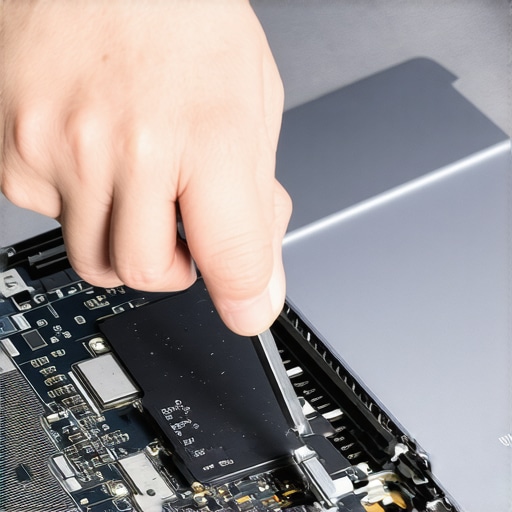
Maintaining your laptop’s performance over time requires more than just regular updates; it demands the right set of tools. My personal go-to toolkit includes a high-quality Phillips-head screwdriver for tightening loose hinges or replacing SSDs, a set of ESD-safe plastic prying tools to open up devices without damaging delicate components, and a magnifying glass for inspecting tiny screws or contact points. These tools ensure that I can handle most repairs or upgrades myself, saving time and money in the long run.
Keep Software Optimized with Trusted Utilities
Beyond hardware, software health is crucial. I rely on tools like CCleaner for cleaning unnecessary files, CrystalDiskInfo for monitoring SSD health, and Malwarebytes for regular security sweeps. These applications help me catch issues early before they become serious problems. Regularly running diagnostics with manufacturer-specific utilities—such as Dell’s SupportAssist or Lenovo Vantage—provides tailored insights, extending the lifespan of your device.
Implement Routine Physical Checks
Physical inspection is often overlooked. I schedule bi-annual checkups where I verify the condition of vents, fans, and ports. Using compressed air (with caution) to clear dust from cooling components prevents overheating, which can cause thermal throttling and hardware failure. For this, I trust an air duster designed for electronics to avoid moisture or damage.
Plan for Long-Term Reliability
Building a long-term maintenance plan involves tracking usage patterns. I use a simple spreadsheet to log battery cycles, software updates, and hardware replacements. This habit helps me anticipate when components like batteries or storage might need replacement, preventing sudden failures. I also schedule professional checkups annually, especially before major projects or travel, to ensure everything is in optimal condition.
How do I maintain my laptop’s health over time?
The key is combining vigilant physical care, regular software diagnostics, and strategic upgrades. Staying proactive with these habits allows your laptop to perform reliably for years. For example, replacing an aging battery or upgrading RAM at the right moment can breathe new life into older machines, especially models like the top business laptops. Looking ahead, advancements like self-cleaning cooling systems or predictive diagnostics may simplify maintenance, but for now, a toolkit filled with specific, high-quality instruments combined with disciplined routines is the smart way to go.
Remember, the longevity of your device depends on your diligence and the right tools. Try incorporating a dedicated compressed air canister into your routine to keep vents dust-free—it’s a small step that makes a big difference.
Lessons I Never Saw Coming About Laptop Care
- Never underestimate the power of a meticulous cleaning routine; the little extra effort prevents larger issues down the line, like internal overheating or sticky keys that hinder productivity. I once ignored a stubborn fingerprint smudge, only to find it attracted dust that caused thermal buildup—which slowed down my workflow unexpectedly.
- Choosing the right tools for maintenance can be the difference between easy fixes and costly repairs. Investing in a quality set of screwdrivers or a dedicated cleaning kit saved me frustration—and money—when I needed to open or refresh my device.
- It’s crucial to understand your laptop’s unique needs instead of relying on generic advice. My experience with gaming laptops taught me that cooling pads and regular dust removal are vital to prevent overheating, which isn’t as critical for ultrabooks designed for mobility.
- Staying informed through specialized sources ensures you’re ahead of potential issues. Following dedicated blogs and forums allowed me to discover subtle firmware updates that improved performance, sparing me from hardware upgrades.
- Finally, maintaining a proactive mindset about hardware health fosters longer device lifespan. Scheduling routine checks and cleaning sessions helped me avoid unexpected downtimes during crucial work periods, ultimately saving stress and resources.
Tools I Trust for Laptop Longevity
- iFixit Toolkit: Its comprehensive set of precision screwdrivers and opening tools makes DIY repairs straightforward, saving me from costly professional services.
- Microfiber Cleaning Cloths: I always keep a set handy; their gentle material effectively removes smudges without scratching surfaces, keeping my device pristine.
- Compressed Air Cans: Crucial for clearing out dust from vents and fans, preventing overheating. I prefer a model with a locali nozzle for targeted cleaning.
- Sanitizing Wipes with Isopropyl Alcohol: Perfect for quick disinfecting, especially during flu season or shared workspace use, ensuring my device stays hygienic.
Your Move to Keep Things Running Smoothly
Taking care of your laptop isn’t just about immediate fixes; it’s an investment in its future. Regularly cleaning and inspecting your device, understanding its unique hardware needs, and equipping yourself with trusted tools can transform your experience—and prolong the life of your technology. Remember, a well-maintained laptop fuels your productivity and confidence, letting you conquer new challenges with ease. Why not start today? Share your own maintenance tips or ask questions below—let’s build a community that’s as dedicated to quality as you are!